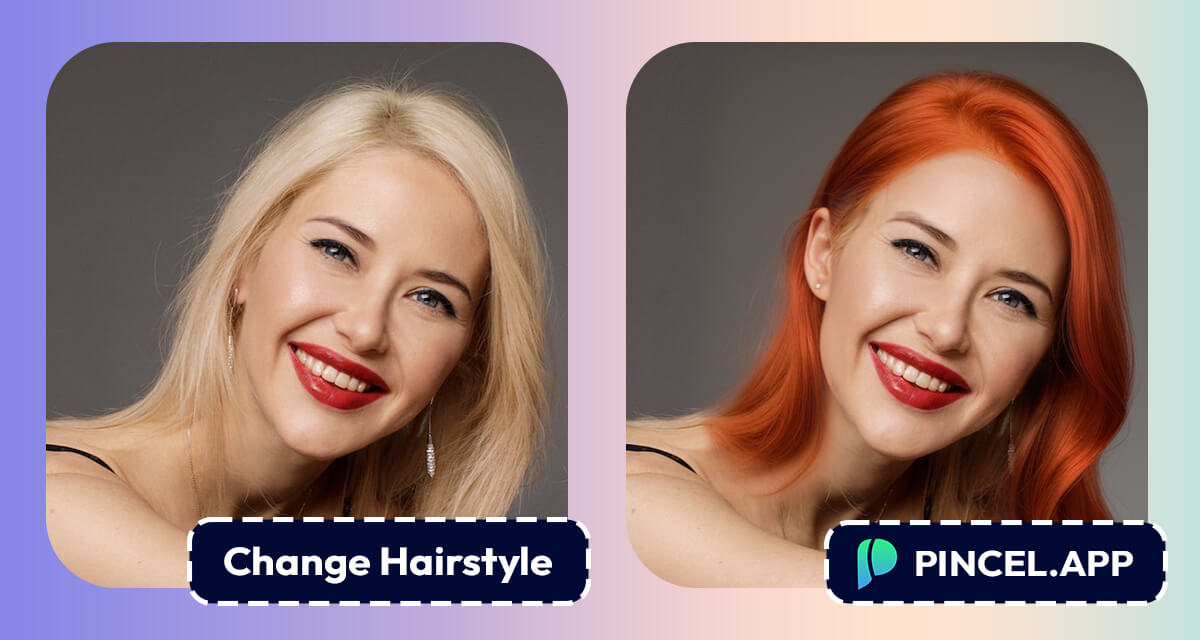
A new hairstyle changes everything.
The way you look and even the way you feel walking into a room.
The way people see you before you even say a word.
But choosing one without seeing it first has always been a leap of faith.
The problem is every face is different.
A cut that looks incredible on someone else might not work the same way on you.
That is exactly why trying it virtually first just makes sense.
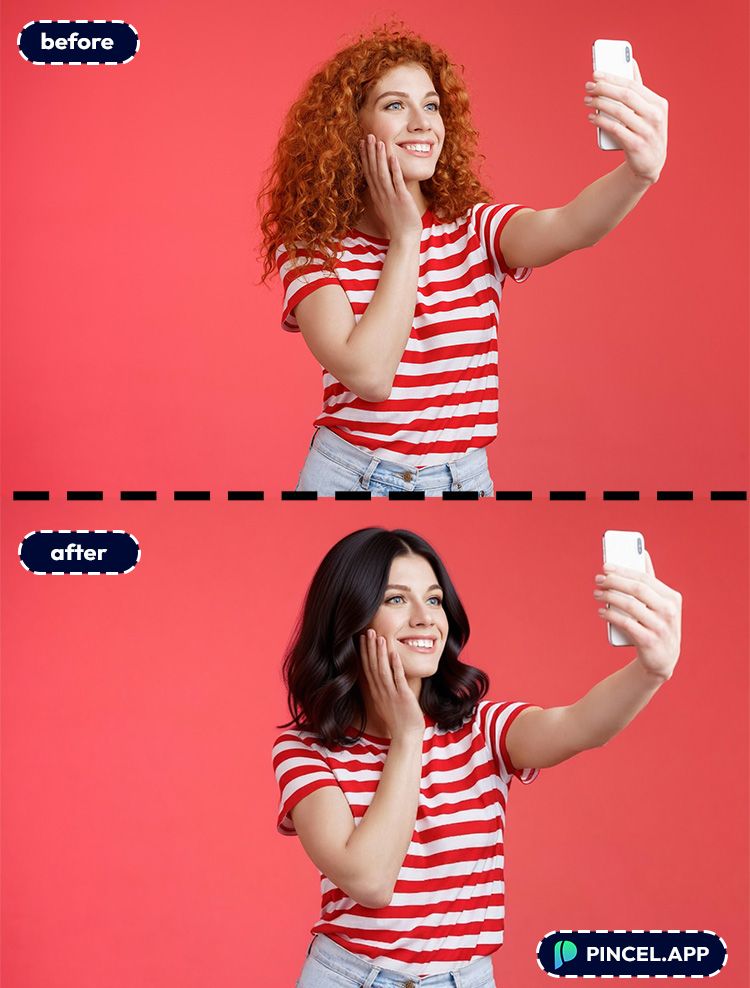
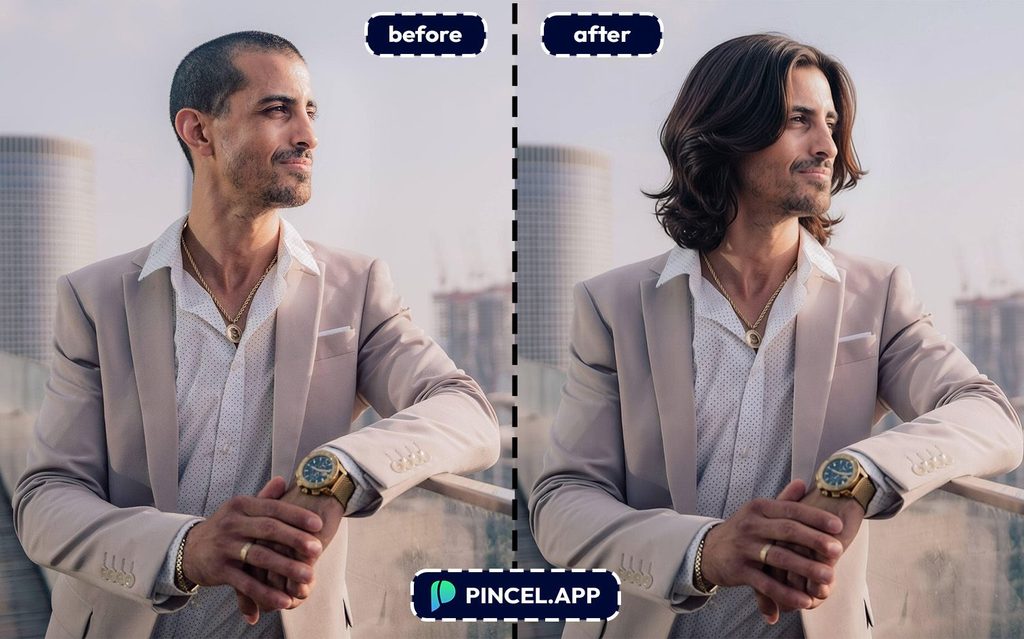
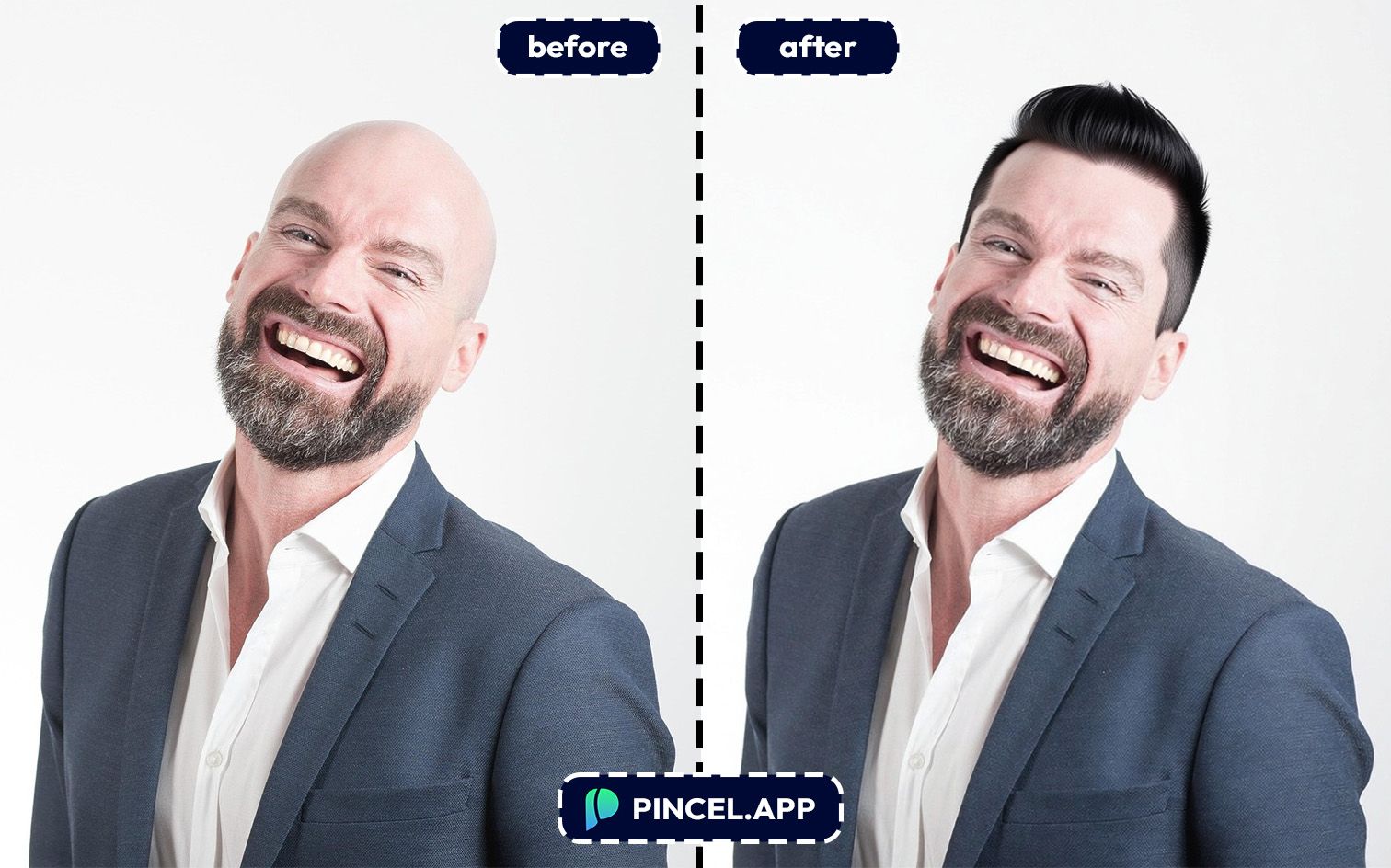
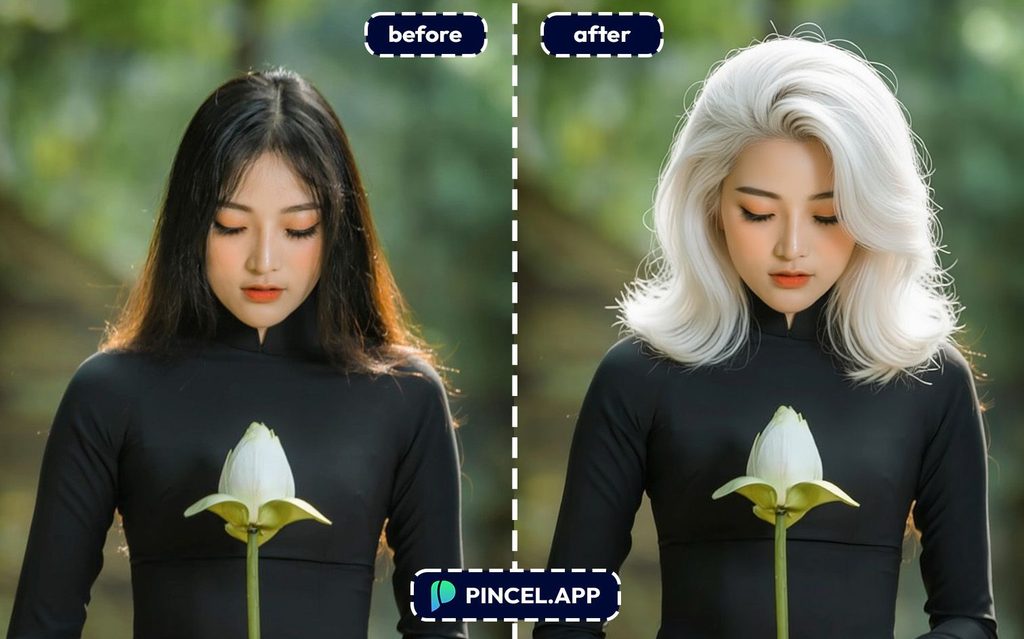
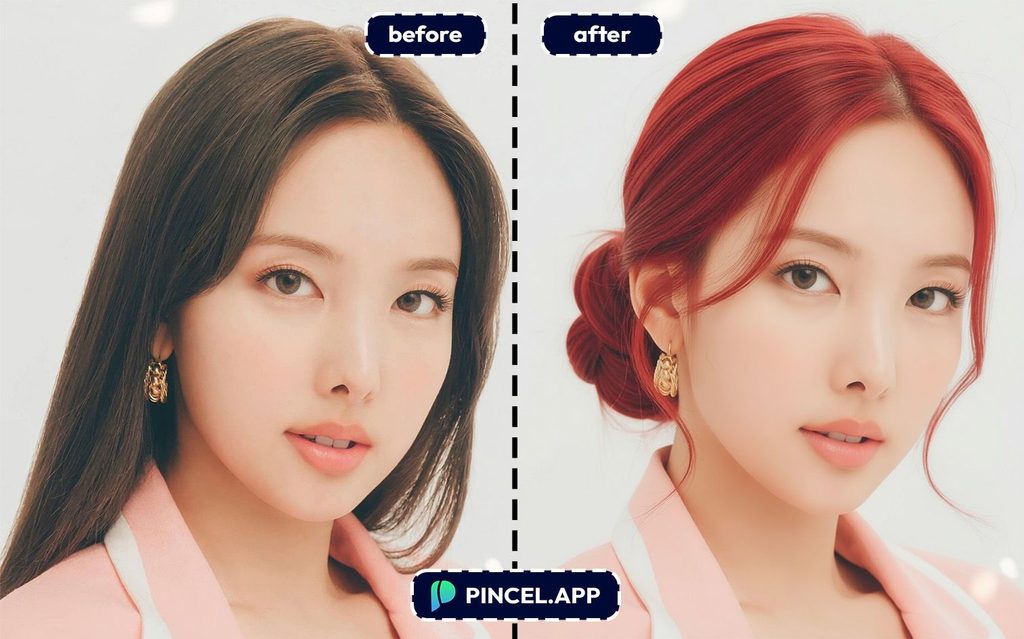
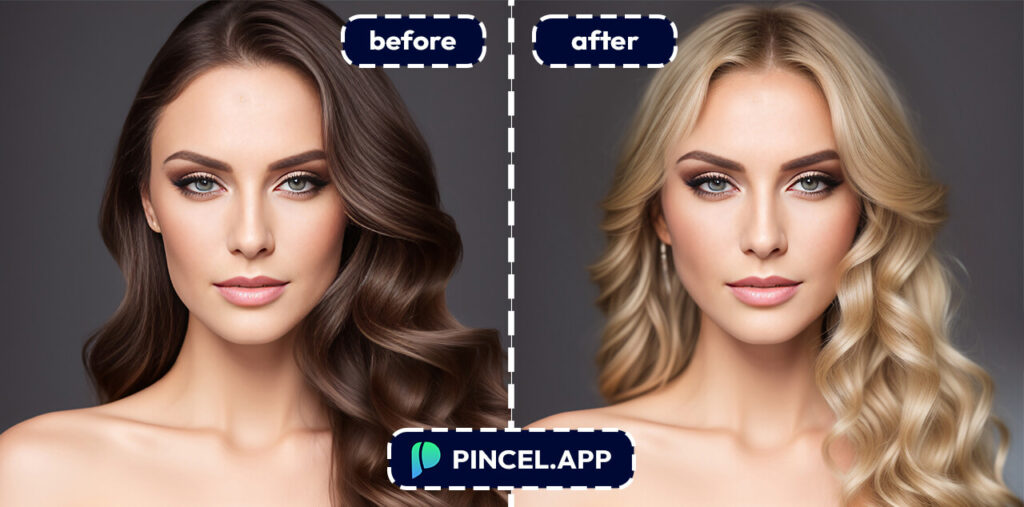
Upload your photo to AI Hair Studio Tool, click the hairstyle you want, and see it on your actual face in seconds.
Here’s how it works:
Trying a New Hairstyle Is Harder Than It Seems ✂️
Walking into a salon with a reference photo feels like a solid plan.
However, it rarely goes exactly as expected.
The cut looks different on your face than it did on the person in the photo.
The length sits differently. The texture behaves differently.
Person to person it just don’t match.
Photoshop can do it, sure.
But you’ll be masking hair, matching strands, fixing edges or fighting lighting for a long period of time.
That is exactly why seeing it first makes all the difference.
Upload your photo to Pincel AI Hair Studio, describe the style you want, and see it on your face in seconds.
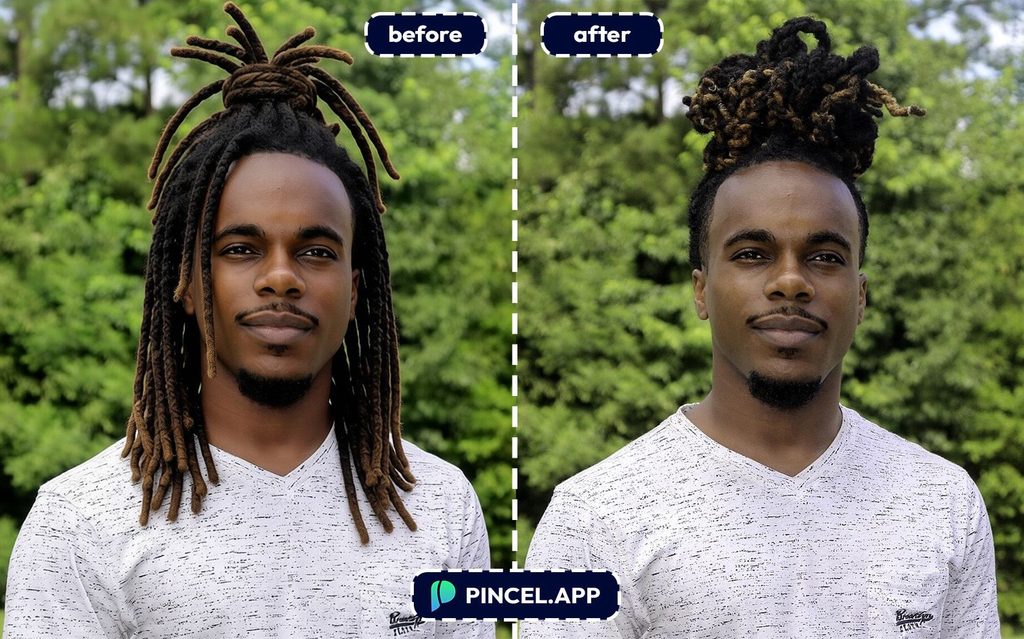
How to Visualize Any
Hairstyle Using AI ✅
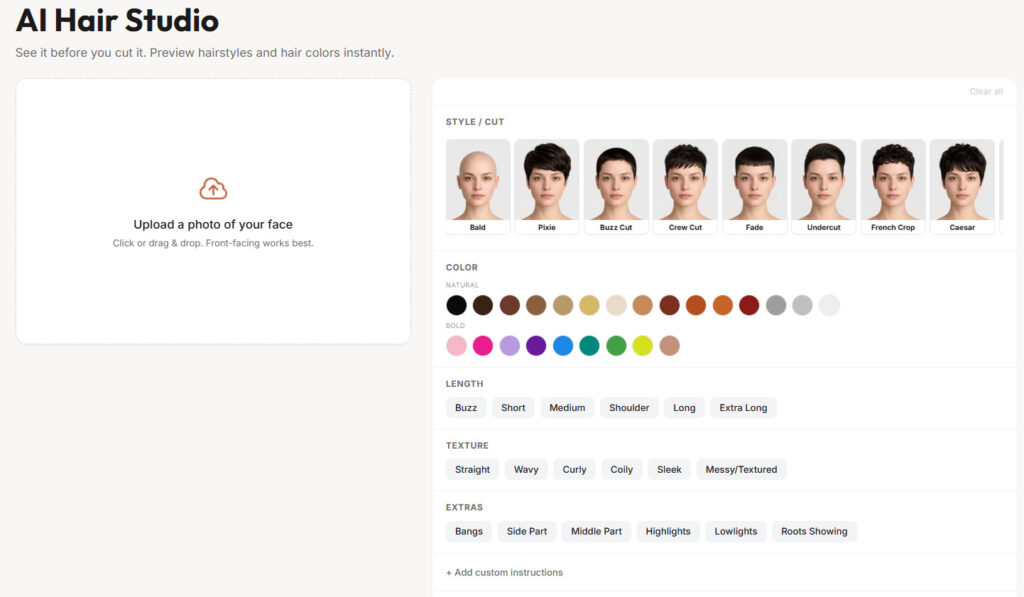
🖼️ Step 1: Upload Your Photo
Go to the Pincel AI Hair Studio and upload a clear photo of your face.
Generally front-facing works best.
You’ll see your image on the left, with all controls neatly on the right.
💇 Step 2: Pick a Style or Cut
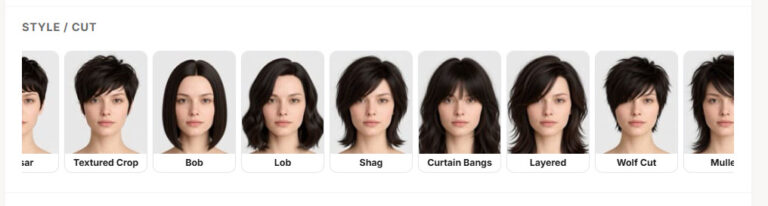
Start with the Style / Cut section. There are several options, you can choose from,
✅ Bald, Pixie, Buzz Cut, Crew Cut
✅ Fade, Undercut, French Crop, Caesar
✅ Lob, Shag, Curtain Bangs, Layered, Wolf Cut, Mullet
✅ Side part, Straight & Sleek, Beach Waves, Curly,
✅ Braids, Ponytail, Space Buns, Half up, Blowout
✅ Bun, French Twist, Chignon, Messy Updo etc.
Click any style and see it applied instantly.
🎨 Step 3: Choose Hair Color
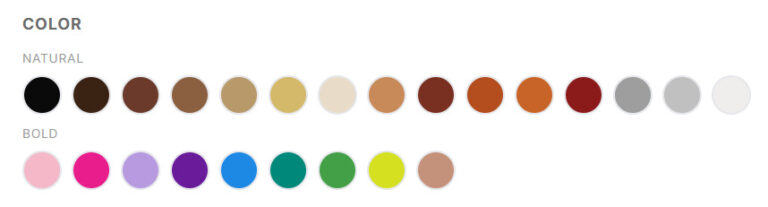
Now is the fun part, Move to the Color section.
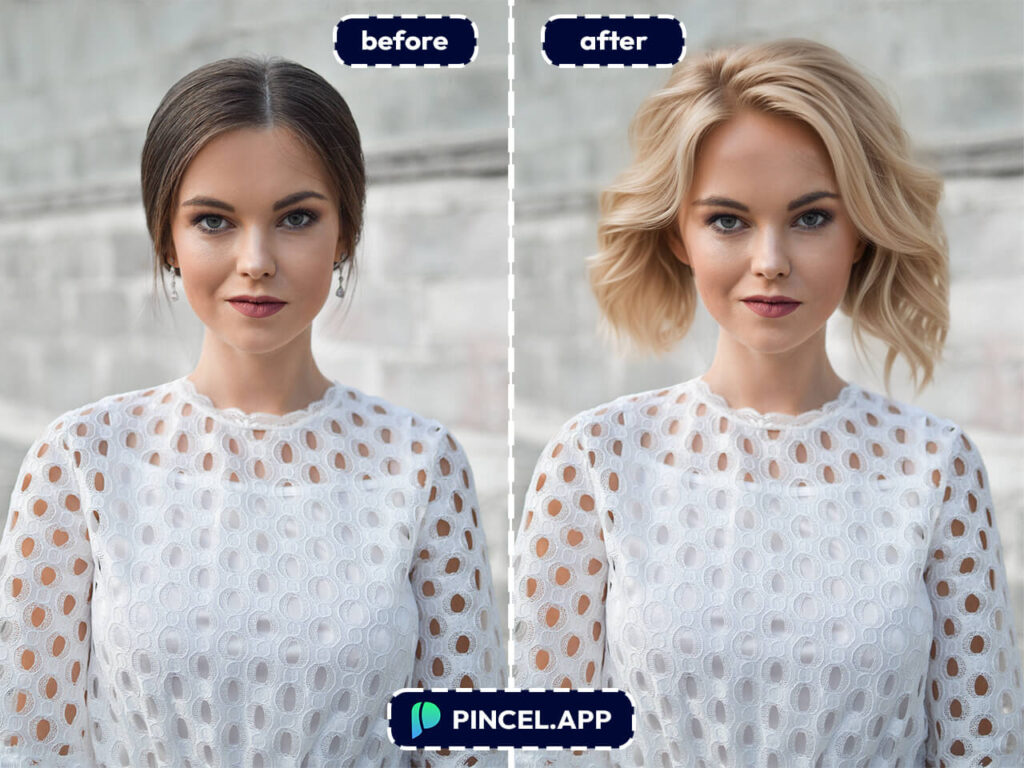
✅ Natural shades (black, brown, blonde, auburn, silver, white etc. )
✅ Bold shades (pink, purple, blue, green, violets and more)
Tap a color and watch your look change in real time.
📏 Step 4: Adjust Length & Texture
Refine the look further, by mixing and matching.
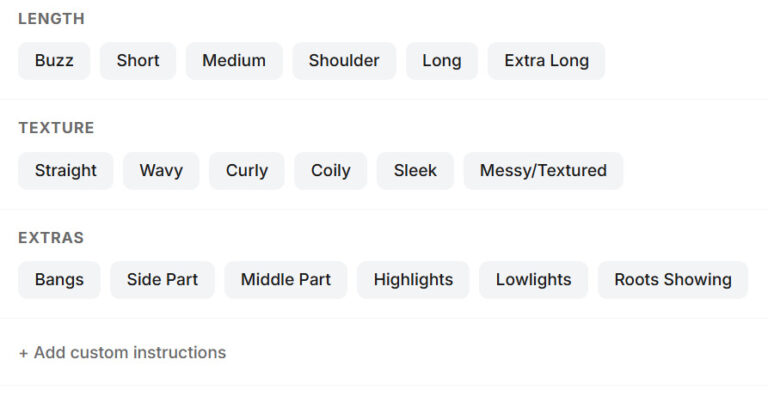
Length:
✅ Buzz, Short, Medium
✅ Shoulder, Long, Extra Long
Texture:
✅ Straight, Wavy, Curly
✅ Coily, Sleek, Messy / Textured
You can use Extras for small but powerful changes.
Tiny tweaks. Big difference.
✅ Bangs, Side Part, Middle Part
✅ Highlights, Lowlights, Roots Showing
Want more control? Type it out.
There’s option for custom instructions also,
✅ “Keep my face shape the same”
✅ “Make it subtle and natural”
✅ “Add volume on top”
⚡ Step 5: Generate & Try Variations
Click generate and wait a few seconds.
Not perfect? Change one thing and try again.
Fast, easy… and a may be a little addictive.
📥 Step 6: Download Your Favorites
Pick your best look and download it.
Or save a few options and show your stylist, no more guessing job.
Who Is This For?
Haircut Stylists — Test the bob, the curtain fringe, the shag cut, or the buzz before a single strand gets touched.
Color experimenters — Try copper, platinum, chocolate brown, or that soft black you have been thinking about for months without gambling on bleach.
If you want to go further, pair this with change eye color for a full look transformation.
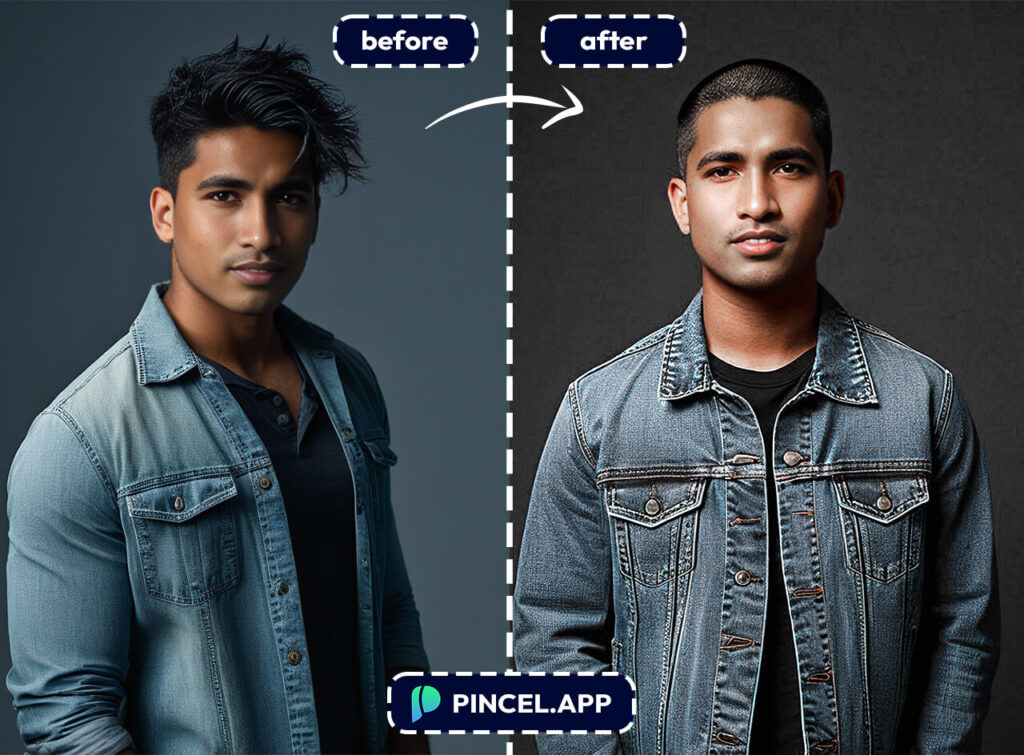
Content creators — Need multiple looks for thumbnails, reels, or brand content? Mock up five styles in minutes and pick the one that works.
Combine with change change clothes in photo for a complete style refresh in one session.
Beauty and fashion brands — Generate quick concept visuals for trend posts, campaign ideas, and A/B tests without booking a model or a stylist.
Browse AI fashion styles for more creative direction.
Professionals updating their headshot — Test a cleaner, more polished hairstyle before committing to a new profile photo.
If you are doing a full professional refresh, check out AI resume photo.
Stylists and hairdressers — Show clients two or three realistic directions before picking up the scissors. Alignment before the cut saves everyone time.
For better framing and positioning, see change pose in photo.
Anyone who is just curious — Trends are more fun when they are completely reversible. This is about as reversible as it gets.
Frequently Asked Questions 🤔
What kind of prompt works best for realistic hair edits?
Be specific about the cut, length, texture, and style.
Adding details like “natural hairline,” “soft texture,” and “match existing lighting” helps avoid the fake filter look.
How do I try a new hairstyle using AI on my own photo?
Upload a clear selfie to Pincel AI Hair Studio and describe the hairstyle you want.
The AI generates a realistic preview in seconds and you can keep tweaking the prompt until it looks right.
Can AI show me what I would look like with bangs or a bob?
Yes. Upload a front facing selfie and describe exactly what you want.
Something like “curtain bangs” or “chin length bob with layers” gives the AI enough detail to work with.
Is the result good enough to show my hairstylist?
Yes, good enough to communicate direction and get aligned before the cut.
Bring two or three variations along with a real reference photo so your stylist knows exactly what you are going for.
Do I need Photoshop or any software?
No. Pincel runs entirely in the browser. The whole process is upload, describe, generate, and download.
Is Pincel AI Hair Studio free to try?
Yes. New accounts get 20 free credits with no credit card needed. That is enough to try several different styles before deciding what you actually want.
A New Hairstyle is Just a Click Away 👧
Every great haircut starts with a decision.
And the best decisions are the ones made after actually seeing the result first.
Upload your photo to Pincel AI Hair Studio Tool and describe the style you have been thinking about.
The bob. The curtain fringe. The big chop you keep putting off.
See it on your face in seconds.
Like it? Save it and walk into your next appointment knowing exactly what you want.
Not feeling it? Try another style and go again.