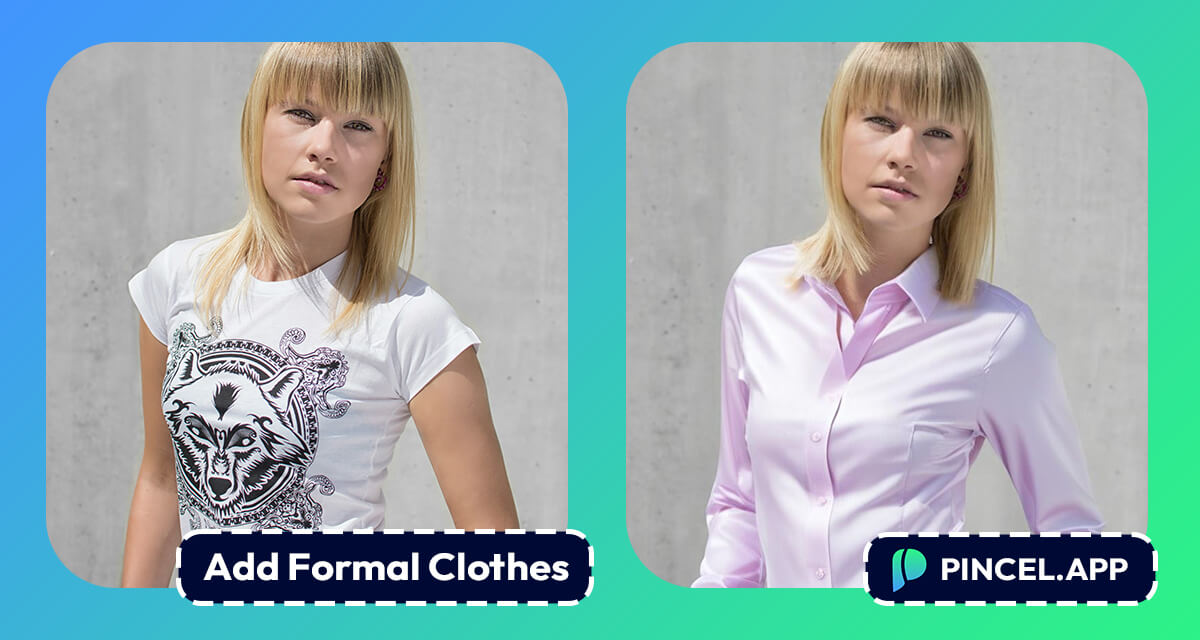
Not every photo is taken with the right outfit on.
Sometimes the best shot of you exists but you are wearing a casual t-shirt when you needed to look professional.
A LinkedIn profile, a resume photo or a corporate headshot.
These all need a certain look and retaking the photo is not always an option…
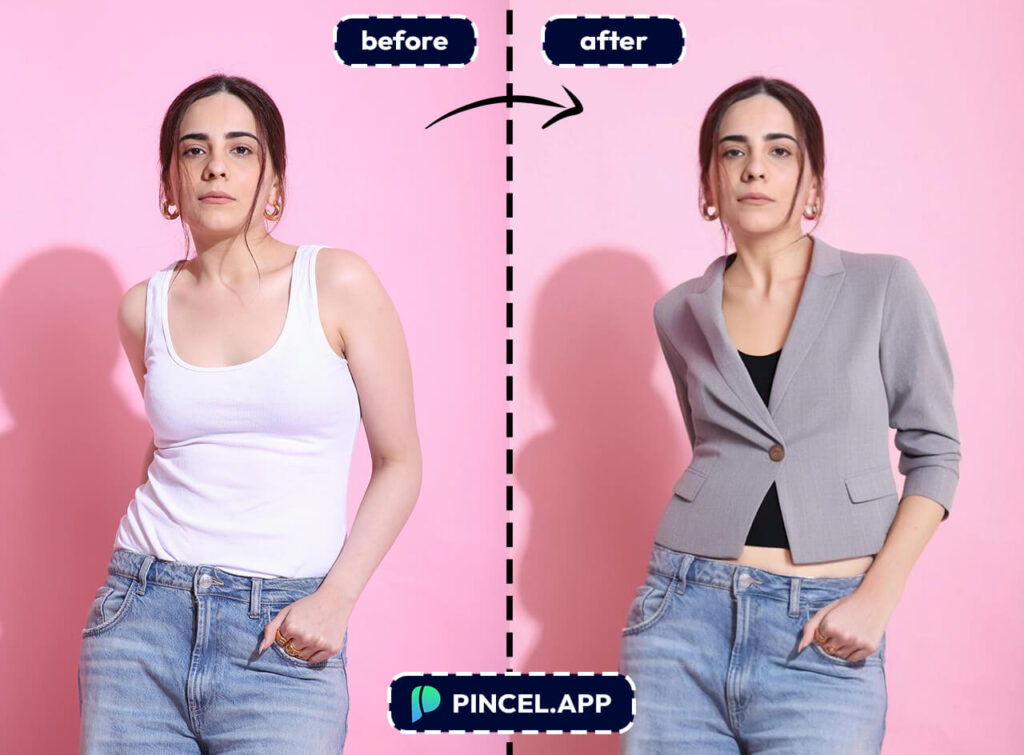
Upload your photo to Pincel AI Photo Editor, describe the formal outfit you want, and get a professional looking result in seconds.
Same photo, but a different outfit and the photo is ready to use.
Here’s how it works:
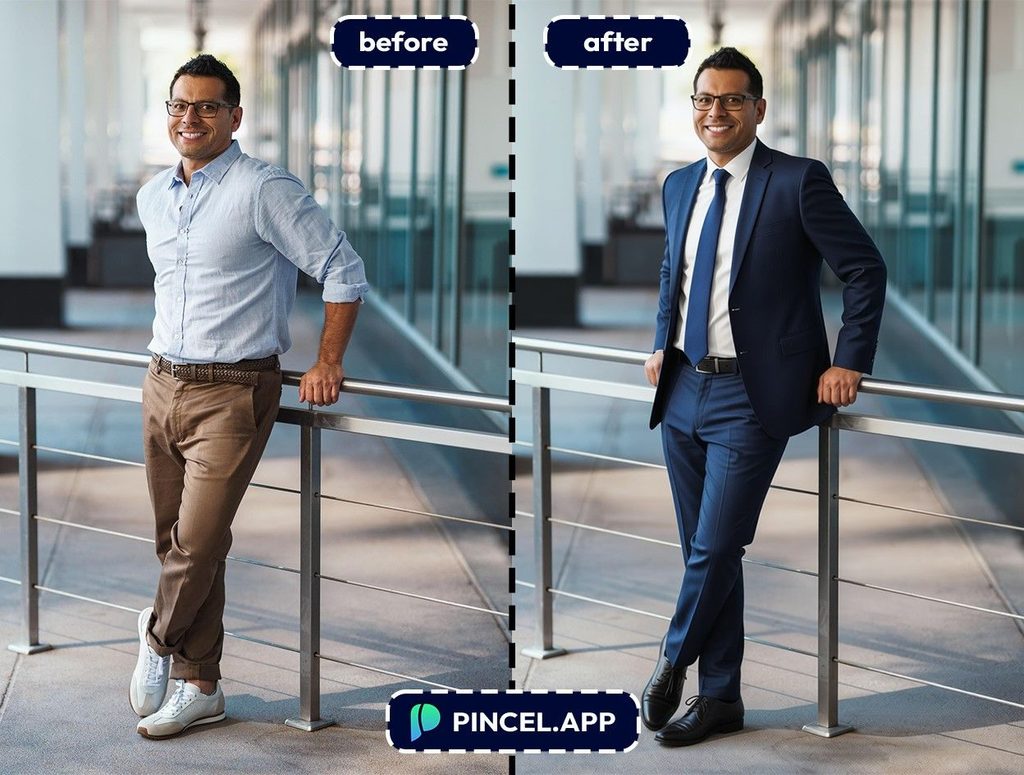

Why Adding Formal Clothes Manually is Difficult 👔
Swapping casual clothes for formal ones in Photoshop is a long process.
You need to mask the existing outfit, source a formal clothing image, and try to place it on the person naturally.
Sometimes the lighting does not match and the collar sits wrong.
In the end it takes too much effort which is not always worth of your time.
That is exactly why Pincel AI Photo Editor exists.
Describe the formal outfit you want and get a realistic natural result in seconds.
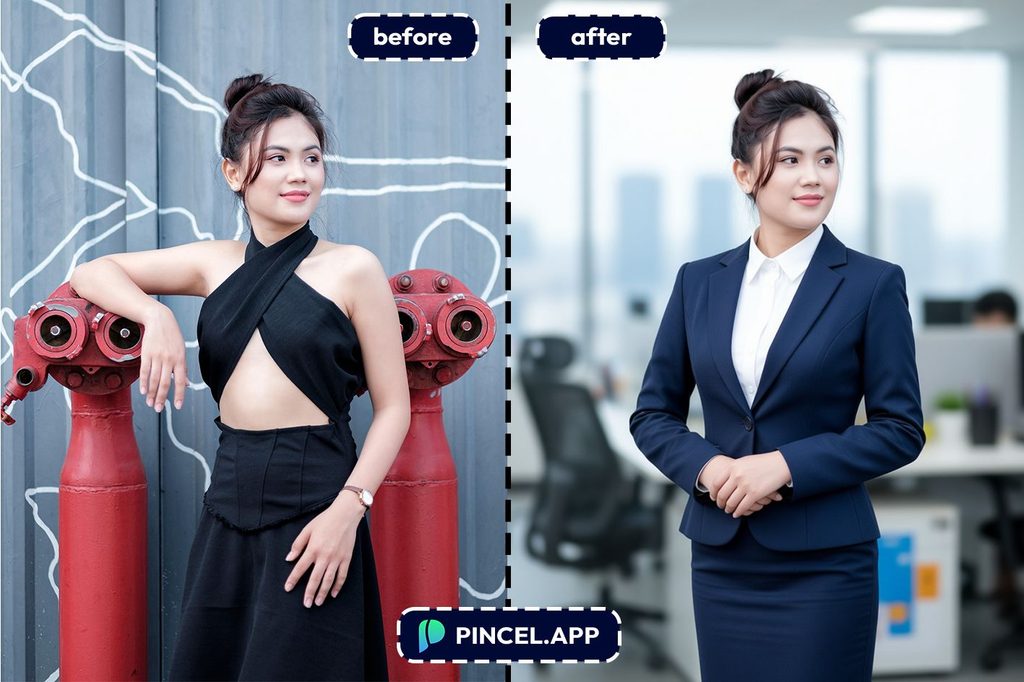
How the Process Works✅
🖼️ Step 1: Upload Your Photo
Go to Pincel AI Editor and upload a clear photo where your upper body or full body is visible.
A front facing photo with good lighting gives the best results.
The cleaner the original photo, the more realistic the formal outfit will look.
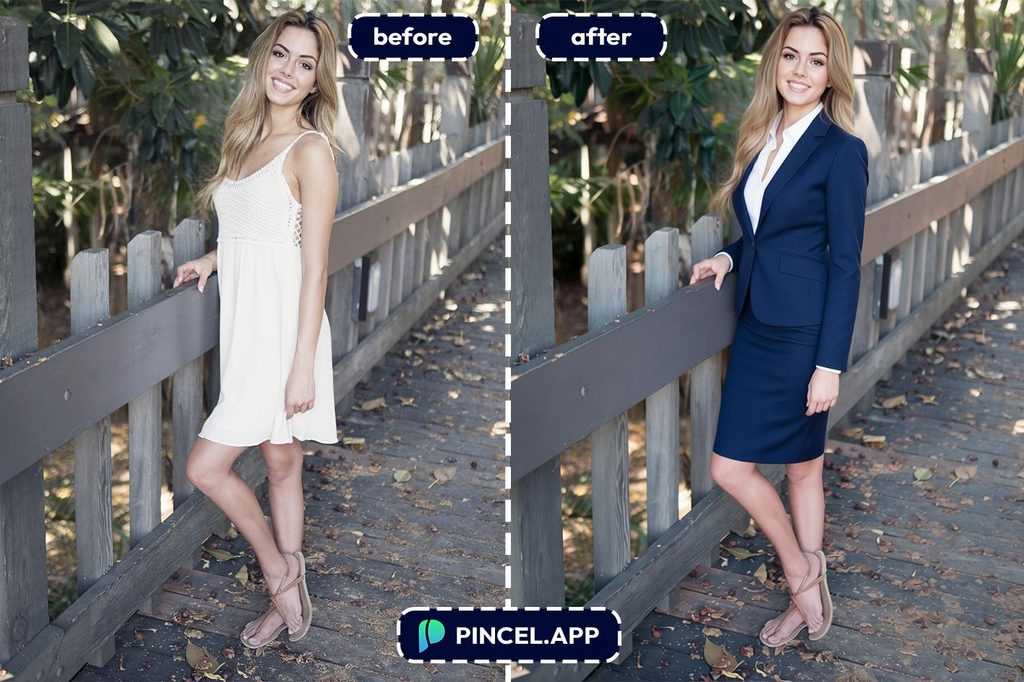
📝 Step 2: Describe the Formal Outfit You Want
In the prompt box, describe the outfit clearly and specifically.
Try prompts like:
“Add a navy blue business suit with a white dress shirt and tie, realistic fabric texture”
“Replace the outfit with a black formal blazer and white collar shirt, natural lighting”
“Add a charcoal grey suit jacket with a subtle pattern, professional look, match existing lighting”
“Change to a formal white dress shirt with a dark tie, corporate style, photorealistic”
Not sure of the exact style? Describe the occasion instead.
“Job interview,” “corporate headshot,” “business meeting,” or “LinkedIn profile” and the AI figures out the right look.
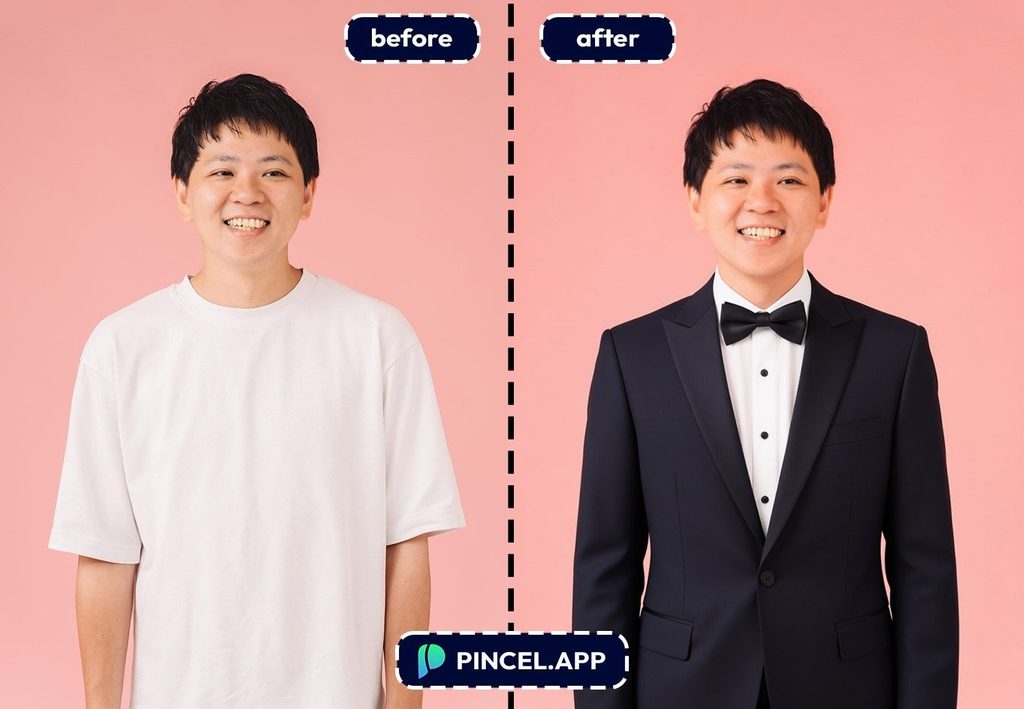
⚡ Step 3: Hit Generate
Wait a few seconds and Pincel adds the formal outfit while keeping your face, expression, and background completely consistent.
If the collar sits slightly off or the color needs adjusting, tweak one detail in the prompt and regenerate.
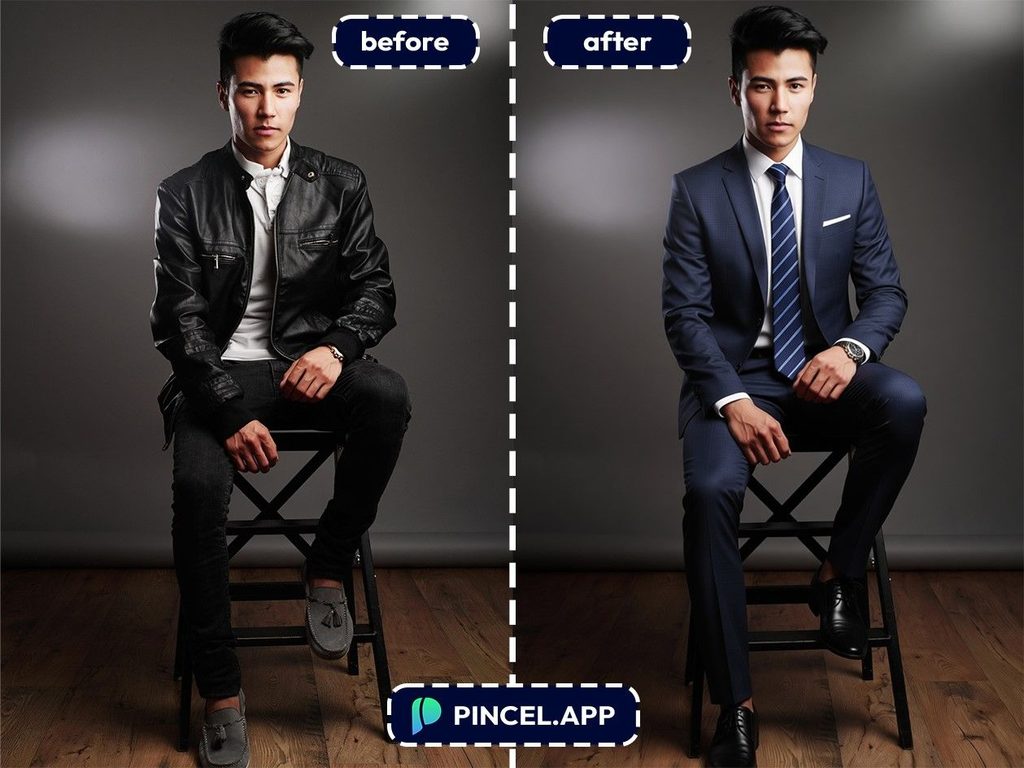
📥 Step 4: Download and Use
Once it looks right, download the edited photo.
Use it for your LinkedIn profile, resume, corporate headshot, or anywhere you need to look professional without a full shoot.
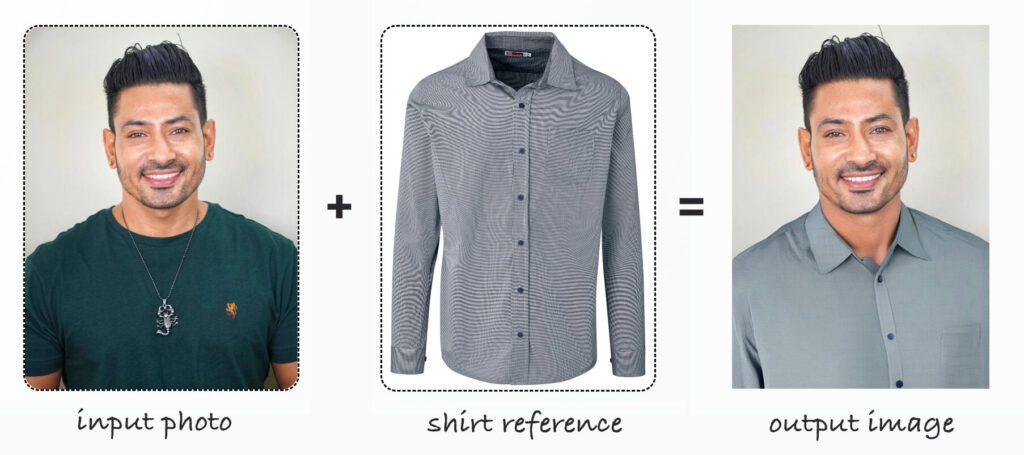
NB: you can also try out Pincel AI Headshot Maker, which already has a wide selection of the most popular headshot clothing styles.
Who Needs Formal Clothes on Photo Anyway?
More Professional You: Add a suit or dress in your photo and watch your professional credibility rise. It’s an instant upgrade to your LinkedIn or company profile!
Ace Your CV: First impressions count and also even online. Wearing formal attire, even digitally, sets a serious and polished tone right from the start.
Stand Out on Social Media: A formal-dressed photo will make you stand out from the travel gurus. It’s a great way to grab attention.
Create a Lasting Impression: Whether you’re a consultant, lawyer or an entrepreneur, a formal outfit in your photo signals trust and competence to potential clients.
Enhance Dating Profiles: Looking to impress potential matches? A chic and formal attire in your dating profile photo can suggest sophistication and seriousness.
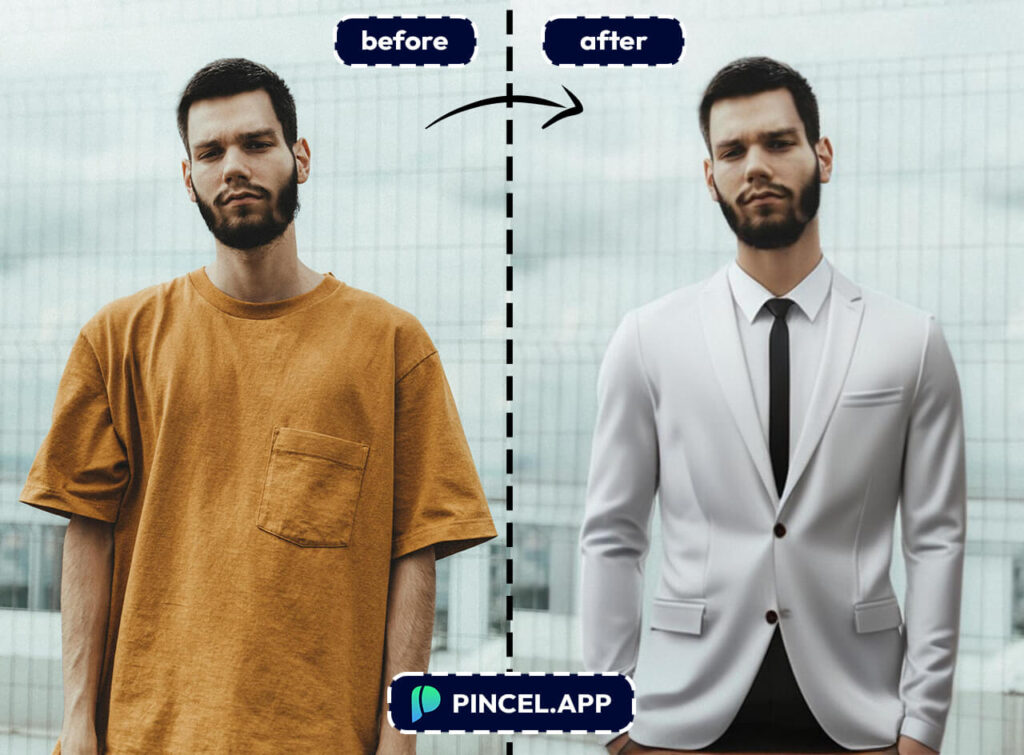
Feel Good Factor: Just dressing up, even digitally, can boost your mood and confidence. It’s about feeling as good as you look.
Frequently Asked Questions 🤔
Can AI realistically add formal clothes to a casual photo?
Yes. Pincel AI Editor generates realistic formal outfit additions that match the lighting, pose, and body shape in the original photo.
The results are detailed enough for LinkedIn profiles, resumes, and corporate headshots.
What kind of photos work best for adding formal clothes?
Clear, well lit photos where the upper body or full body is visible work best.
Front facing or slightly angled shots give the most accurate results.
Heavy shadows, extreme angles, and very busy backgrounds can affect the output quality.
Can I specify the exact type of formal outfit I want?
Yes. Be as specific as you want about the style, color, fabric, and occasion.
The more detail you give in the prompt, the closer the result is to what you had in mind.
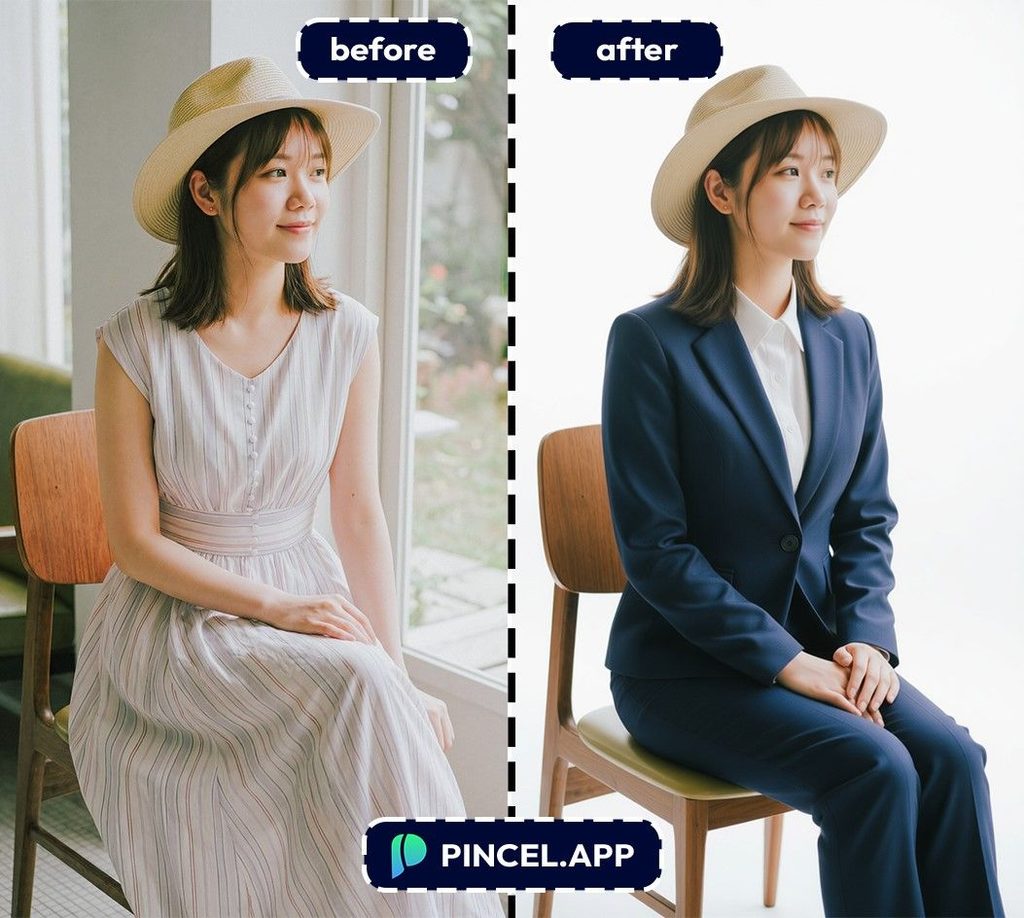
Will my face and background stay the same after adding the formal outfit?
Yes. Pincel keeps your face, expression, skin tone, and background intact while only changing the clothing.
The edit is targeted to the outfit area only.
Can I use the result for a professional LinkedIn profile or resume?
Yes. The results are realistic enough for professional use including LinkedIn profiles, resumes, and corporate headshots.
For best results use a clear front facing photo with good lighting as your starting point.
Is Pincel AI Editor free to try?
Yes. New accounts get 20 free credits with no credit card needed.
That is enough to try several different formal outfit options before deciding what works best.
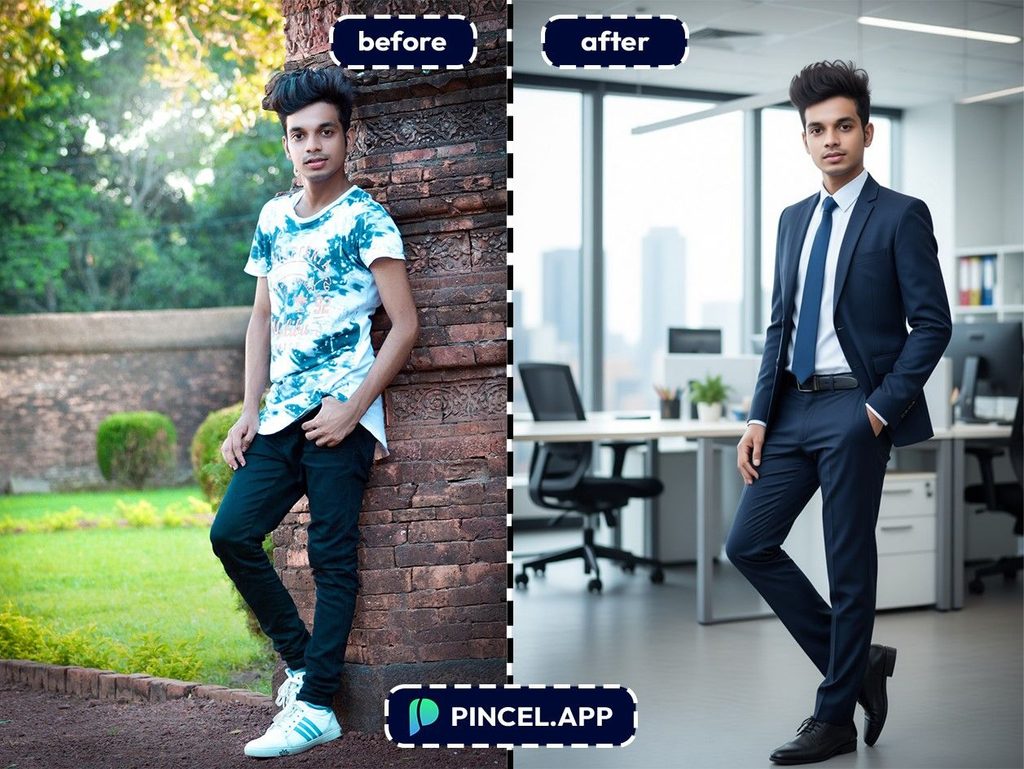
Suit Up: Top 5 Clothes:
Formal Shirts: Instantly transform your image into business-ready and perfect for professional profiles and interviews.
Suits: Ideal for a sharp and authoritative look, suits are great for LinkedIn photos and business events.
Blazers: Easily upgrade a casual outfit to something more polished, suitable for corporate settings.
Evening Gowns: Add elegance for gala or formal party photos, showcasing sophistication.
Tuxedos: Best for wedding or upscale event pictures, offering a classic, refined style.
Get Dressed to Impress
The right photo can open doors.
And now the right outfit is just one prompt away.
Upload your photo to Pincel AI Photo Editor, describe the formal look you want, and get a professional result in seconds.
A sharp suit. A clean blazer. A crisp white shirt with the right collar.
Try a few versions until one looks exactly how you want to show up professionally.
Update your LinkedIn or polish your resume photo.
Walk into your next opportunity looking the part.
No wardrobe needed and no reshoot required.