
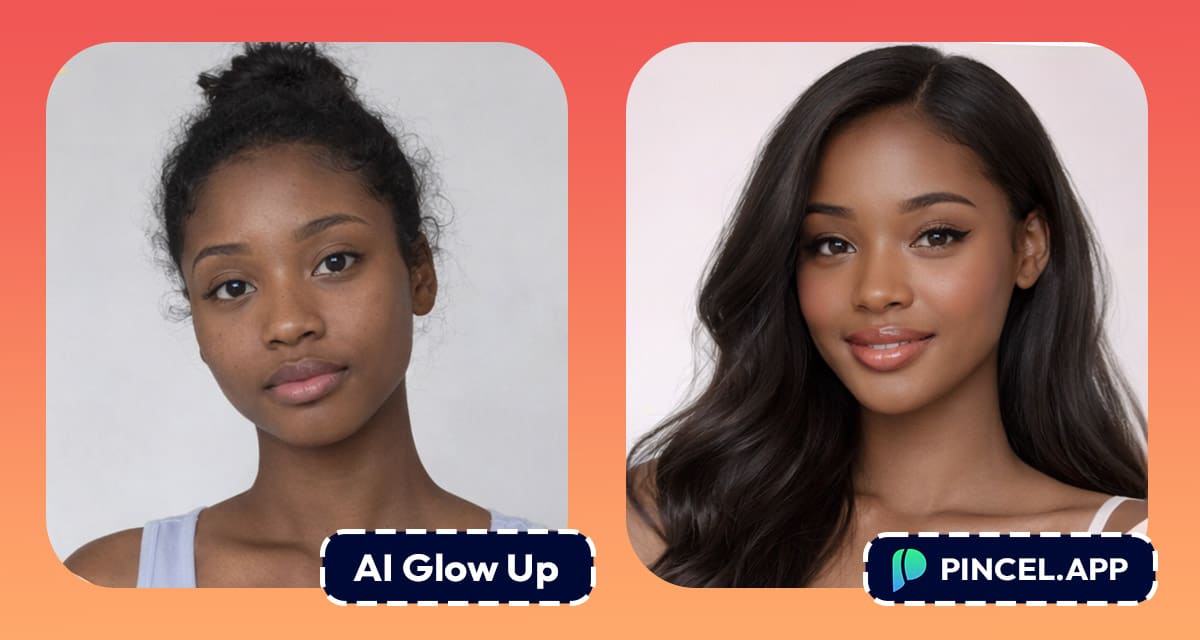
Ever looked at a photo and thought: “That’s me… but not my best me.”
Maybe it’s the lighting, the angle, the outfit or the “why did I stand like that” posture.
And sure, you could fix your portrait in Photoshop.
But you shouldn’t need 47 layers and a minor identity crisis to look great in one picture.
With Pincel AI Photo Editor, you can create a “better me” photo in under 10 seconds by editing your real photo with a simple prompt.
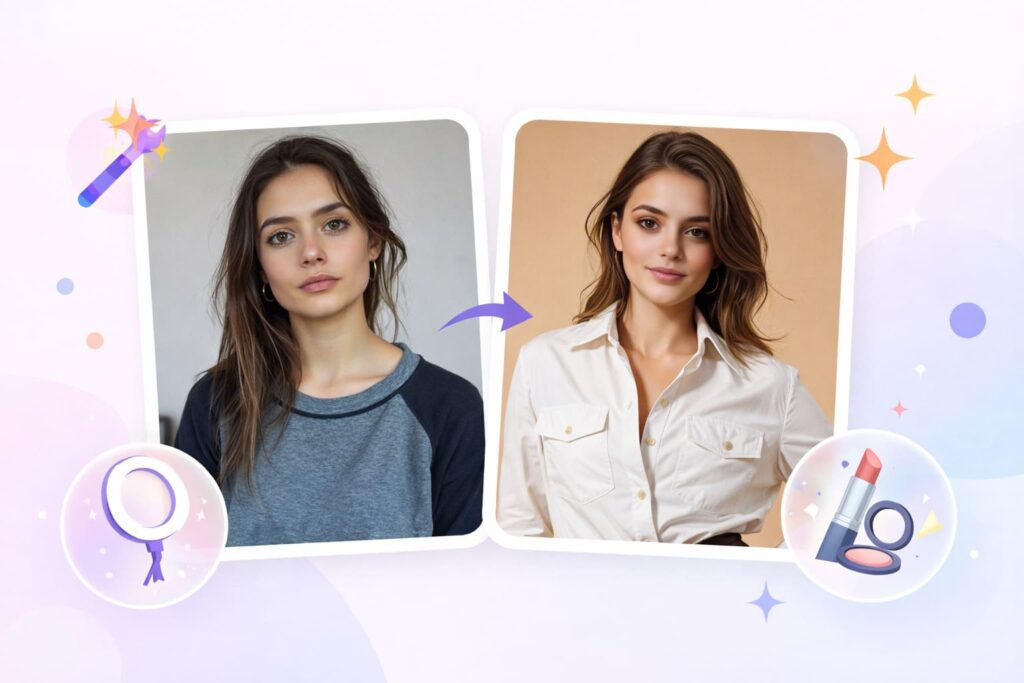
Just upload, describe the upgrade and let AI do your glow up photo.
Here’s how it works:
How to Create a “Better Me” Photo — Step by Step ✅
🖼️ Step 1: Upload Your Photo
Go to the Pincel AI Editor.
Upload the photo you want to upgrade.
A clear face helps, but casual selfies work surprisingly well too.
📝 Step 2: Tell the AI What “Better Me” Means
In the prompt box, describe your ideal version of the same photo.
Keep it specific, but still natural.
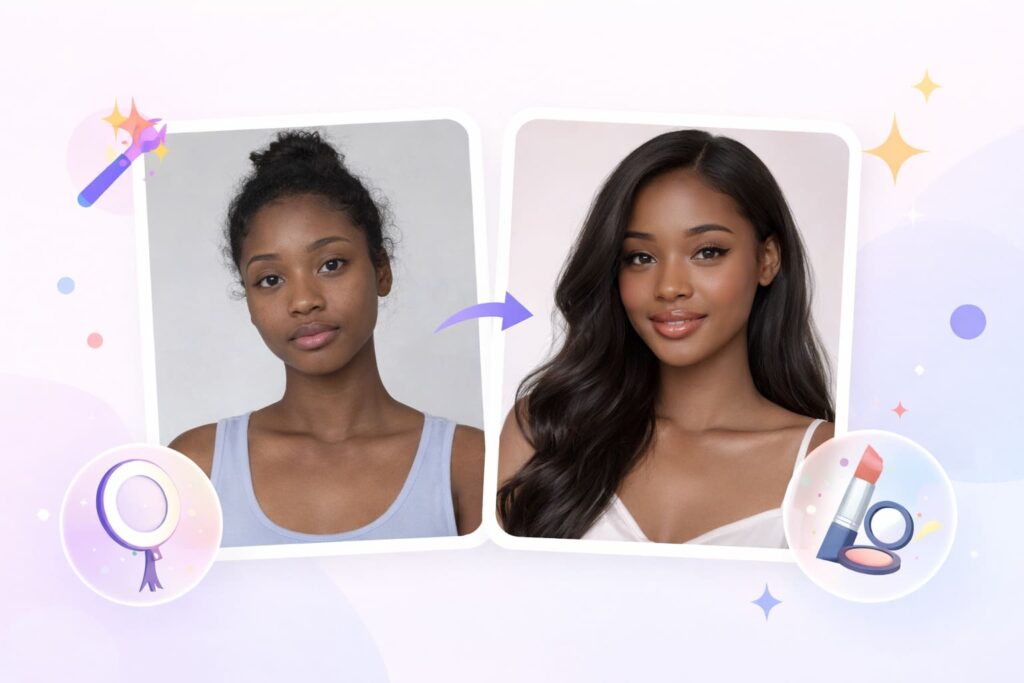
Try prompts like:
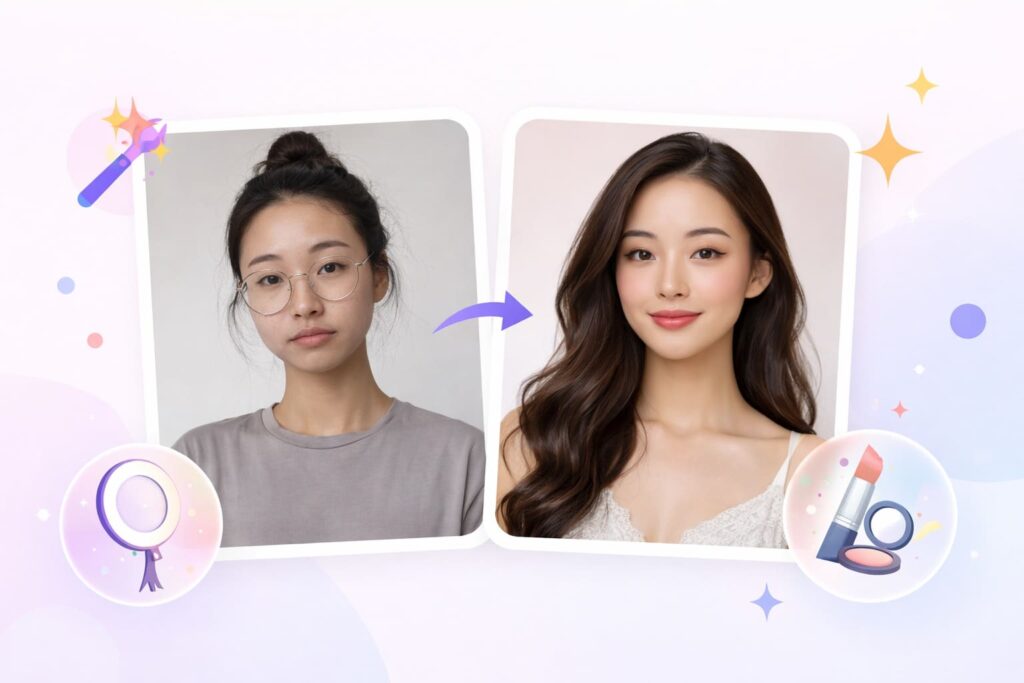
- “Make this a professional headshot with natural skin retouching, soft studio lighting, and a clean gray background”
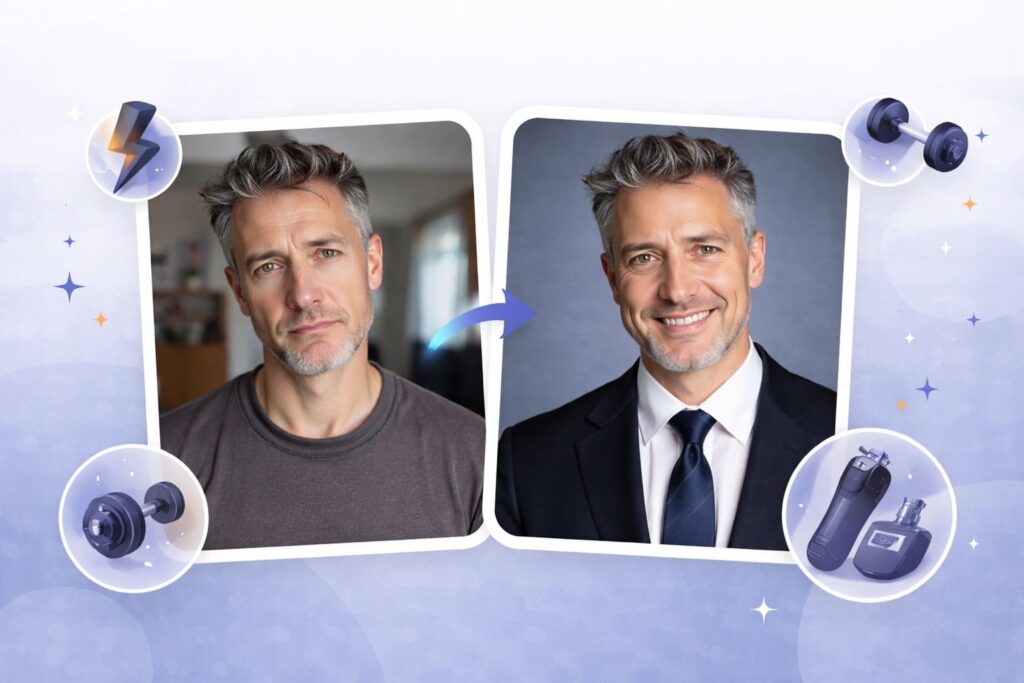
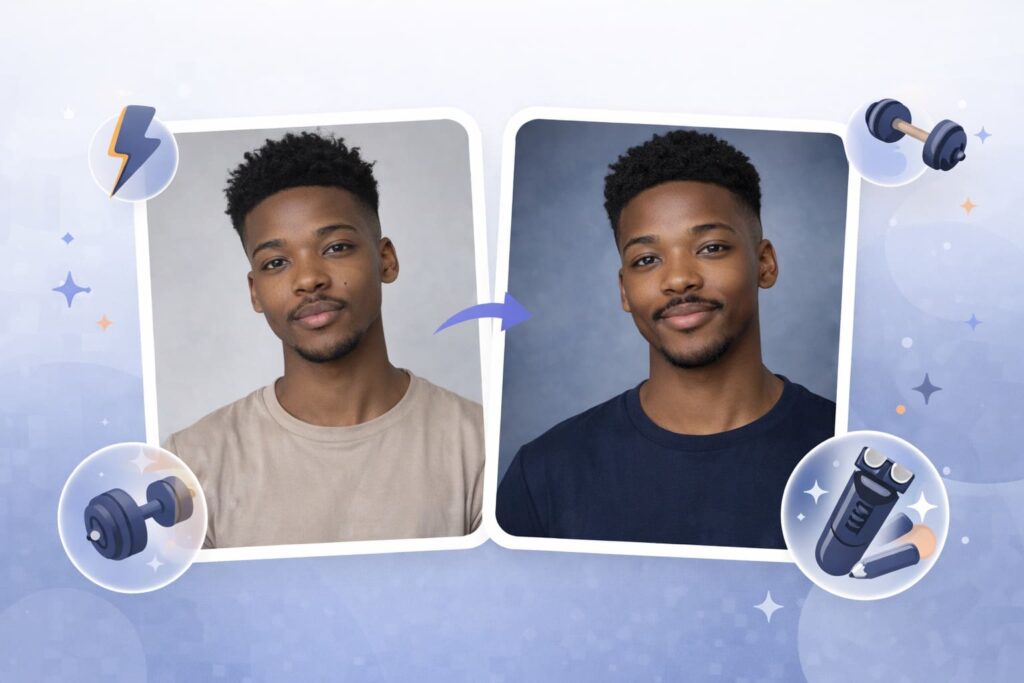
- “Improve my appearance subtly: remove under-eye shadows, fix flyaway hair, brighten teeth slightly, keep it realistic”
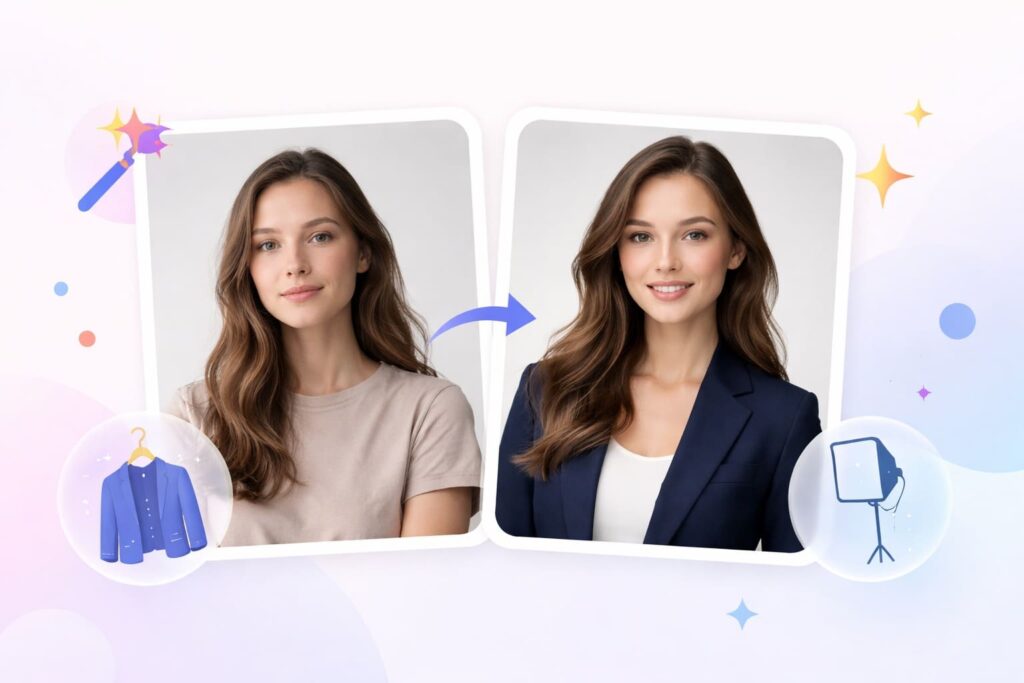
- “Change my outfit to a navy blazer and white shirt, keep my face the same, realistic fabric and lighting”
- “Upgrade this selfie into a high-end portrait photo, better lighting, smoother skin texture, sharp eyes, natural look”
If you want a bigger transformation, say that too.
If you want it subtle, literally use the word “subtle.”
⚡ Step 3: Click Generate (and Wait a Few Seconds)
Click Generate and wait a few seconds.
Most edits finish in seconds, and you’ll instantly see whether the “better me” is more “movie star” or “cleaned-up but still me.”
If it went too far, reduce the intensity.
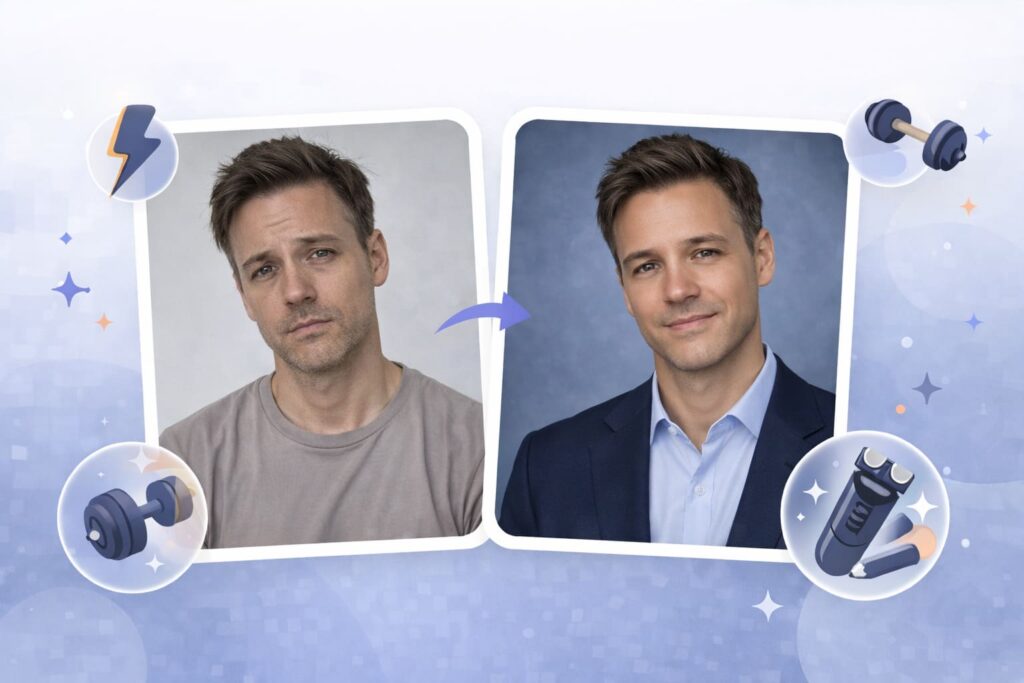
If it didn’t go far enough, add detail like “more defined jawline” or “studio lighting from the left.”
📥 Step 4: Download, Then Iterate if Needed
Download the version you like.
Or do a second pass with a follow-up prompt like “make it slightly more natural” or “keep wrinkles and skin texture.”
That’s the secret sauce.
Fast iterations, not one giant perfect prompt.
Who Is This For? 👇🏼
LinkedIn and resumes — Turn a decent photo into something that looks like it came from a real shoot.
Pair this with AI resume photo if you want a more “corporate-ready” style.
Dating profiles — Keep it honest, just more flattering.
And if you want micro-fixes, fix and whiten teeth is a classic.
Creators and influencers — Make your everyday selfies look like content days.
If the lighting is the issue, relight photos with AI is basically cheating (in a good way).
Outfit upgrades without shopping — Test looks before you buy, or just show up online with better styling.
For deeper wardrobe swaps, see change clothes in photo and AI fashion styles.
“Fix the angle” glow-ups — Some photos aren’t bad, they’re just taken from the wrong height.
Try change camera angle when the vibe is right but the perspective is not.
Pose improvements — When your face looks great but your body language says “I was interrupted mid-thought.”
Use change pose in photo for posture, stance, and more confident shapes.
Full-body upgrades from a selfie — For profile pics, outfits, or “this is me” intros where you don’t want a mirror shot.
Start with full body from selfie.
Background changes — Same you, better setting.
If you want environment control, replace sky and change weather make outdoor photos look intentional.
Frequently Asked Questions 🤔
How do I create a better me photo using AI without looking fake?
The best way to create a better me photo using AI is to ask for subtle improvements and keep skin texture and facial features consistent.
Use words like “realistic,” “natural,” and “subtle retouching,” then iterate in small steps.
Can AI make me look more attractive in a photo while still looking like me?
Yes, AI can make you look more attractive while keeping you recognizable by improving lighting, reducing harsh shadows, and doing light retouching.
Avoid asking for extreme face reshaping if you want the result to stay authentic.
What’s the best prompt for a “better me” AI photo?
A great prompt includes the target style (headshot, portrait, lifestyle), the edits (lighting, skin, teeth, hair), and a realism constraint.
For example: “Improve my appearance subtly, natural skin, remove under-eye shadows, soft studio lighting, keep my identity and facial features unchanged.”
Can I use Pincel to create a better me photo using AI for LinkedIn?
Yes, you can create a better me photo using AI for LinkedIn by generating a clean, professional resume style.
If you want more guidance on that exact use case, check AI resume photo.
Do I need Photoshop to do these “better me” edits?
No, you don’t need Photoshop to do this kind of transformation.
Pincel runs in your browser, and the edit happens in seconds without manual masking, liquify tools, or layers.
If you’re curious about the old-school approach, here’s Pincel’s take on Photoshop.
Is Pincel free to try?
Yes, it’s free to try.
You get 20 free credits with no credit card, which is enough to test several “better me” variations and pick your favorite.
Be-You-tiful ✨
You don’t need a perfect face.
You need a better photo of your real face.
Upload one image, describe the upgrade, and let Pincel do the polishing in under 10 seconds.
And if the first result isn’t perfect, regenerate and steer it.
Your best photo is usually one more prompt away.
Or if you’re feeling extra experimental, upload your photo and build a few “better me” versions for different vibes.

