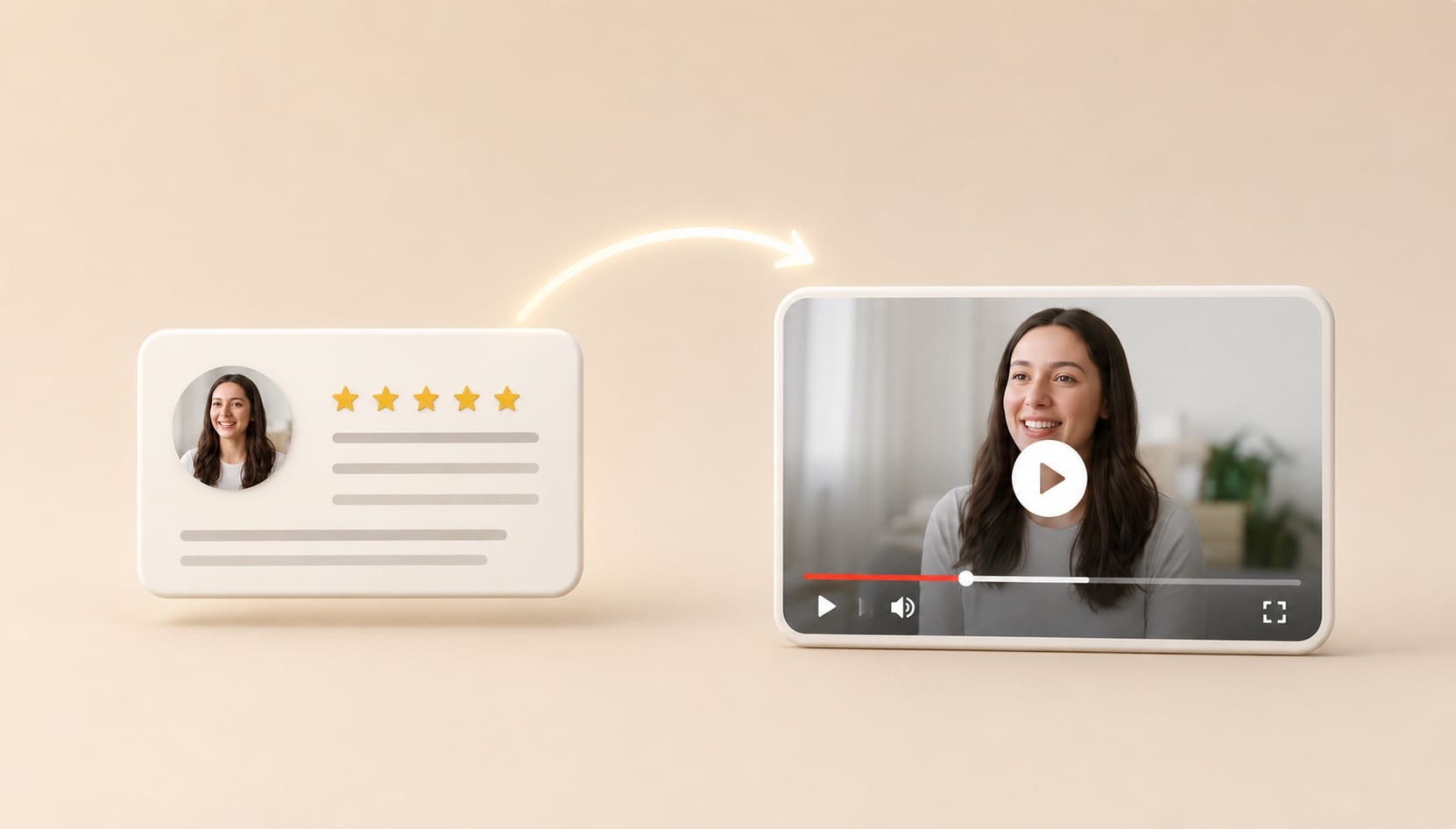
A written testimonial is an important showcase of any product or services.
While a text review one is good, a video testimonial can instantly grab the attention of the customers.
Most businesses have a collection of customer reviews sitting on a website doing very little.
A star rating and a few lines of text that nobody scrolls to.
The same words in a short video clip can feel completely different.
They feel real and trustworthy.
Upload your testimonial image or screenshot to Pincel AI Image to Video and turn a static review into a short engaging clip in minutes.
Here’s how it works:
A Five Star Review Means Nothing if Nobody Sees It
A video clip with a name, a face, and a real story feels different.
It stops the thumb and it builds trust
That is exactly why Pincel AI Image to Video shines.
Upload the testimonial, describe the motion, and get a short, engaging clip in minutes.
How to Turn Testimonials into Video Stories ✅
🖼️ Step 1: Create (or pick) your testimonial image
Start with a clean still image that contains your testimonial.
This can be a designed graphic, a screenshot, or a product photo with text overlay.
If you need to build the image first, Pincel tools can help.
For example, you can edit text on an image or combine photos to create a simple “review card.”
Keep it readable.
Big text, high contrast, and enough padding around the quote works best.
Then head to Pincel and upload your still.
📝 Step 2: Describe the motion (and audio)
This is the whole trick: you’re not “editing” the image.
You’re directing it like a tiny scene.
In the prompt box, type something like:
- slow dolly-in on the testimonial card, subtle film grain, warm lighting
- gentle parallax motion, floating dust particles, cozy cafe ambiance, soft ambient sound
- text remains sharp, camera slowly pans left to right, clean modern ad style
- product in foreground with testimonial overlay, bottle slowly rotates, studio light sweeps across
Want it to feel like a real “story” instead of a generic animation?
Add mood words like cinematic, cozy, high-end, minimal, dramatic, documentary, handheld, film grain.
And if your version supports audio prompts, describe the vibe.
Think: “soft room tone”, “city ambience”, “gentle whoosh”, “subtle café sounds”.
🎛️ Step 3: Pick quality, resolution, and length
You’ve got options depending on whether you’re testing or exporting the final.
And Draft mode (on Fast) halves the per-second cost.
That’s your “preview” button.
A smart workflow is: iterate cheaply in Fast + Draft, then rerun the winning prompt on Standard in 1080p.
It’s the same mindset as rough cuts vs final export.
⚡ Step 4: Generate, preview, and download
Click Generate and let it cook.
You’ll usually get your clip in around 30 seconds to a few minutes, depending on model and length.
Preview the motion.
If it’s too intense, add “subtle” or “gentle” to your prompt and regenerate.
Your output is saved automatically in My Content, ready to download as an MP4.
And yes, it comes with a commercial license, so you can use it in ads.
When you’re ready, generate the clip.
Bonus: Turn Any Review Into a Talking Video
There is another way to bring testimonials to life.
Head over to Pincel Talking Photo and take it one step further.
Pick a character, paste the review as the script, choose a voice, and generate.
In a few minutes you have a realistic talking video of someone actually delivering the testimonial out loud.
No real person needed. No recording and no studio.
This works especially well for website testimonial sections.
Instead of a static quote with a star rating, embed a short talking video clip that plays automatically.
It feels real, builds trust instantly, and stands out from every other review section on the internet.
Who Is This For? Real-World Use Cases 👇🏼
Product marketers — Turn review quotes into Reels/TikTok ad units without filming new footage.
Pair this with polished stills from AI product photography and you’ve got a full ad pipeline.
Small businesses — If you’ve got 20 great reviews and zero time, this is your “content calendar” hack.
One still can become multiple clips just by changing the motion prompt.
E-commerce founders — Make testimonial story slides that feel premium, not like a template.
And if your product colorways change, you can also change car color style-wise for product variants (same idea: fast visual variations).
Portrait & memory creators — Turn heartfelt quotes into “memory reels” for birthdays, weddings, and family tributes.
If you’re animating an old portrait, you can also remove wrinkles from a photo beforehand for a cleaner base.
Music video makers — Use testimonial-style text as “lyrics cards” or narrative fragments between scenes.
If you’re building a no-face channel, this pairs nicely with ideas from faceless video makers.
Storytellers & illustrators — Turn a book blurb or reader review into a cinematic 5-second teaser.
And if you need wider framing, extend a photo with AI before you animate.
Creators who hate filming — Fill a 5–10 second gap in your edit with something that still feels produced.
Frequently Asked Questions 🤔
Can I turn a testimonial image into a video with AI?
Yes, you can turn a testimonial image into a short video by uploading the still and prompting the motion.
With Pincel AI Image to Video, you describe camera movement and atmosphere, and it generates a 5–10 second clip.
How long can the video be?
You can generate 5-second or 10-second clips.
You choose the length before you render.
How fast does the result appear?
Most clips generate in around 30 seconds to a few minutes, depending on settings and length.
That’s still wildly faster than filming, editing, or hiring motion design.
Where do my generated videos go, and can I download them?
Your videos are saved automatically in your My Content library.
You can preview and download the final output as an MP4.
Can I use the testimonial videos in ads commercially?
Yes, you can use the generated video clips commercially.
That includes paid ads, product pages, social posts, and brand promos.
Lights, Camera, Testimonial 🎬
Your best reviews are already written.
Now make them impossible to ignore.
Upload your testimonial to Pincel AI Image to Video and describe how you want it to move.
Get a short clip in minutes and post it everywhere.
Instagram. LinkedIn or your website homepage.
Wherever your next customer is looking.
One good review in motion is worth ten static ones sitting on a page nobody visits.