
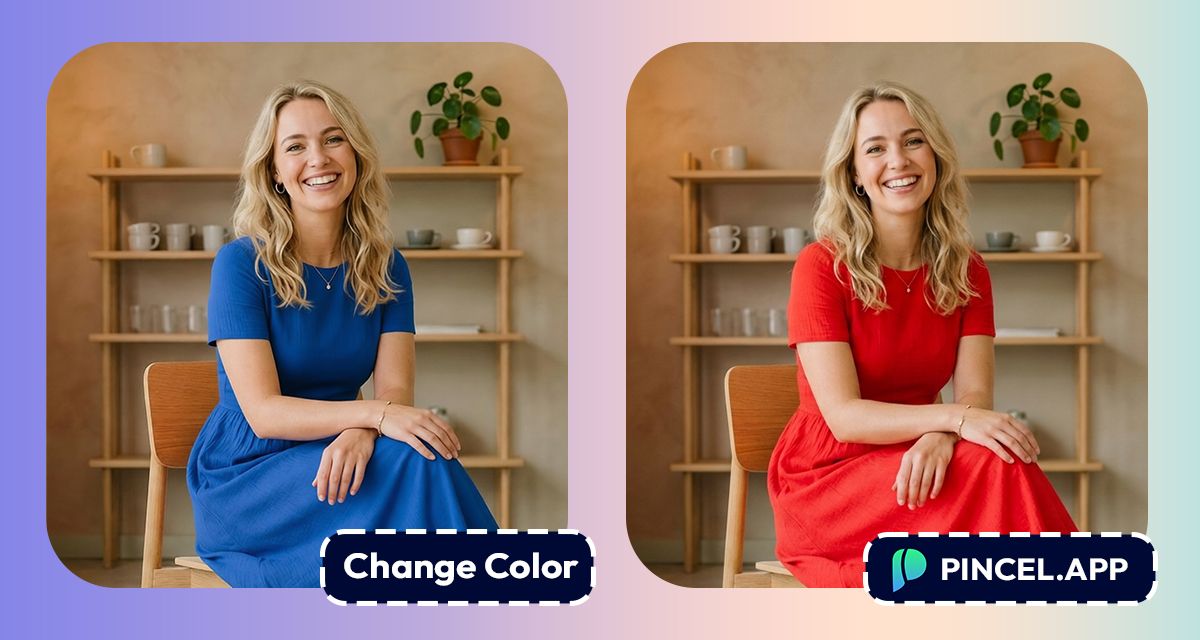
Have a good photo, but the colors are just not right?
Maybe the wall looks darker or your product color doesn’t match what you’re actually selling.
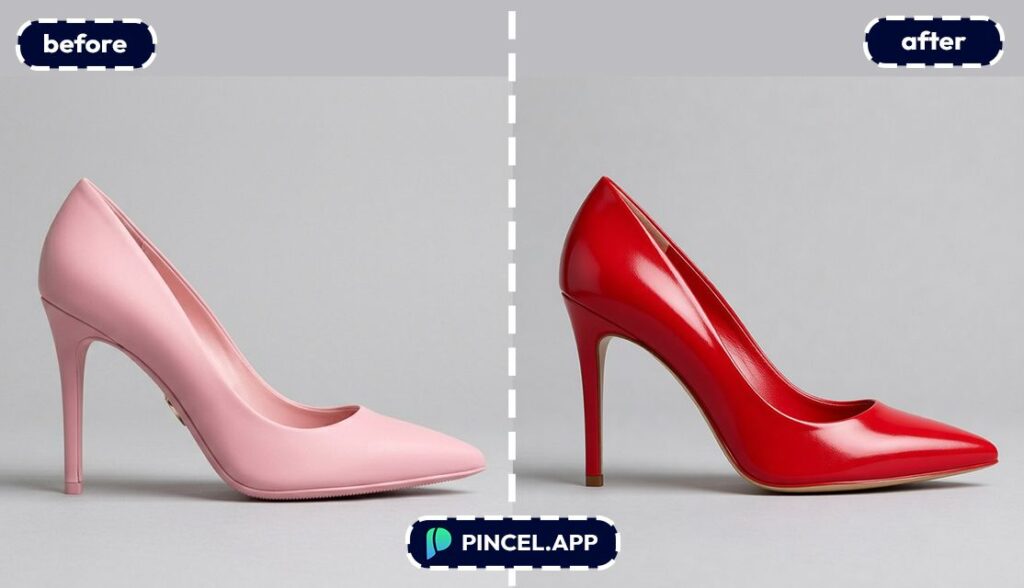
Or, maybe you want to see what your shoe looks like if it was blue instead of red.
And sure, you can use photoshop to change the colors.
But then you’re suddenly juggling hue sliders, masks, feathering and that one weird edge that refuses to blend 🤷♂️
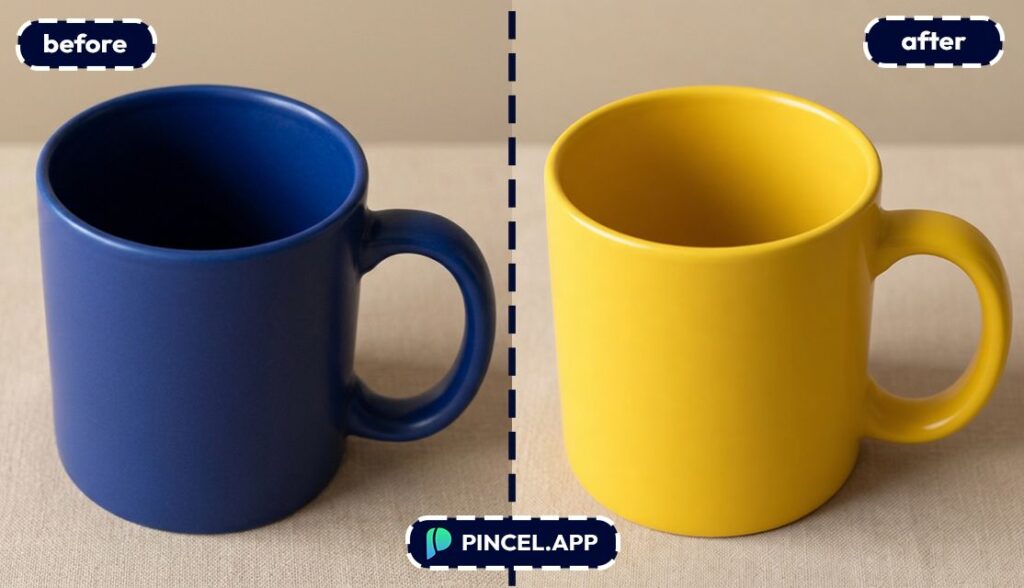
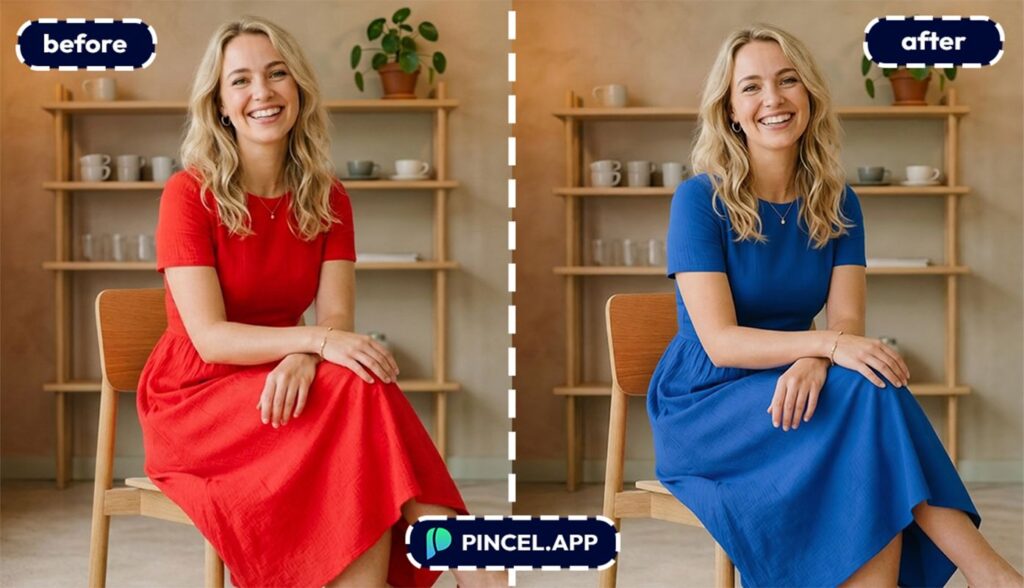
But now, with Pincel AI Photo Editor, you can change colors in a photo using AI in under 10 seconds.
Just upload your photo, type a simple prompt, and let AI do the rest.
Here’s how it works:
Why Changing Colors Manually Is a Total Pain 😩
In Photoshop, “change the color” almost never means one click.
You usually have to select the object, refine edges, and fight color spill on highlights and shadows.
Not only that, when the color is on fabric, hair, cars, or glossy products, then it gets even messier.
Hiring a retoucher online works.
And then you are dealing with endless communication, revisions and most importantly significant extra cost!
What if you simply describe the color change you want, and the AI handles the rest.
How to Change Colors in a Photo Using AI ✅
🖼️ Step 1: Upload Your Photo
Open the Pincel AI Photo Editor.
Upload the image you want to recolor, whether it’s a person, a product, or a whole scene.
Clear images work best, but you don’t need studio lighting for good results.
📝 Step 2: Tell the AI Exactly What Color to Change
Type a simple instruction in the prompt box.
Try prompts like these (keep them specific):
- “Change the blue dress to red dress, keep the texture and folds realistic”
- “Make the sofa color lime green, rest remain same”
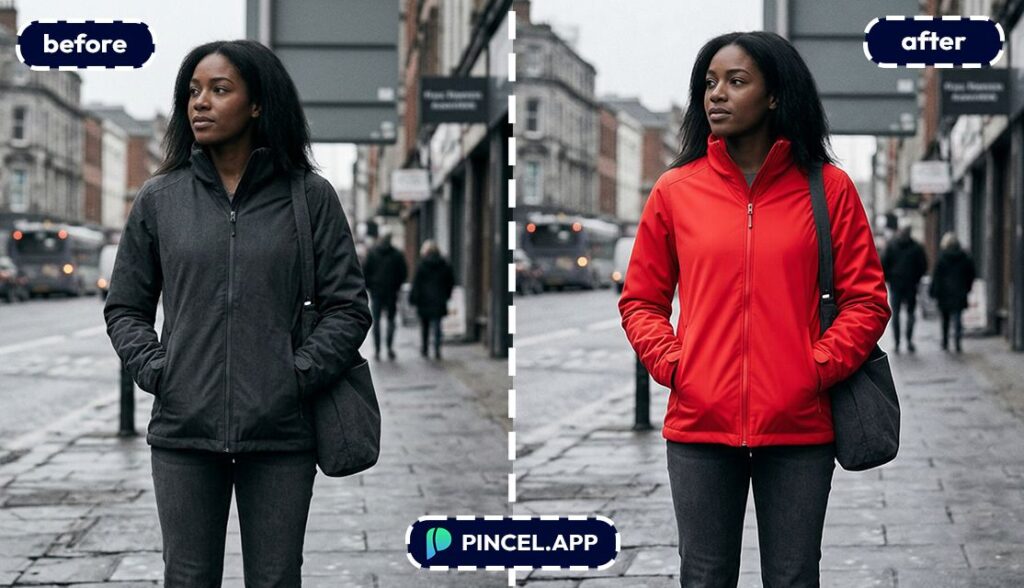
- “Change the jacket color to yellow, rest unchanged”
- “Change the shoe color to bright red, preserve natural lighting”
Remember, if you want precision, name the object and the new color.
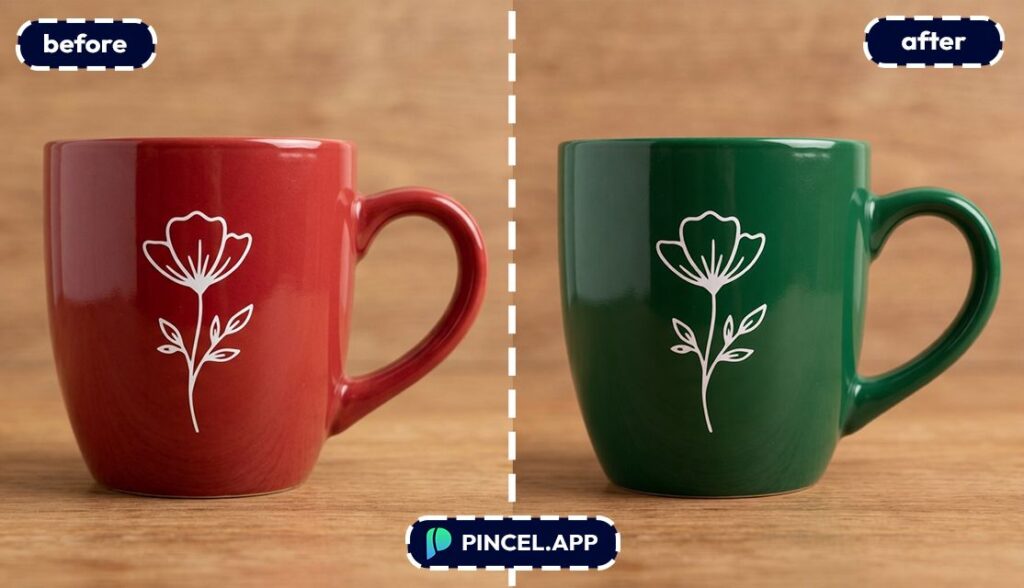
And if you want realism, add “keep shadows,” “preserve highlights,” or “keep texture.”
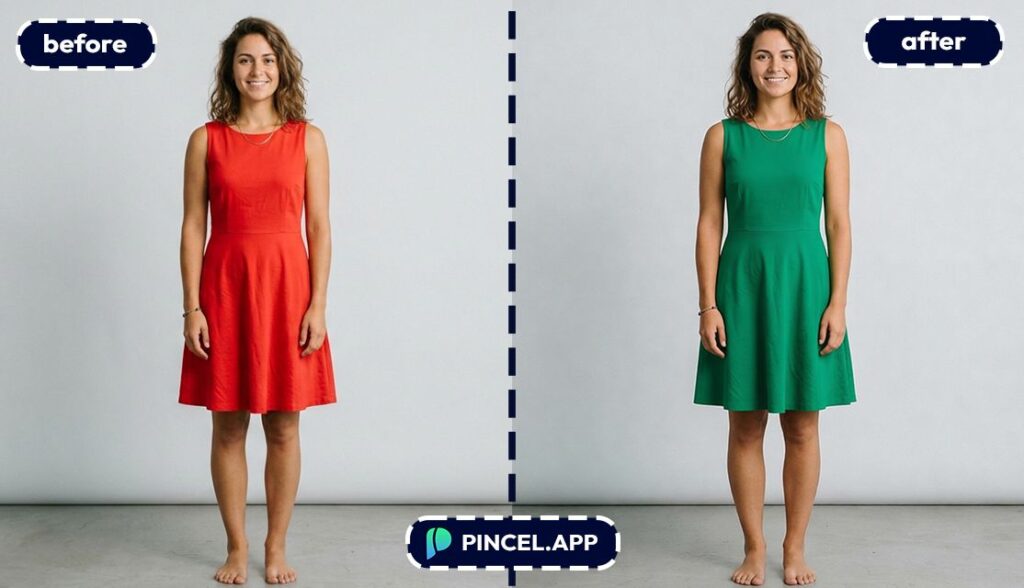
⚡ Step 3: Click Generate
Click Generate and wait a few seconds.
Most edits generates under 10 seconds, including tricky stuff like shiny surfaces and patterned fabrics.
If it’s close but not perfect, adjust your wording and generate again.
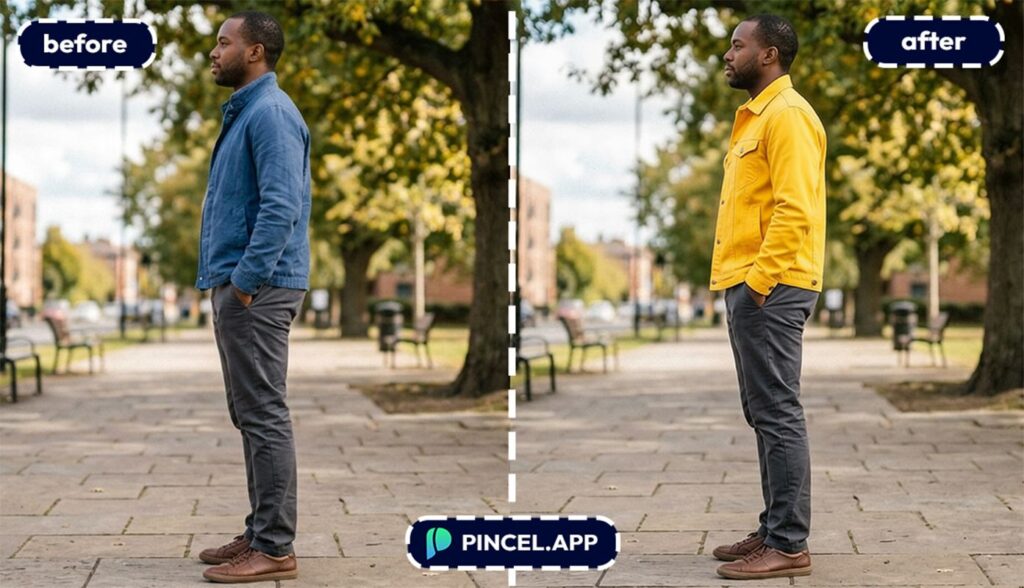
📥 Step 4: Download (or Iterate for Variations)
Download the version you like.
Or keep iterating to create multiple color options from the same photo.
This is especially useful when you want options without reshooting anything.
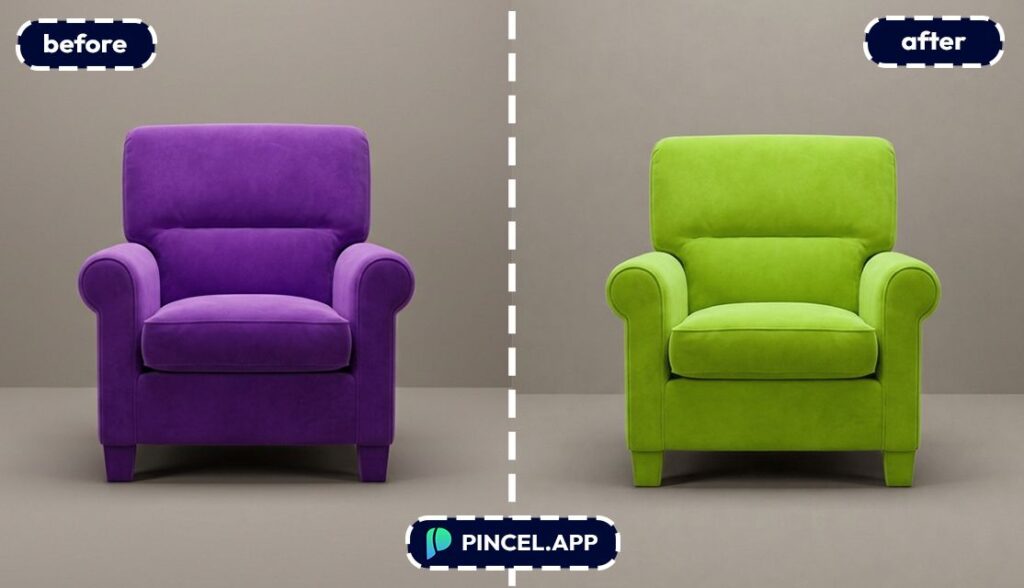
Who Is This For? Real-World Use Cases 👇🏼
E-commerce sellers — Create clean color variants for listings without photographing every option.
Pair this with AI product photography when you also want a better background or lighting.
Car sellers and auto content — Instantly preview paint or full wrap colors for a single vehicle photo.
If you’re doing vehicle edits often, you’ll also love change car color.
Interior design mockups — Swap wall paint, cabinets, or accent colors to test a vibe before buying anything.
And if you need more canvas to work with, try extend photo with AI.
Fashion creators — Recolor outfits for lookbooks, thumbnails, and “which one should I wear?” posts.
You can even go further and change clothes in a photo for full outfit swaps.
Brand + marketing teams — Match campaign visuals to brand palettes without rebuilding designs from scratch.
If color is fighting your lighting, combine recolors with relight photos with AI.
Social media creators — Fix weird indoor lighting casts and make your feed feel consistent.

If your whole image needs a new mood, you can also change weather in a photo for instant atmosphere.
Restoration and “old photo cleanup” — Bring dull images back to life by nudging colors into something natural.
For full-on retro fun, also check out AI coloring.
Portrait tweaks (without over-editing) — Adjust lipstick, nails, or accessories while keeping skin tones believable. For targeted edits, see change eye color or add tan to a photo.
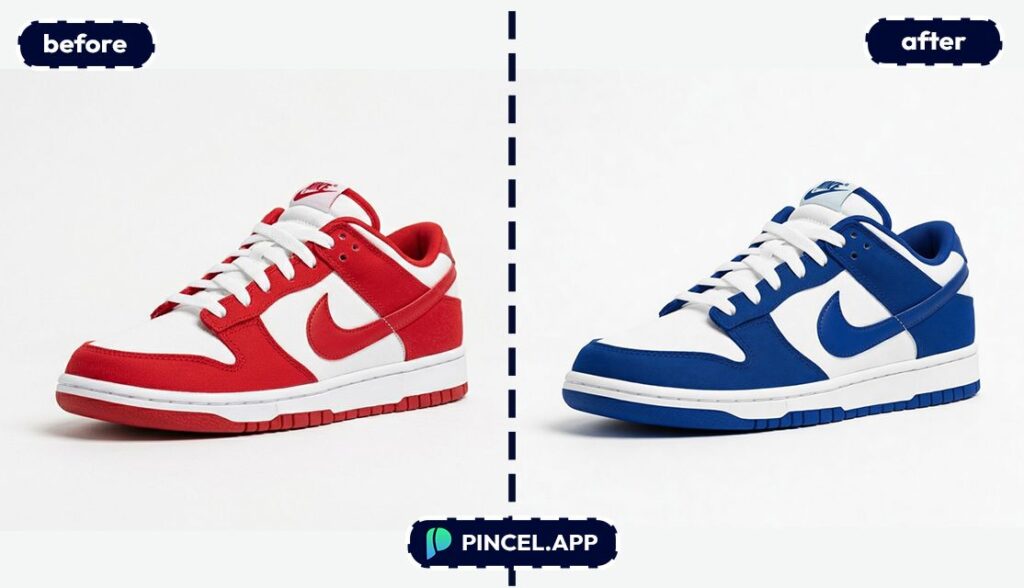
Why Pincel Beats Photoshop for Color Changes 💪
Photoshop can absolutely recolor things.
But it’s rarely fast, especially when you need clean edges on hair, lace, glass, or anything reflective.
And if you’re doing multiple variants, you’re basically repeating the same masking work over and over.
With Pincel AI Photo Editor, you skip the tool gymnastics and go straight to the result.
You write what you want, and the AI does the hard parts automatically.
1. Fast results in seconds, not hours
2. No masking, layers, or selection tools
3. Works in your browser and there is no install
4. Easy variations — generate multiple colorways quickly
5. Free to try with 20 credits, no credit card
If you’ve ever tried to “just change the color” and ended up watching a 14-minute tutorial, you get it.
This is the shortcut.
Frequently Asked Questions 🤔
How do I change colors in a photo using AI?
You can change colors in a photo using AI by uploading your image to Pincel and typing a prompt describing the color change.
The AI handles selection, blending, and lighting adjustments automatically.
Most results appear in a few seconds.
Can AI change the color of an object without affecting the background?
Yes, AI can recolor a specific object while keeping the background unchanged if you describe the object clearly.
Prompts like “change the jacket to black, keep the background the same” help the editor isolate the subject.
Additional tip, If the object blends into the background, add details like “only the jacket” or “preserve skin tones.”
Why does my recolor look fake sometimes?
Recolors usually look fake when the prompt doesn’t preserve lighting or texture.
Add phrases like “keep shadows,” “keep reflections,” and “preserve fabric texture” to get more realistic results.
If you’re fixing lighting too, combine it with relighting for a more natural match.
What are the best prompts for AI color switching?
The best prompts name the exact object and the exact target color, then ask to preserve texture and lighting.
Try something like: “Change the sofa to emerald green, keep fabric texture and natural shadows.”
And if you want options, ask for “3 variations” or regenerate with slightly different shades.
Is Pincel free to use for AI color switch edits?
Yes, Pincel includes 20 free credits for new users with no credit card required.
That’s enough to test several recolors and variations before you decide to upgrade.
You can start immediately in the browser at Pincel AI Editor.
Hue Knew? Your Photos Just Got a Makeover 🎨
You don’t need a reshoot, a retoucher, or a crash course in Photoshop.
Just upload your photo, describe the color change, and you’re done in seconds.
And because it’s so fast, you can explore ideas you’d normally skip.
So go ahead and try the bold color, test the new palette, and make five versions of your favorite dress.

