
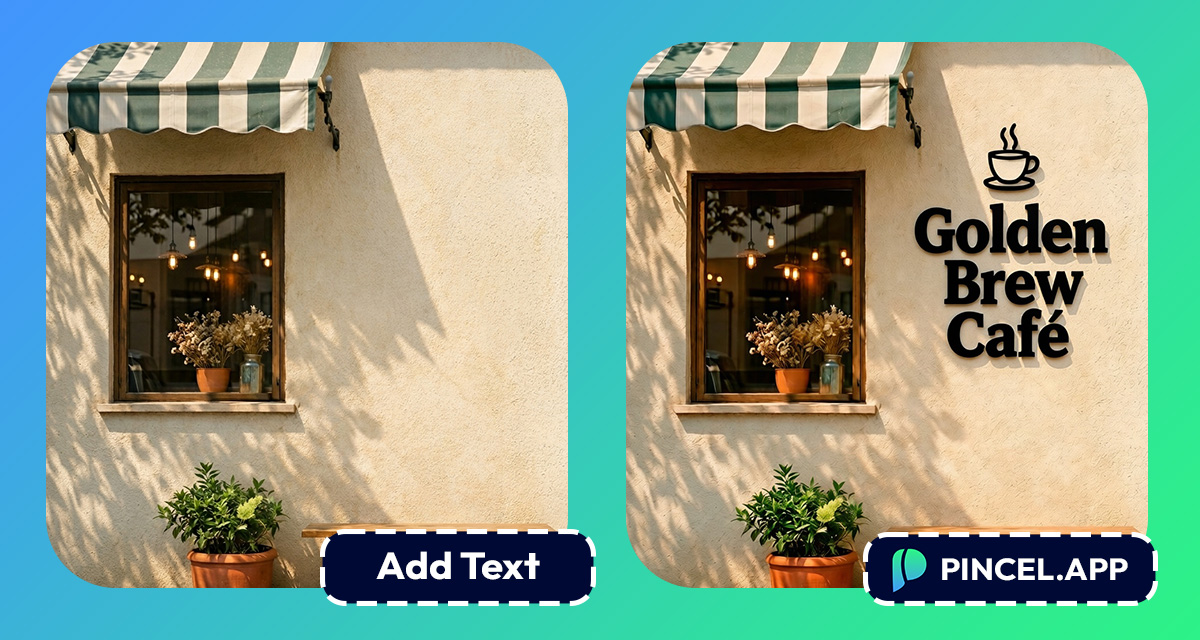
Ever tried adding text to a photo, but it just doesn’t looks right?
The font is off, spacing is weird, and the simple edit turns into 45 minutes of moving text boxes.
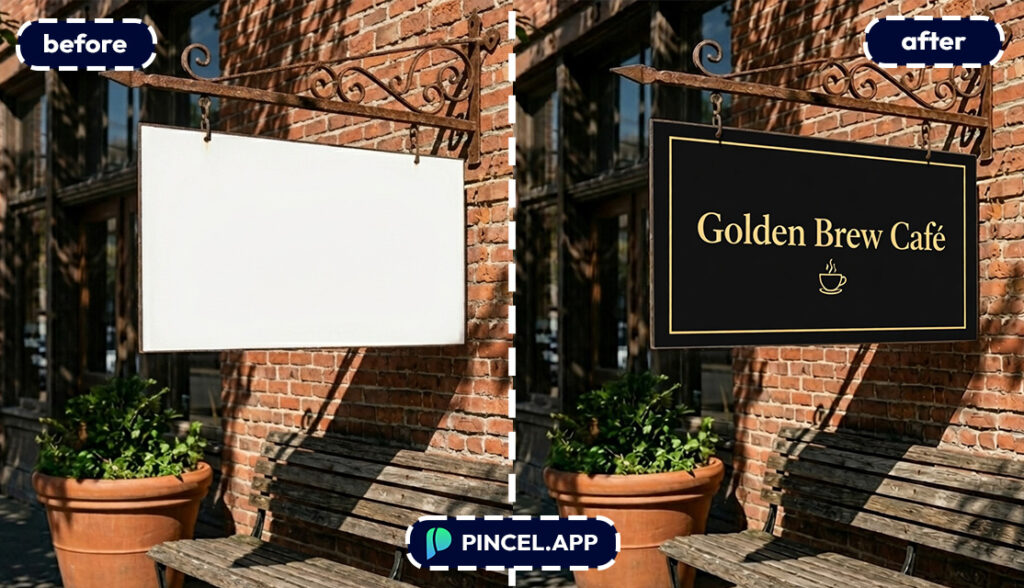
And if it’s on a matching perspective, or the text is supposed to be on a wal, it becomes much harder.
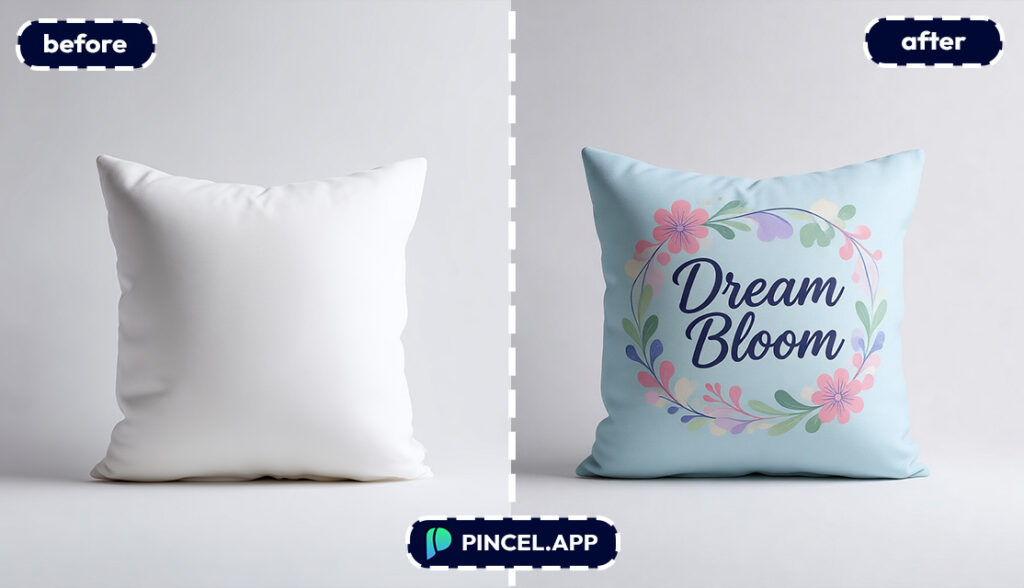
But now with Pincel AI Editor, you can add text to a photo using AI in under 10 seconds.
Just upload your photo, type what you want, and let AI place it naturally.
Here’s how it works:
Why Adding Text Manually Is a Total Pain 😩
Traditional tools like Photoshop can get the job done, but it’s a manual process.
You have to correct fonts, work with blending text, place shadows and (if you’re unlucky) perspective warp.
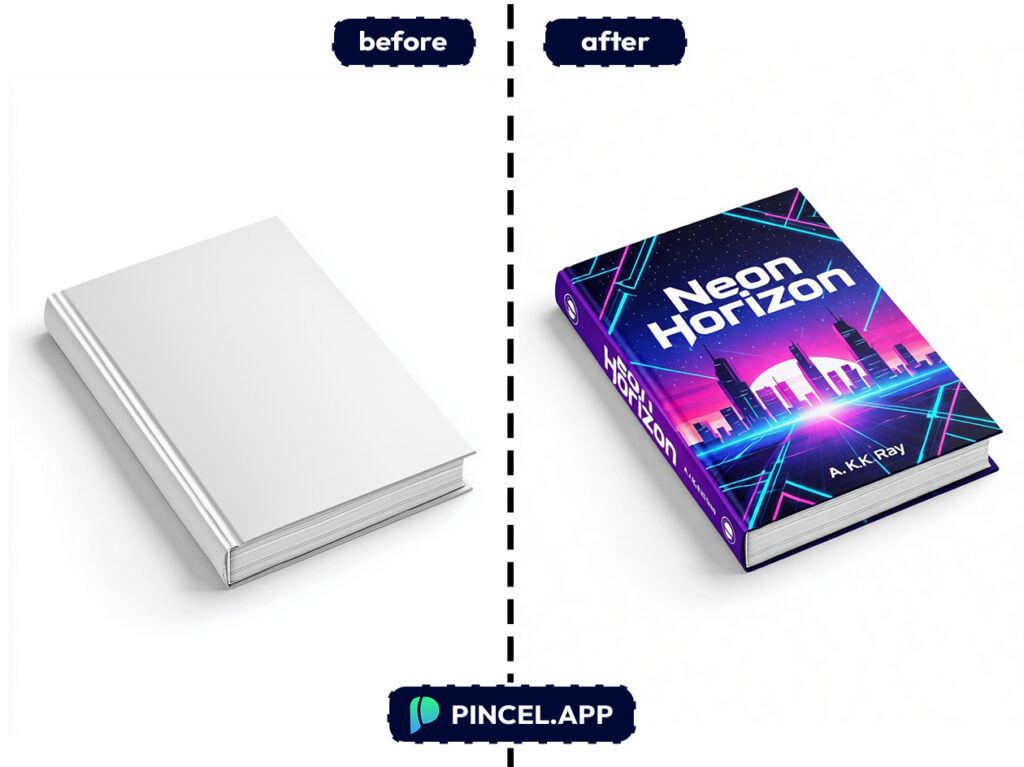
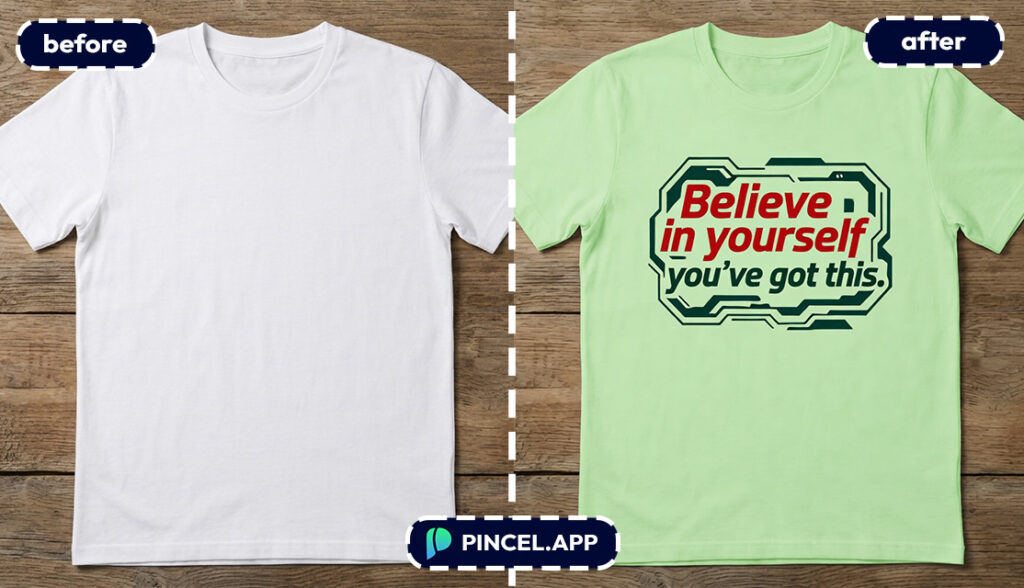
And if the text needs to look like it’s in the photo or painted on a wall, printed on fabric, wrapped around a bottle, then you have to do visual surgery.
Hiring a designer can be another option.
But that means back and forth communication, revisions, and waiting when you wanted this done in seconds.
That’s exactly why Pincel AI Editor exists.
You simply describe the text and where it should go, and the AI handles placement, realism and blending it automatically.
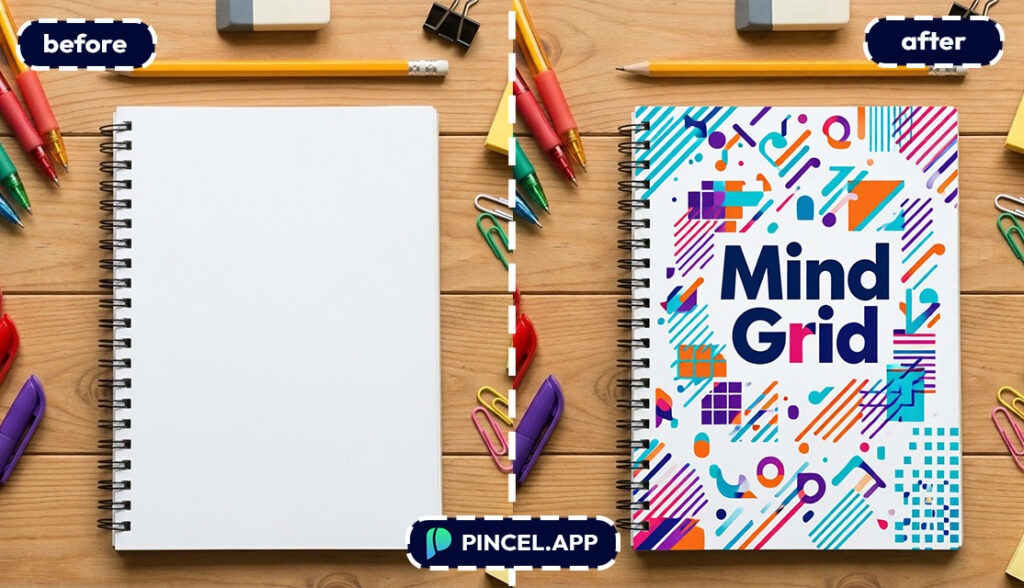
How to Add Text to a Photo Using AI 👇🏼
🖼️ Step 1: Upload Your Photo
Go to the Pincel AI Editor.
Upload the photo you want to edit, like a product shot, a flyer photo, a storefront image, or a social post.
Clear, well-lit images help.
But even casual phone pics work surprisingly well.
See How it Works in Less Than 30 Seconds ⤵️
📝 Step 2: Tell the AI What Text to Add (or upload a reference image)
In the prompt box, describe the exact words and placement.
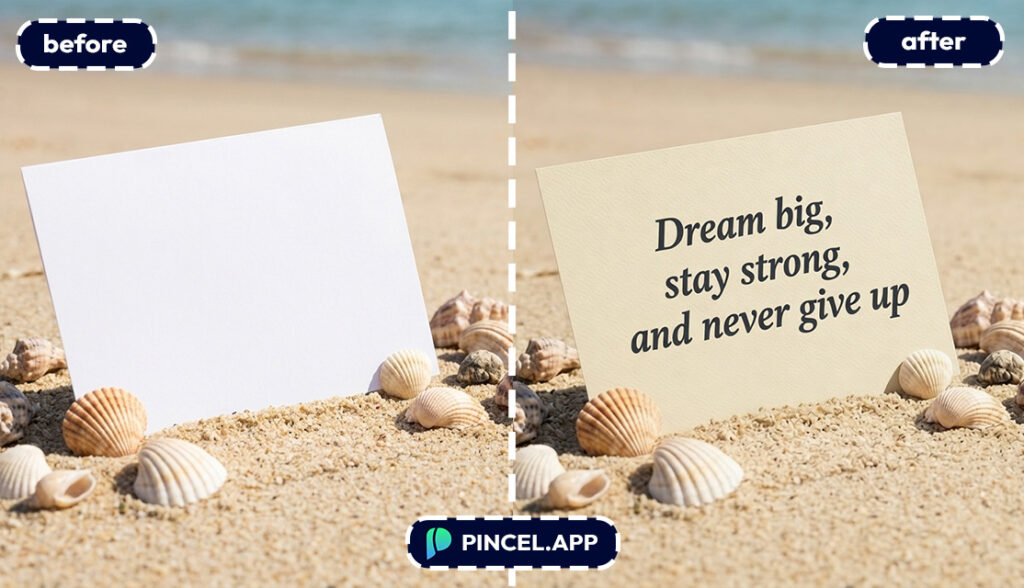
Be specific about location, style, and whether it should look printed, painted, or digitally overlaid.
Try prompts like these:
- “Add the text ‘GRAND OPENING’ at the top in bold white sans-serif, centered”
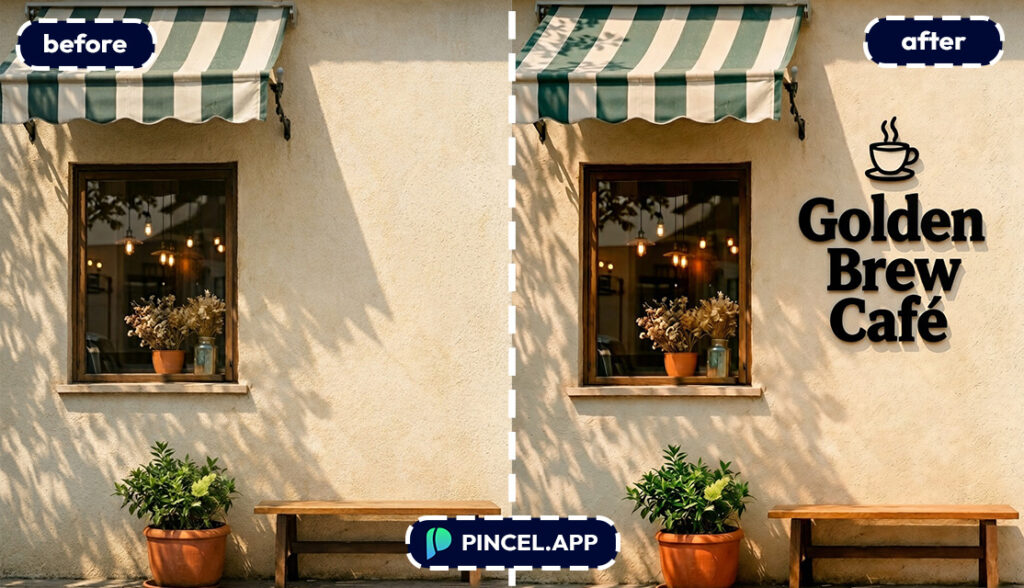
- “Place ‘Fresh Coffee’ on the shop window glass, subtle reflection, realistic”
- “Add ‘50% OFF’ as a red sticker on the bottom-right corner, glossy, realistic”
- “Replace the sign text with ‘PINCEL STUDIO’ in black letters, same perspective as the sign”
NB: you can also use a reference image.
In addition, if you want it to match a real surface, you can do that too.
⚡ Step 3: Click Generate
Hit Generate and wait a few seconds.
Most edits land in under 5 seconds, including perspective and lighting adjustments.
If the first result isn’t perfect, then simply tweak the prompt.
Small changes like “smaller,” “more spacing,” or “closer to the left edge” make a big difference.
📥 Step 4: Refine, Then Download
Once it looks right, download your image.
Not only that, but if you want variations, just regenerate with a different style.
This is also perfect when you want multiple versions for A/B testing.
Who Is This For? 🤔
Social media posts and thumbnails — Add bold hooks, titles, or captions without building a whole design in Canva.
If you’re already doing edits like changing weather or replacing skies, this is the final “make it pop” step.
Product photography and listings — Add “New,” “Limited,” or feature callouts right on the image for marketplaces and ads.
Pair it with AI product photography for fast, consistent catalog visuals.
Ads and marketing creatives — Generate multiple headline variants in seconds for the same image.
And when your lighting is off, fix it first with AI relighting.
Event promos — Put date, time or location text directly onto a photo from the venue or last year’s event.
Need extra space for text? Expand the canvas using extend photo with AI.
Realistic signage mockups — Add text as if it’s printed on a sign, etched on glass, or painted on a wall.
If you also need to change the viewpoint for the mockup, check out change camera angle.
Memes and personal projects — You can put captions on photos without the “cheap meme generator” look. 🙂
And if you want to go full cartoon, you can combine it with AI memoji.
Frequently Asked Questions 🤔
How do I add text to a photo using AI?
You add text to a photo using AI by uploading your image, describing the exact text and placement, and generating the edit. Pincel AI Editor handles blending, positioning, and style so it looks intentional. Most results show up in seconds.
Can AI make the text look like it’s really on a sign or object?
Yes, AI can make text look like it’s really printed, painted, or placed on an object by matching perspective, lighting, and surface texture. Your prompt should mention the surface (glass, paper, fabric, metal) and the realism you want. If you say “same perspective as the sign,” you’ll usually get a much more natural result.
What should I write in the prompt for the best text placement?
The best prompts include the exact wording, the location, and the style. For example: “Add ‘SALE’ to the top-left, bold condensed font, white with subtle shadow”. If it’s meant to be realistic, add details like “painted,” “printed,” or “etched.”
Can I edit or replace existing text in an image?
Yes, you can replace existing text by telling the AI what text to remove and what to add in its place. Mention “keep the same sign style” or “match the original font” if you want consistency. For more on text changes, see edit text on image.
Is it free to add text to a photo using AI?
Yes, you can try it for free. Pincel AI Editor gives you 20 free credits with no credit card required. That’s enough to test multiple versions and dial in the look.
Text Me Maybe (But Make It Typography) 😁
You don’t need Photoshop layers, font menus, or a design degree to add great looking text.
You just need a photo, a text prompt, and a few seconds.
So whether you’re making ads, promos, thumbnails, or realistic mockups, you can do it faster than your coffee cools down.
Head to the Pincel AI Editor and try it.
And when you’re ready to crank out variations, go again because “under 5 seconds” is a pretty addictive workflow.

