
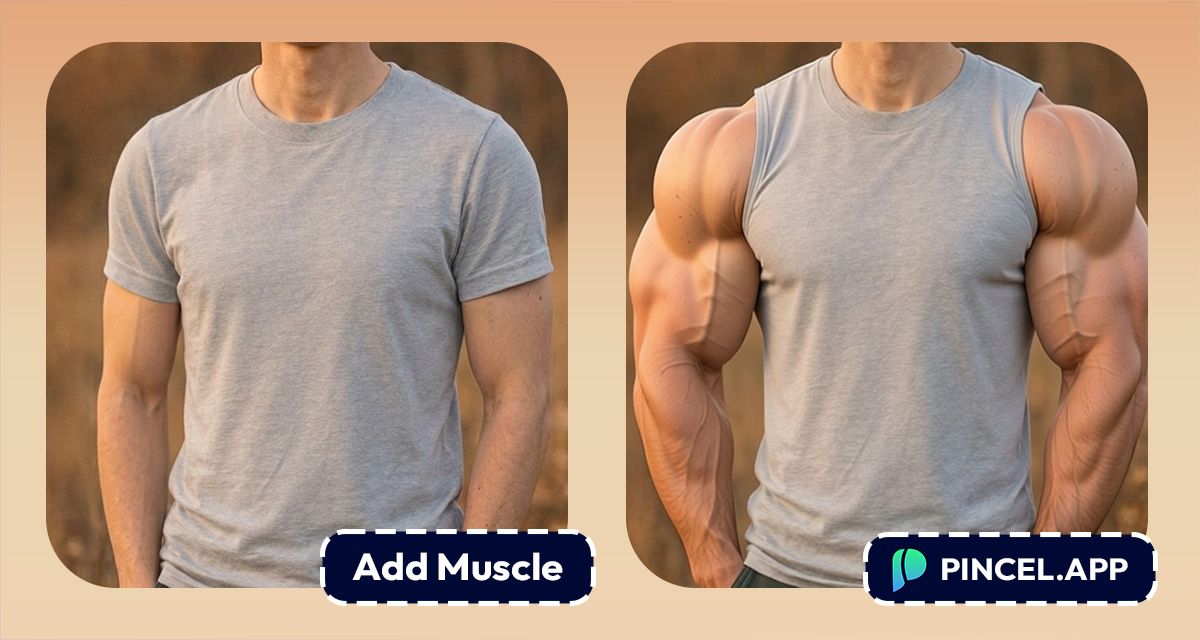
Have you ever looked at your photo and thought, “My arms looked way more jacked in my head”?
And then the camera hits you with the truth…
Flat lighting, bad angle and no muscle definition,
You could hit the gym for 6 months and retake the photo, that’s an option.
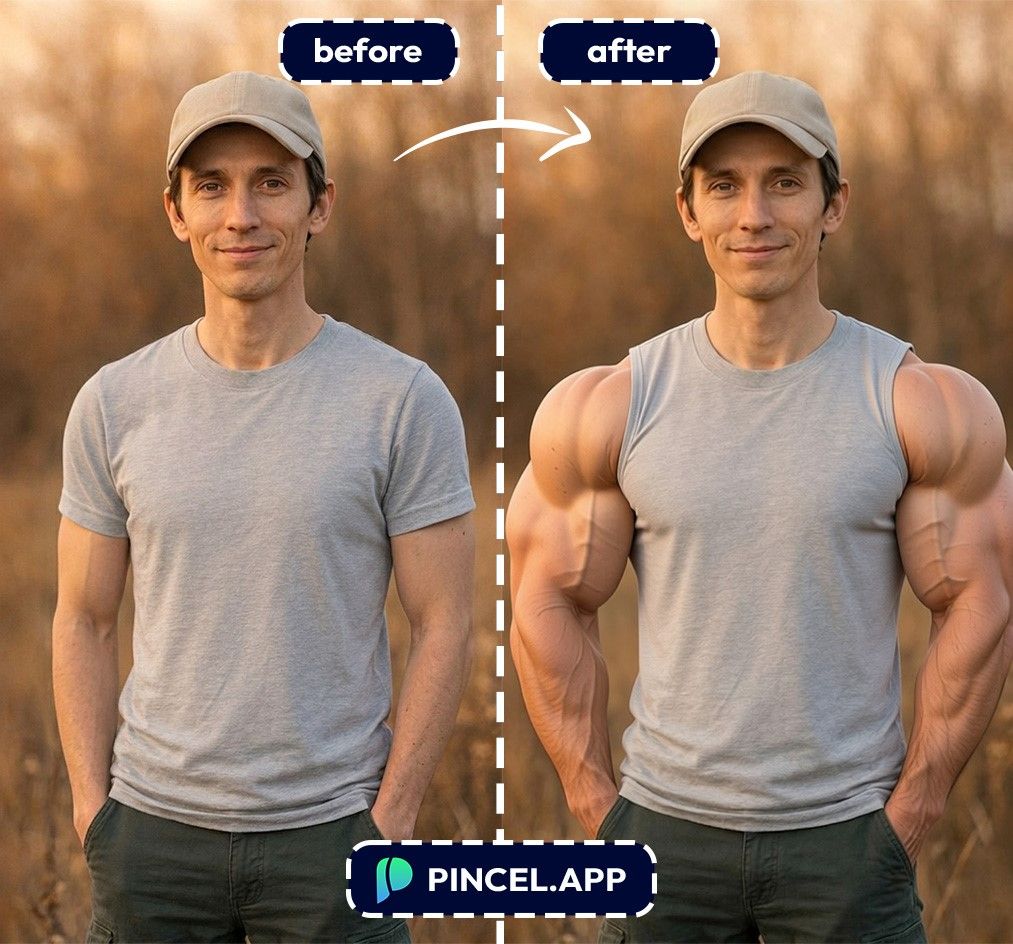
Or what if, you can just add muscle in just 10 seconds with Pincel AI Photo Editor.
Very simple, just upload your photo, type what you want and let AI do the rest.
Here’s how it works:
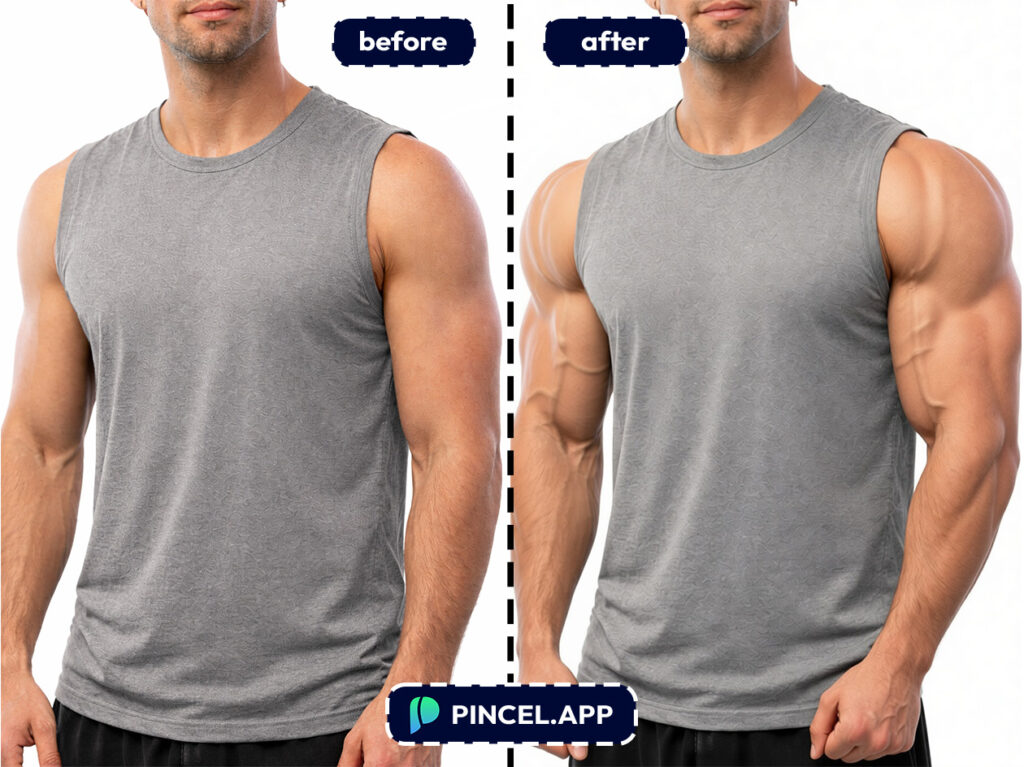
Why Adding Arm Muscles Manually Is a Total Pain 😩
In Photoshop, “bigger arms” is not just one click,
You have to do the warping, dodging, highlighting and painting realistic shadows.
And one option wrong you will look more like an inflated doll.
And trust me, the internet has no mercy.
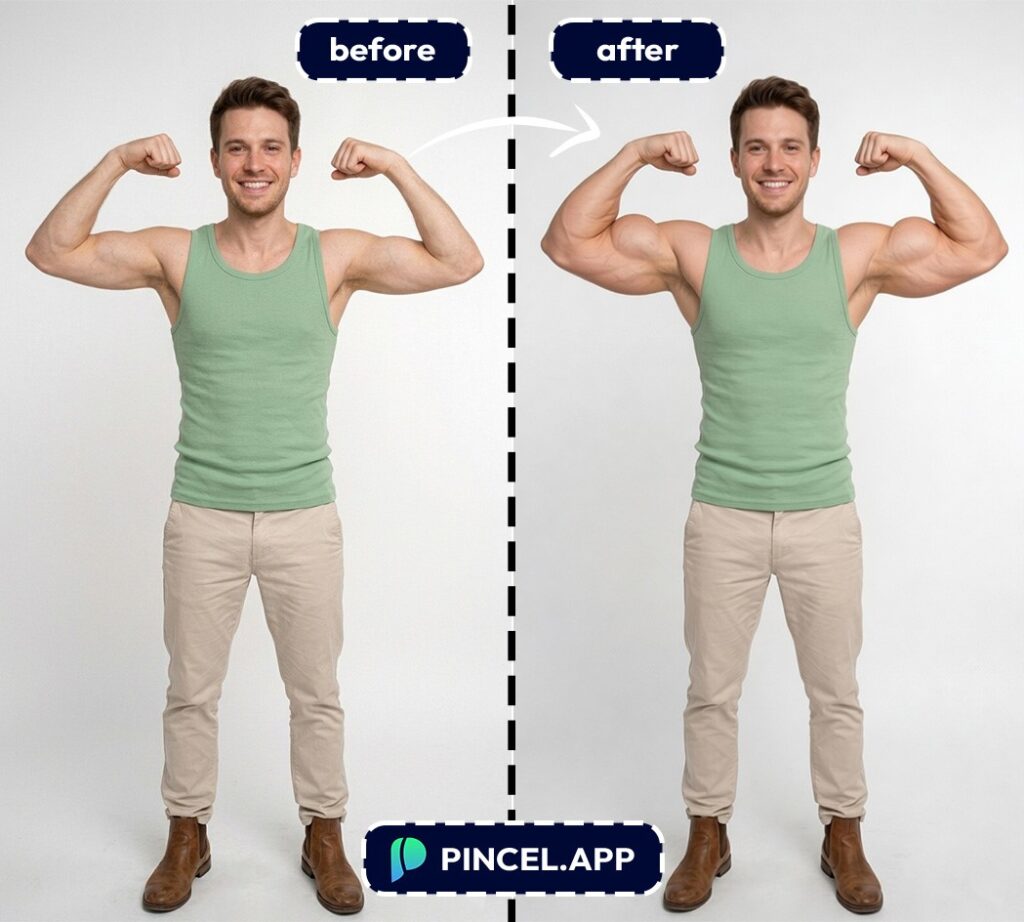
You obviously can hire a retoucher.
But it comes with extra communication, revision and most importantly extra cost!
That’s exactly why Pincel AI Photo Editor exists.
It gives you realistic muscle definition in seconds, without the technical headache.
How to Add Muscles to Arms — Step by Step ✅
🖼️ Step 1: Upload Your Photo
Go to the Pincel AI Editor.
Click Upload Image and pick your photo.
Short sleeves, tank tops, and clear arm visibility work best.
📝 Step 2: Type a Simple Prompt (Copy/Paste These)
In the prompt box, tell the AI exactly what to change.
Try one of these:
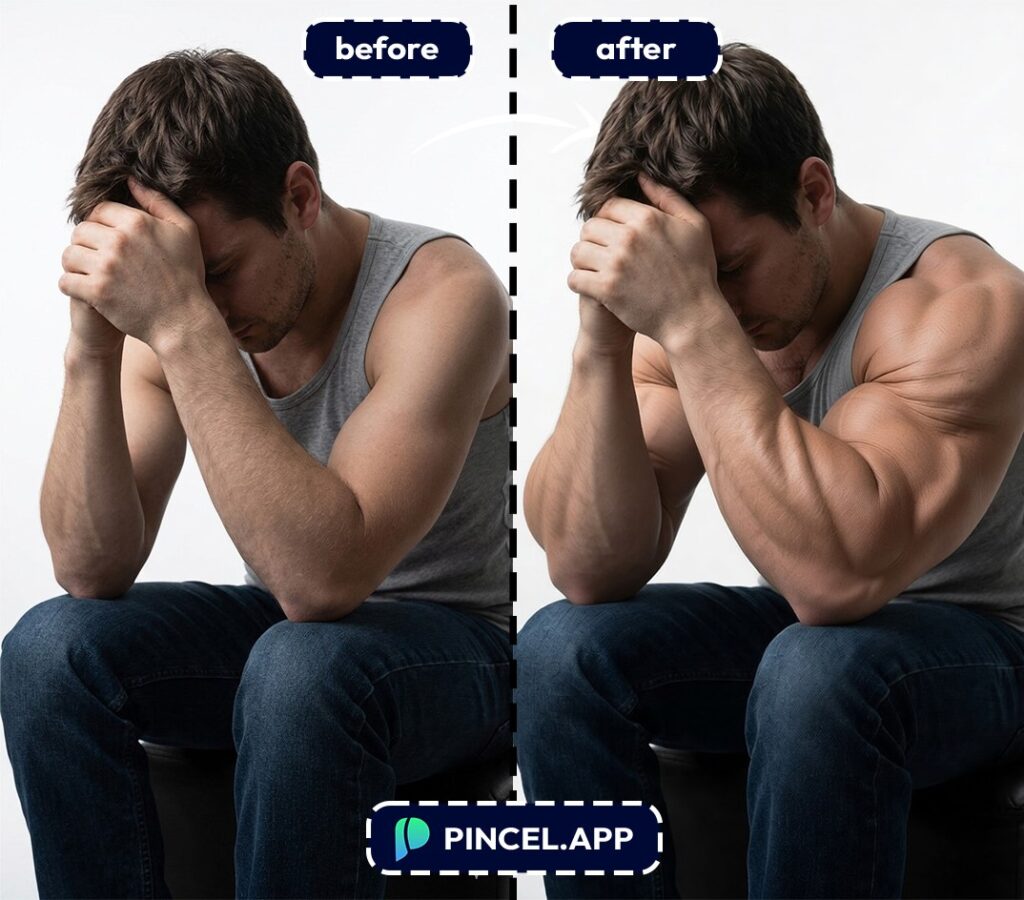
- “Add realistic muscle definition to my arms, slightly bigger biceps and triceps, keep my face and clothing the same”
- “Make my arms more muscular and toned, natural proportions, subtle veins, realistic lighting“
- “Increase bicep size by 15%, add tricep definition, keep skin texture natural“
- “Give me athletic arms like a swimmer, lean muscle, not bulky, preserve the original photo style“
If you want it subtle, literally say “subtle.”
If you want a superhero, say that too (just don’t blame us when your sleeves look nervous).
⚡ Step 3: Click Generate
Hit Generate and wait a few seconds.
Most edits land in under 10 seconds, including lighting and shadow matching.
If it’s too much (or not enough), tweak your prompt and generate again.
Remember it can be hit and miss sometimes, so you may have to try a few times.
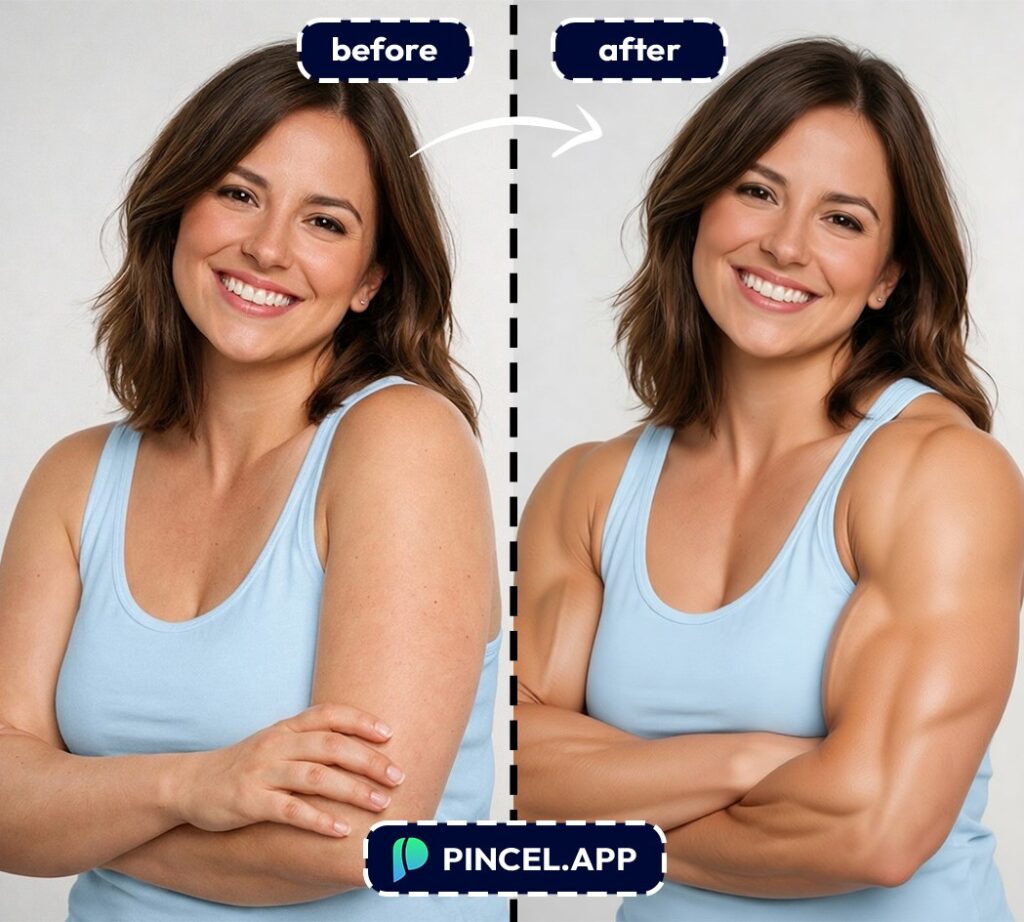
📥 Step 4: Download or Keep Refining
Once the arms look right, download your edited image.
And if you want the whole look to match, you can keep editing the same photo with follow-up prompts.
Ready to try it?
Who Is This For? Real-World Use Cases 👇🏼
Fitness creators — Make progress photos, thumbnails, and transformations pop without spending hours retouching.
And if the angle is the real problem, pair it with a better perspective using change camera angle.
Lifestyle influencers — Get that “effortless toned” look when lighting didn’t cooperate.
A quick relight can help too, especially indoors, using relight photos with AI.
Dating profile upgrades — You don’t need cartoon muscles.
Subtle definition can make you look healthier and more confident, fast.
Sports teams and athletes — Build consistent, punchy visuals for posters and announcements.
If you need to extend the frame for banners, use extend photo with AI.
Before/after style content — Want a fun “what if I trained for 2 years” post?
You can combine edits with other enhancements like add tan to photo for that outdoorsy, peak-summer vibe.
Memes and just-for-fun edits — Yes, you can give your friend action-hero arms. One emoji-worthy prank 💪.
Frequently Asked Questions 🤔
How do I add muscles to arms using AI without it looking fake?
The easiest way to keep it realistic is to ask for “natural proportions” and “realistic lighting” in your prompt.
Also specify a small percentage increase (like 10–20%) instead of “huge arms.”
Can Pincel add muscles to arms on a selfie?
Yes, you can add muscles to arms using AI on selfies as long as your arms are visible.
Tank tops and short sleeves work best, because the AI can clearly see the arm shape and match skin texture.
What prompt works best for toned arms (not bodybuilder arms)?
Use words like “lean,” “athletic,” “toned,” and “subtle definition.”
For example: “Make my arms more toned and athletic, subtle bicep and tricep definition, keep proportions natural.”
Will it change my face, body, or background too?
It can if your prompt is vague.
To prevent surprises, add “keep my face, clothing, and background the same” to your prompt.
Is this free to try?
Yes. Pincel AI Editor gives you 20 free credits with no credit card needed.
That’s enough to test multiple variations and dial in the exact level of muscle definition you want.
Flex Your Muscles 😁
You don’t need layers, liquify tools or a two-hour YouTube tutorial.
Just upload your photo to the Pincel AI Editor, describe the arms you want and generate.
You’ll see results in seconds, and usually in under 10 seconds.
So go ahead—give your photo the lighting-and-definition upgrade your mirror promised you had.

