
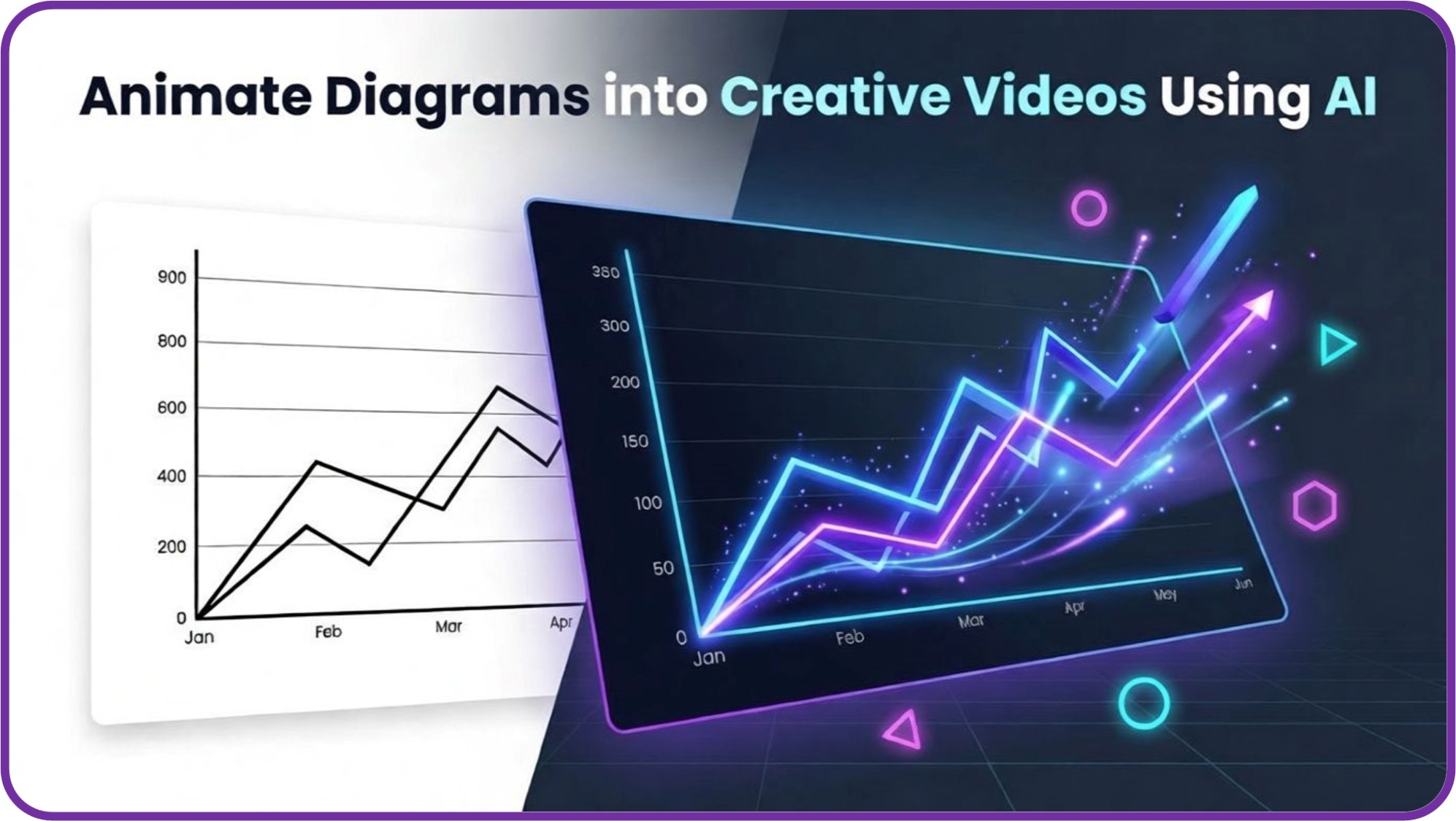
Most presentations have the same old problem…
Slides full of static boxes, arrows, and charts that feel dull and monotonous.
But when something moves, then people start to notice.
They follow the flow, and they understand the process, because they remember it.
In the past turning a diagram to a moving animation meant spending endless hours in after effects.
But now, with Pincel AI Image to Video, describe the motion you want, and turn a flat chart into a short engaging clip in minutes.
Here’s how it works:
Animating a Diagram Should Not Require a Film Degree 📊
Animating a data diagram sounds like a quick job.
But It never is, because moving one arrow means changing keyframe, drawing animation and more.
Hiring someone works but paying hundreds for a short explainer clip is hard to justify.
And PowerPoint animations exist, but everyone can tell.
That is exactly why Pincel AI Image to Video exists.
Upload your diagram, describe the motion, and get a clean clip in minutes.
How to Animate a Diagram with AI ✅
🖼️ Step 1: Upload Your Still Diagram
Open the Image to Video tool and upload your still.
Diagrams, charts, slides, infographics, UI mockups, and whiteboard snapshots all work.
Use a clean, high-resolution image so text and lines stay crisp during motion.
📝 Step 2: Describe the Motion
In the prompt box, tell the AI what should move and how the “camera” should behave.
Try prompts like these (or copy them as-is):
- “slow zoom-in on the center of the flowchart, subtle parallax, clean corporate style”
- “animate the arrows pulsing one by one from left to right, minimal motion, bright white background”
- “camera pans across the bar chart, bars rise smoothly from zero, soft depth of field”
- “blueprint diagram, dramatic cinematic lighting sweep, slight handheld camera movement”
Keep it simple.
If you can describe it to a friend, you can prompt it.
🎛️ Step 3: Pick Quality, Resolution, and Length
Choose what you want your final clip to be used for.
Length: 5 seconds or 10 seconds.
Model tier:
– Standard (best quality): 5s = 30 credits, 10s = 60 credits.
– Fast/Budget (cheaper iterations): 720p = 2 credits/sec, 1080p = 4 credits/sec.
Draft mode: available on Fast/Budget, and it halves the per-second cost.
A good workflow is: draft in Fast mode, then re-run the best prompt in Standard for the final.
⚡ Step 4: Generate, Preview, and Download
Click generate and let it render.
You’ll get your clip in about 30 seconds to a few minutes depending on your settings.
Your output saves automatically in My Content, and you can download the MP4 right away.
Ready to test it? turn the photo into a video.
Who Is This For? 👇🏼
Explainer video creators — Turn “boring” slides into motion beats for YouTube, Reels, and course content.
Pair it with quick visuals from AI Camera when you need extra b-roll style shots.
Product marketers — Animate feature diagrams, funnels, and architectures into thumb-stopping ads.
And if you need the static asset first, build it with AI Product Photography or polish it with Relight Photos with AI.
Startup decks — Make a 5-second “architecture pan” or KPI chart rise for pitch videos and landing pages.
If your deck screenshot is cramped, expand it with Extend Photo with AI first.
News and context clips — Animate historical charts, maps, or timelines for quick background in shorts.
And when you need to combine sources into one clean frame, try Combine Photos.
Short-form creators — Fill a 5–10 second slot with something that looks “produced,” without filming anything.
It’s the same vibe that makes Merge Photo and Video so useful for fast edits.
Storytellers and educators — Bring textbook-style diagrams to life with subtle zooms, highlights, and pacing.
And if you want a more stylized look, experiment with AI Coloring on your base image first.
Small teams with no motion designer — Make motion assets in minutes, iterate cheaply, and ship.
That’s the whole point.
Frequently Asked Questions 🤔
How do I animate diagrams into creative videos using AI?
You animate diagrams into creative videos by uploading the diagram as a still image and prompting the AI for camera movement and element motion.
With Pincel AI Image to Video, you generate a 5–10 second MP4 clip without timelines or keyframes.
How long can the video clip be?
Pincel AI Image to Video outputs either a 5-second or a 10-second clip.
You choose the length right before generating.
What resolution can I export in?
You can generate in 720p or 1080p on the Fast/Budget model, and Standard is designed for top-quality results.
If you’re testing ideas, Fast + Draft is a great way to iterate before committing to a final run.
Can I use the generated videos commercially?
Yes, you can use the videos in ads, social content, and marketing.
That makes it perfect for product explainers and campaigns that start from static assets like charts and diagrams.
Where are my videos saved after I generate them?
Your clips are saved automatically in your My Content library.
You can also download the MP4 immediately and drop it into your editor.
Turn Your Data Chart into a Short Clip 🎬
Diagrams and numbers help us to imagine the concept in our mind.
Now with Pincel AI show your infographic data in motion.
Upload it to Pincel AI Image to Video, describe how you want it to move, and get a clean clip in minutes.
Drop it in your presentation. Share it on LinkedIn.
Send it to the team that never reads the static version.

