
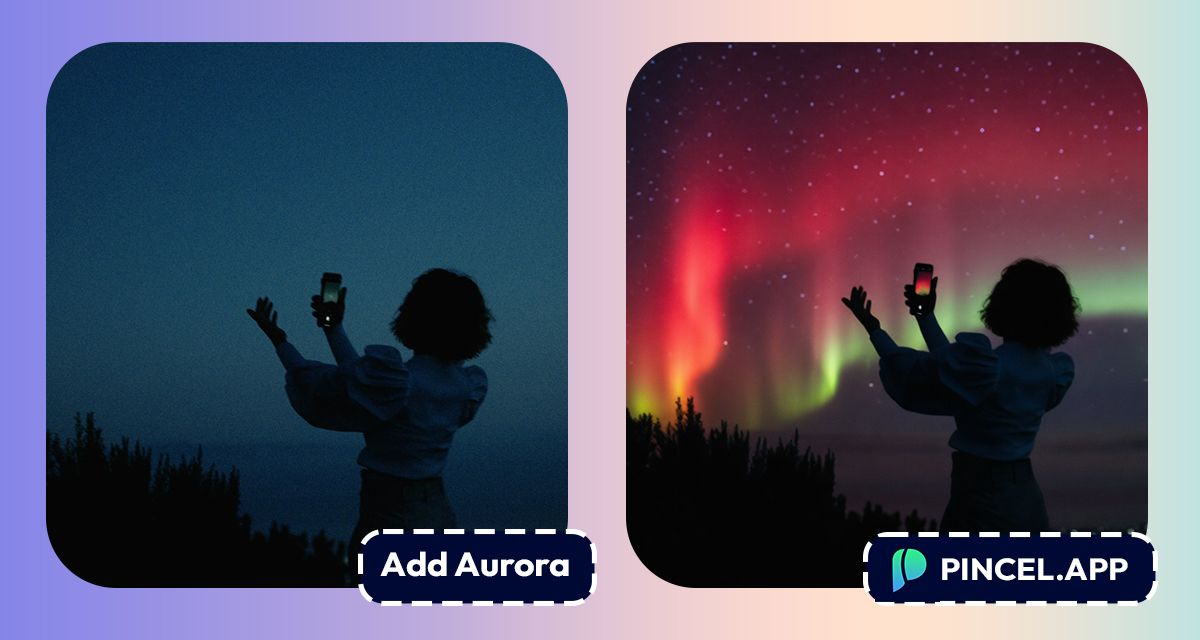
Aurora is a spectacular phenomenon in the night sky.
Named after the Roman Goddess, Aurora feels our mind with a deep, overwhelming sense of wonder.
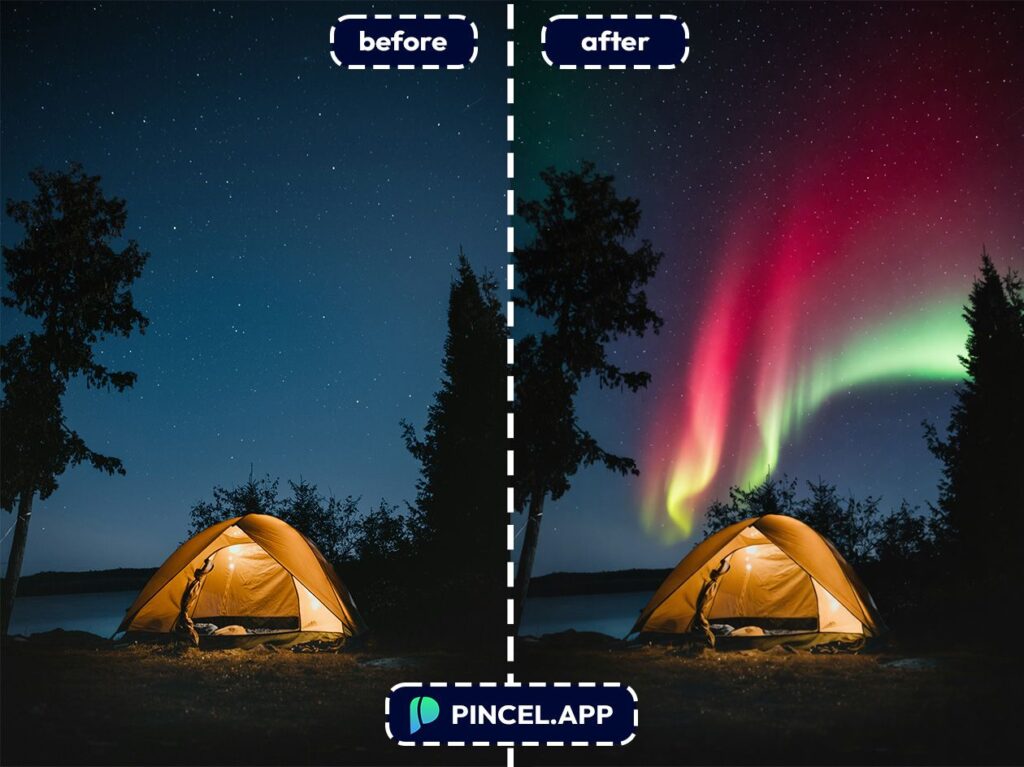
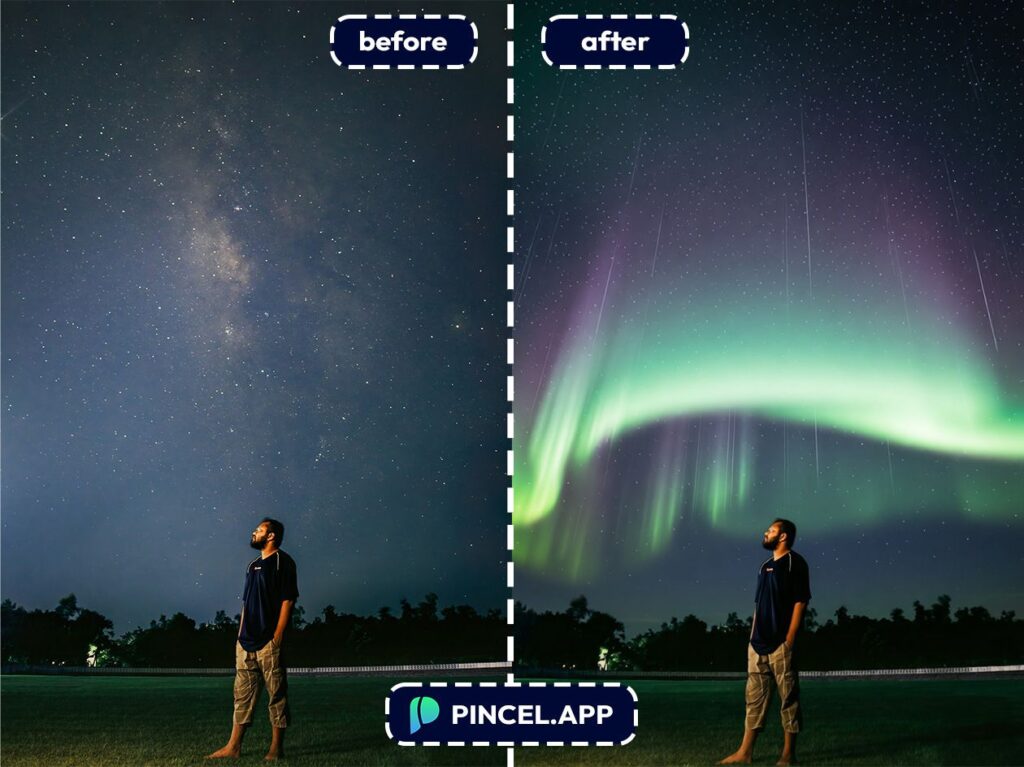
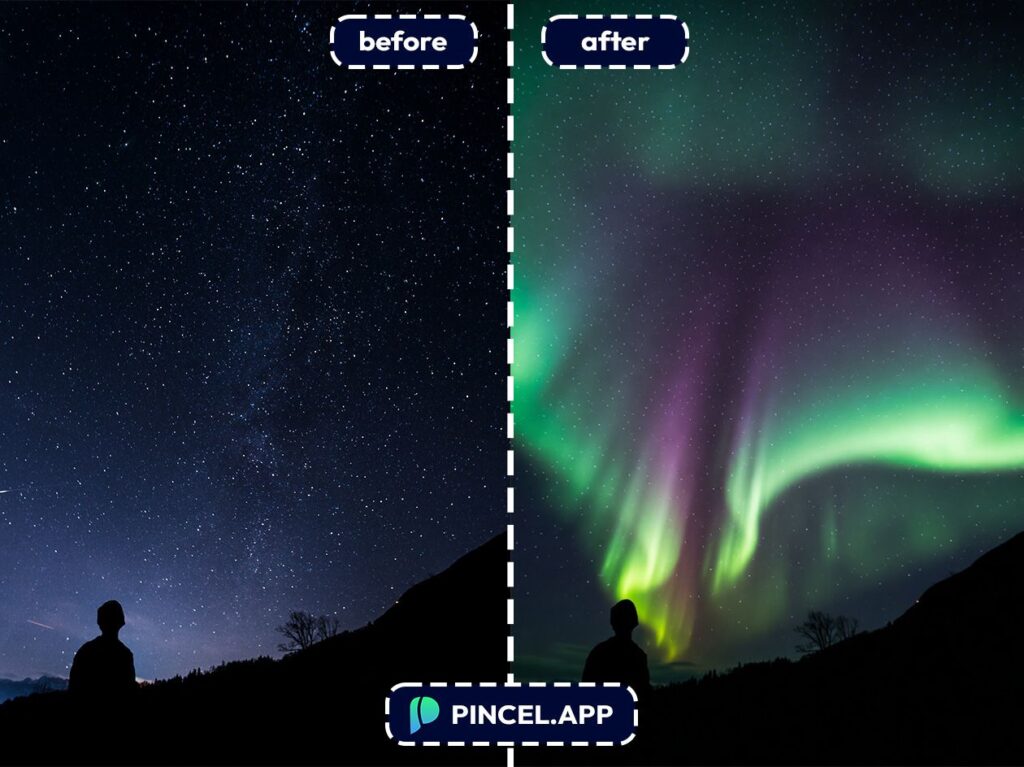
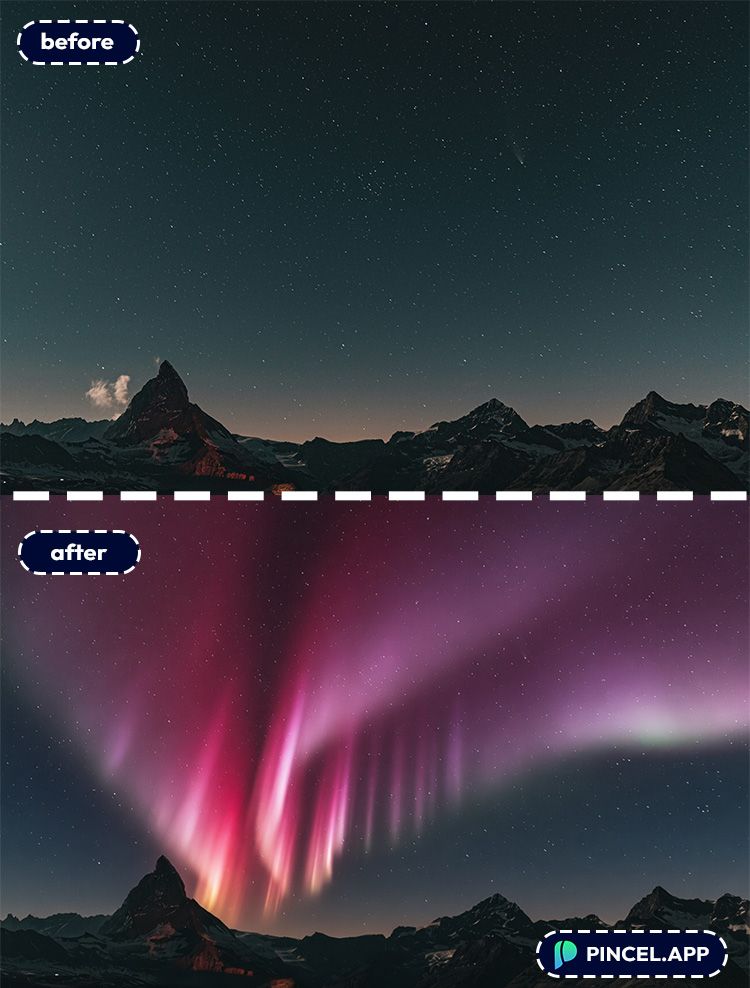
Placing an aurora in a simple night sky photo turns it into something deeply meaningful.
However, photoshopping an aurora into a night sky is a tedious process.
But now, with Pincel AI Editor, you can add an aurora to your photo in under 10 seconds.
Just upload your photo, type a simple prompt, and let Pincel AI do the rest.
Here’s how it works:
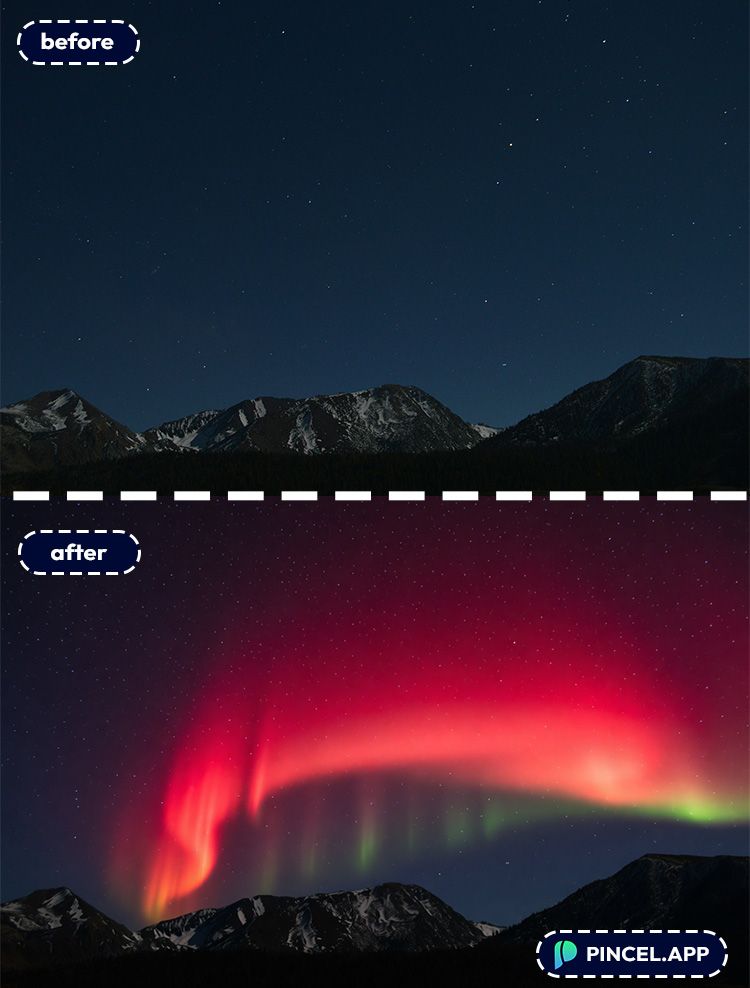
Getting an Aurora to Look Real is Hard 🪐
Adding Aurora in photos is possible in photoshop.
However it’s a very tedious process which involves multiple steps such as selection, edge refining, blending etc.
One option is to hire a retoucher.
But that also means incurring extra cost.
That’s exactly why Pincel AI Editor exists.
It handles the blending, lighting feel, and sky replacement style edits automatically, in seconds.
How to Add an Aurora to Your Photo ✅
🖼️ Step 1: Upload Your Photo
Go to the Pincel AI Editor.
Click Upload Image and choose your photo.
Night shots work best.
But dusk photos and even city skylines can look great with the right prompt.
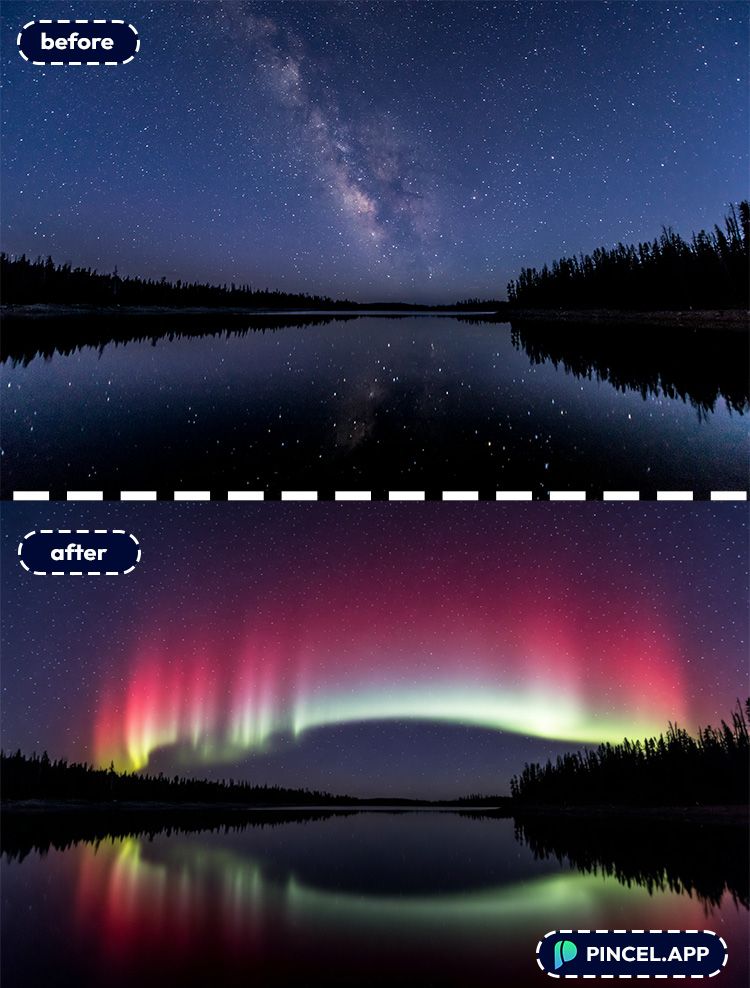
📝 Step 2: Describe the Aurora You Want
In the prompt box, tell the AI what kind of aurora to add.
Use simple language, and include color + intensity + realism.
Try prompts like these:
- “Add realistic northern lights in the sky, green and purple aurora, soft glow, keep the landscape unchanged”
- “Replace the sky with a clear starry night and bright aurora borealis, long light curtains, natural lighting”
- “Add a subtle aurora above the horizon, faint green glow, realistic, not oversaturated”
- “Add vivid aurora with swirling ribbons, cinematic night sky, preserve the original people and foreground”
Want more control? Mention what not to touch: “keep the mountains the same” or “don’t change the buildings.”
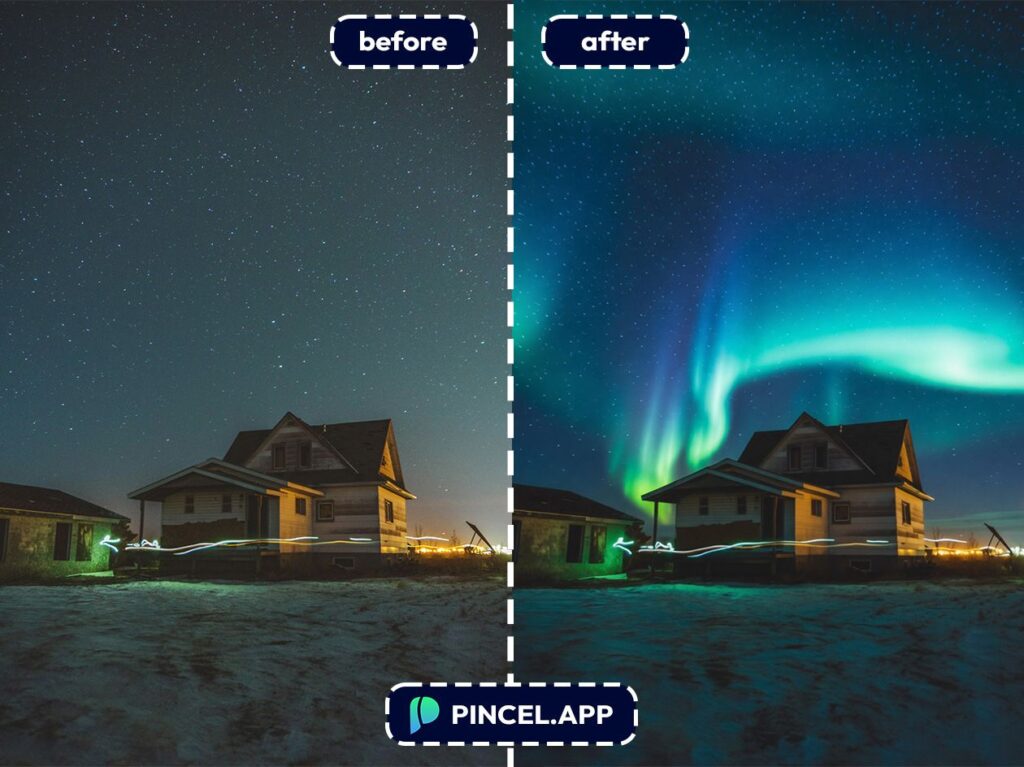
⚡ Step 3: Click Generate
Hit Generate and wait 5–10 seconds.
Pincel edits the sky while preserving your layout and subject consistency.
So the horizon, trees, people, and buildings don’t suddenly morph into “AI soup.”
If the first result is too intense, regenerate with “subtle” and “realistic.”
If it’s too faint, add “brighter glow” and “high activity aurora.”
📥 Step 4: Download (or Iterate Once More)
Download your favorite result.
And don’t be shy about doing two passes.
One for the sky, one for the overall mood (“slightly cooler tones, increase contrast, keep it natural”).
Ready to test it on your own photo?
Who Is This For? Real-World Use Cases 👇🏼
Travel photos that look like you actually saw the aurora — You know the moment: you went to Iceland/Norway/Alaska, but the camera captured… darkness.
Add the vibe back without faking the entire scene.
Creators making scroll-stopping posts — Aurora skies turn normal portraits into “wait, where is this?” content.
If you’re also playing with lighting, pair it with ideas from relight photos with AI.
Couples and engagement shoots — A soft aurora behind silhouettes looks unreal (in the good way).
And if the pose isn’t perfect, you can also explore change pose in photo.
Landscape photographers doing quick concept edits — Sometimes you just want to preview a look before spending hours in a full workflow.
If you’re expanding the frame first, check extend photo with AI.
City skyline glow-ups — Auroras over a skyline can be stylized but still believable if you keep it subtle.
And if you want full weather drama, see change weather in photo.
Sky swaps without the plastic look — If your real goal is just a better sky, aurora is one option.
For classic daytime edits, replace sky in photo is a great companion read.
Poster art, covers, and thumbnails — Auroras are basically instant atmosphere.
If you’re combining multiple elements, you’ll also like combine photos with AI.
Just-for-fun edits that don’t scream “filter” — Make it look like a rare night-sky event happened right above your hometown.
It’s the kind of edit that gets texts like “is this real??”
Frequently Asked Questions 🤔
How do I add aurora to photo using AI?
You can add aurora to photo using AI by uploading your image to Pincel AI Editor, typing a prompt like “add realistic northern lights in the sky,” and generating the result in 5–10 seconds.
If it’s too strong or too weak, tweak words like “subtle,” “vivid,” or “realistic” and regenerate.
Is Pincel AI Editor free to try for adding an aurora?
Yes, you can try Pincel AI Editor with 20 free credits and no credit card.
That’s enough to test multiple aurora variations and dial in the look you want.
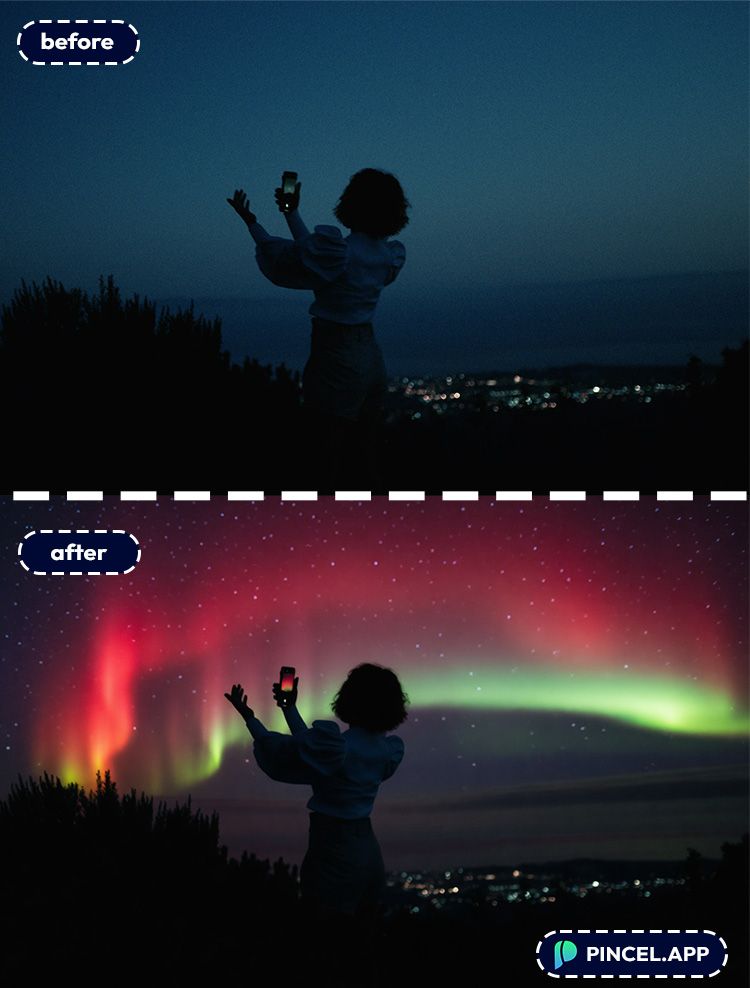
Add Aurora to Your Photo
You may have an amazing image of a night sky.
Run it through Pincel AI Editor and with adding aurora make your image spectacular.
It’s a very simple process and your result will show up in seconds.
So go ahead and make your night shots legendary.

