
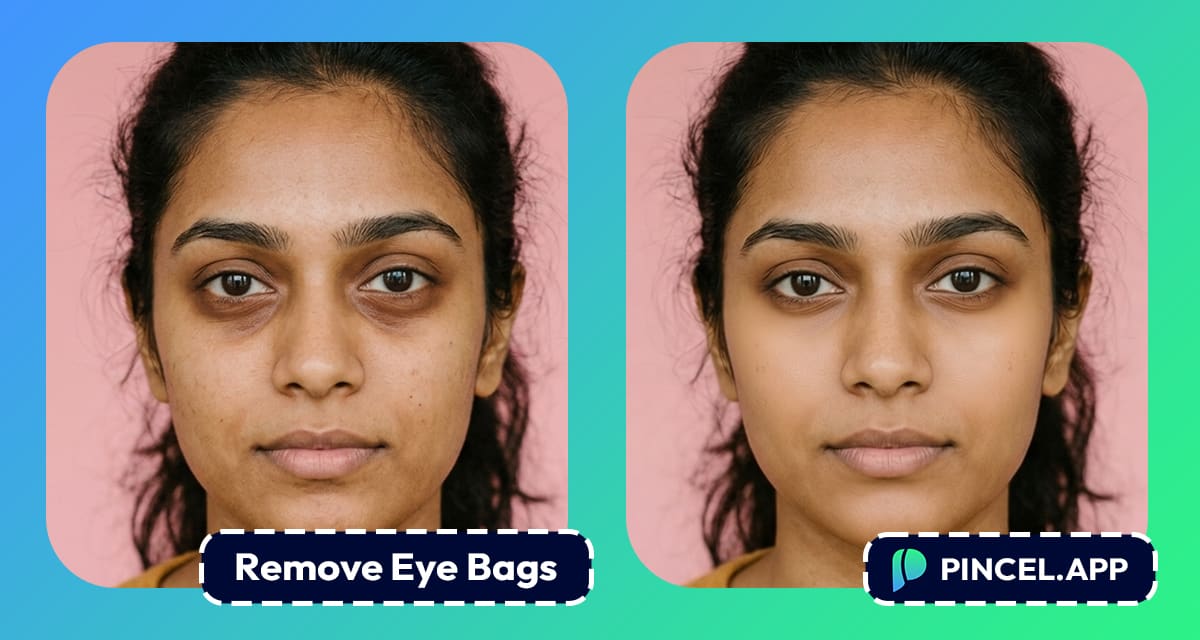
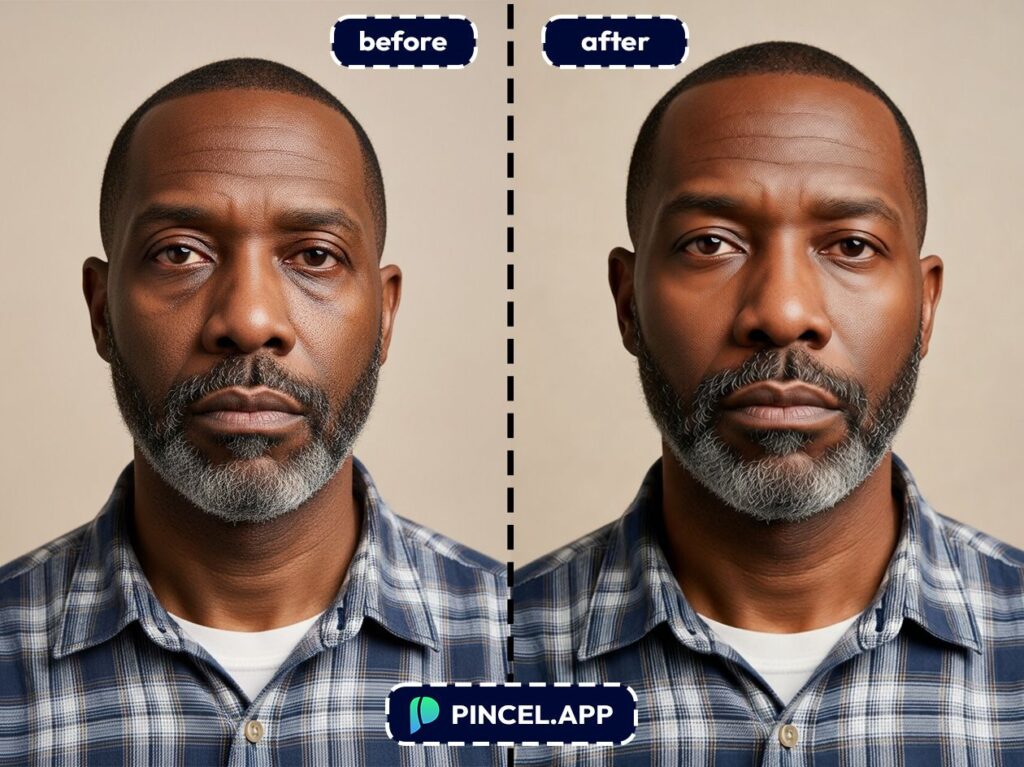
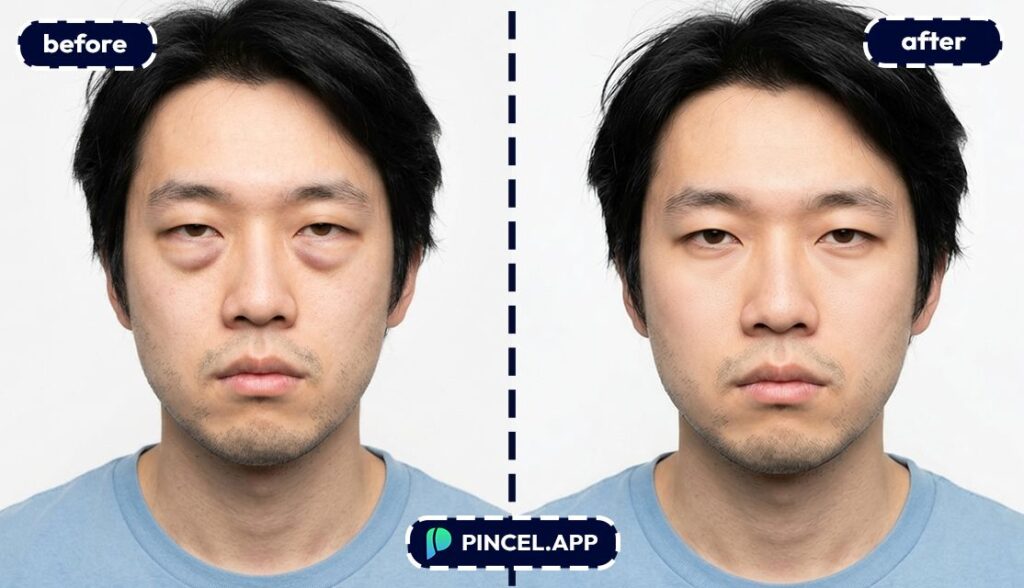
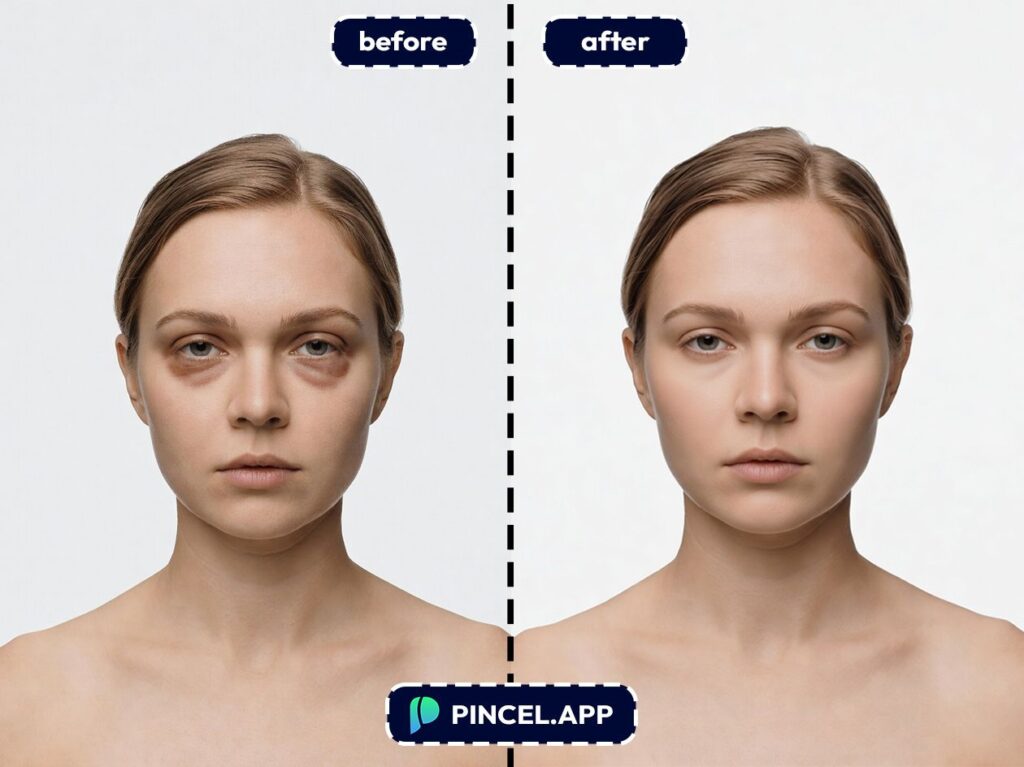
Eye bags are one of the most common cosmetic concerns.
Your eyes look puffy, dark or swollen.
Having a photo with an eye bag may ruin the purpose.
In the past, fixing eye bags meant spending hours in Photoshop or paying someone to do it.
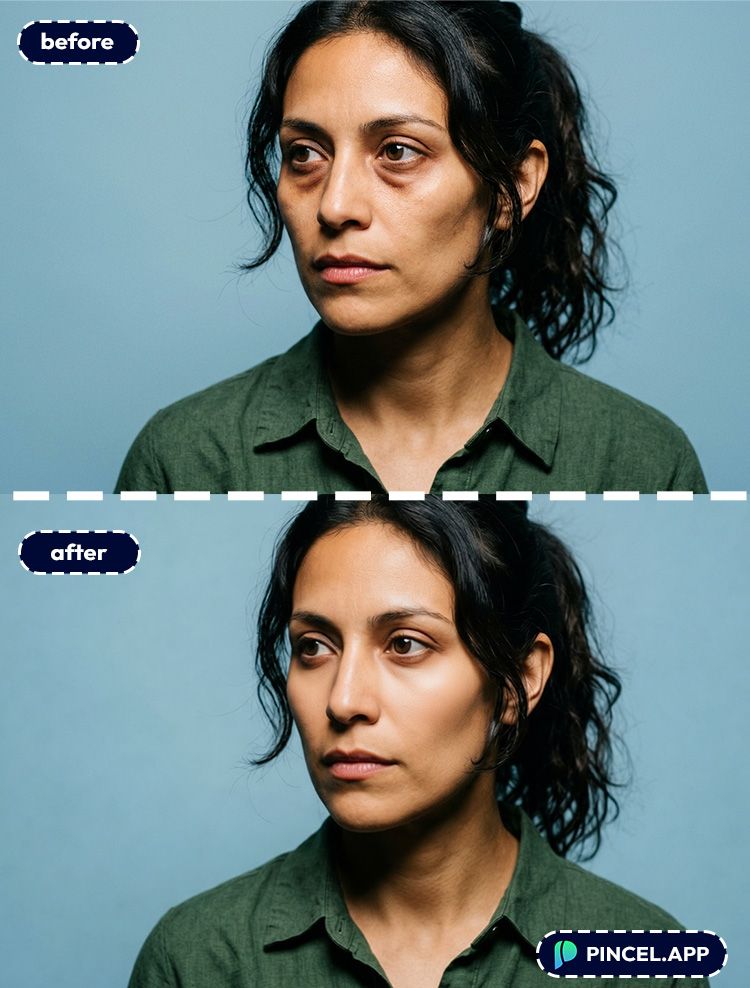
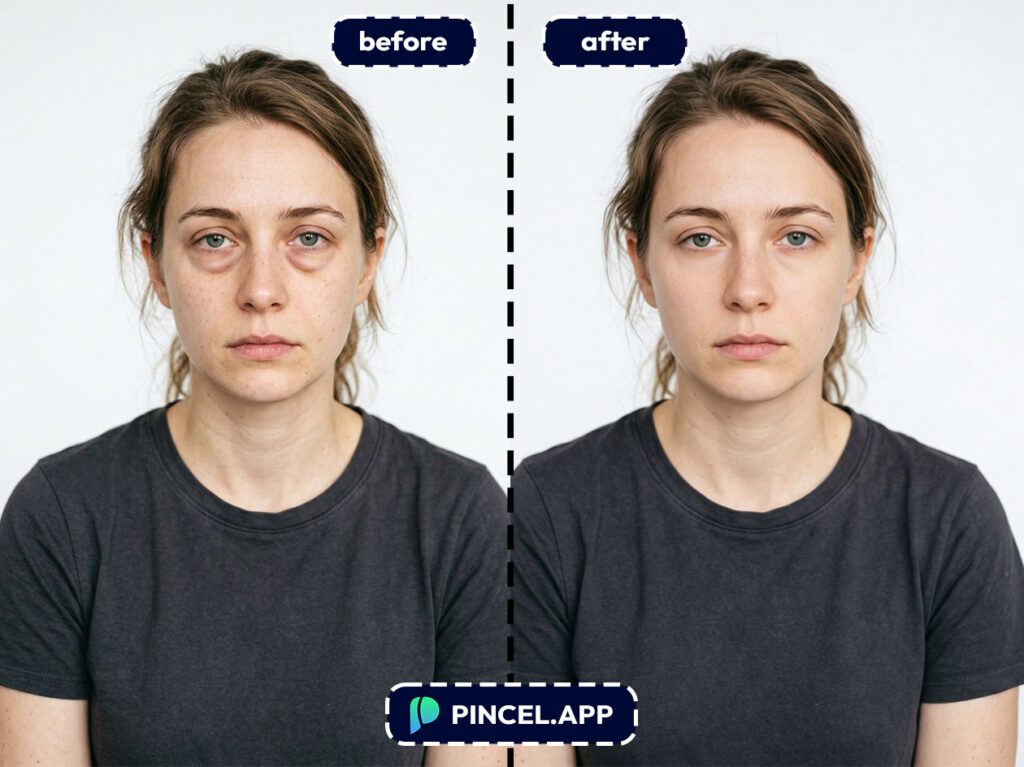
But now, with Pincel AI Photo Editor, you can remove eye bags using AI in under 10 seconds.
All you need to do is simply upload your photo, write a simple prompt and let AI do the rest.
Here’s how it works:
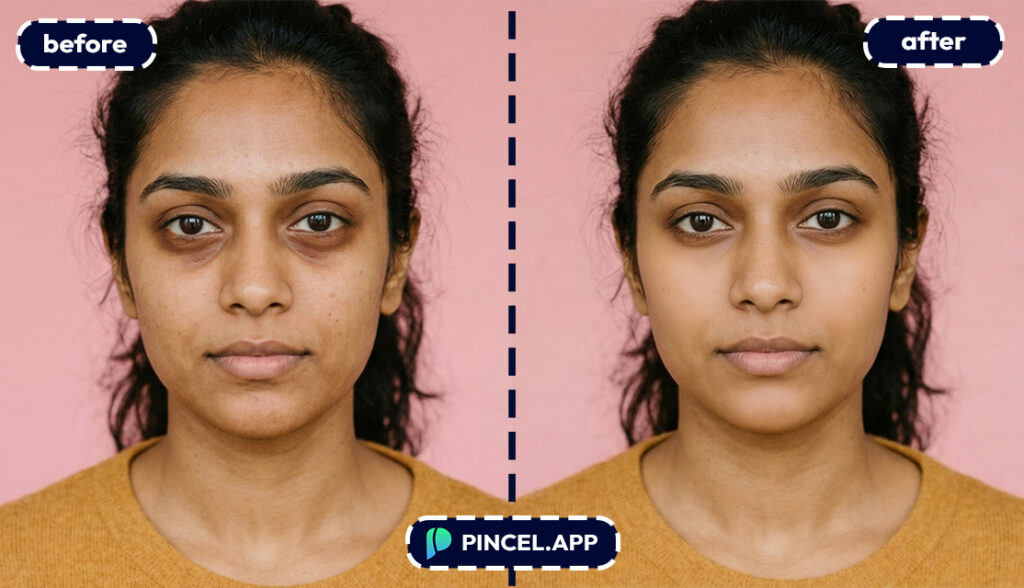
Why Does Fixing Eye Bags May Take a Long Time 🦥
It’s possible to do this manually with Photoshop 🤯
But you will have to spend hours and know specific tools to get the job done.
Even after that, the face may look like a porcelain doll.
Hiring someone is easier.
But that means endless emails and additional cost.
That is exactly why Pincel AI Photo Editor exists.
It can give you natural results in seconds.
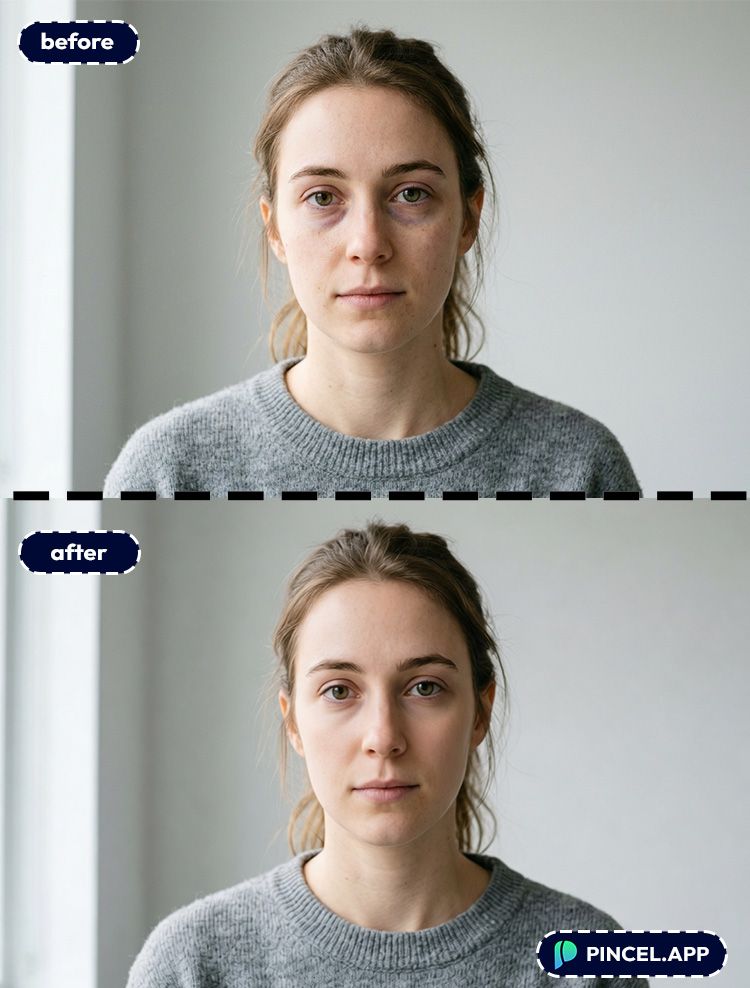
How to Remove Eye Bags Using AI ✅
🖼️ Step 1: Upload Your Photo
Go to the Pincel AI Photo Editor.
Upload any portrait or selfie where your eyes are visible.
Clear lighting helps, but even casual phone selfies work surprisingly well.
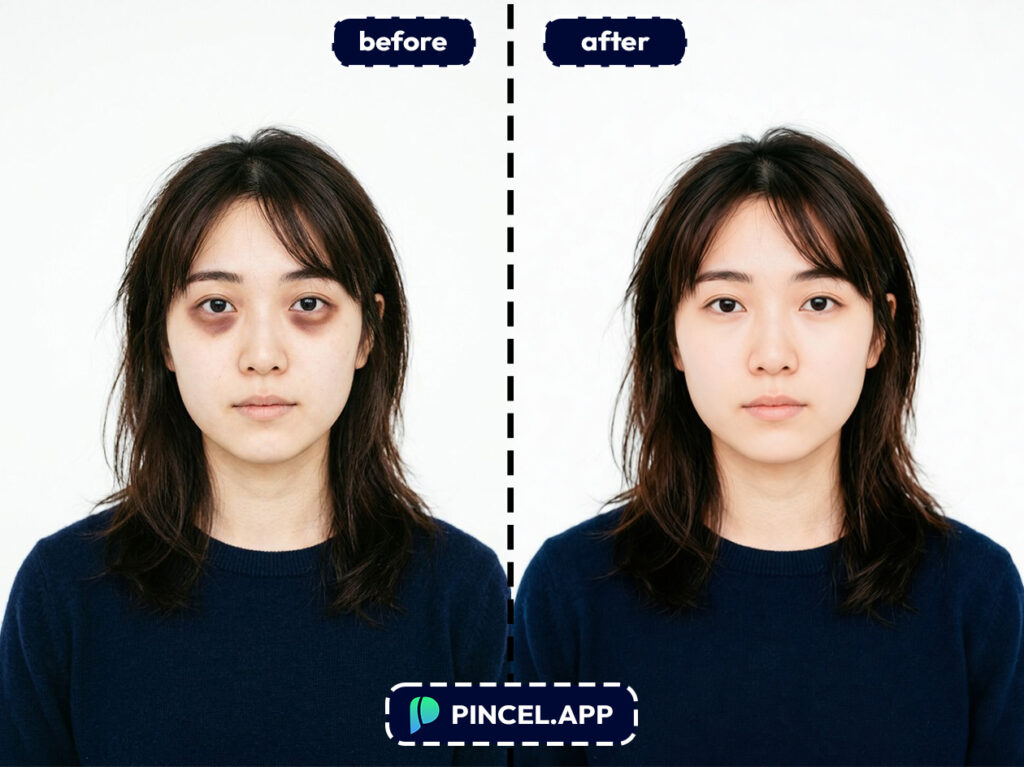
📝 Step 2: Type a Simple Prompt
In the prompt box, describe exactly what you want fixed.
Try one of these:
- “Remove under-eye bags and reduce dark circles, keep natural skin texture”
- “Smooth under-eye area slightly, keep pores and realistic shadows”
- “Reduce puffiness under the eyes, keep the rest of the face unchanged”
- “Make me look more rested, subtle retouching only”
If you want a “barely edited” result, use words like subtle, natural, and keep texture. If you want a stronger change, say reduce significantly or remove completely (but expect a more “beauty edit” vibe).
⚡ Step 3: Click Generate
Hit Generate and wait a few seconds.
Most edits finish in under 10 seconds, and the difference is immediate.
If it’s too strong or too light, tweak one word and generate again.
📥 Step 4: Download (or Try More Fixes)
Download your result when it looks right.
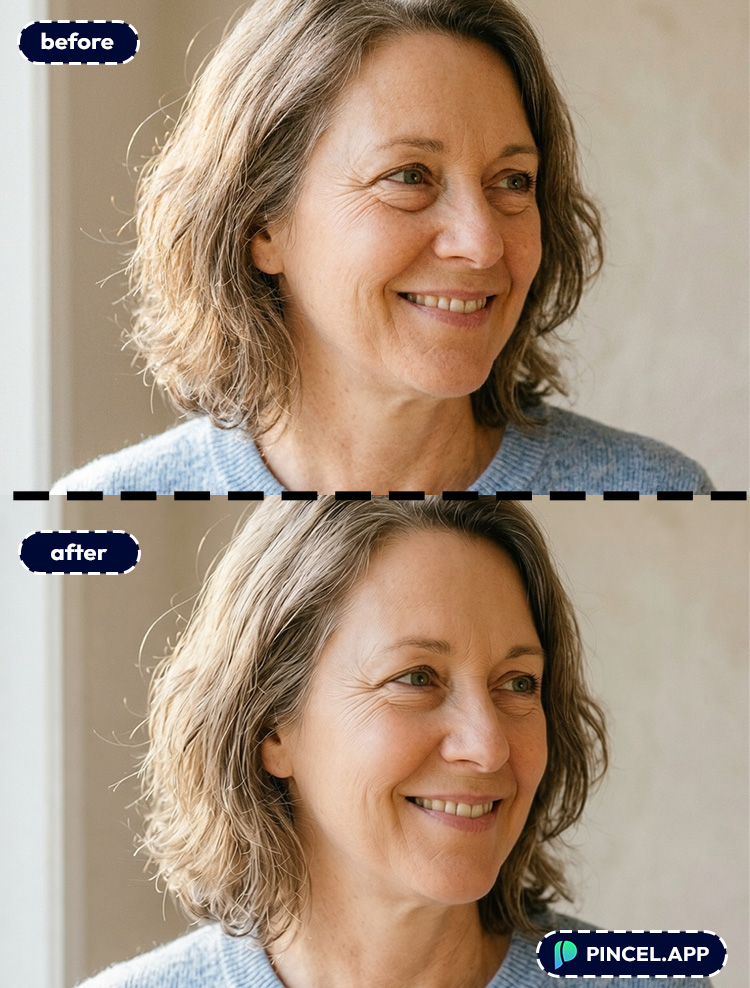
And if you’re already in “quick retouch mode,” you can also do related touch-ups like remove wrinkles, fix teeth, or even relight your photo for a more flattering overall look.
Who Is This For? Real-World Use Cases 👇🏼
LinkedIn & resume photos — You want to look sharp, not over-filtered. Pair this with a clean background using the AI resume photo workflow and you’re basically done.
Dating profile pics — Eye bags can read as “tired” even when you felt great that day. A subtle under-eye fix keeps you looking like you, just more rested.
Creators shooting late at night — Filming, editing, posting, repeating. Fixing under-eyes in seconds saves you from re-shooting thumbnails and profile shots.
Wedding and event photos — Big days start early and end late. If you want the “best version” of the moment, combine under-eye cleanup with gentle skin work like remove wrinkles and realistic lighting using relight AI.
Passport-style photos — Harsh lighting is brutal under the eyes. You can prep a cleaner portrait and then follow the sizing/background rules from AI passport photo.
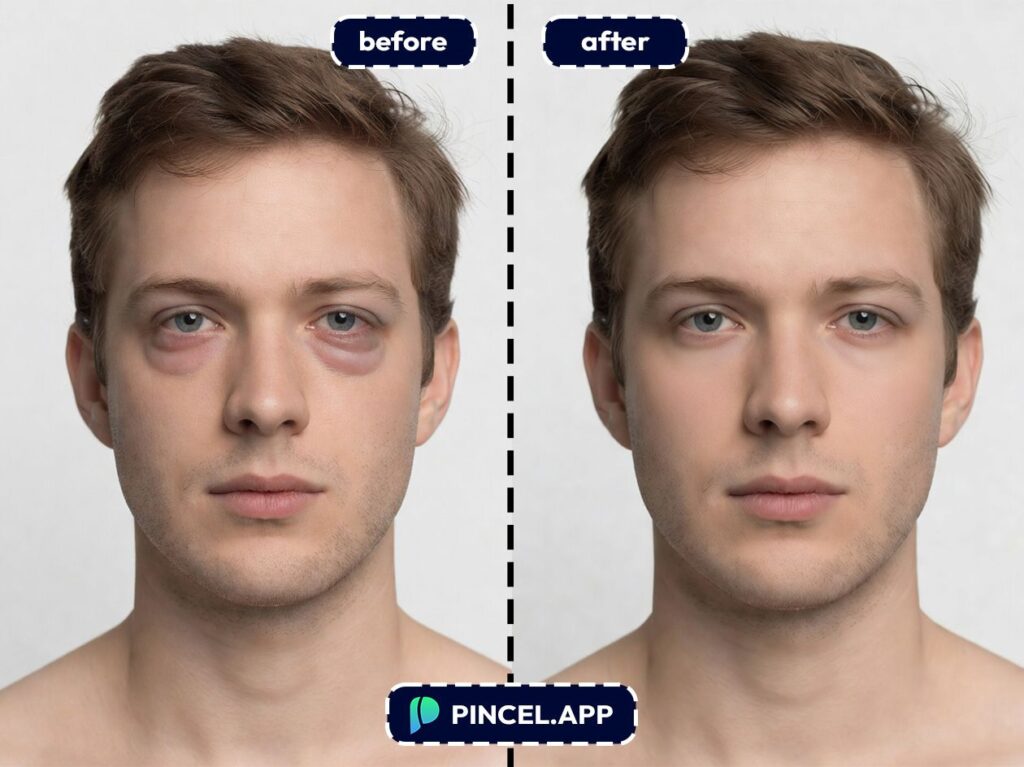
Group photos where you’re the only tired one — You don’t need to “beautify” everyone. You just fix your under-eye area and keep everything else the same (so the photo still feels honest).
Style experiments (without going full filter) — Want a refreshed look plus a little fun? Try pairing it with something like change eye color or a hairstyle tweak from long hair AI.
Content repurposing — Old photos can become “new” again. If you’re also changing framing, extend your photo with AI so your refreshed portrait fits different crops.
Frequently Asked Questions 🤔
Can I remove eye bags using AI and still look natural?
Yes, you can remove eye bags using AI and keep it natural by asking for subtle changes and preserved texture. Use prompt words like “reduce,” “slightly,” and “keep pores/skin texture” to avoid the over-smoothed look.
Does Pincel remove dark circles too, or only puffiness?
It can do both if you ask for it directly in the prompt. “Eye bags” usually means puffiness, while “dark circles” targets discoloration, so it’s best to mention both when you want both fixed.
What’s the best prompt to remove eye bags without changing my face?
The best approach is to constrain the edit to the under-eye area and tell the AI to keep everything else unchanged. Try: “Reduce puffiness under the eyes, keep the rest of the face unchanged, natural texture.”
Is removing eye bags in Photoshop better than using AI?
Photoshop can be more controllable, but it’s slower and easier to mess up unless you know advanced retouching. With Pincel, you get a clean result in seconds, and you can iterate with prompts instead of layers and masks (see: Photoshop generative fill alternative).
Is Pincel free to try for removing eye bags using AI?
Yes, Pincel is free to try with 20 credits and no credit card required. That’s enough to test multiple variations and dial in a natural result before you decide anything.
See How it Works in Less Than 30 Seconds 👇🏼
Bag It and Tag It 🧳
Image with eye bags can be a time consuming issue.
With a simple prompt now you can remove your puffy eyes, make them natural.
You won’t have to spend hours in photoshop.
Instead just upload your photo, write the prompt and be done.

