
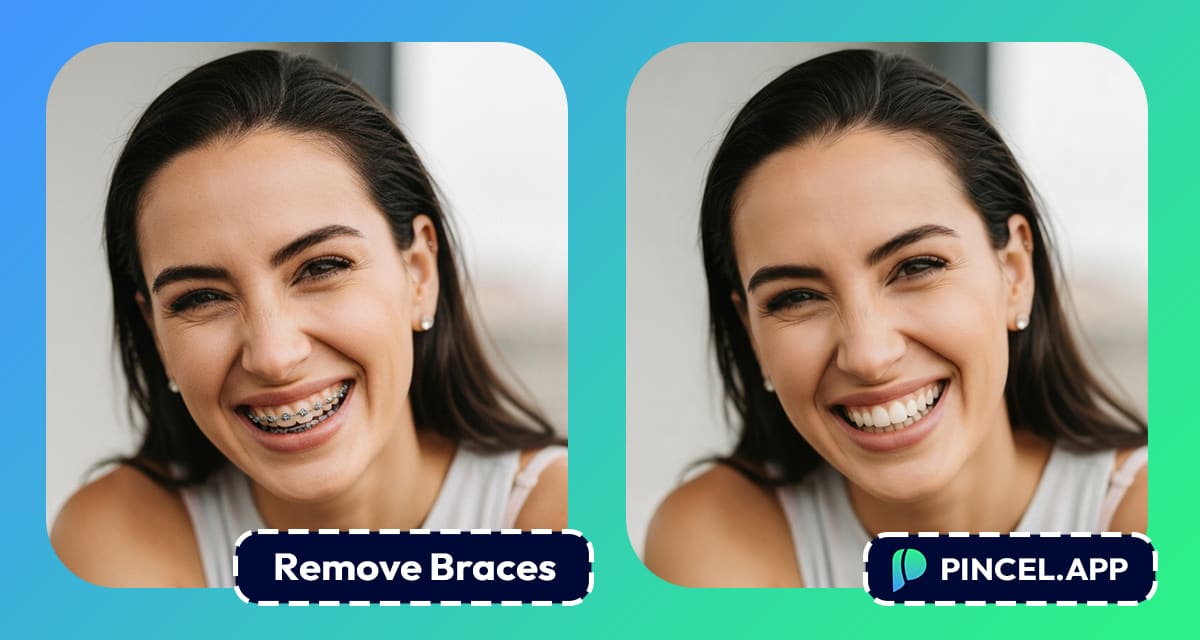
You just got braces.
And now every photo you take, feels a little awkward.
You start to smile differently.
And some people even start to avoid the camera entirely.
But you are also curious.
What do you actually look like without them. Not in two years, but right now.
You don’t need photoshop, because there’s far better solution for this.
Upload your photo to Pincel AI Photo Editor, describe what you want, and see your natural smile in seconds.
Here’s how it works:
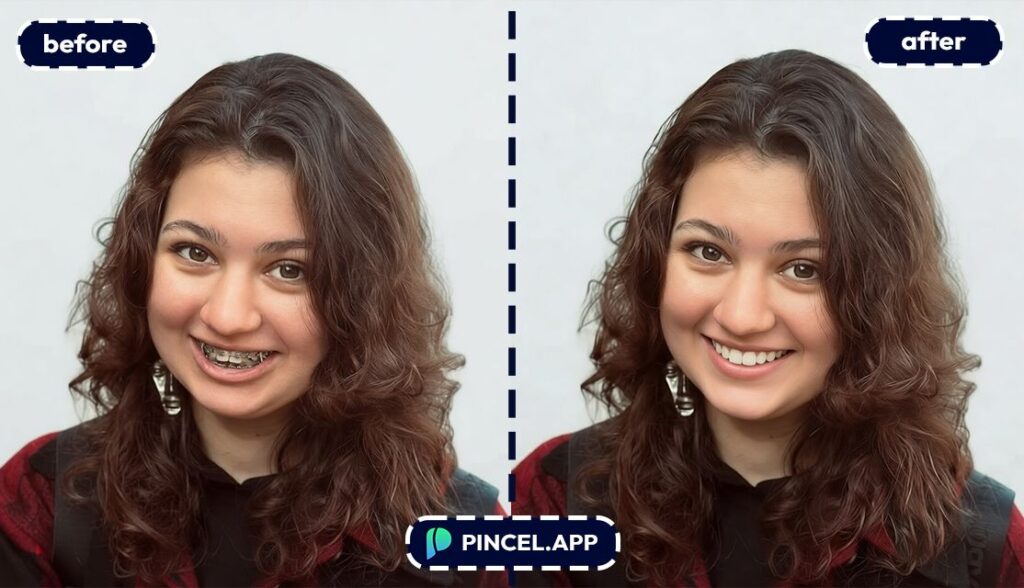
How to Remove Braces From Photos ✅
🖼️ Step 1: Upload Your Photo
Go to the Pincel AI Photo Editor.
Click “Upload Image” and choose your selfie, portrait, or group photo.
A clear, front-facing smile works best.
But even casual indoor photos usually clean up nicely.
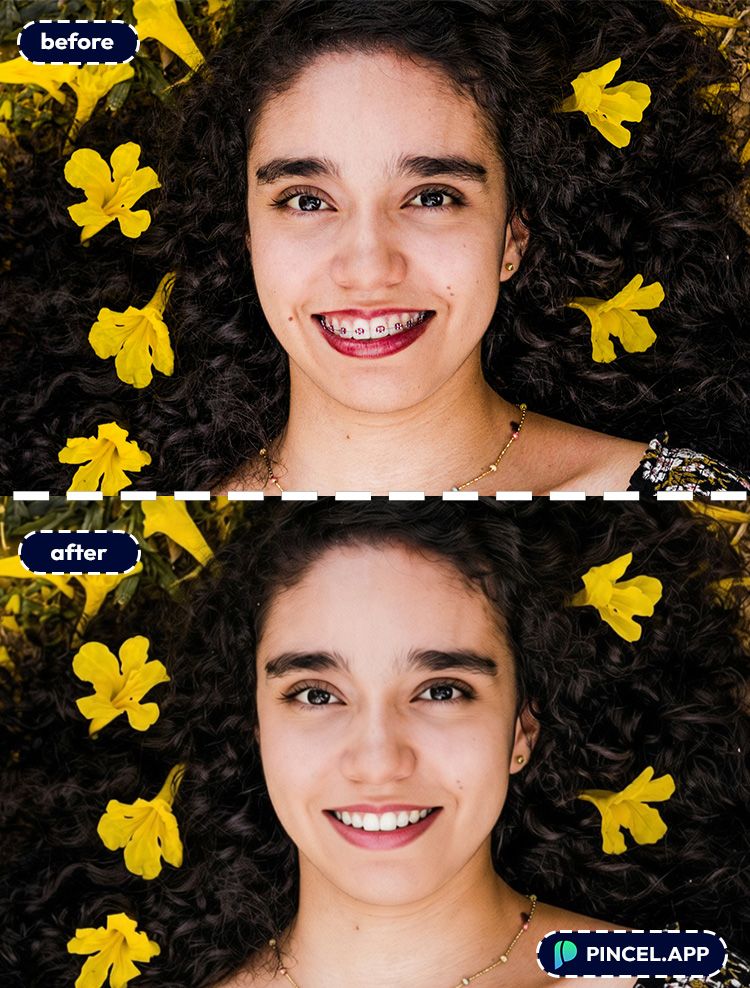
📝 Step 2: Type a Simple Prompt
Then type something like:
- remove the braces
- remove braces and wires, keep natural teeth texture, realistic smile
- remove orthodontic brackets, keep lips and gums unchanged, preserve face identity
- make teeth look natural without braces, match original lighting and shadows
- remove braces, slightly whiten teeth naturally, no fake veneer look
Keep it plain simple
You’re basically telling the AI what you’d ask a retoucher to do.
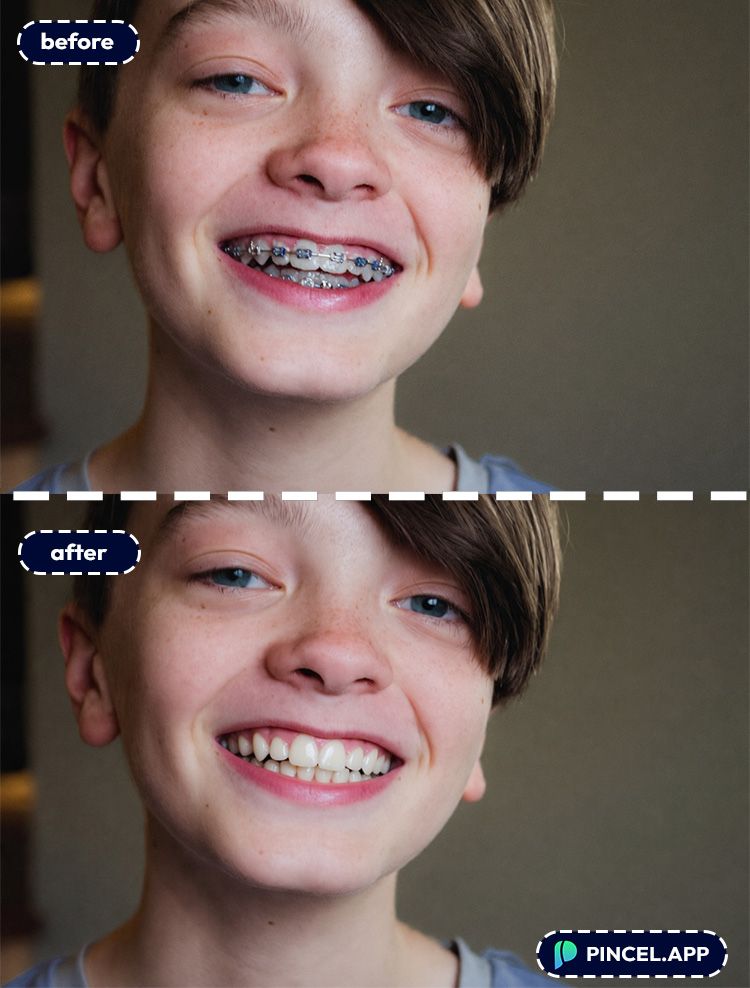
⚡ Step 3: Click Generate
Hit Generate and wait a few seconds.
Pincel will blend the edited teeth into your real lighting, mouth shape, and skin tones.
Not perfect on the first try?
Change one word (like “natural” or “realistic”) and generate again.
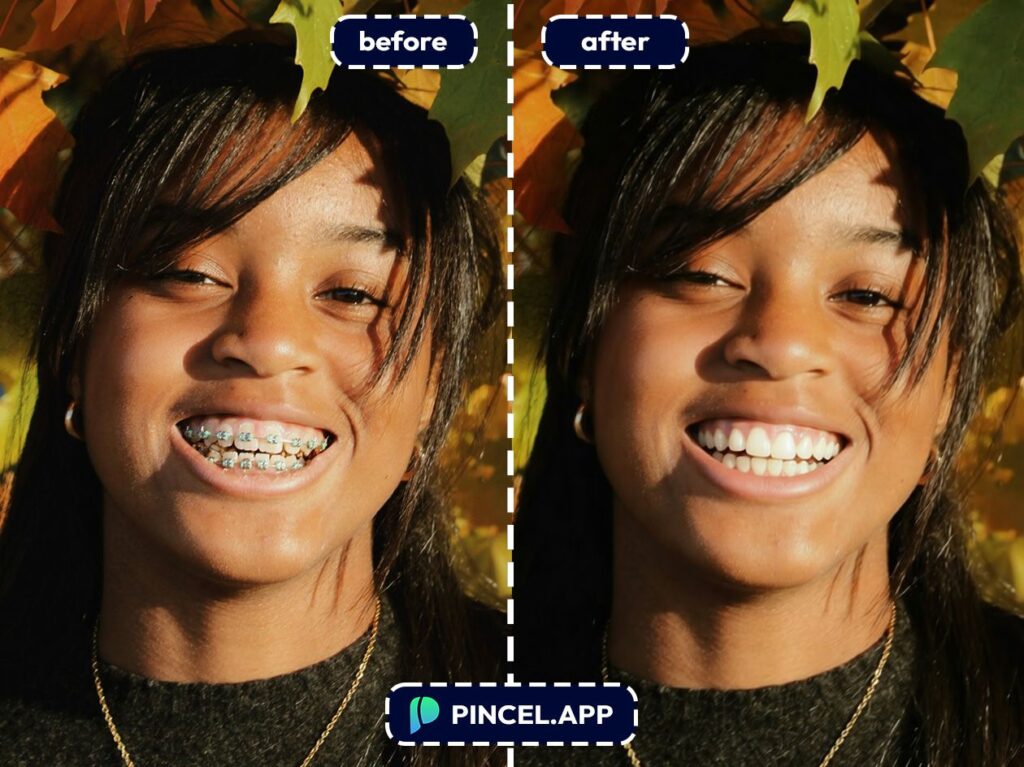
📥 Step 4: Download (or Keep Refining)
When it looks right, download your image.
And if you want to go further, you can stack edits.
For example, remove braces first, then do a subtle smile upgrade using the same workflow.
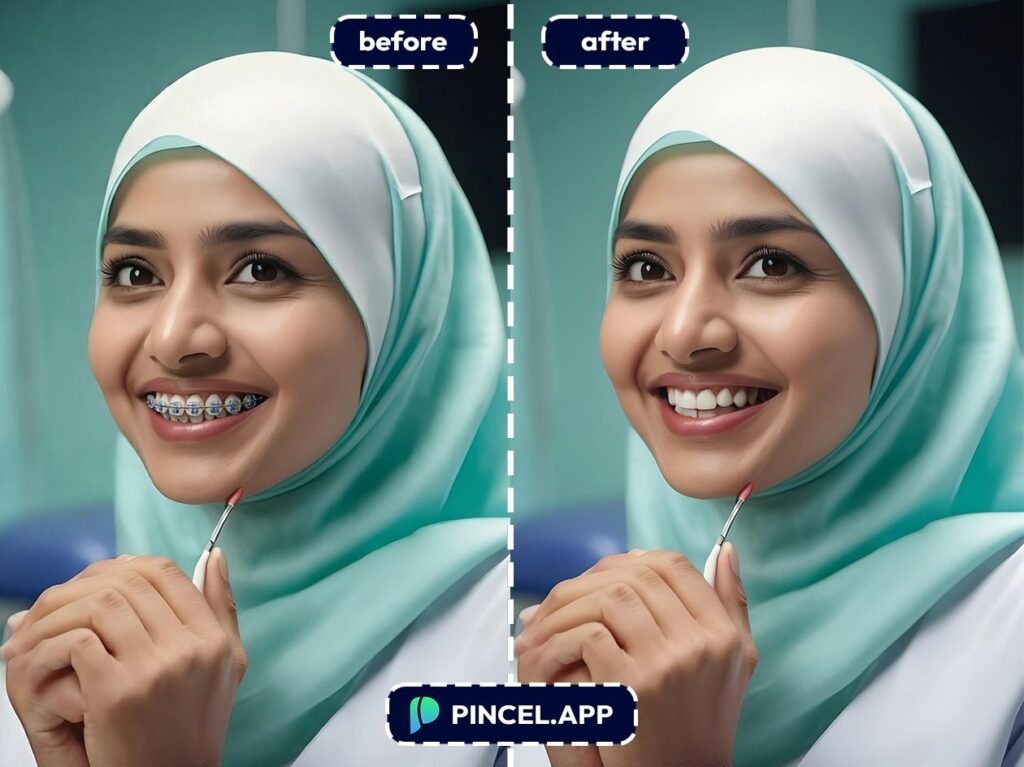
Who Is This For? Real-World Use Cases 👇🏼
Profile photos that don’t scream “middle school yearbook.”
Perfect for LinkedIn, dating apps, and portfolios where you want you, not the hardware.
Resume and job applications.
If you’re updating a professional photo, pair this with the tips in AI Resume Photo to keep everything clean and polished.
Quick glow-ups for social posts.
Remove braces in seconds, then adjust the vibe with lighting changes using Relight Photos with AI.
Before/after orthodontic content (without waiting two years).
Creators love showing “what I’ll look like after braces,” then posting the real one later.
If you’re doing the opposite for fun, check out Add Braces to Photo too.
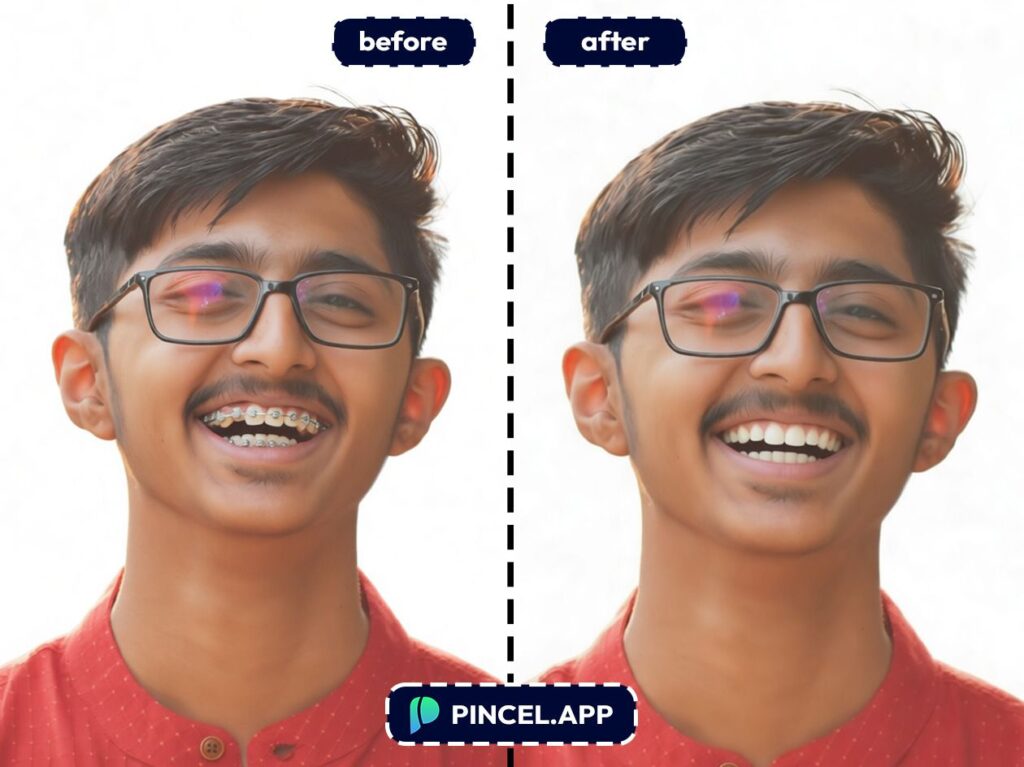
Group photos where one person wants a different edit.
You don’t have to redo the whole image.
If you also need to fix who’s in the shot, Add People to Photo is a lifesaver.
Teeth cleanup that stays realistic.
Braces removal often pairs well with small tweaks like smoothing or brightening.
If you’re going for a refreshed look (not a cartoon smile), see Fix and Whiten Teeth on Photo.
Old photos where braces are distracting.
School photos, family albums, awkward teen memories.
And if you’re restoring a wider frame or want more background, Extend Photo with AI can help.
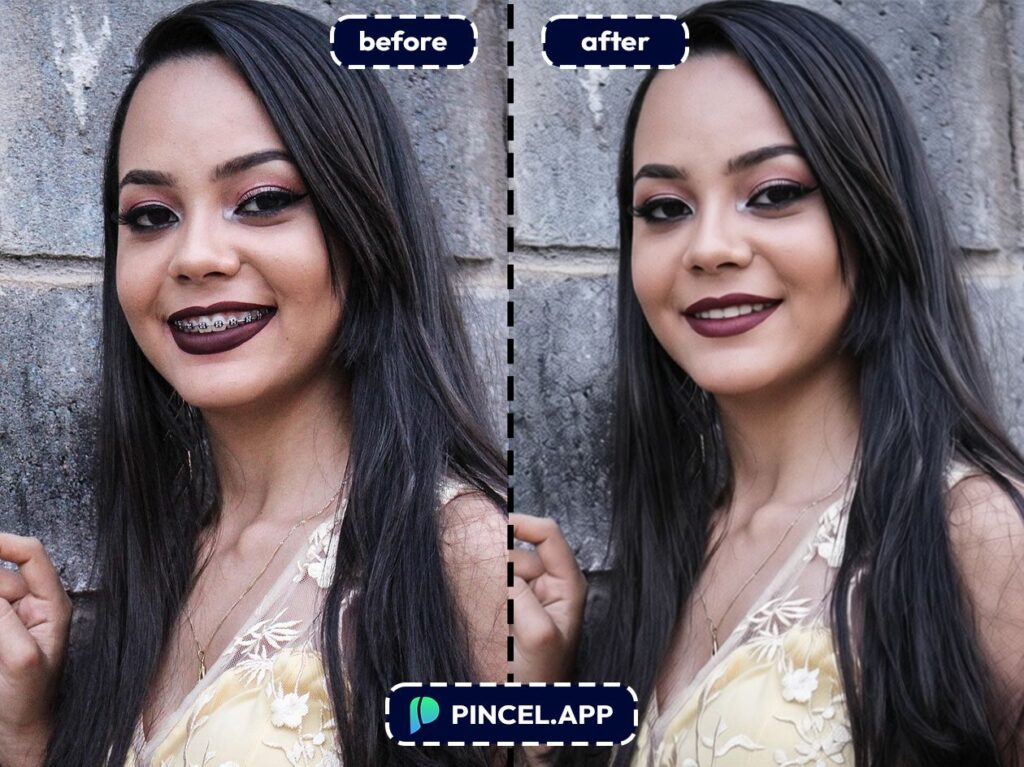
Why Pincel Beats Photoshop for This 💪
Photoshop can absolutely remove braces.
But it is just slow and tedious.
You’ll be reconstructing tooth edges, fixing specular highlights, and matching the micro-texture that makes teeth look real.
And if you’re not experienced, it’s easy to end up with uncanny teeth.
Too smooth, too white, too flat.
With Pincel, you skip all these hassles.
✅ Fast results — usually in under 10 seconds
✅ No editing skills needed
✅ Works in your browser (no installs)
✅ Easy to iterate: prompt, generate, tweak, repeat
✅ Free to try — 20 credits, no credit card
Frequently Asked Questions 🤔
How do I remove braces from photos using AI?
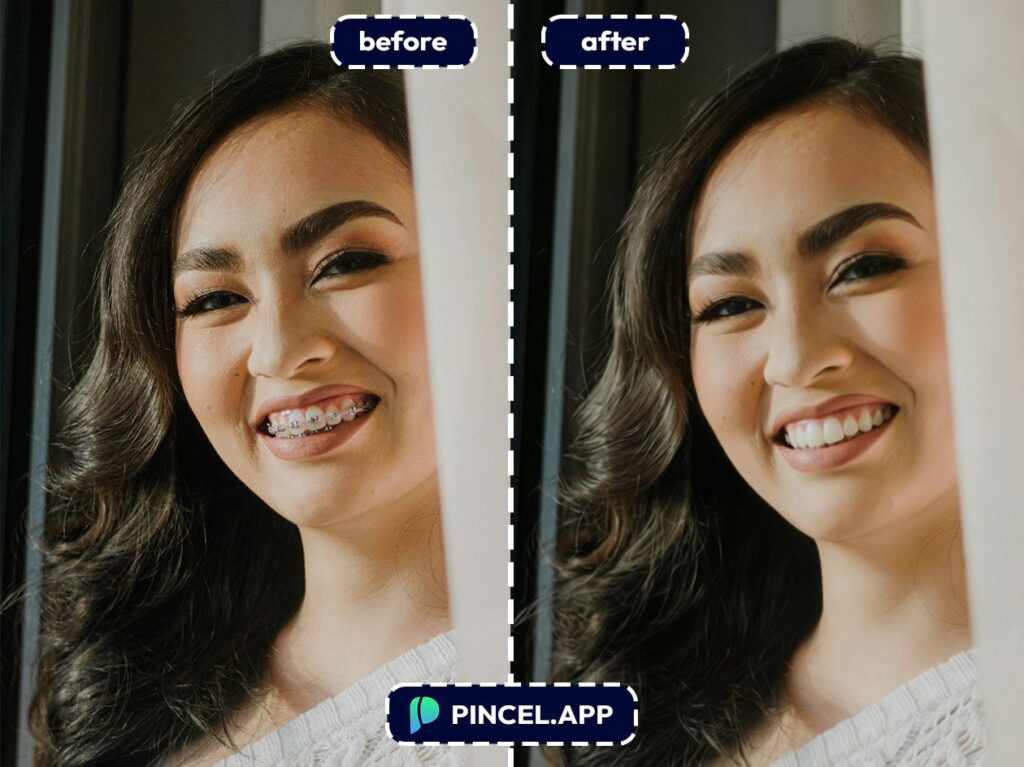
You can remove braces from photos using AI by uploading your image to Pincel, describing the change in a prompt, and generating the edit.
In most cases, you’ll get a usable result in a few seconds, then you can refine with a clearer prompt if needed.
Will AI removing braces look realistic?
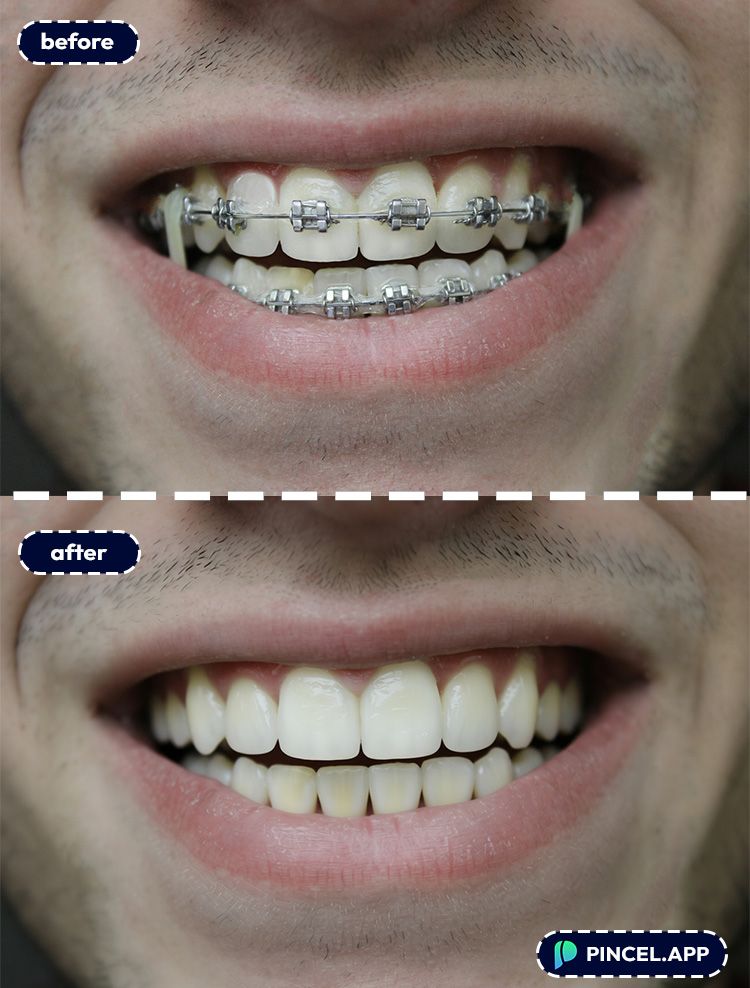
Yes, AI braces removal can look very realistic when the original photo is clear and well-lit.
The key is prompting for “natural teeth texture” and “match original lighting” so the edit blends correctly.
Can I remove braces from a selfie and keep my face the same?
Yes, Pincel focuses on local edits and can keep your face identity consistent while removing braces.
If the mouth changes too much, regenerate with “keep lips and gums unchanged” or “preserve face identity.”
Is removing braces in Pincel free to try?
Yes, it’s free to try.
Pincel gives new users 20 free credits (no credit card), which is enough to test multiple generations and dial in the best result.
See How it Works in Less Than 30 Seconds 👇🏼
Braces Be Gone 😁
Somewhere in your camera roll is a photo you almost posted.
Good lighting. Great angle and the perfect moment.
Then you saw the dental braces and put the phone down.
That photo deserves a second chance.
All you need is Pincel AI Photo Editor.
Upload it, describe what you want gone, and get a clean smile in seconds.
The brackets had their time…

