
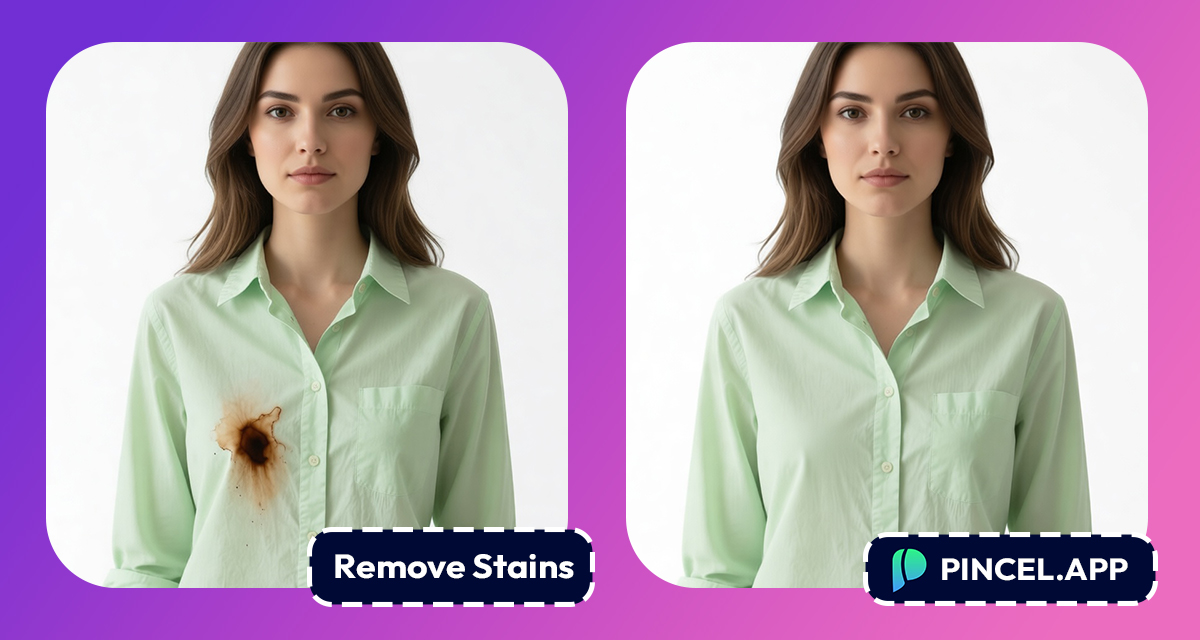
Some stains only show up in photos.
You never noticed it in real life, but the camera found it immediately.
The coffee drip on your shirt you missed.
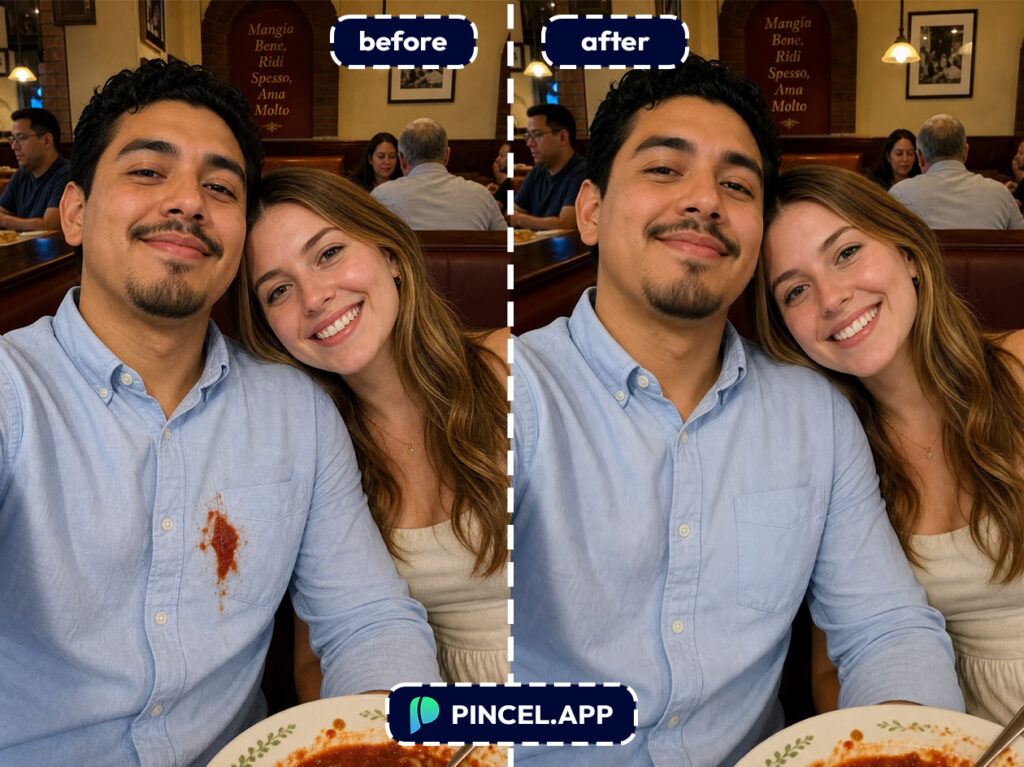
The sauce stain that showed up right in the middle of an otherwise perfect selfie.
The photo is perfect otherwise, but your eye keeps going straight to the stain.
Fixing it manually means cloning, patching, and blending until it looks like a crime scene cover up.
What if there is a faster way?
Here comes Pincel AI Photo Editor
Upload your photo, describe what needs to go, and the AI removes it cleanly in seconds.
Here’s how it works:
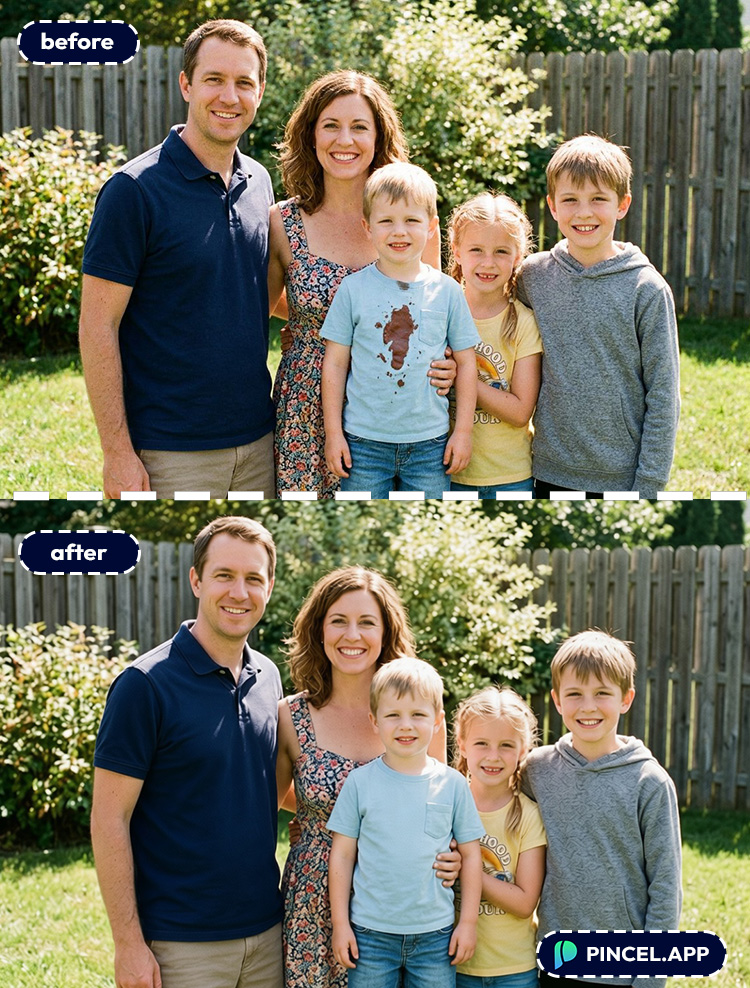
The Stain is Small, Fixing it Manually is Not. 🧹
In Photoshop you are clone stamping, healing, and matching texture for one tiny spot.
For one tiny spot you have to spend hours.
Hiring someone works.
But waiting two days to post one photo feels like overkill.
That is exactly why Pincel AI Photo Editor exists.
Describe the stain and it disappears.
No patch job. No airbrushed look.
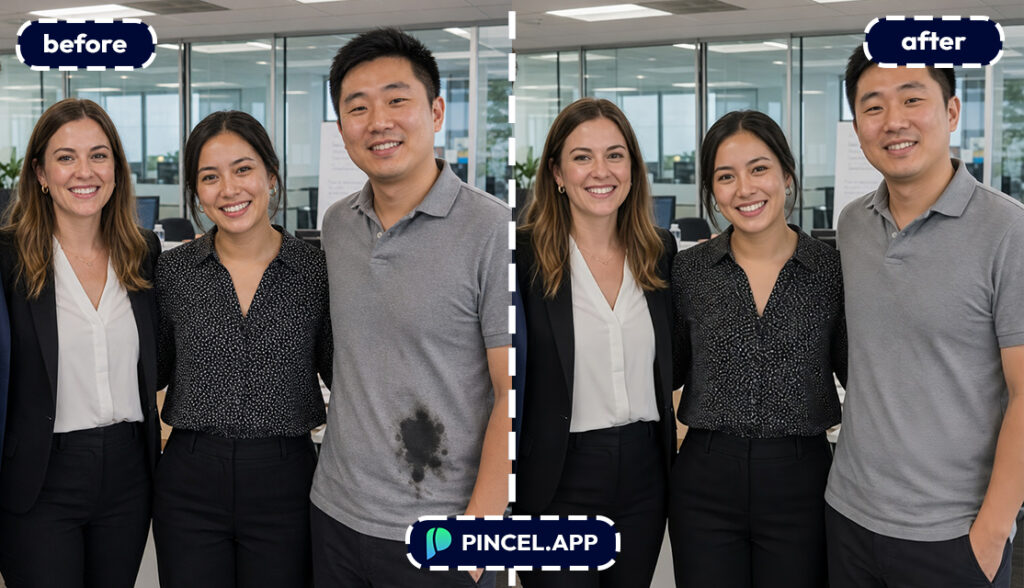
How to Remove Stains From Photos Using AI ✅
🖼️ Step 1: Upload Your Photo
Go to the Pincel AI Editor.
Upload the image with the stain, spot, mark, or smudge you want gone.
A clear photo helps, but you don’t need studio lighting.
Even casual phone pics work..
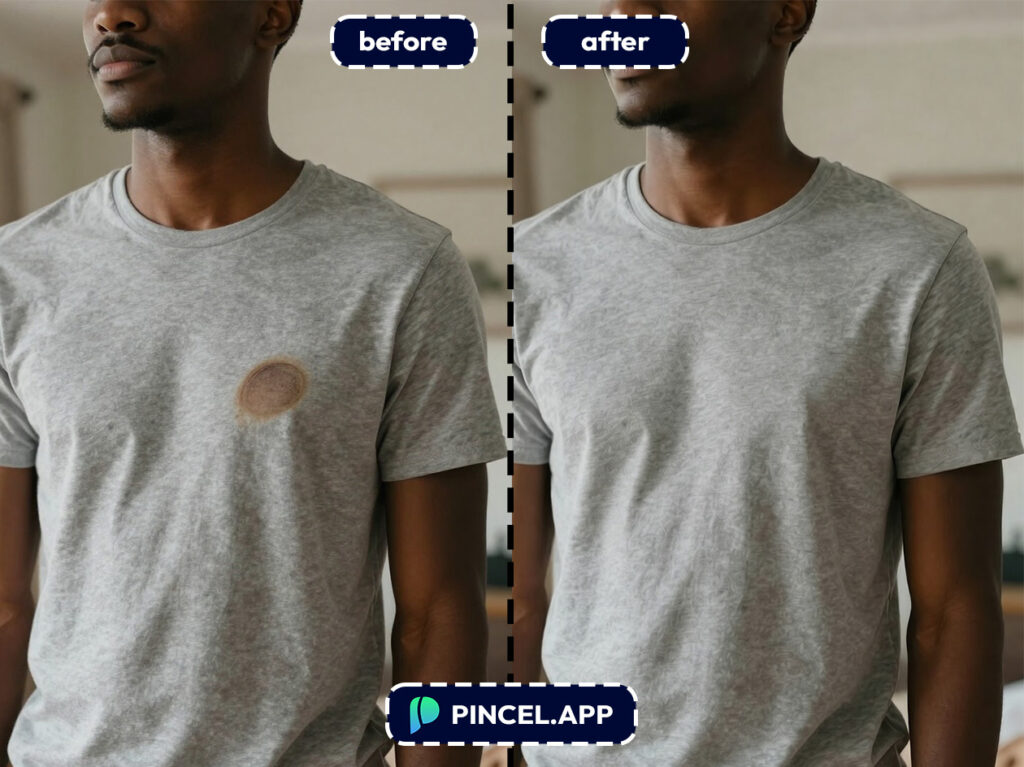
📝 Step 2: Tell the AI What to Remove
In the prompt box, describe the stain and what the surface should look like after.
Try prompts like these (copy/paste friendly):
- Remove the coffee stain on the white shirt and restore clean fabric texture
- Remove the grease stain on the wooden table, keep the wood grain realistic
- Remove the stain on the wall behind me and match the paint color
- Remove the makeup stain on the collar and keep the lighting natural
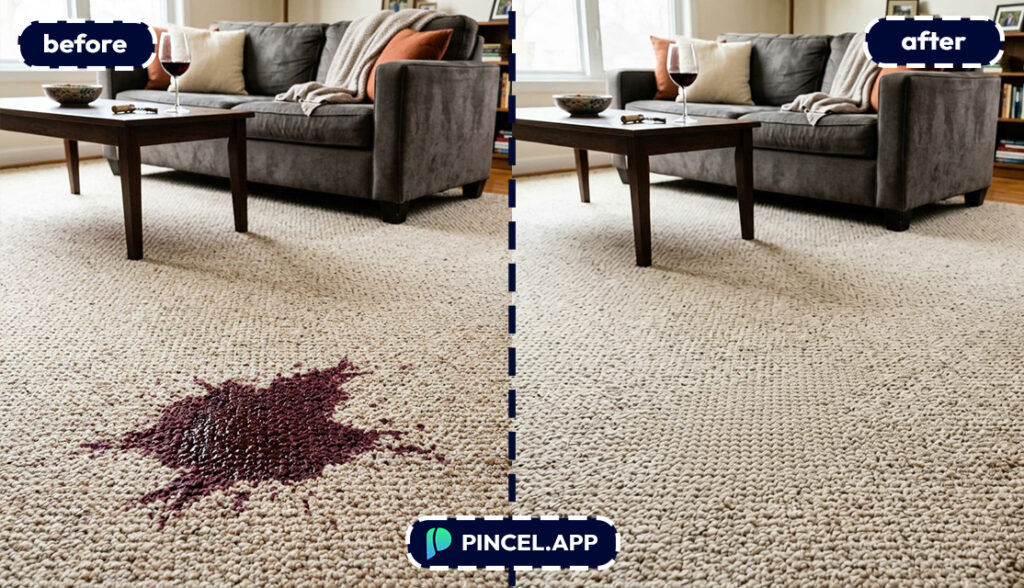
Be specific about the material when you can.
“Fabric texture,” “wood grain,” and “paint color” help the AI nail realism.
⚡ Step 3: Click Generate
Hit Generate and wait a few seconds.
Most edits land in under 10 seconds, including tricky textures like denim or patterned surfaces.
If it removed the stain but softened details, regenerate with a clearer instruction.
For example: “keep fabric weave sharp” or “preserve texture.”
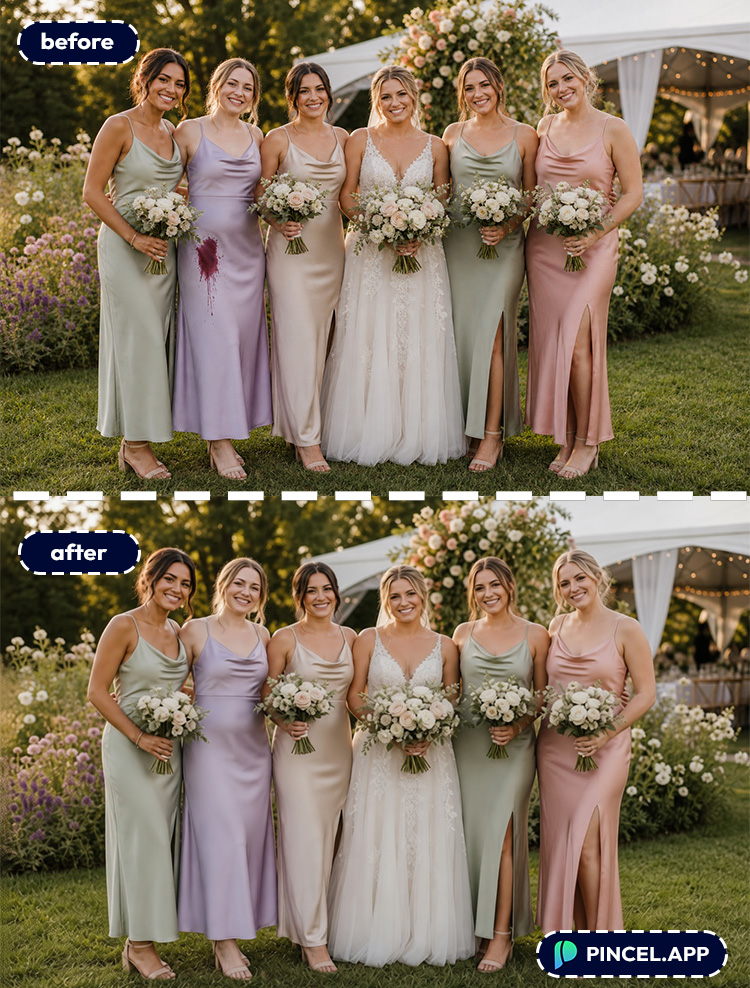
📥 Step 4: Download (Or Do a Second Pass)
Download your clean version once it looks right.
And if there are multiple stains, you can do them one by one for more control.
Small, targeted edits usually look the most natural.
Who Is This For? Real-World Use Cases 👇🏼
Social media creators — Remove random stains on outfits, backgrounds, and props before posting.
Pair it with quick framing fixes like extend photo with AI when you need more room for captions.
E-commerce sellers — Clean up stains on clothing, furniture, and product backdrops without reshooting.
This stacks perfectly with AI product photography for clean listings that look consistent.
Marketplace flippers (FB Marketplace, Etsy, Depop) — That one stain can tank trust fast.
Remove it, then upgrade the scene with replace sky or a quick relight if the photo looks dull.
Restaurants & food creators — Tables get messy, plates get splattered, and the camera always notices.
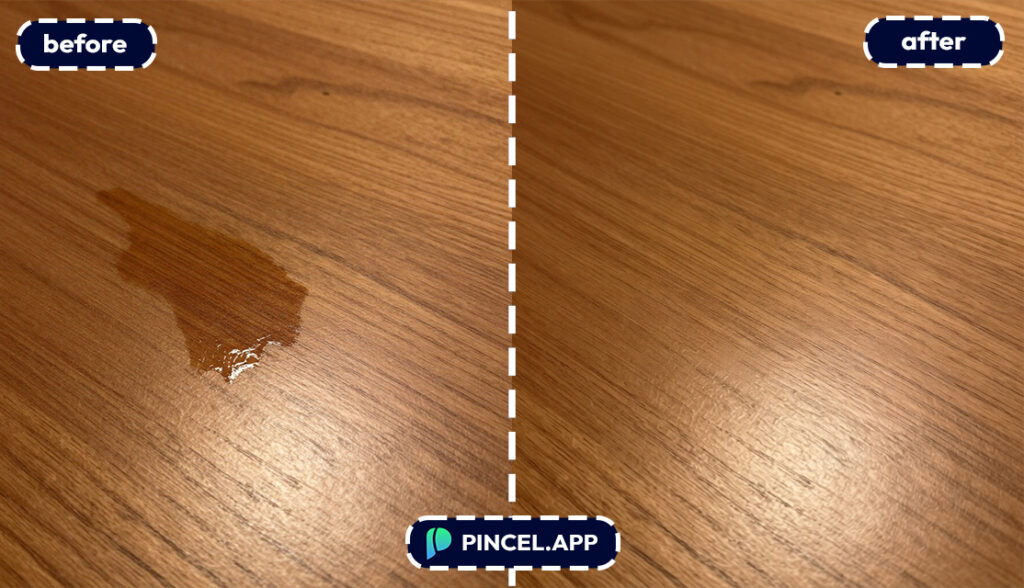
Clean the scene, then do mood edits like change weather for seasonal vibes.
Real estate & rentals — Remove wall scuffs, ceiling spots, and “why is that there?” marks in listing photos.
Combine with perspective tricks like change camera angle when a room shot needs a better feel.
Portraits and event photos — Fix stains on shirts, dresses, jackets, or even tablecloths in the background.
If you’re doing a more complete glow-up, you can also remove wrinkles or do subtle touch-ups like fix teeth.
Brand teams and marketers — Clean visual noise from campaign photos so the product is the hero.
Then add or update copy directly on the image using edit text on image.
Personal “please save this memory” fixes — Stains show up in your favorite photos at the worst times.
This is the fastest way to rescue them without turning your weekend into a Photoshop tutorial.
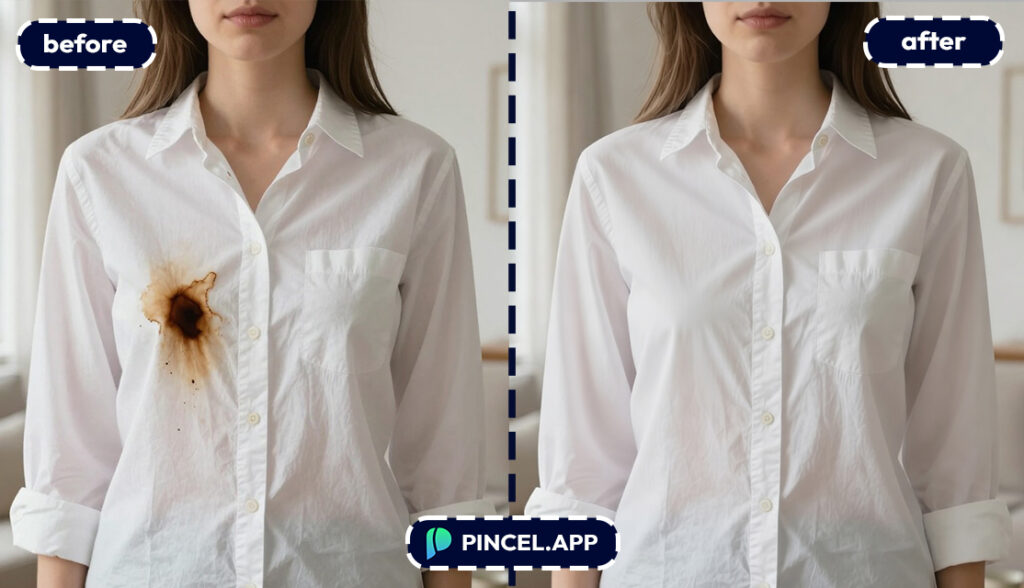
Why Pincel Beats Photoshop for Stain Removal 💪
Yes, Photoshop can remove stains.
But the process is the problem.
You’re basically doing digital surgery with tiny tools, and it’s easy to overdo it.
With Pincel AI Photo Editor, you’re doing the same outcome with easier, faster way.
Upload, prompt, generate, done.
✅ Fast results — often in under 5 seconds
✅ No clone stamp, no layers, no masking
✅ Better texture awareness (fabric, wood, walls, skin)
✅ Free to try — 20 credits, no credit card
✅ Works in your browser on desktop or mobile
And if you want to go beyond stain removal, you can.
Need to duplicate a clean area for consistency? Try clone objects.
Want to adjust the overall vibe after cleanup?
Do lighting with relight photos with AI or turn it into something fun like AI coloring for a stylized look.
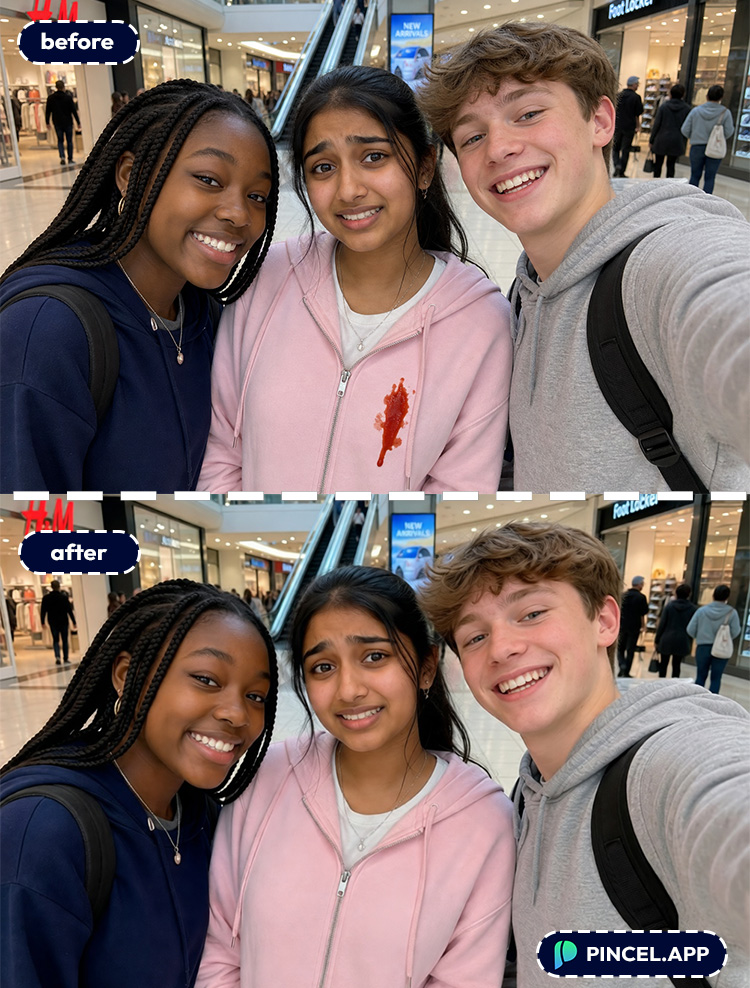
Frequently Asked Questions 🤔
How do I remove stains from photos using AI?
You can remove stains from photos using AI by uploading your image to Pincel AI Photo Editor, describing the stain you want removed, and generating an edited result in seconds.
The AI rebuilds the surface so the area looks natural instead of blurred.
Can AI remove stains from clothes in a photo without looking fake?
Yes, AI can remove stains from clothes while keeping the fabric texture if your prompt mentions the material and realism.
Try adding phrases like “restore fabric weave,” “keep denim texture,” or “match lighting.”
What’s the best prompt to remove a stain from a photo?
The best prompt names the stain, its location, and the surface you want preserved.
For example: Remove the stain on the front of the white t-shirt and keep the fabric texture realistic.
See How it Works in Less Than 30 Seconds 👇🏼
Will this work on old photos with spots, scratches, or marks?
Yes, it often works great on old photos with spots and marks, especially when you describe them clearly.
If your photo also needs overall enhancement, pairing stain removal with lighting help like relight AI can improve the final look.
Is it free to remove stains from photos using AI?
Yes. Pincel AI Photo Editor gives you 20 free credits to test edits with no credit card required.
That’s enough to remove multiple stains and compare different prompts.
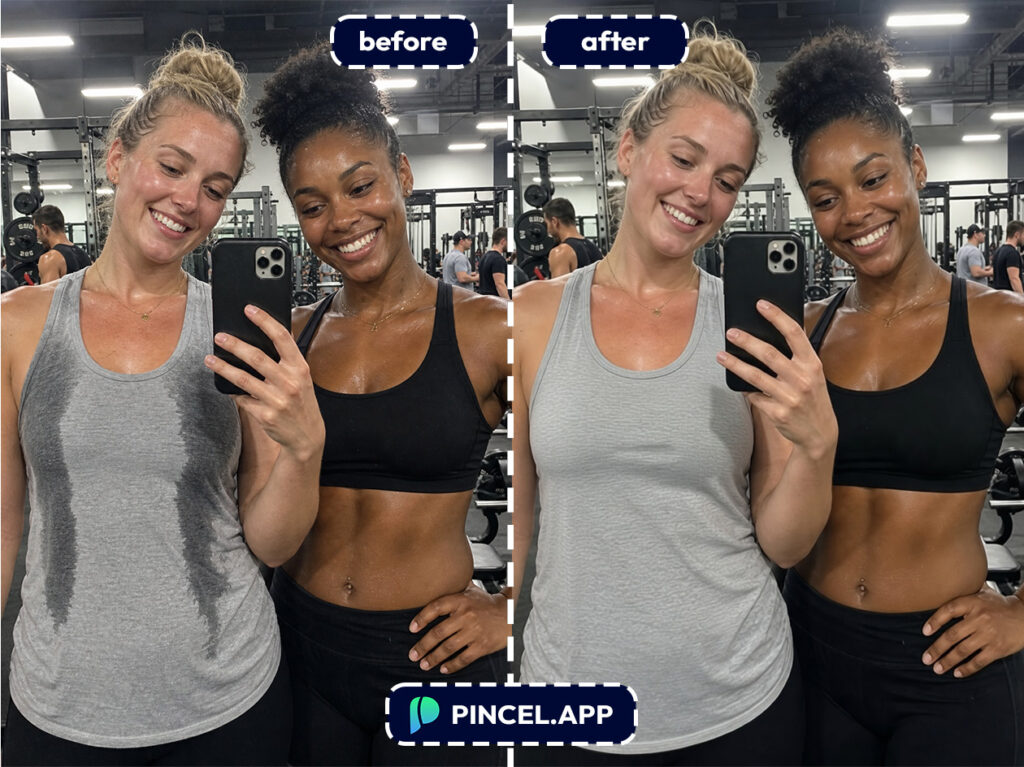
Make Stains Disappear Without a Trace 🧼
The stain had its moment, but it’s time to edit it out of the story.
Upload your photo to Pincel AI Photo Editor, describe what needs to go, and get a clean result in seconds.
No cloning and no patching.
No explaining to Photoshop what fabric texture means.
Your photo was great before but now it’s epic!
Try Pincel AU editor for amazingly easy way to remove your stains.

