
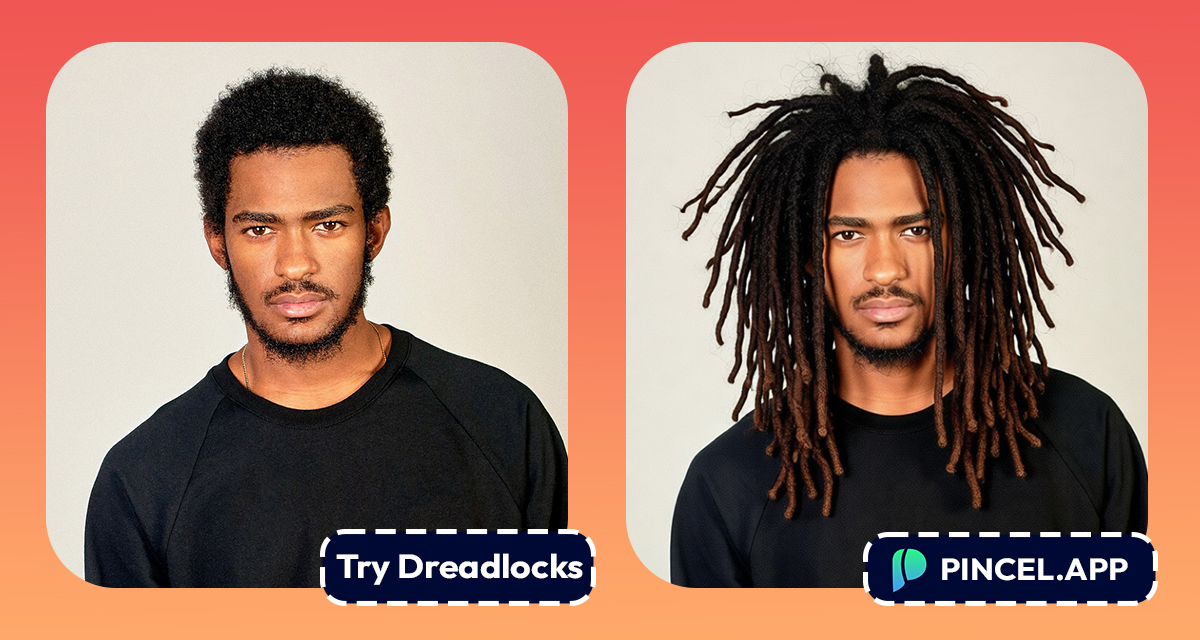
Dreadlocks are more than a hairstyle.
They are a statement, a commitment and a full lifestyle decision.
Starting locs means months of patience before they take shape.
Before making that kind of commitment, it helps to actually see it on your face.
With Pincel AI you can actually see how you would look with dreadlocks in real life.
Upload your photo to the Pincel AI Photo Editor, describe the loc style you want, and see a realistic preview in seconds.
Here’s how it works:
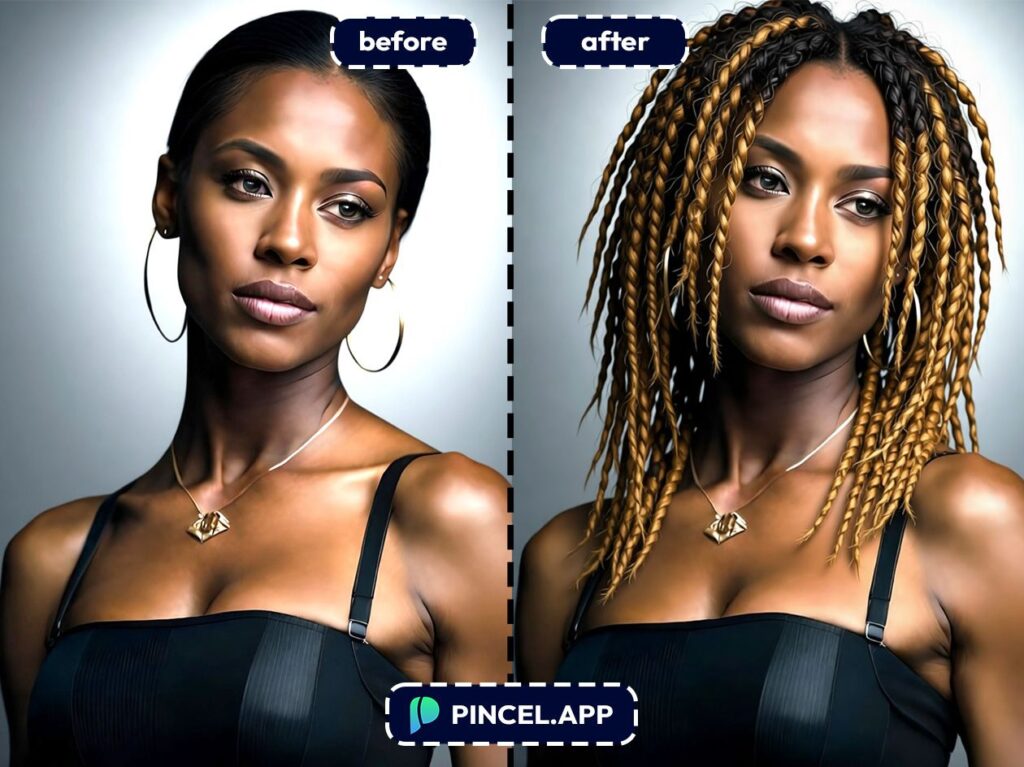
Braids or Dreadlocks 👀
You search for a dreadlock filter.
You already know what’s coming.
Plastic hair, wrong hairline and looks nothing like you.
Photoshop is worse…
because an hour later you’re not even sure what you’re editing anymore.
That’s exactly why Pincel exists.
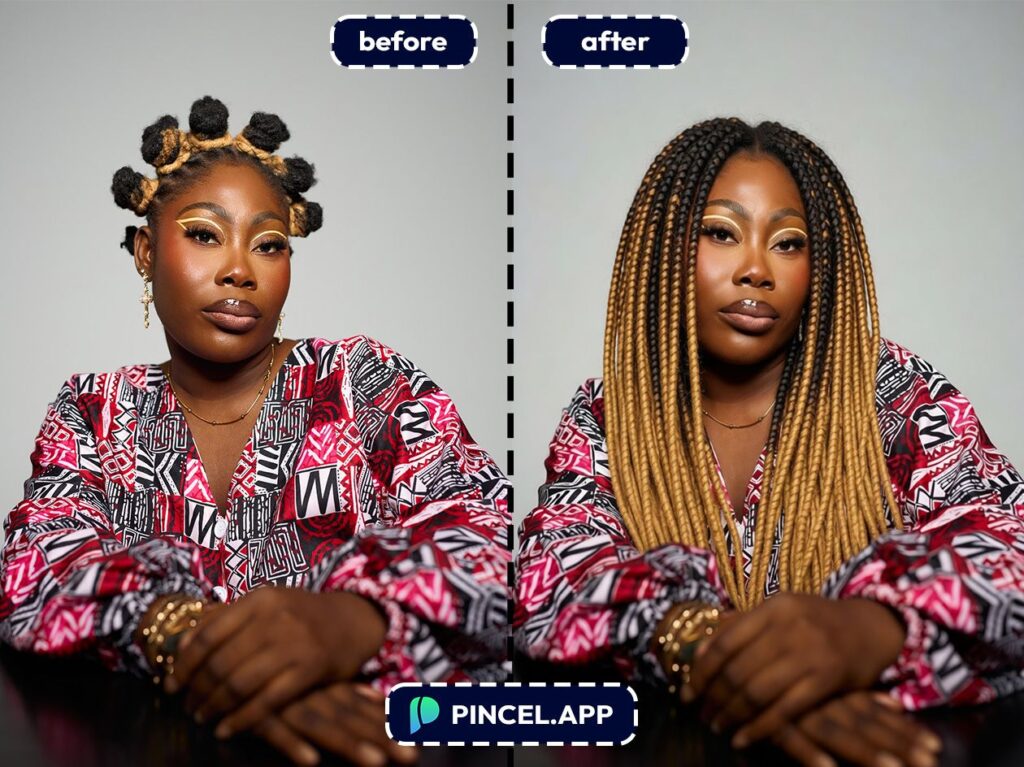
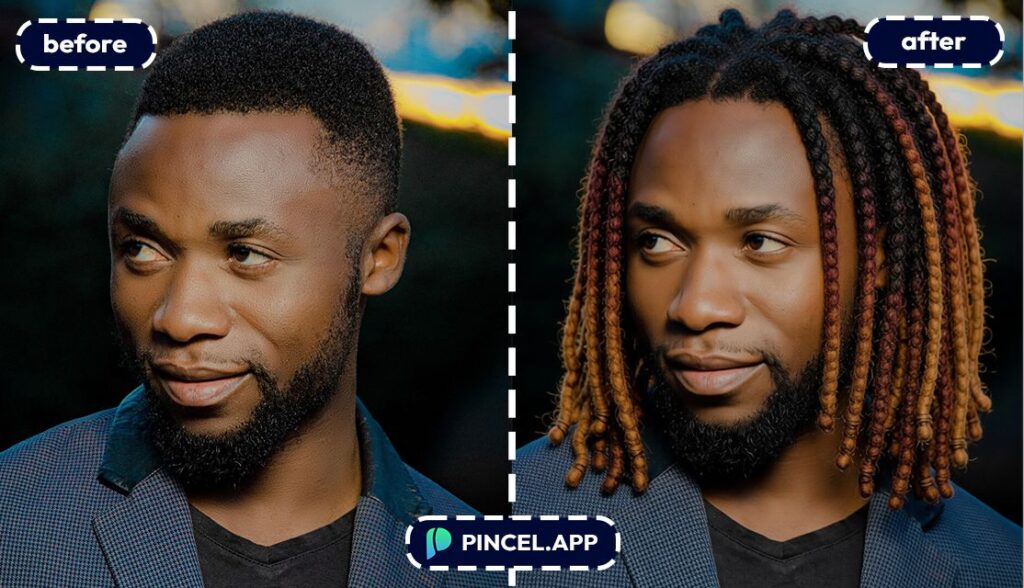
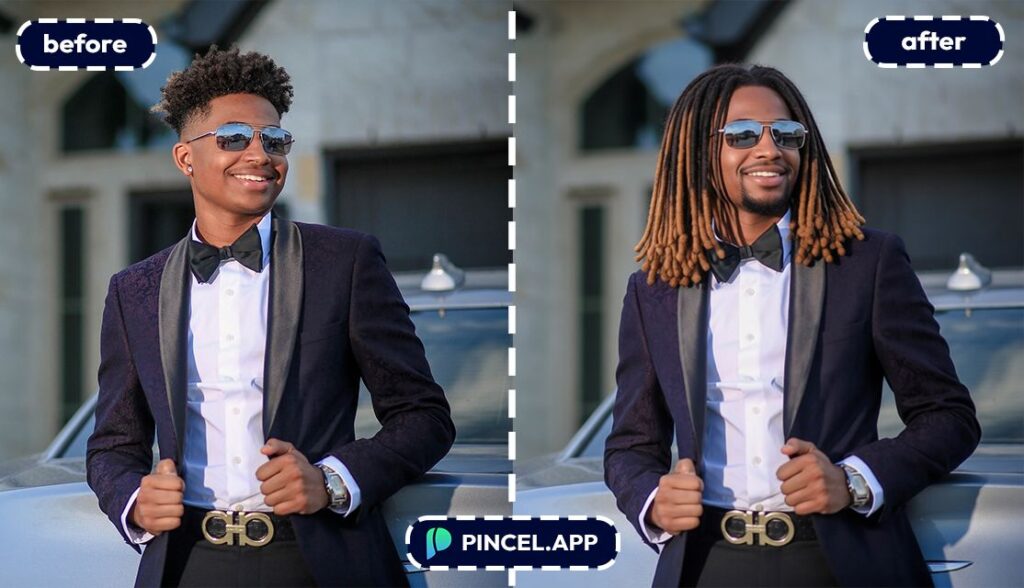
Describe the hairstyle you want and get a realistic result in seconds.
No wigs. No waiting. No filter that makes you look like a costume.
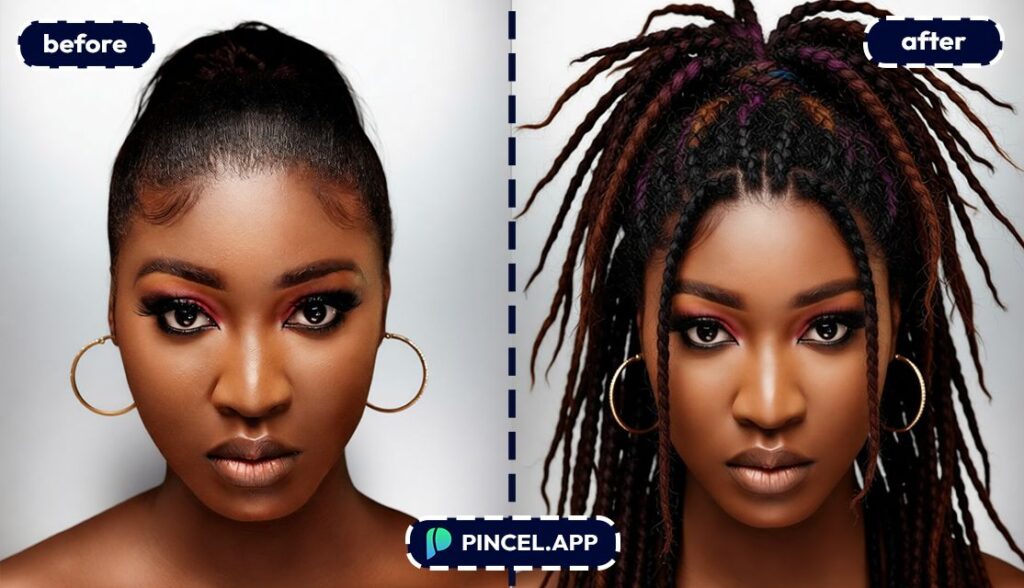
How to Try Dreadlocks on a Photo Using AI ✅
🖼️ Step 1: Upload Your Photo
Open the Pincel AI Editor.
Upload a clear selfie or portrait where your hairline and head shape are visible.
Side angles work too, but front-facing photos usually give the most natural results.
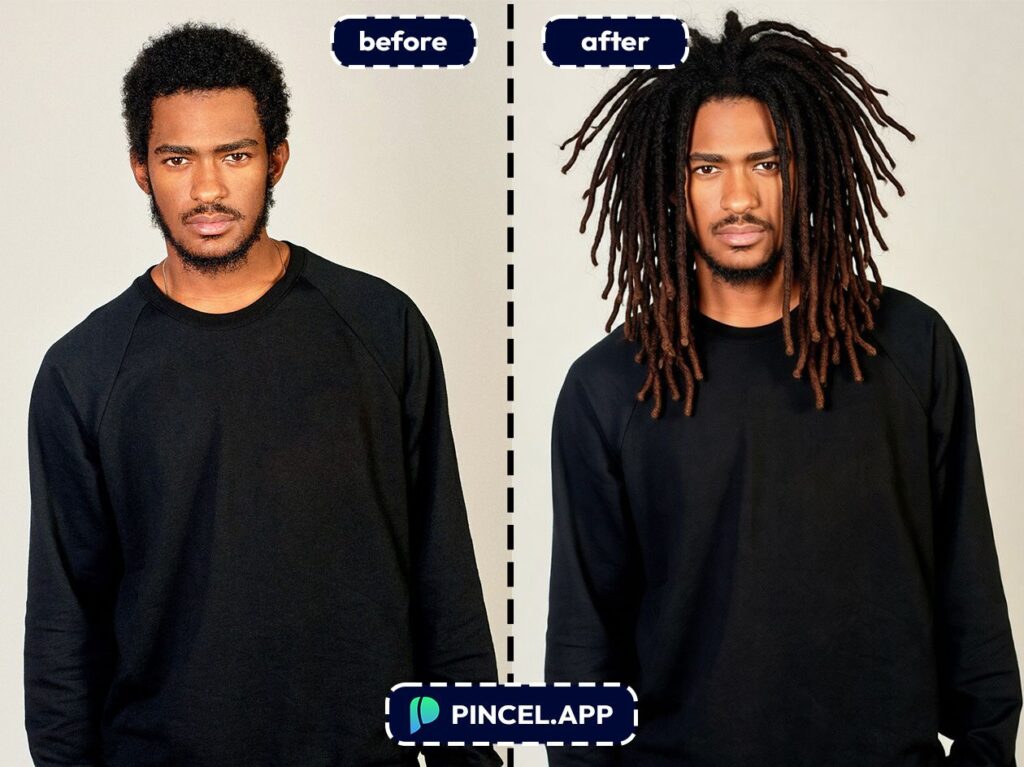
📝 Step 2: Type a Dreadlocks Prompt (Steal These)
In the prompt box, describe the dreadlock style you want.
Try prompts like:
- Add shoulder-length dreadlocks, natural black, realistic texture, keep my face unchanged
- Give me long dreadlocks down to mid-back, neat retwisted roots, natural lighting
- Add thick freeform dreadlocks with some frizz, slightly messy, realistic hairline
- Add short starter locs, clean parting, keep the same background and outfit
If you already have hair in the photo, mention what to preserve.
Lines like “keep my hairline” or “keep my forehead visible” help a lot.
See How it Works in Less Than 30 Seconds 👇🏼
Want More Control?
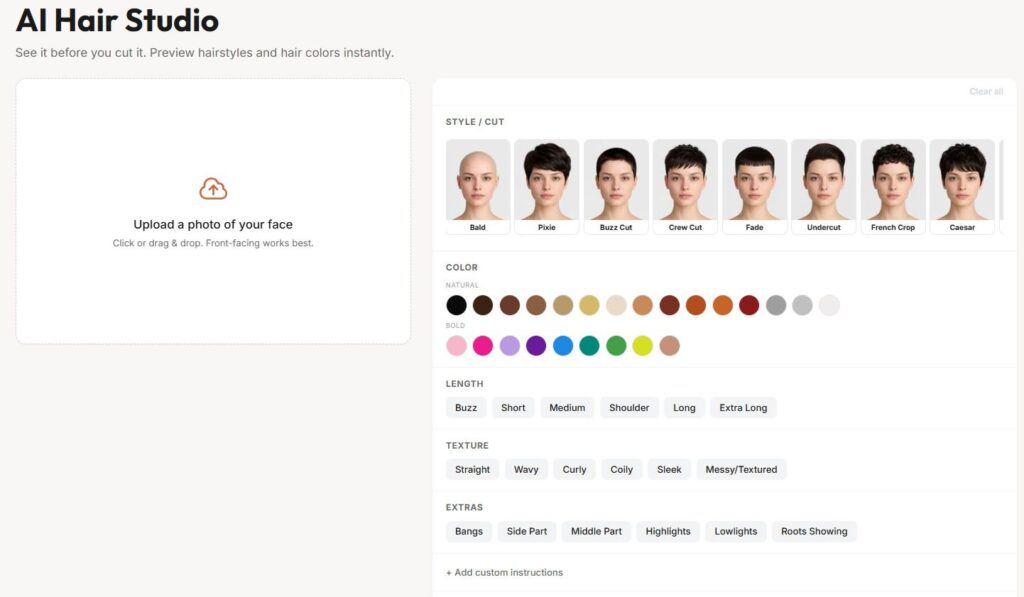
And if you want more control, head over to the Pincel AI Hair Studio.
You can get specific about length, thickness, and texture.
Thin and neat. Thick and free. Pulled back or hanging loose.
Just keep describing until it looks exactly right.
⚡ Step 3: Click Generate (it takes a few secs)
Hit Generate and give it a few seconds.
Pincel blends the new hair with your photo’s lighting and angle, so it doesn’t look pasted on.
Not perfect on the first try?
Change one detail at a time (length, thickness, parting, roots) and generate again.
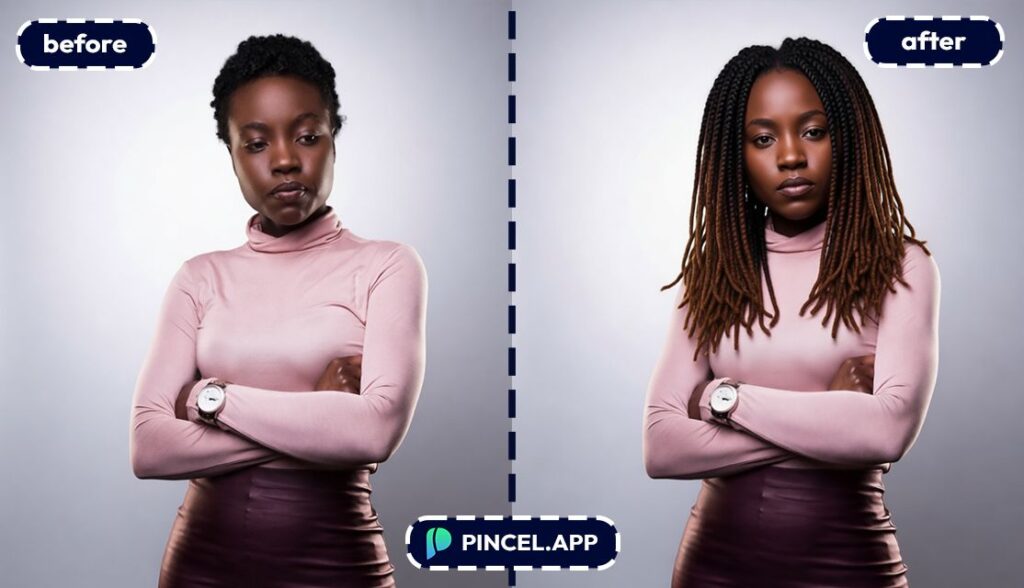
📥 Step 4: Download or Edit More
Once you like the look, download the image.
And if you want to explore other styles, you can test variations fast—again, in under 10 seconds per idea.
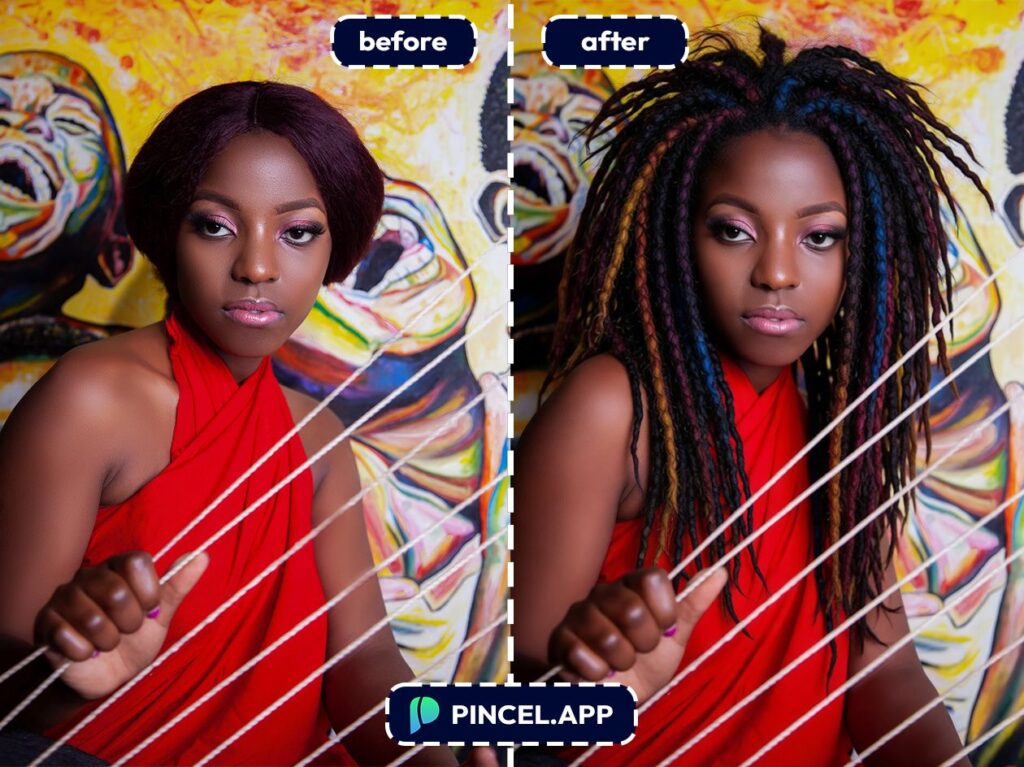
Who Is This For? 👇🏼
Hairstyle curiosity (no commitment) — You can see how dreadlocks frame your face before you book anything.
Barbers and locticians — Use quick mockups to align on length, thickness, and parting before starting (or restarting).
Content creators — Test a new “era” for thumbnails, reels, or profile refreshes without spending hours editing.
Pair it with a dramatic vibe change like change weather in a photo or a clean look from relighting photos with AI.
Brand and campaign concepts — Marketing teams can prototype character looks fast for moodboards and story concepts.
If you also need styling references, check AI fashion styles.
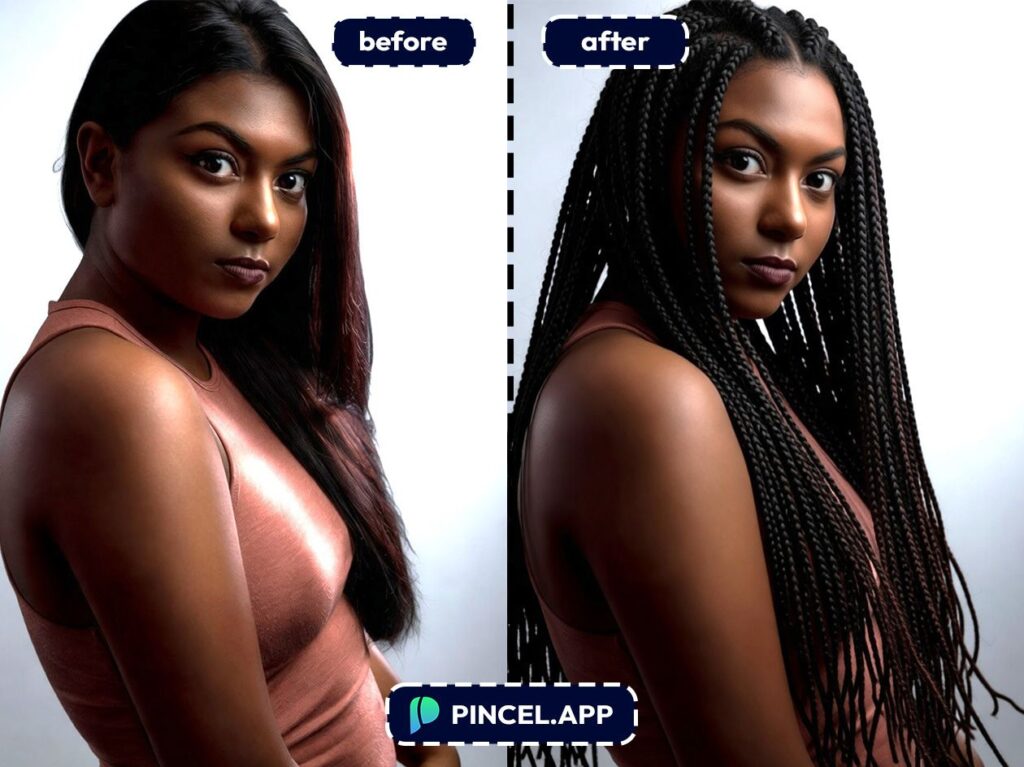
Before/after glow-up sets — Want the full transformation package? Add other edits like a background swap with replace sky in a photo or a profile polish like remove wrinkles from a photo.
“Try it, then match it” shopping — Use your favorite dreadlocks mockup as a reference when picking extensions or planning length.
Character design and storytelling — Writers and artists can test multiple dread styles for the same character quickly.
If you’re building a series, you’ll also like combine photos with AI for simple composites.
Just-for-fun transformations — The best use case is still: “I was curious at 1AM.”If you enjoy experimenting, change eye color with AI is another oddly satisfying rabbit hole.
Frequently Asked Questions 🤔
How do I try dreadlocks on a photo using AI?
You can try dreadlocks on a photo using AI by uploading your image to Pincel, typing a dreadlocks prompt, and generating an edit in seconds.
The key is to describe length, thickness, and whether you want neat retwisted roots or freeform texture.
What photo works best for a dreadlocks AI edit?
A well-lit portrait with your forehead and hairline visible works best for realistic dreadlocks.
Front-facing selfies are easiest, but angled shots can work if your face isn’t covered by hair or hands.
How do I make the dreadlocks look more realistic?
Add details about texture and roots, and tell the AI what not to change.
Try phrases like “realistic hairline,” “match my lighting,” and “keep my face unchanged.”
If you’re doing other edits too, extend a photo with AI can help when you need more space for long locs.
Can I choose different dreadlock styles (freeform, starter locs, thick locs)?
Yes, you can request specific dreadlock styles directly in your prompt.
Mention “starter locs,” “freeform dreadlocks,” “thin locs,” “thick locs,” or even “crochet locs look” to steer the result.
Is there a free dreadlocks AI tool I can try?
Yes. Pincel gives you 20 free credits to test edits with no credit card.
That’s enough to try multiple dreadlock lengths and styles before deciding.
Loc, Stock, and Two Smoking Pixels 🔥
A decent photo and one clear prompt is all it takes.
No salon appointment and no six month waiting game.
Try the short locs. Try the waist-length ones.
Try the hairstyle you have been quietly researching for six months but never told anyone about.
Save it. Share it. Take it to your stylist as a reference.
No commitment required.
All you need is Pincel AI Editior.

