
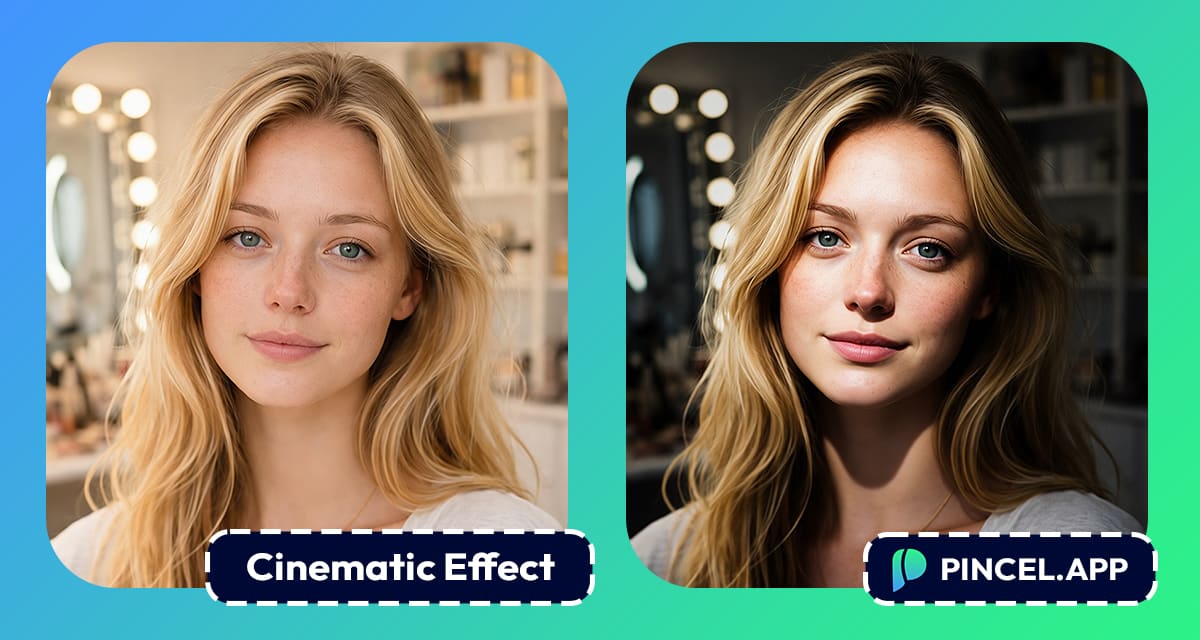
A photo can have a great subject and still feel flat.
Something feels missing and usually, it is the mood.
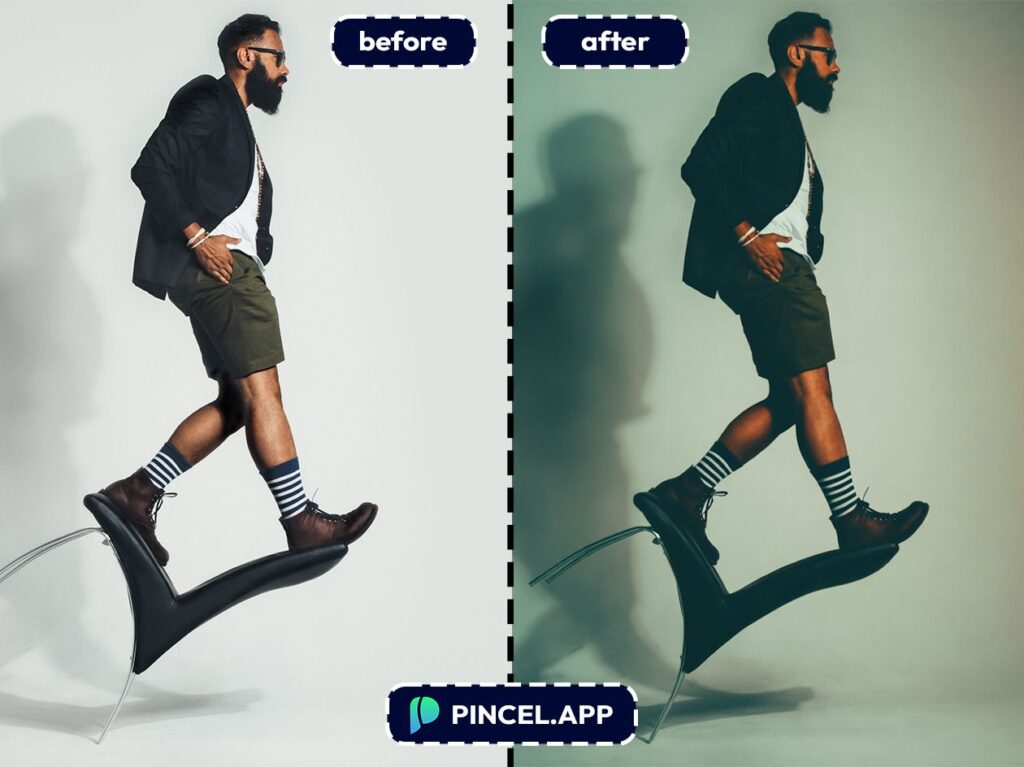
Cinematic photos feel deeper and more emotional.
Movies use dramatic colors, lighting, shadows, and atmosphere.
That is what makes scenes feel powerful.
Now you can create the same look using AI.
Turn an ordinary photo into a cinematic scene in seconds.
Add movie-style colors, soft lighting, dramatic shadows, and depth.
No advanced editing skills needed.
Just upload your photo and let AI create the cinematic effect for you.
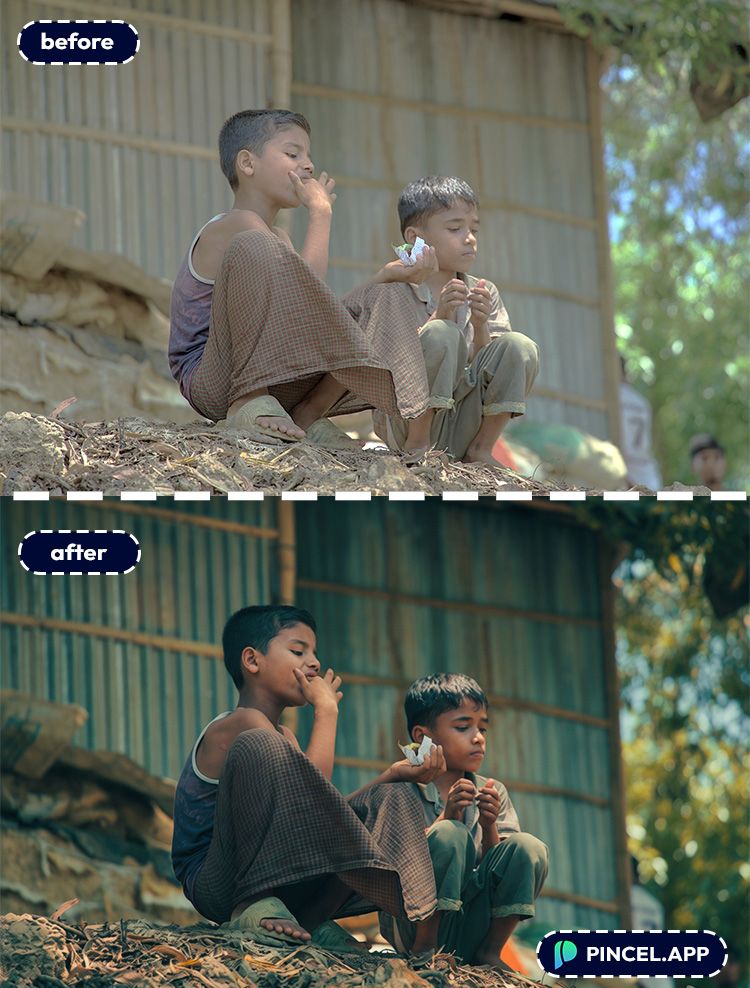
Cinematic Color Grading the Old Way ❌
Photoshop or Lightroom can do cinematic color grading, technically.
But you’ll spend the next two hours finding out what “technically” really means.
First the curves and then the split toning.
Then someone tells you it needs more contrast and you’re back at square one.
And the cinematic look isn’t even one thing.
It’s mood, shadows, highlight rolloff, color temperature, grain, and a dozen other decisions.
Hiring someone helps, but that means endless revision and not to mention the extra cost.
That’s exactly why Pincel AI Photo Editor exists.
Describe the mood you want and it handles the rest.
No sliders and no revision rounds.
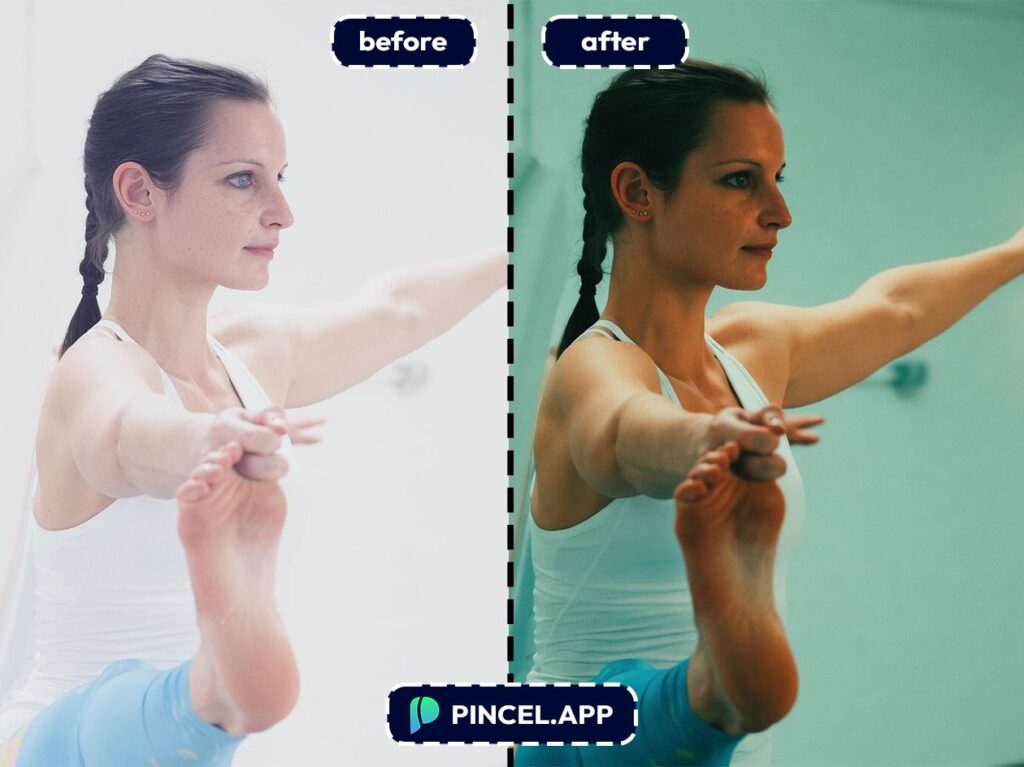
How to Add a Cinematic Photo Look Using AI ✅
🖼️ Step 1: Upload Your Photo
Go to to the Relight Tool.
Upload any image you want to “movie-ify”.
Landscapes looks best.
Portraits, travel shots, street photos, product photos, even pet pics will also work.
If your subject is clear and reasonably lit, you’re in great shape.
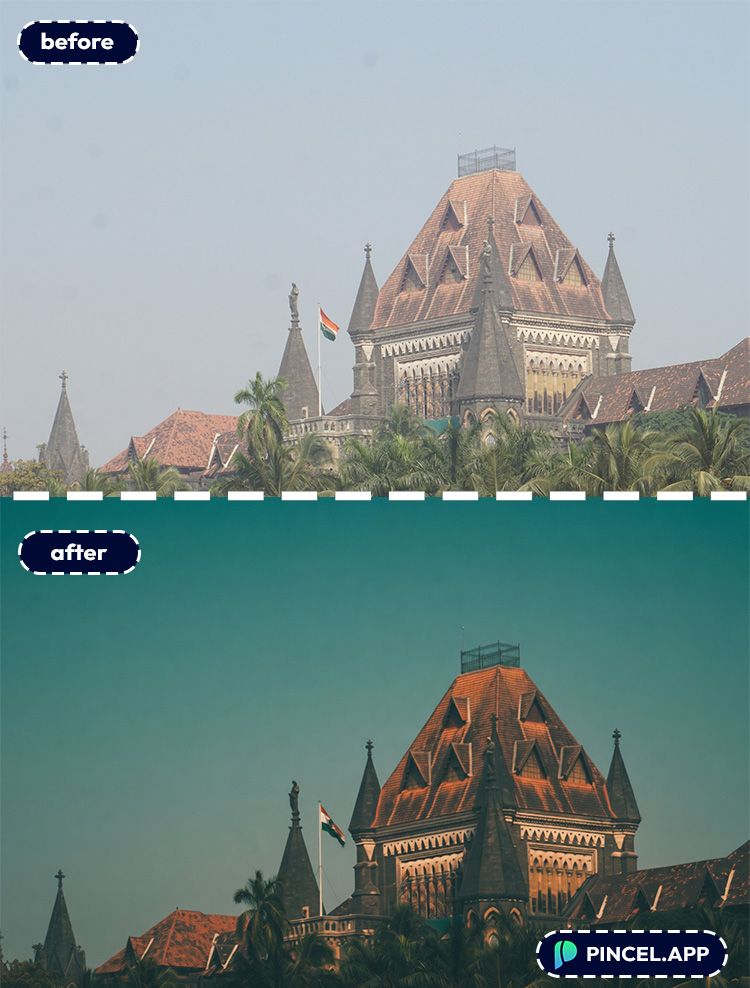
📝 Step 2: Select a Preset (or Copy-Paste These Prompts)
Simply click on any of the existing preset colors…
or type a custom relighting idea into the prompt field:
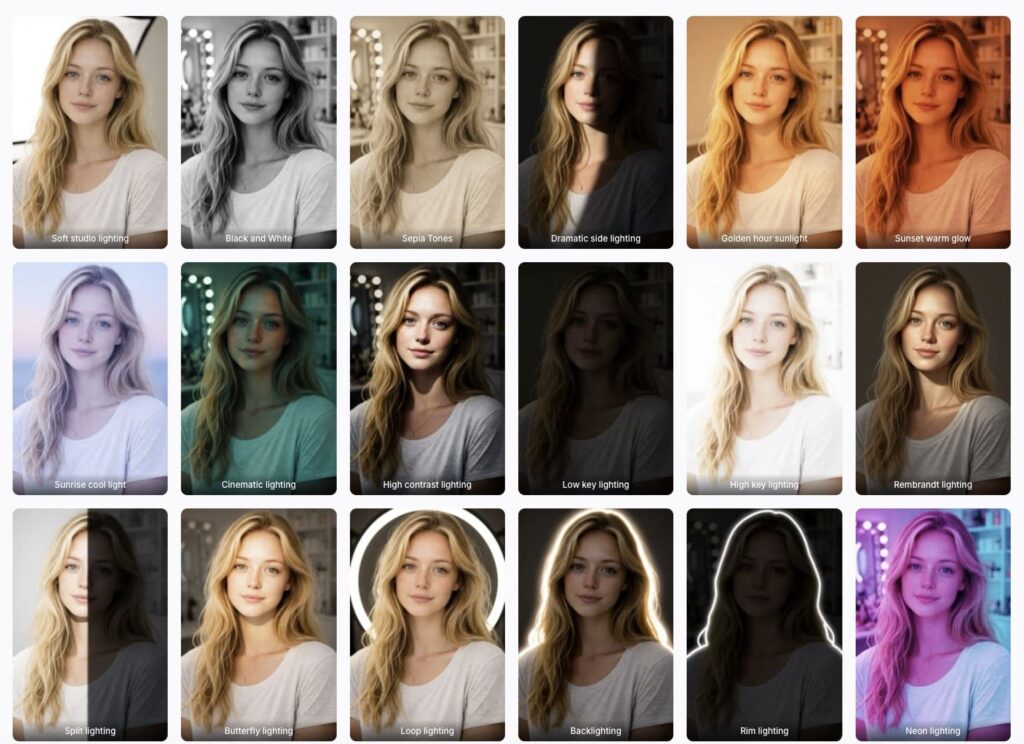
Try one of these:
- “Add a cinematic color grade, teal and orange tones, soft film contrast, , dramatic lighting”
- “Make it look like a moody neo-noir film still, cool shadows, deep blacks, wet street reflections, soft bloom highlights”
- “Golden hour cinematic look, warm highlights, lifted shadows, film grain, gentle haze, natural skin tones”
- “Cinematic desaturated look, muted colors, high contrast, slight orange shadows, realistic film grain”
A good trick is to mention both the color grade and the texture.
“Film grain”, “bloom”, “haze”, and “vignette” are your best friends.
Example of Specific Looks:
Here’s some more examples of certain cinematic look for your pictures,
Hollywood Blockbuster (Teal & Orange):
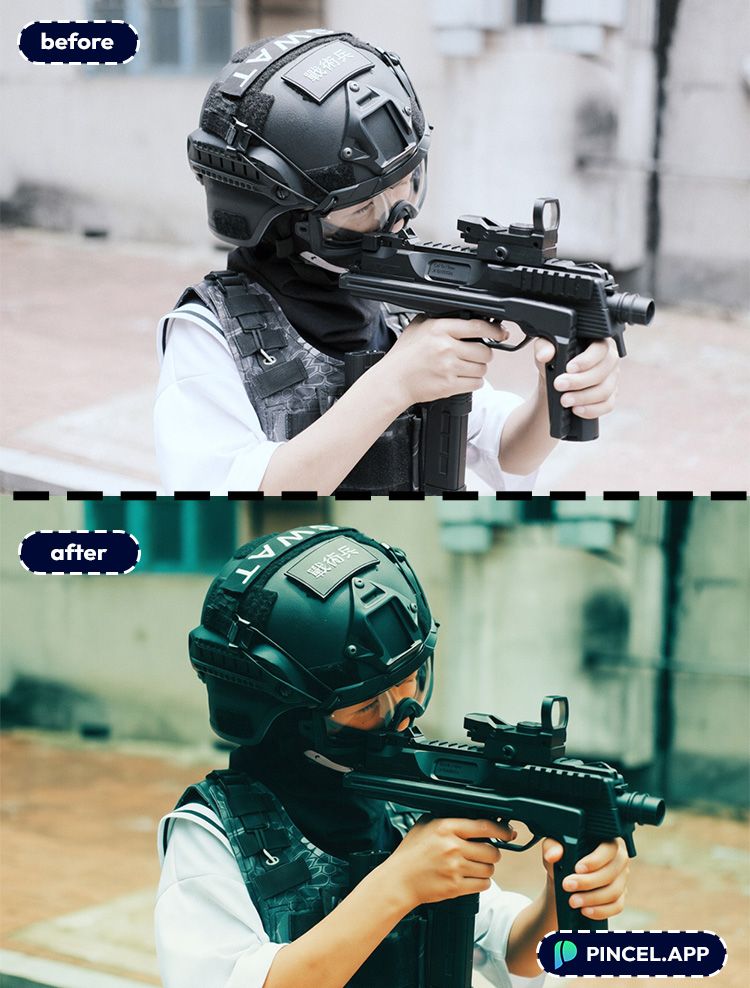
Apply a Hollywood blockbuster cinematic look: teal and orange color grading, warm skin tones, cool shadows, medium-high contrast, subtle film grain. Make it look like a summer action movie.
Vintage 1970s Film (Warm Fade):
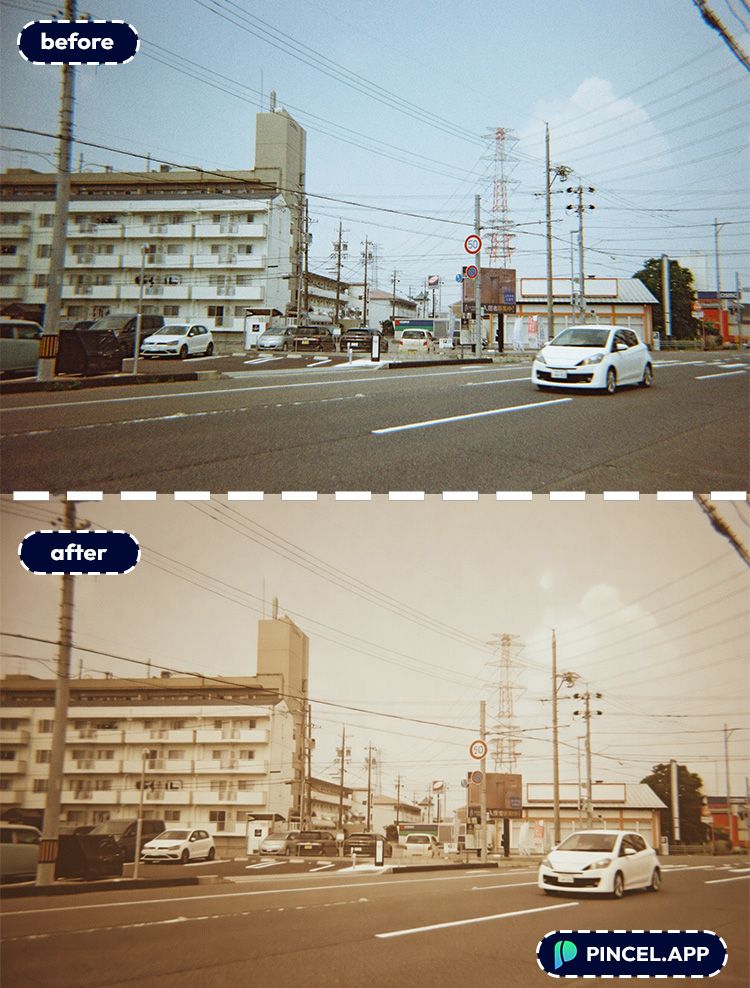
Sci-Fi / Cyberpunk (Cool & Neon):
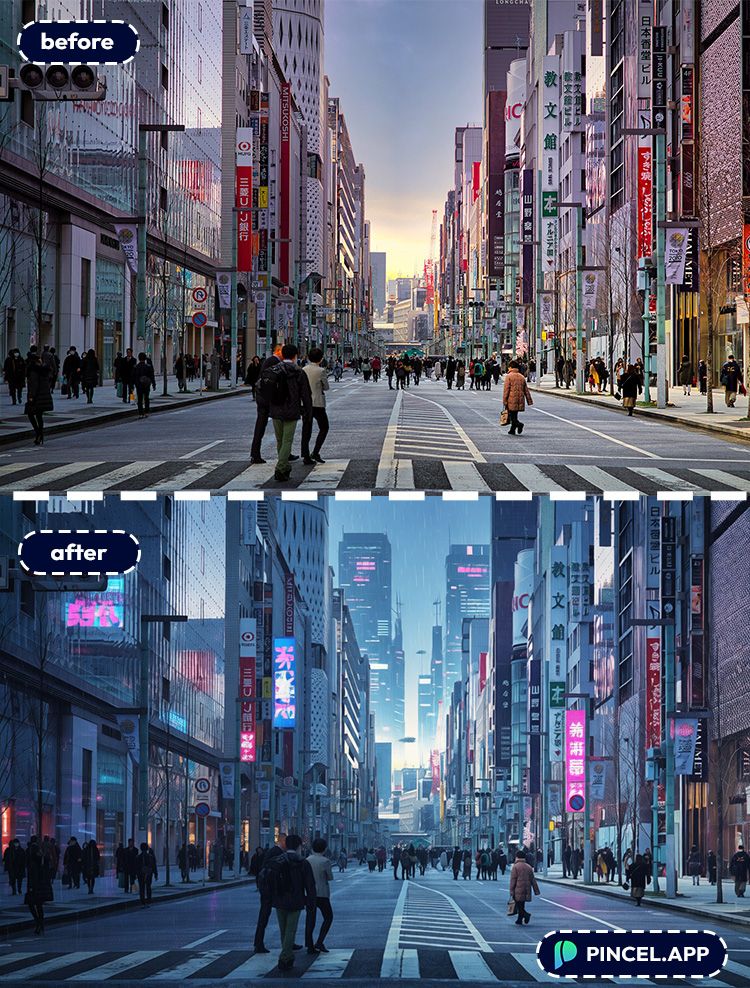
Gritty Documentary (Indie Realism):
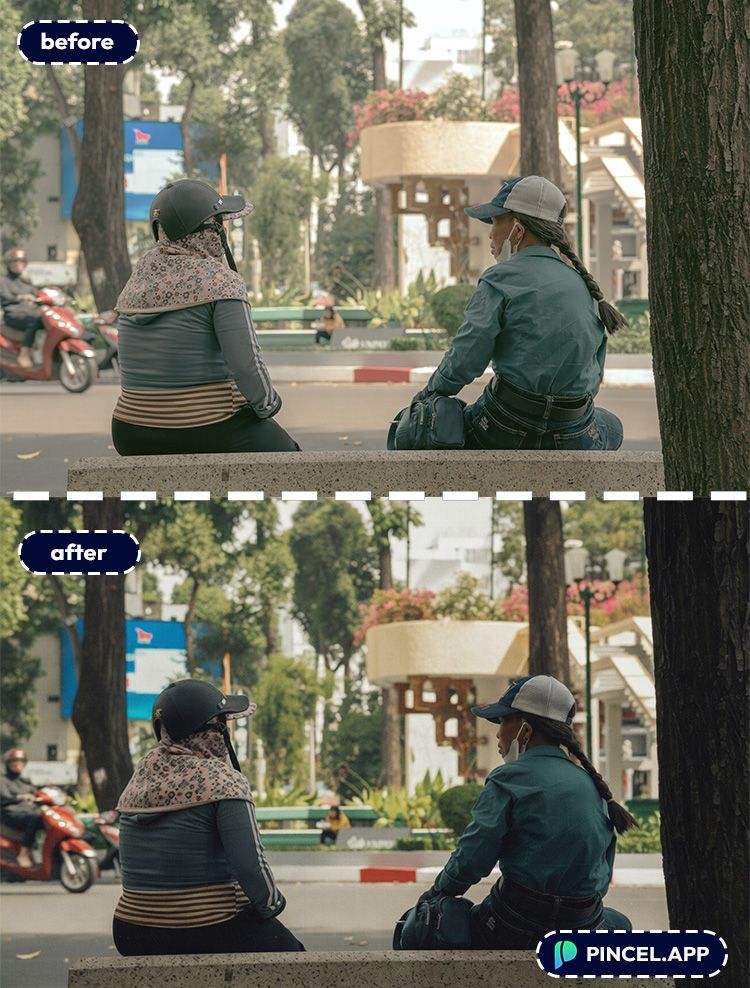
European Arthouse (Muted & Cool):
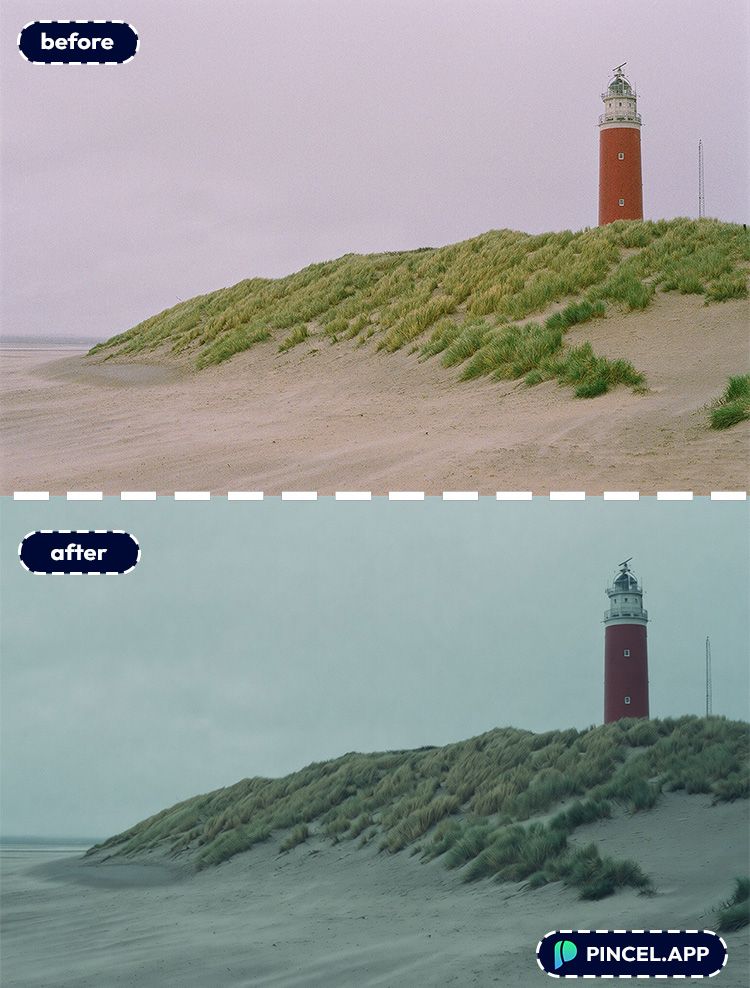
⚡ Step 3: Click Generate
Hit Generate and wait a few seconds.
Most edits land in under 10 seconds, and you’ll instantly see the difference in mood.
If the result is too intense, regenerate with one tweak.
Try things like “subtle”, “natural skin tones”, or “reduce saturation 20%”.
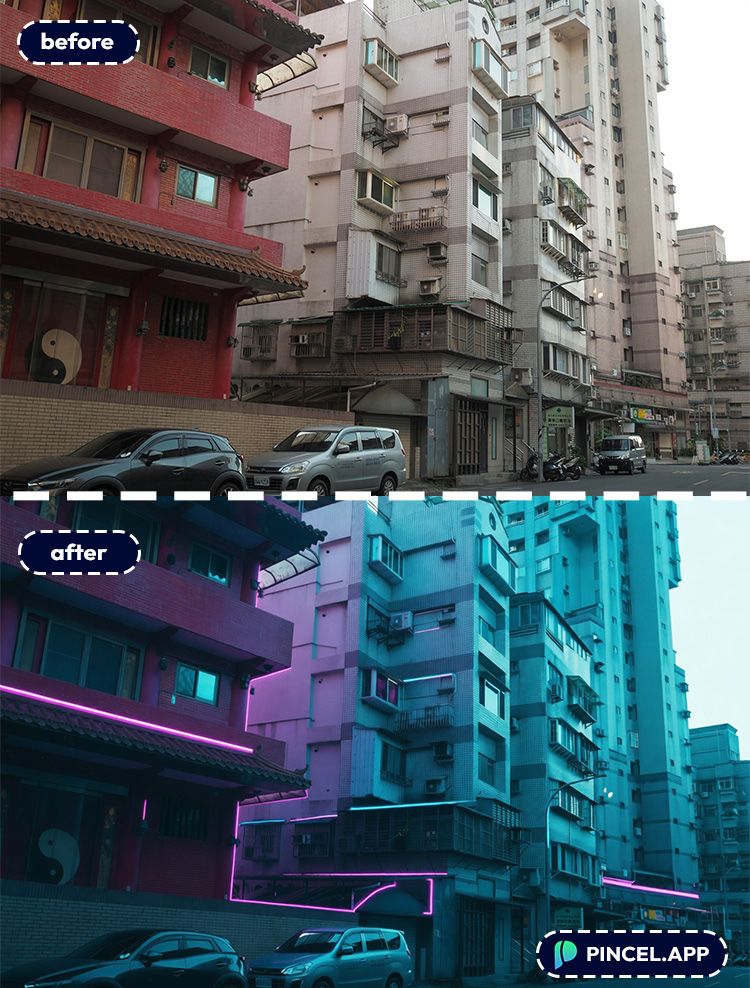
📥 Step 4: Refine, Download, and Reuse the Look
Once you like the vibe, download the image.
And keep the same prompt for a consistent “signature grade” across a whole set.
That’s how you make a feed (or a brand) look intentional, fast.
Ready to try it on your own photo?
Who Is This For? Real-World Use Cases 👇🏼
Content creators — Turn everyday shots into scroll-stoppers without learning a full grading workflow.
If you’re also changing wardrobe or styling, pair it with change clothes in photo.
Personal branding & headshots — Give portraits a premium, “shot on set” feeling.
If you need a clean professional base first, check AI resume photo.
Photographers (weddings, events, lifestyle) — Create a consistent cinematic finish on selects for highlights and promos.
And if your lighting is messy, start with relight photos with AI.
Travel and street photography — Make cities feel like scenes instead of snapshots.
For extra drama, you can also change weather in photo or replace sky.
Product and e-commerce — Add a “commercial” vibe to hero images and lifestyle shots.
If you’re building listings, this pairs perfectly with AI product photography.
Real estate and interiors — Add warmth, contrast, and a magazine feel to spaces.
And when framing is tight, use extend photo with AI.
YouTube thumbnails and promo art — Give one image a poster-grade treatment for better clicks.
If you need layout tweaks, edit text on image is a handy companion.
Just-for-fun experiments — Make your cat look like the main character of a prestige drama (yes, it works).
If you want to go full character mode, see royal pet portrait.
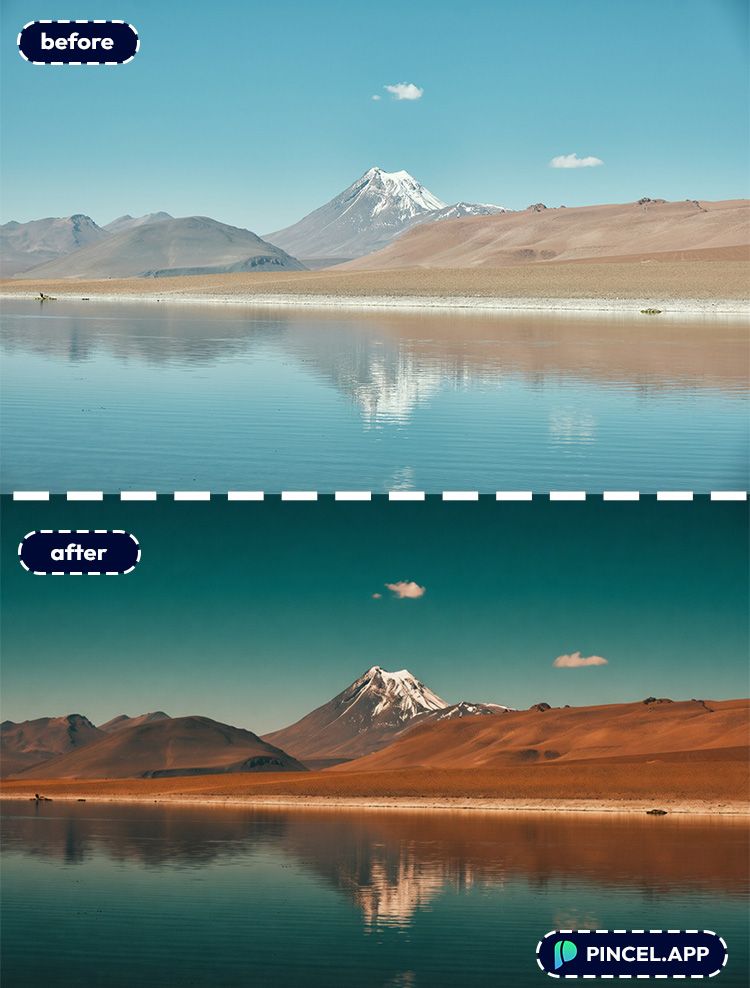
Frequently Asked Questions 🤔
How do I add a cinematic look to photos using AI?
You can add a cinematic look by uploading your photo to an AI Relight Tool and prompting for a film-style grade, contrast, and texture.
In Pincel AI Relight Tool, you type what you want (like “teal and orange, film grain, vignette”) and generate the edit in seconds.
What is the best prompt to add a cinematic look to photos using AI?
The best prompts describe both color and mood, plus film texture.
Try: “cinematic color grade, soft film contrast, subtle vignette, 35mm film grain, natural skin tones” and then adjust intensity with words like “subtle” or “stronger”.
Will an AI cinematic filter ruin skin tones?
It doesn’t have to.
Add guardrails in your prompt like “natural skin tones”, “realistic”, and “avoid over-saturation” to keep faces looking human.
Can I make my whole Instagram feed look consistent?
Yes, consistency is mostly about reusing the same prompt.
Save one “signature” prompt, apply it to a batch of images, and only tweak exposure or intensity when needed.
See How it Works in Less Than 30 Seconds 👇🏼 👀
Do I need Photoshop or Lightroom for cinematic color grading?
No. Pincel works in your browser, and the AI applies the grade without layers, curves, or presets.
If you still want to explore manual workflows, compare it with Photoshop-style generative tools.
Is Pincel AI Photo Editor free to try?
Yes. You get 20 free credits with no credit card, which is enough to test multiple cinematic looks and variations before upgrading.
Every Photo Has a Movie Version of Itself 🎬
That flat landscape you almost scrolled past? Movie poster.
That portrait with the blown out sky? Opening scene.
That street photo you took on a Tuesday?
Somehow it looks like a chase sequence now.
Every photo has a cinematic version hiding inside it.
You just needed the right tool to pull it out.
One prompt. Ten seconds and that’s all it takes.
Go ahead and find the movie version of your next photo.

