
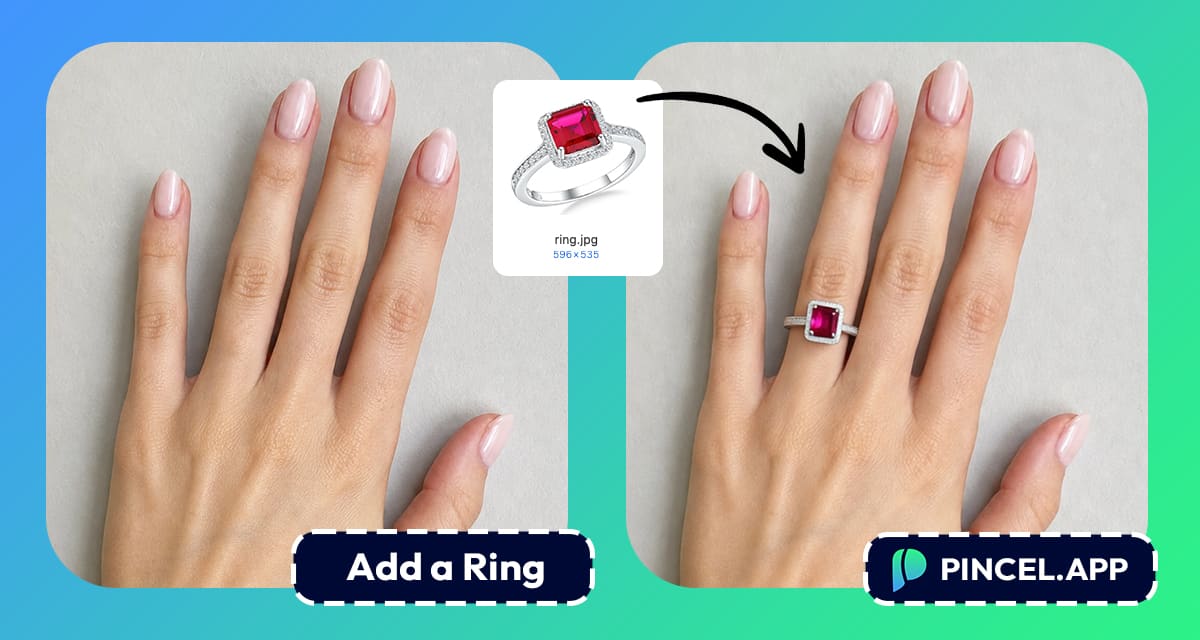
You’re browsing online and suddenly a ring stops you mid-scroll.
Perfect stone, perfect band… exactly what you had in mind!
But it’s an engagement ring.
And you really want to know how it looks on the hand.
So you either guess and hope, or you find a smarter way.
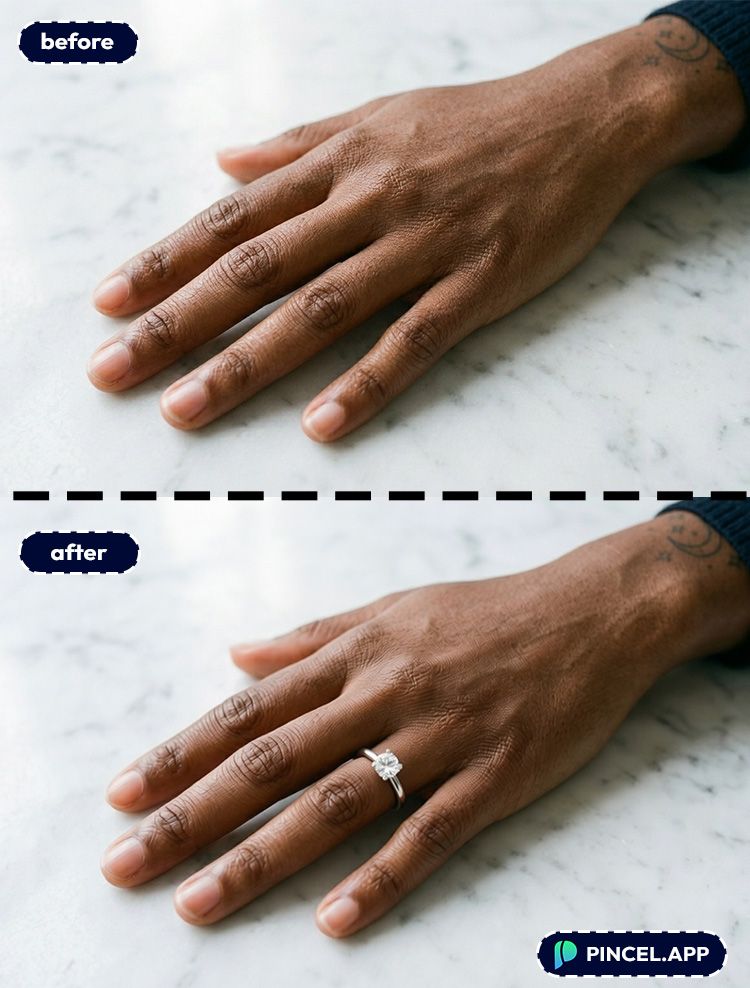
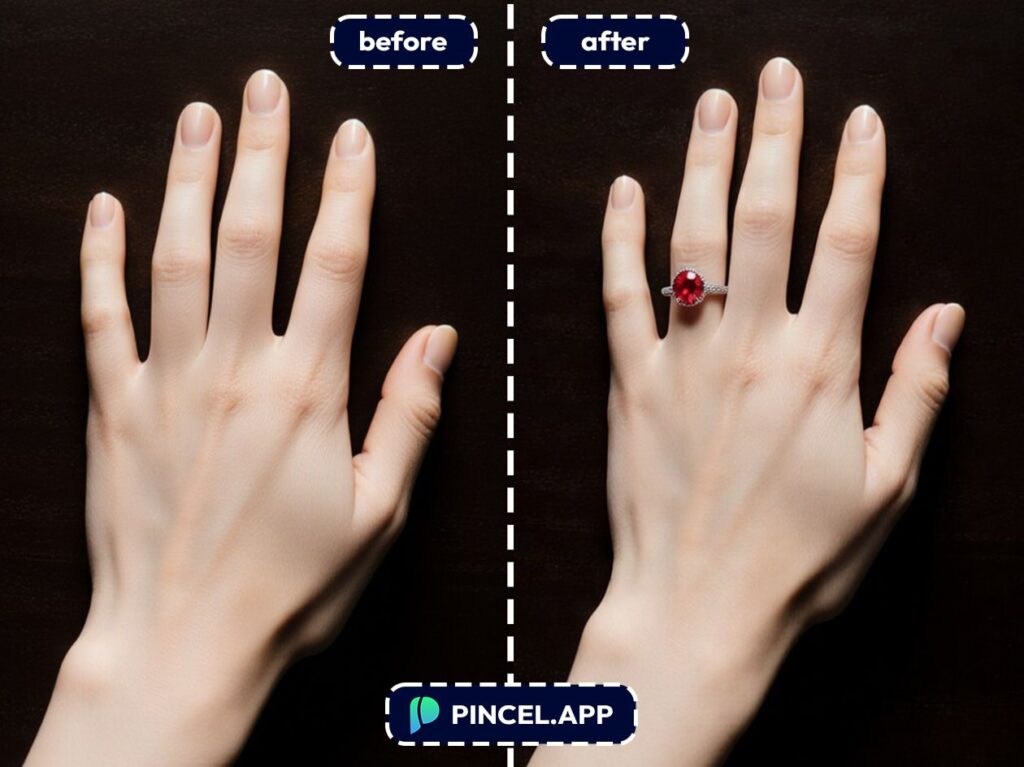
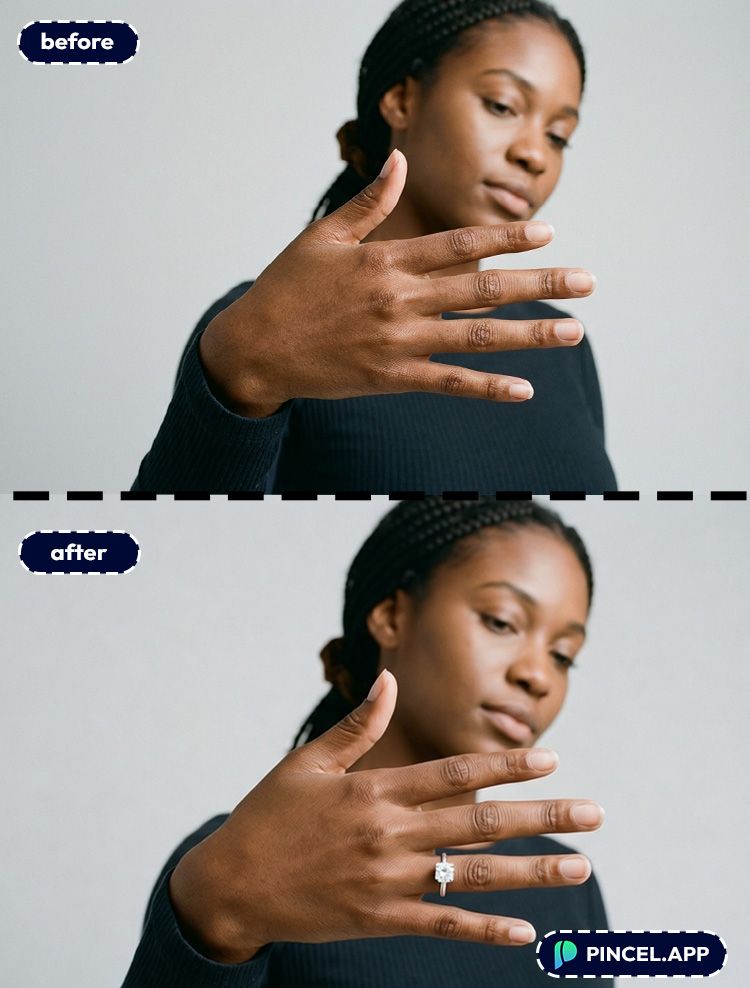
With the Pincel AI Photo Editor you can upload a photo of the hand , describe the ring, and see exactly how it sits on the finger.
Here’s how it works:
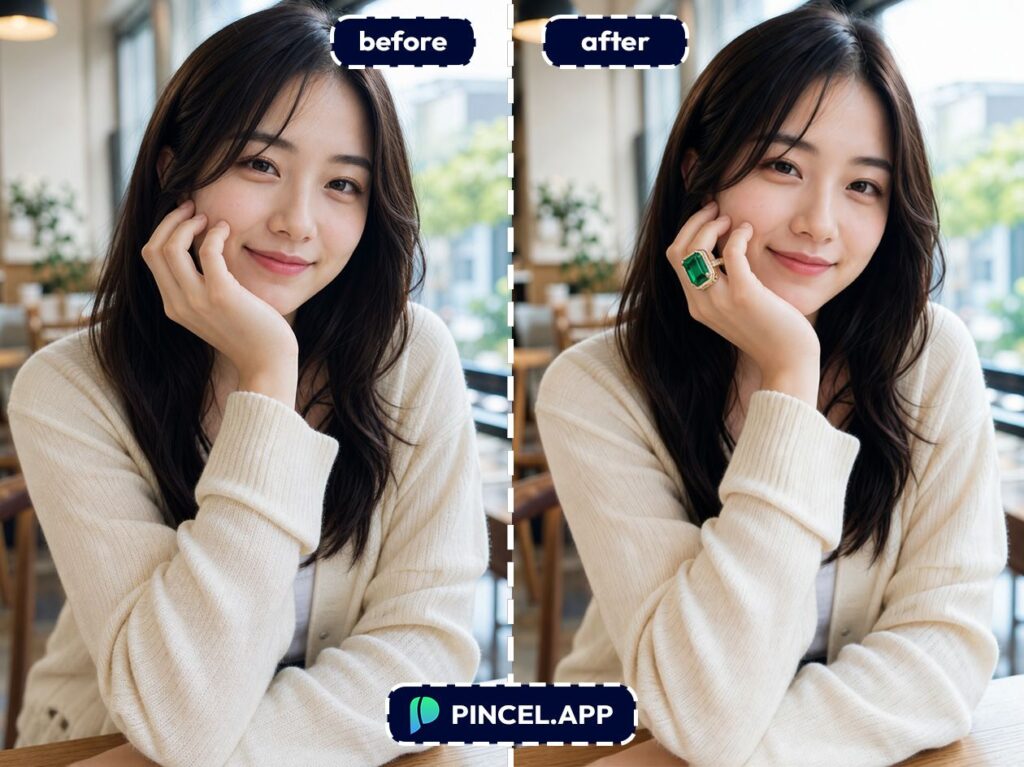
Buying a Ring Without Trying it on is a Gamble 💍
A ring is small. But it’s the first thing people notice.
Too bulky and it overpowers the hand and too thin and it disappears.
And the product photo on a white background tells you almost nothing.
Photoshop can help, technically.
But you’d be masking fingers, matching metal reflections, painting highlights, and hoping it doesn’t end up looking like a sticker.
And if you’re shopping for an engagement ring, “close enough” is not good enough.
You want to see it and just know.
That’s exactly why Pincel AI Photo Editor exists.
Upload a hand photo, describe the ring, and get a realistic preview in seconds.
How to Try on a Ring Using AI – Step by Step ✅
There are two ways to do this and both work great.
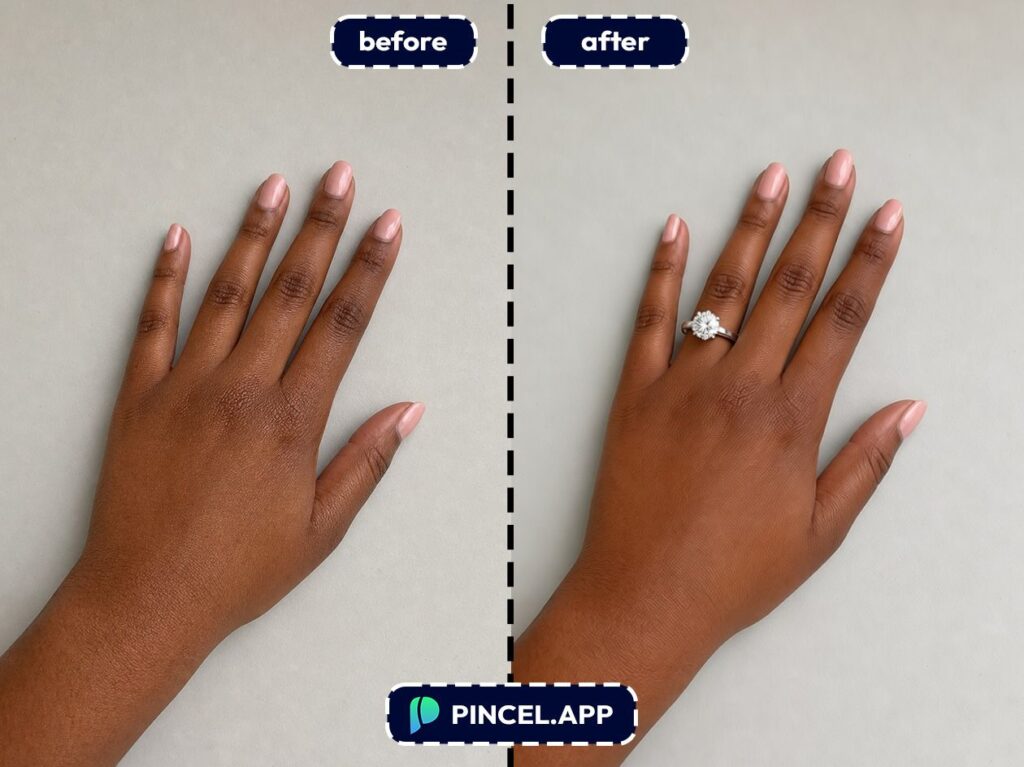
🖼️ Step 1: Upload Your Photo
Go to Pincel AI Photo Editor and upload a clear photo where your hand and fingers are visible.
Top View hand photos works best, but slightly angled photos look great too.
📝 Step 2: Choose Your Method
This is where it splits into two options.
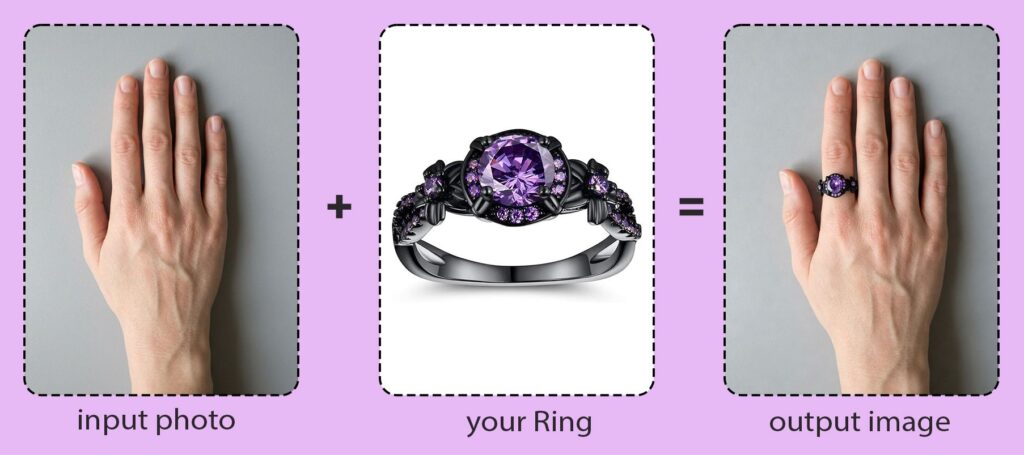
Option 1: Upload a Reference Image
Already have a ring in mind?
Maybe you spotted one on Pinterest, a brand’s website, or a amazon store.
Simply upload both images and the AI will pull the style, shape, and details from it and place it on your finger.
You can use a simple prompt like “Add the ring from the reference image to my ring finger. Match the style, metal, and stone exactly. Keep lighting and shadows natural and realistic.”
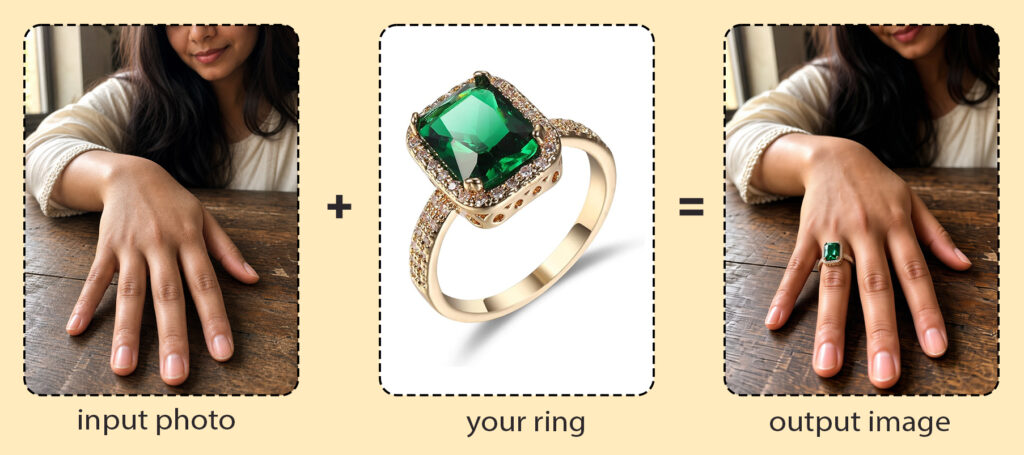
Option 2: Just Describe What You Want
No reference image? No problem. Type what you’re looking for in the prompt box like you’re texting a friend.
Try something like:
- Add a thin 14k gold band on the left ring finger, realistic reflections, natural shadow
- Add a platinum solitaire engagement ring with a round diamond, match lighting
- Add a stack of three delicate silver rings on my index finger, minimal style, photorealistic
- Add a rose gold signet ring on my pinky finger, engraved look, realistic
Not sure of the exact style? Describe the occasion instead. “Engagement,” “date night,” “streetwear,” “office look” — the AI figures out the rest.
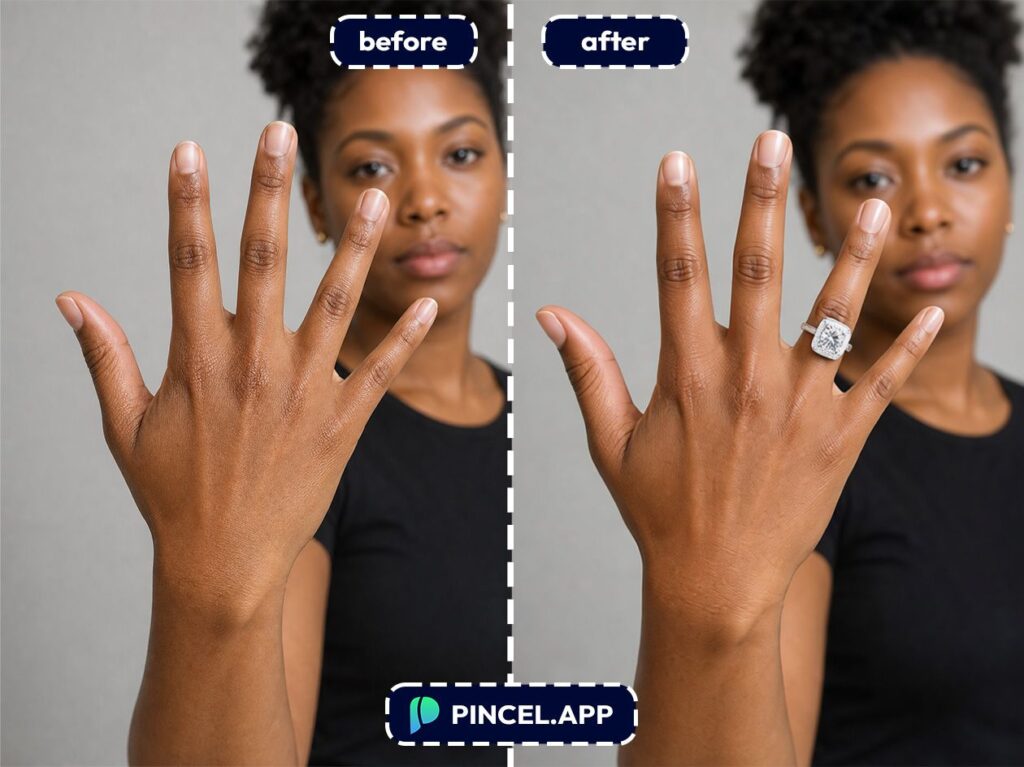
⚡ Step 3: Hit Generate
Wait a few seconds and Pincel blends the ring into your photo while matching lighting, perspective, and finger angle.
If it lands slightly off, tweak one detail like “smaller band” or “rotate slightly” and run it again.
📥 Step 4: Download or Keep Iterating
Download when it looks right.
Or keep testing variations until you land on “that’s the one.”
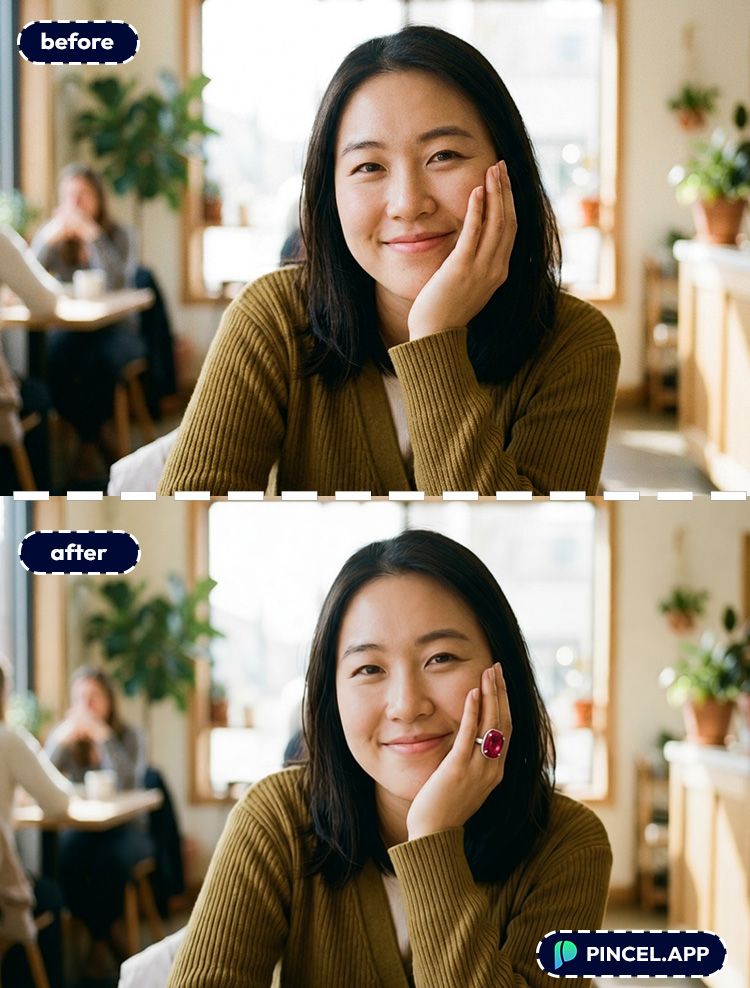
Who Is This For? Real-World Use Cases 👇🏼
Online ring shopping — See how a band width or stone size looks on your hand before you buy.
Engagement ring decisions — Do quick visual comparisons without booking three store visits and pretending you’re “just browsing.”
Jewelry brands & Etsy sellers — Create lifestyle try-on visuals fast for listings, ads, and social posts.
Pair it with AI product photography when you need clean, studio-style shots.
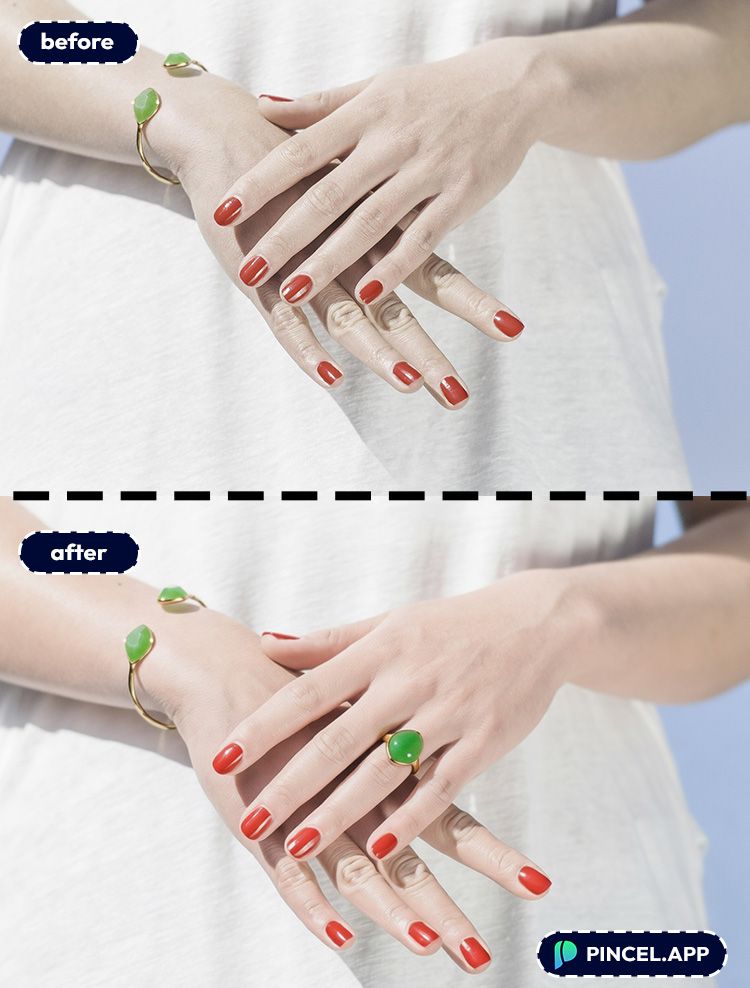
Beauty + fashion styling — Test how rings look with different vibes (minimal, vintage, Y2K, glam).
For more style ideas, check AI fashion styles.
Fixing awkward hand photos — Add a ring to make a pose feel intentional, not “why is my hand doing that.”
If you’re editing framing too, extend photo with AI helps when fingers get cut off.
NB: you can also remove a ring from a photo using Pincel.
Matching the whole shot — If your hand photo is dark or the ring needs more “sparkle,” you can adjust the scene first.
Try relight photos with AI so the ring looks like it belongs there.
Gift previews — Want to show a surprise ring concept without actually revealing the real one?
Mock it up, send a “style check,” then keep the real plan secret.
Frequently Asked Questions 🤔
Can I really try on a ring using AI from a photo?
Yes, you can try on a ring using AI by uploading a hand photo and prompting the editor to place a realistic ring on a specific finger.
The key is describing the ring style and asking for realistic lighting and shadows.
What kind of photo works best for an AI ring try-on?
A clear photo with visible fingers and decent lighting works best.
Side angles can work too, but front-facing hand photos usually look most natural.
How do I make the ring look realistic and not “pasted on”?
Use prompts that mention “match lighting,” “realistic reflections,” and “natural shadow.”
If needed, regenerate with tweaks like “smaller stone,” “thinner band,” or “rotate to match finger angle.”
Can I try different ring styles (solitaire, halo, stack, signet)?
Yes, you can generate multiple styles by changing the prompt, and it only takes a few seconds per version.
That makes it easy to compare a solitaire vs. a halo vs. a stacked look without opening 15 tabs.
Is there a free way to try on a ring using AI?
Yes. Pincel AI Photo Editor includes 20 free credits for new users, with no credit card required.
That’s enough to test several ring styles and find what looks best on your hand.
Ring-a-Ding 💍
It only takes a few seconds to see that ring on your finger before you spend a dollar.
Not sure if diamonds are your thing?
Try sapphires. Not sure about gold? Try platinum.
The best part is you can keep going until something just feels right.
And when it does, you’ll know.

