
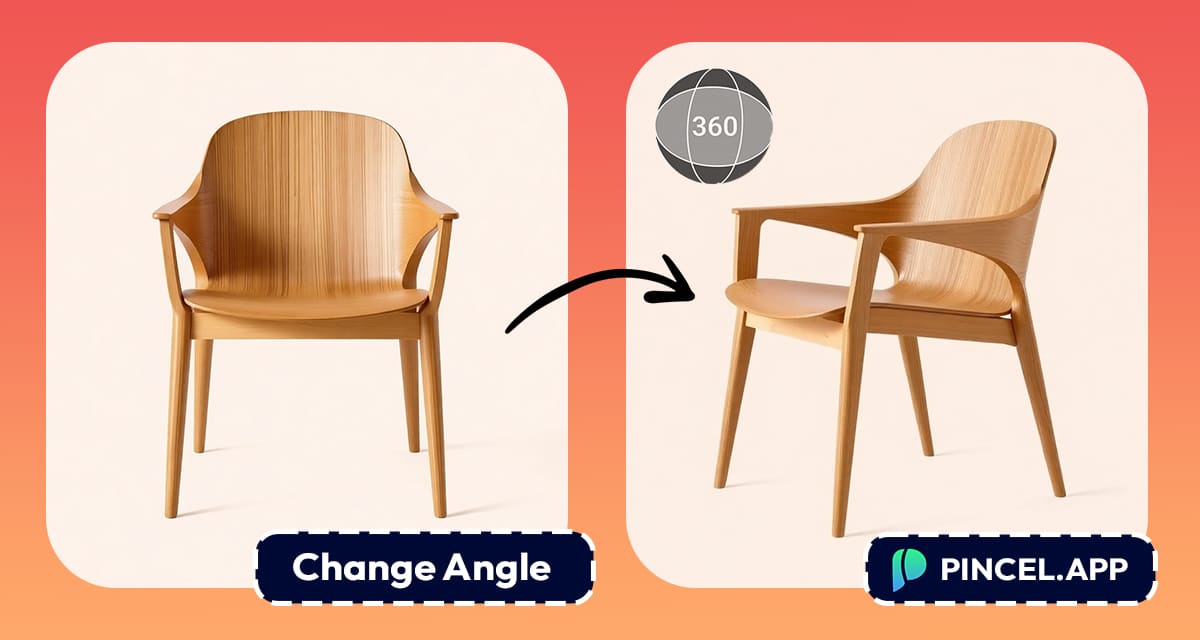
Often we take a photo and just think… hmmm the angle just doesn’t seem right.
Maybe a front view would have been perfect?
Or you maybe you have taken a front view product image,
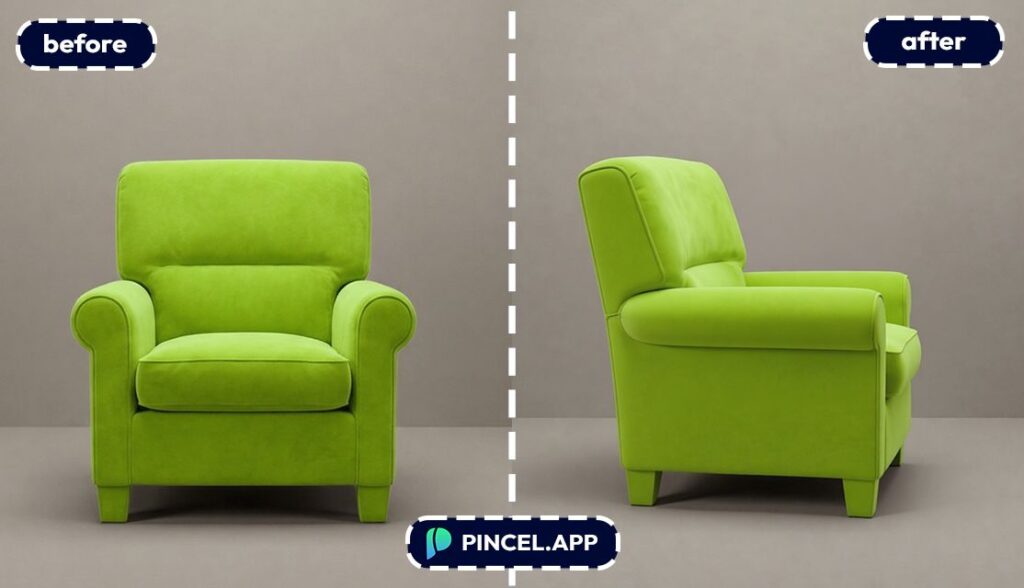
but now you need a side view or profile shot for your ads.
The old way is either a full photoshoot, a 360 turntable setup, or stitching different angles together in a software you don’t want to open.
But now, with Pincel AI Photo Editor, you can create any view from a single photo using AI in under 10 seconds.
Just upload your photo, type a simple prompt, and let AI do the heavy lifting.
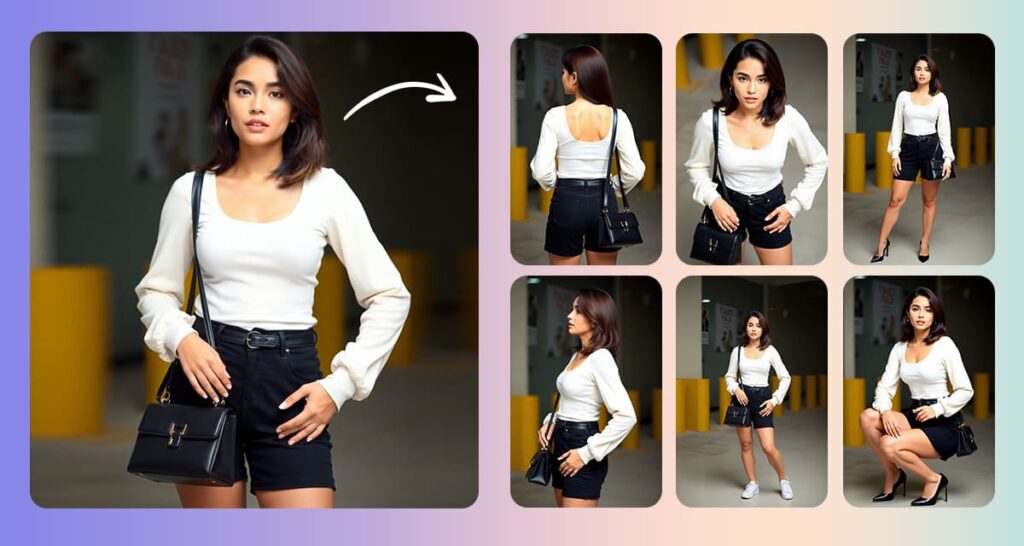
Here’s how it works:
Why Faking a 360 View Manually Is a Total Pain 😩
A real 360 spin usually means at least 20 photos, consistent lighting, and a setup that takes longer than the thing you’re photographing.
And if you’ve ever tried to “fake it” in editing software, you know the spiral: perspective warping, cloning missing areas, and trying to keep textures from melting.
Even for the experts it can be a slow and time consuming process.
And if you’re not, it’s the kind of project that starts at “quick edit” and ends at 2 a.m. with 17 layers and regret.
That’s exactly why Pincel AI Photo Editor outshines others.
It can help you to generate images with amazing details from all possible angels.
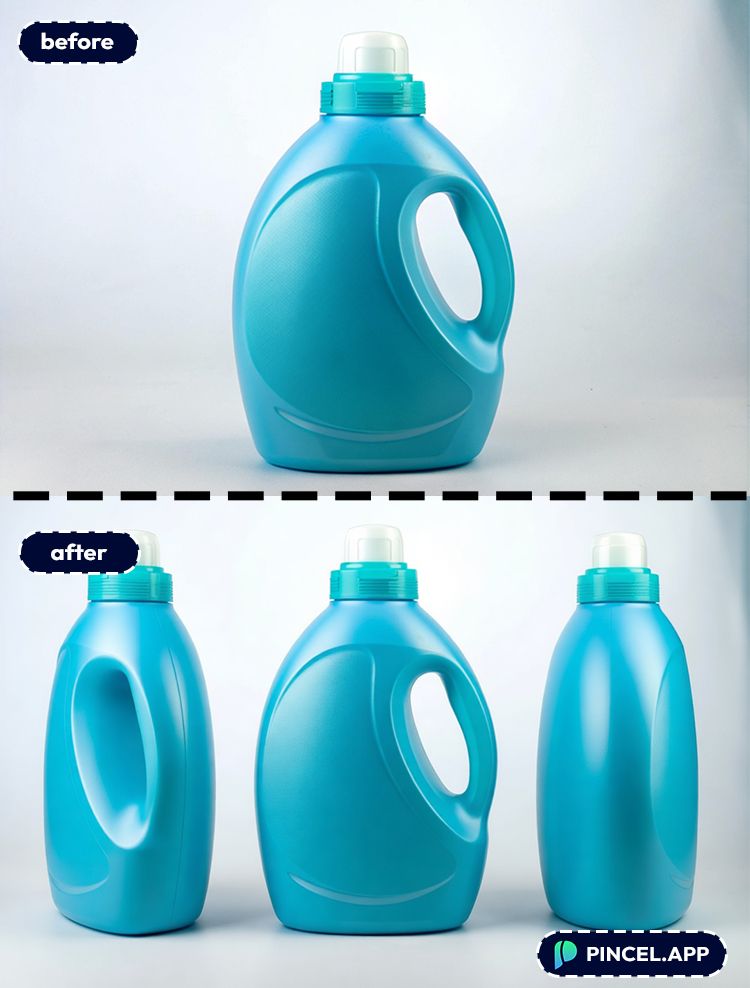
How to Create Angled View From a Single Photo:
🖼️ Step 1: Upload Your Photo
Go to the Pincel AI Photo Editor.
Upload the photo you want to “spin.”
Crisp images with clear edges work best (objects, products, cars, furniture, rooms), but casual phone shots can also surprise you.
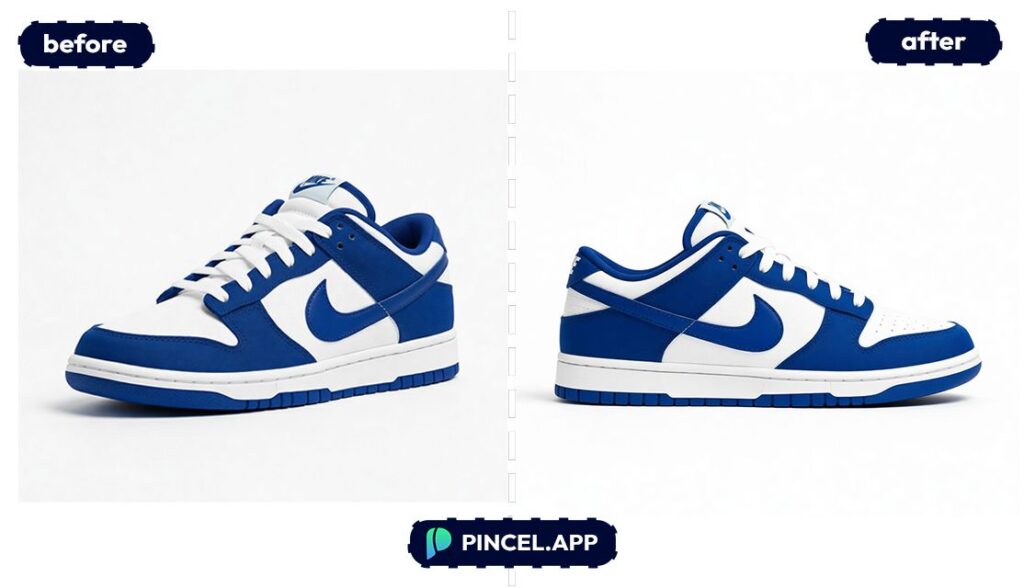
📝 Step 2: Tell the AI Which Angles You Need
In the prompt box, describe the rotation like you would to a photographer.
Use degrees and simple direction words (left, right, rotate, orbit) to keep it predictable.
Try prompts like these:
- “Create a 360-style set: generate 8 views of this product rotating 45 degrees to the right each time, same lighting, same background.”
- “Generate a new view as if the camera moved 30 degrees to the left around the subject, keep the subject centered and realistic.”
- “Rotate the object 90 degrees clockwise on a turntable, preserve textures and logos, no extra objects added.”
- “Create the back view of the item from this single photo, matching material, color, and shadows.”
- Generate the wider angle view looking left, looking right, and a reverse angle from the corner. Keep rest same, No people added
- Create a side angle view of the subject, rest unchanged.
If you’re editing a space, you can also say “pan the camera” like you would in a virtual tour.
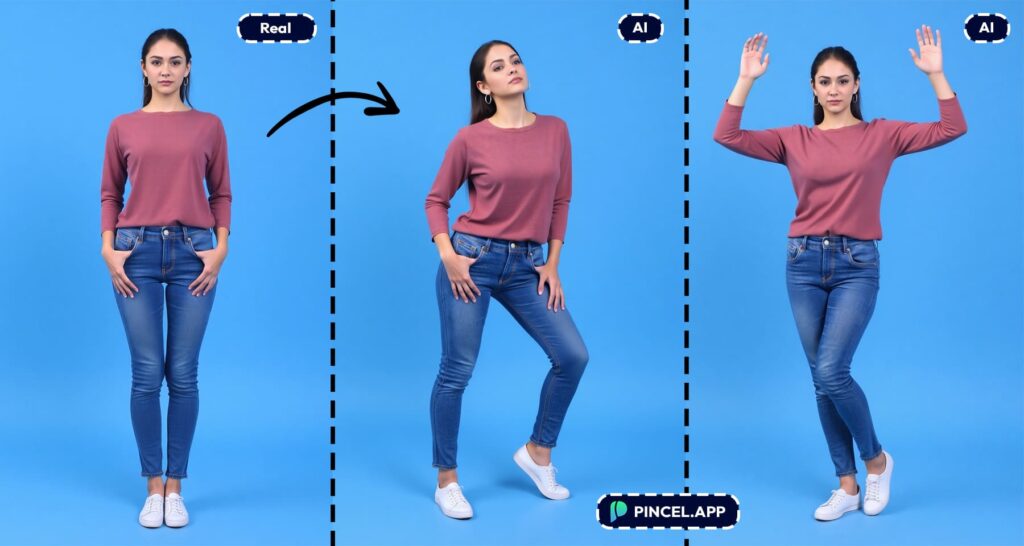
⚡ Step 3: Generate, Then Iterate
Click Generate and wait a few seconds.
Most edits land in the 5–10 second range, so you can build a mini “spin” set quickly.
Then repeat with the next angle (for example: 15°, 30°, 45°, 60°) until you have enough frames to feel like a 360.
If something drifts, tighten your prompt with constraints like “keep the same background” or “do not change branding.”
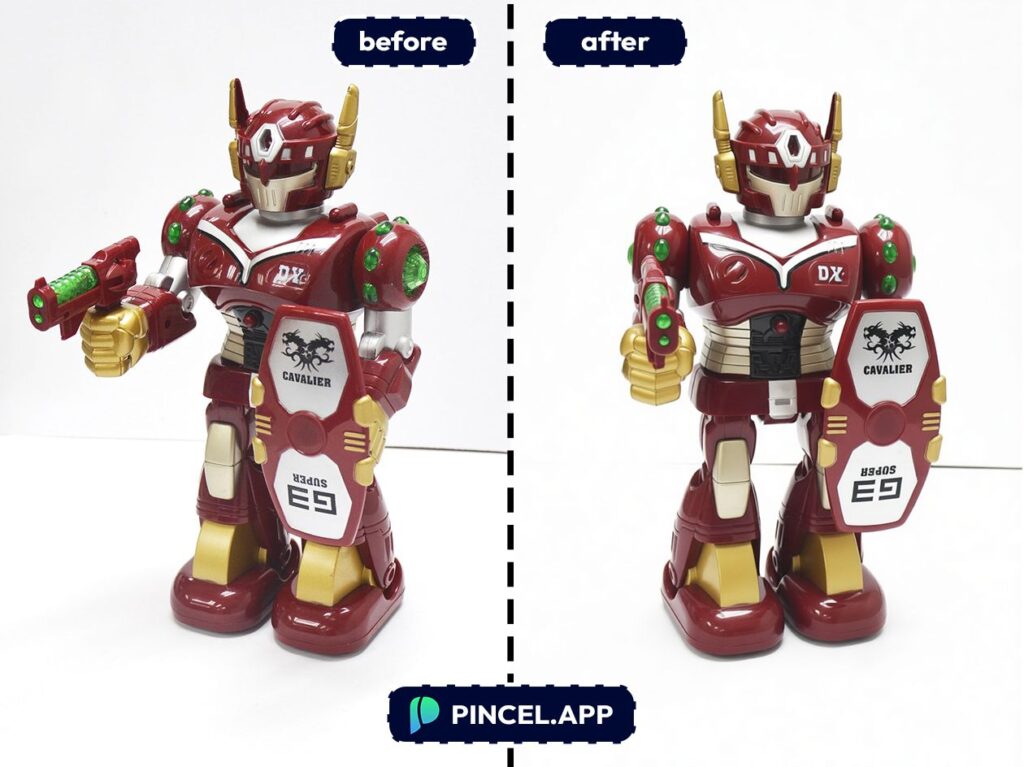
📥 Step 4: Download Your picture
Download each generated angle.
If you want extra space around the subject for smoother framing, you can also use Extend Photo with AI to create consistent margins.
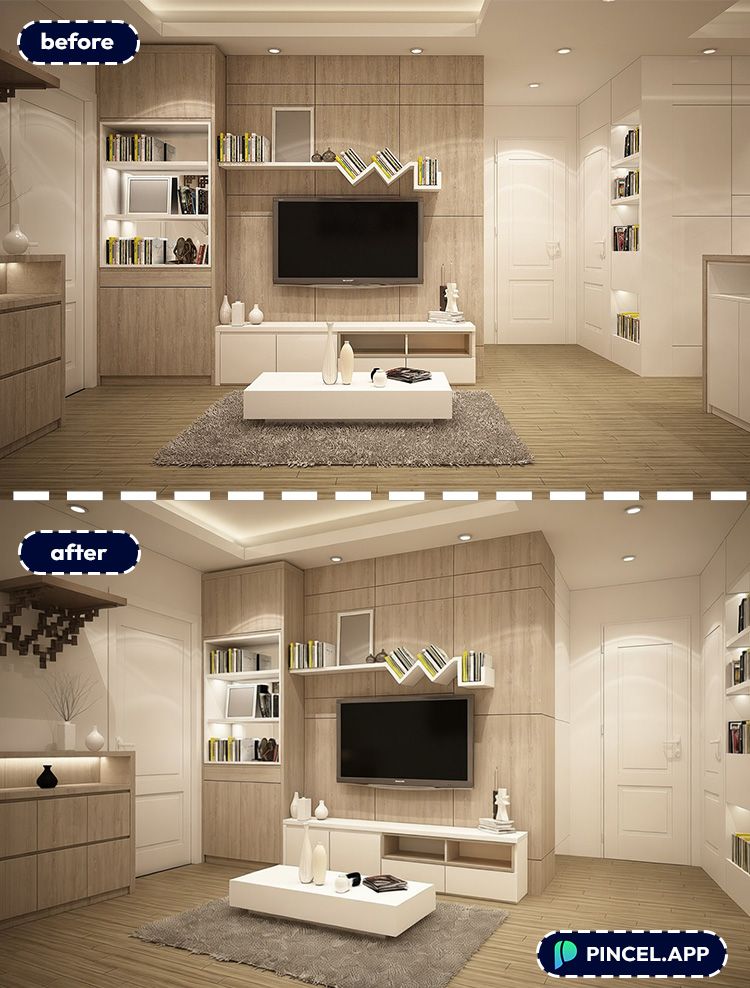
Or Even Use Real 3D 👇🏼
In addition to that you can also stunning 3D models using Pincel 3D model Generator.
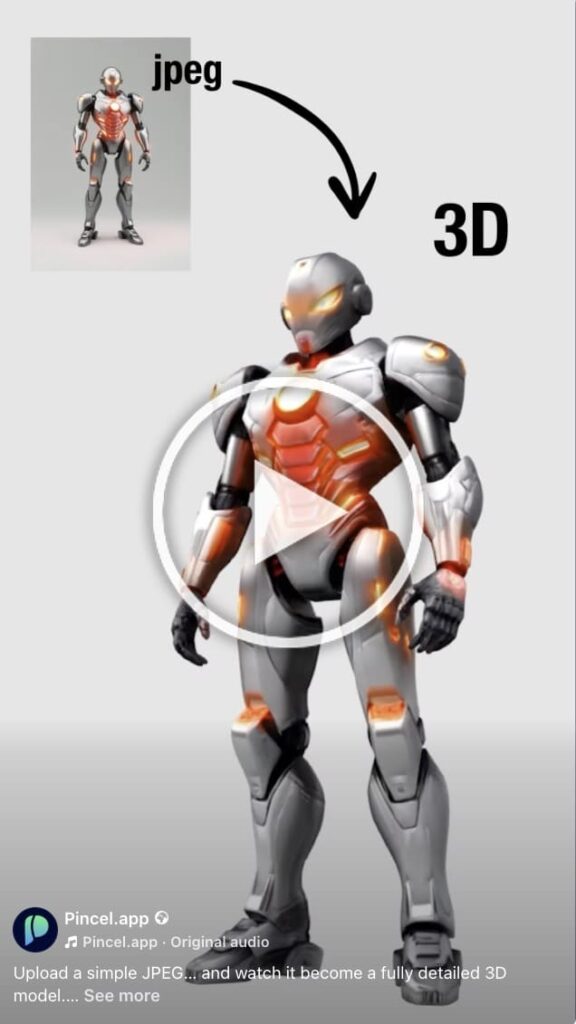
This can help you to visualize the 3D printing materials, products, architectural design etc.
You can rotate the entire object and see how it looks in real time from every possible angle.
This tool can help you to generate 3D toy models.
You can also generate simple videos to share in your products page.
The process is super simple. All you need to do is describe or upload your reference image and let AI do the rest.
Here are some step by step guides for the process and some samples of how it will look like in real life.
Who Is This For? Real-World Use Cases 👇🏼
E-commerce listings — Turn one “hero shot” into multiple angles so shoppers feel like they can inspect the item.
Pair it with AI product photography when you also need cleaner backgrounds and catalog-ready lighting.
Marketplace sellers (Facebook, Etsy, eBay) — You don’t always have time for a full shoot, but you still need trust-building detail shots.
A few generated angles can make your listing feel more complete.
Brands doing ad mockups — Need five viewpoints for an A/B test by tomorrow morning?
Generate them in seconds, then keep the best performer.
Product designers and prototyping — Use quick angle generations as concept visuals before you ever manufacture the thing.
If you’re also merging ideas from different shots, Combine Photos helps you build the base image first.
Portrait and lifestyle shooters — A “360 view” of a person is harder than a product, but you can still create alternate angles for storytelling.
For controlled changes, Change Pose in Photo often keeps anatomy more consistent.
Frequently Asked Questions 🤔
Can you really create a 360 view from a single photo using AI?
Yes, you can generate multiple realistic viewpoints from one image, then assemble them into a 360-style spin.
The key is generating angles in small steps (like 15–45 degrees) so the subject stays consistent.
What kind of photos work best for a 360-style spin?
Clean product photos, cars, furniture, and well-lit objects work best because edges and textures are easy to infer.
Busy scenes can still work, but you may need more prompt constraints to prevent background changes.
How do I keep the background and lighting consistent across angles?
Add constraints like “same lighting,” “same background,” and “no new objects” to every prompt.
If your lighting needs fixing before you start, you can relight first using Relight Photos with AI, then generate the angles.
Will logos, text, and patterns stay accurate when rotating?
Often, yes but fine details can drift if the rotation is aggressive.
Use smaller angle increments and specify “preserve logos and text exactly,” and regenerate if anything warps.
Is there a free way to create a 360 view from a single photo using AI?
Yes. Pincel AI Photo Editor gives you 20 free credits with no credit card required.
That’s enough to test several angle generations and see if it fits your workflow.
See How it Works in Less Than 30 Seconds 👇🏼
Getting the Whole Picture (Literally) 📸
So here’s the thing… one photo doesn’t have to stay one photo anymore.
Now you can expand it, rotate it and explore it.
And you can do it in seconds.
All you need to do is to upload the image, type whatever you want, adjust and let AI do the rest.
Look at your photo from all the angles possible and save your time.

