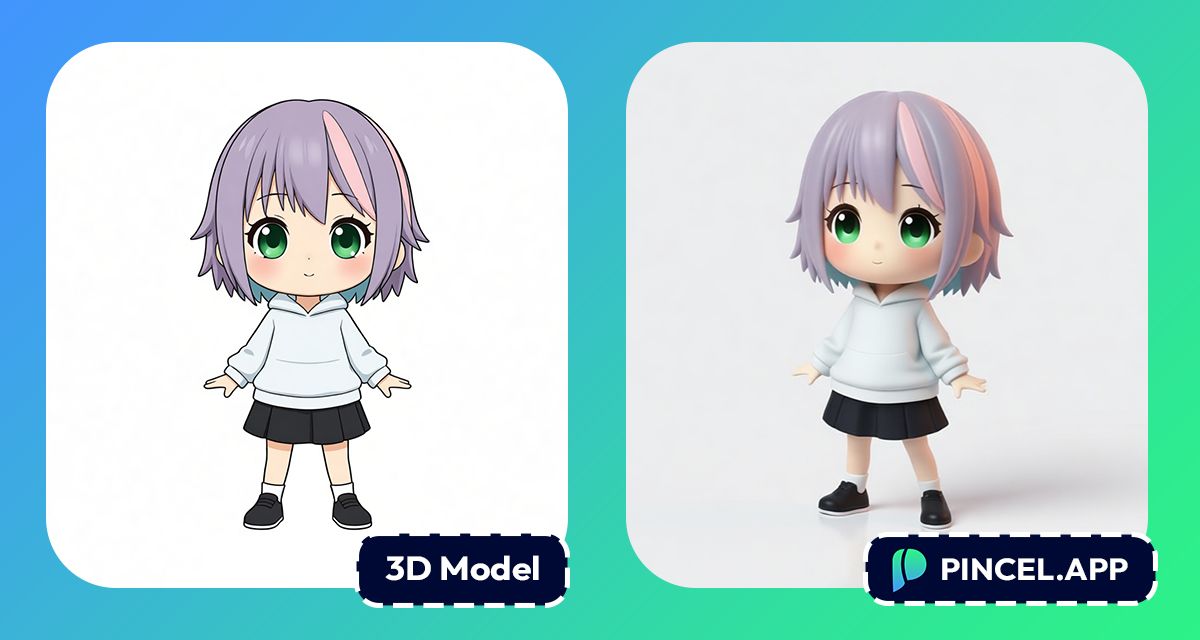
3D models are everywhere now.
Game developers use them as in-game assets.
Architects use them for virtual walkthroughs.
Brands use them for product visualization.
And designers use them to bring ideas to life through 3D printing.
The demand has grown fast.
The problem has always been getting there from a flat image.
Specialist software, technical skills, and hours of work just to convert one design.
But now, with Pincel AI 3D Model Generator, you can convert an image into a 3D model with AI and get a downloadable GLB in minutes.
Here’s how it works:
The Gap Between a Flat Image and a 3D Model is Bigger Than It Looks 😮💨
Converting a 2D image into a 3D model sounds straightforward, but it is not.
You need software like Blender or ZBrush just to get started.
All of these tools have steep learning curves.
And even when you know the tools, converting a flat image into a clean usable 3D model is still a manual process.
Retopology, UV unwrapping, texturing, fixing geometry, all of which can be a very time consuming process.
Hiring a freelancer works.
But a quality 3D model from a freelancer can cost hundreds depending on complexity and turnaround time.
That is exactly why the Pincel AI 3D Model Generator exists.
Upload your image or simply describe what you need, and get a 3D model ready to use in seconds.
How to Convert Image Into 3D Model With AI ✅
🧭 Step 1: Pick your input mode (Text OR Image)
Go to the Pincel AI 3D Model Generator.
You can start from Text when the object is in your head, or Image when you already have a photo, sketch, or concept.
If you’re converting an image into a 3D model, pick Image mode and upload your reference.
A clear, centered object with decent lighting usually gives the best geometry.
🛠️ Step 2: (Optional) Set the advanced options
This is where you decide whether you want a light prototype or a more detailed mesh.
- PBR materials: Turn it on if you want more realistic lighting response in engines like Unity or Unreal.
- Face count (40K → 1.5M): Lower for faster, lighter assets. Higher for more shape detail.
- Output type:
- Normal = textured/colored output (best for games and web demos).
- Geometry-only = white mesh (great for sculpting cleanup and 3D print prep).
If you’re not sure, start simple.
You can regenerate with different settings once you see the preview.
⚡ Step 3: Generate the model
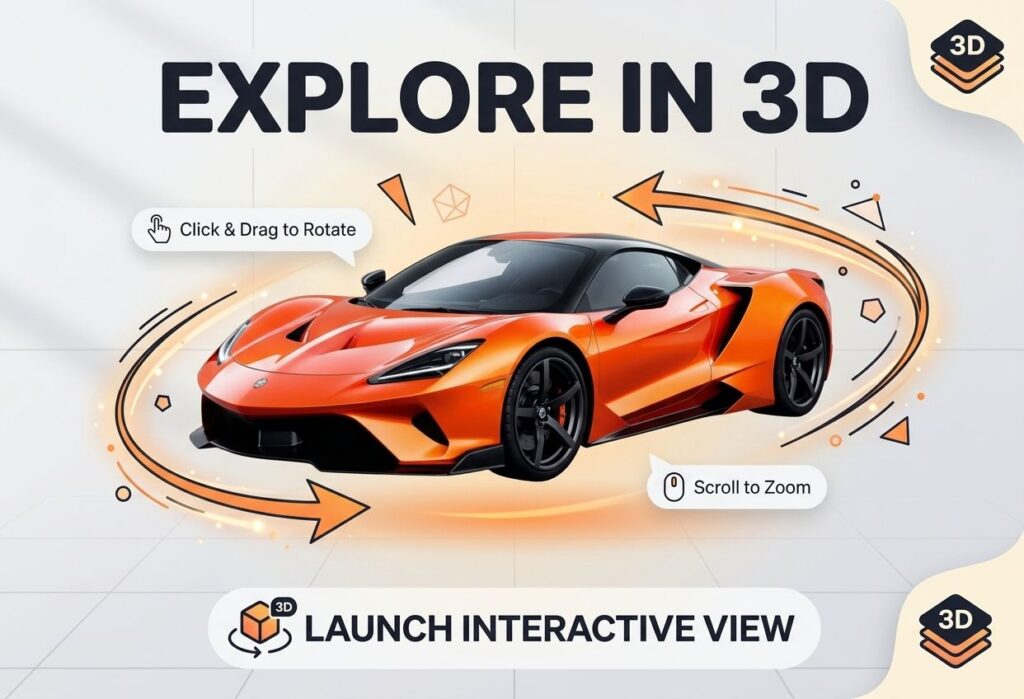
Click Generate and let it cook.
A full 3D build takes longer than a photo edit, but you’ll typically get results in about a minute or two, not hours of manual modeling.
Each generation costs 20 credits.
And yes, that means the free trial is enough to test a full model.
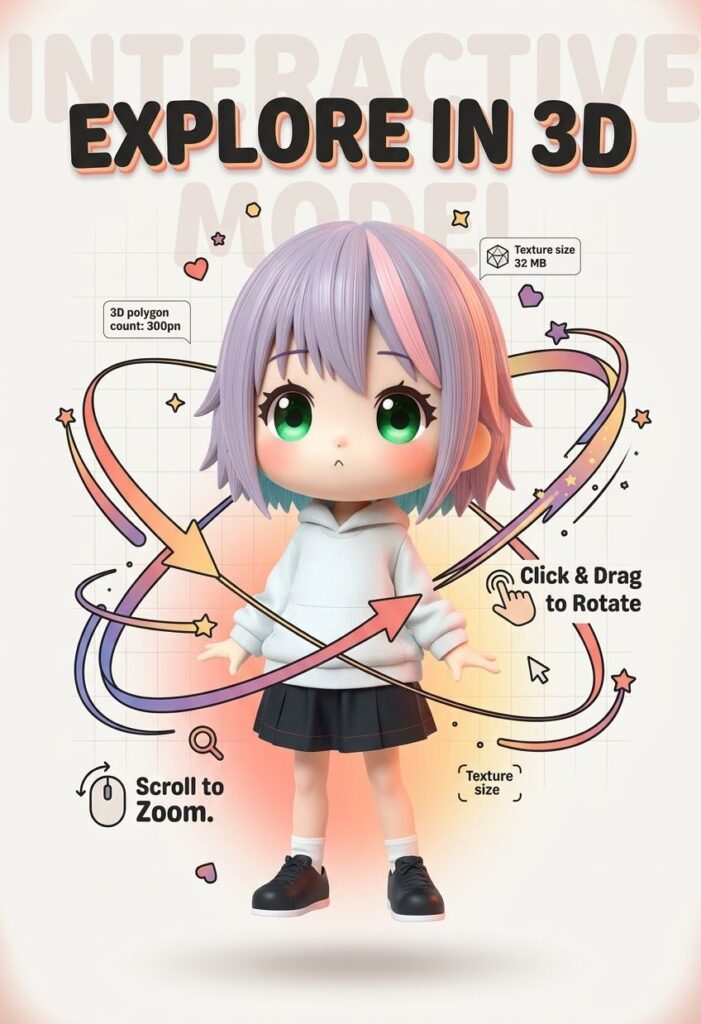
🌀 Step 4: Preview in 3D, then download your GLB
Before you download anything, use the built-in viewer.
You can orbit, zoom, and pan to inspect the model from every angle (the angle you didn’t model is always the angle that breaks).
When you’re happy, download the GLB.
GLB is the “it works everywhere” 3D format: Blender, Unity, Unreal, Godot, Three.js/WebGL, AR viewers, and many 3D printing workflows.
Ready to make one?
Example prompts/inputs you can copy
If you’re using Text mode, try prompts like these:
- a stylized low-poly camping lantern, single color, clean surfaces, game prop
- a realistic ceramic coffee mug with a small chip on the rim, PBR materials, neutral color
- a cute isometric treasure chest, slightly worn wood, metal bands, fantasy game asset
- a 3D printable toy dinosaur figurine, smooth geometry, no thin parts, geometry-only
And if you’re using Image mode, upload:
- a photo of a single product on a plain background (shoe, bottle, gadget)
- a hand sketch of a simple prop with clear silhouette (hammer, vase, lantern)
Who Is This For? 👇🏼
Indie game devs — Generate props, pickups, and set dressing fast, then iterate.
If you’re already using AI for visuals, pairing this with quick 2D edits like change car color can help you prototype an entire scene style.
AR / VR creators — Need “good enough to test” assets you can drop into a spatial scene without waiting a week.
And if you’re building marketing visuals around the concept, relight photos with AI helps you match mood fast.
WebGL / Three.js developers — GLB is basically the native language of web 3D, so you can generate and drop assets straight into a browser demo.
If you’re already doing web-friendly visuals, extend photo with AI is great for creating wide backgrounds that match your 3D preview page.
3D printing hobbyists — Convert a reference image or sketch into a mesh, then clean it up for printing.
If you want a cleaner base for printing, choose Geometry-only and aim for a simpler silhouette.
Product designers — Mock up form factors, packaging ideas, and “rough but rotatable” concepts to review with a team.
And when you need accompanying listing visuals, AI product photography is the fastest way to make it look like you did a studio shoot.
Concept artists — Turn a flat design into a rotatable reference, then paint over it or refine proportions.
If you also need quick compositing for moodboards, combine photos with AI helps you assemble references in seconds.
Animators (for base meshes) — Generate a starting point for a static prop or character-like figure, then rebuild properly for rigging.
It won’t rig for you, but it can save you hours at the “blank scene” stage.
Educators — Create simple 3D specimens and objects for lessons where interactivity matters.
And if you’re making class materials, AI coloring can generate fast worksheets that match the 3D topic.
Frequently Asked Questions 🤔
How do I convert image into 3D model with AI?
You upload a reference image to Pincel AI 3D Model Generator, choose your settings, then generate and download a GLB model.
You can preview it in the built-in 3D viewer before downloading, so you can inspect it from all angles.
Can I convert image into 3D model with AI for free?
Yes, you can try it free with 20 credits included for new accounts (no credit card needed).
One 3D generation costs 20 credits, so you can test a full model and see the quality first.
What file format do I get?
You get a GLB file.
GLB is a widely supported 3D format that works in Blender, Unity, Unreal Engine, Godot, and Three.js/WebGL pipelines.
Can I generate a 3D model from text instead of an image?
Yes, the tool supports two input modes: text or image.
Text is great when you’re ideating, and image mode is perfect when you’re converting a real object photo or a sketch.
Can I control how detailed the mesh is?
Yes, you can adjust the face count from 40K up to 1.5M.
Lower counts are lighter and faster for real-time use, while higher counts can capture more shape detail (with heavier files).
Is this good for 3D printing?
Yes, it can be a great starting point for 3D printing, especially for simple objects and figurines.
Choose Geometry-only for a clean white mesh, then do any needed cleanup in your modeling/repair tool before slicing.
Modeling Behavior 🗿
Most 3D models start as a flat image somewhere.
Now getting from one to the other takes seconds instead of weeks.
Upload the image to Pincel AI 3D Model Generator, describe what is needed, and get a clean 3D model ready to use.
Print it. Drop it into a game. Use it in a virtual world or send it as a prototype.
No Blender and no freelancer invoice.
So go ahead and try