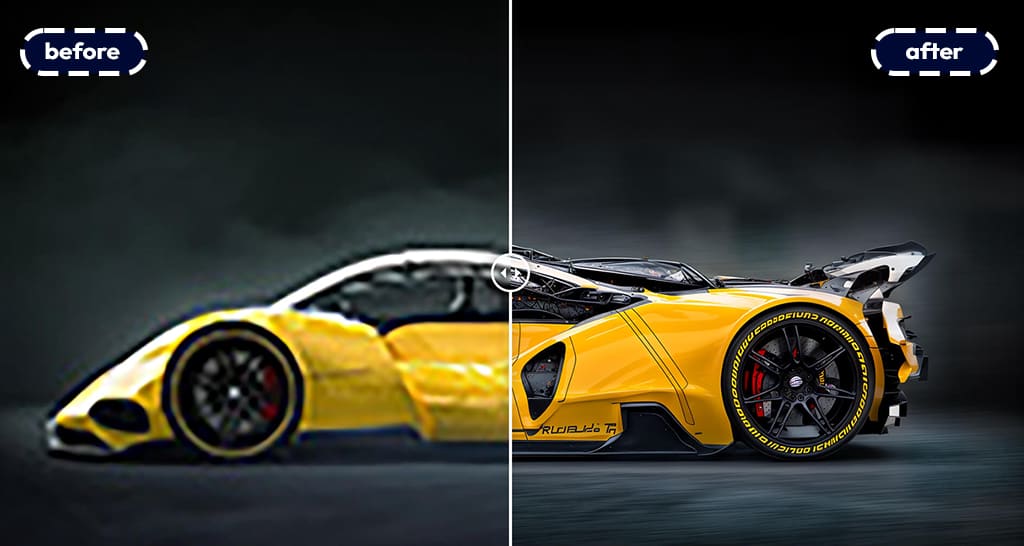
A great photo is only as good as its resolution.
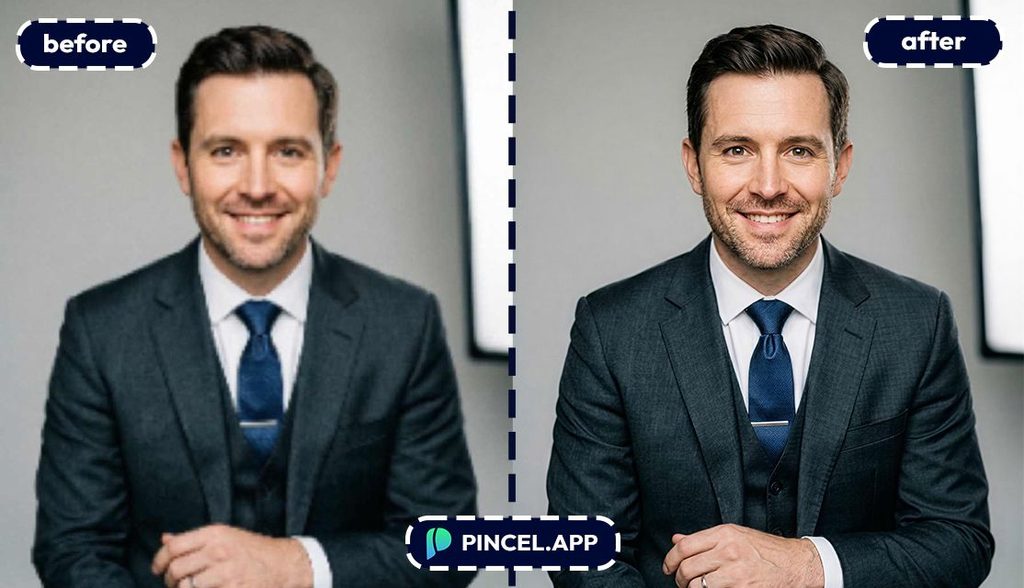
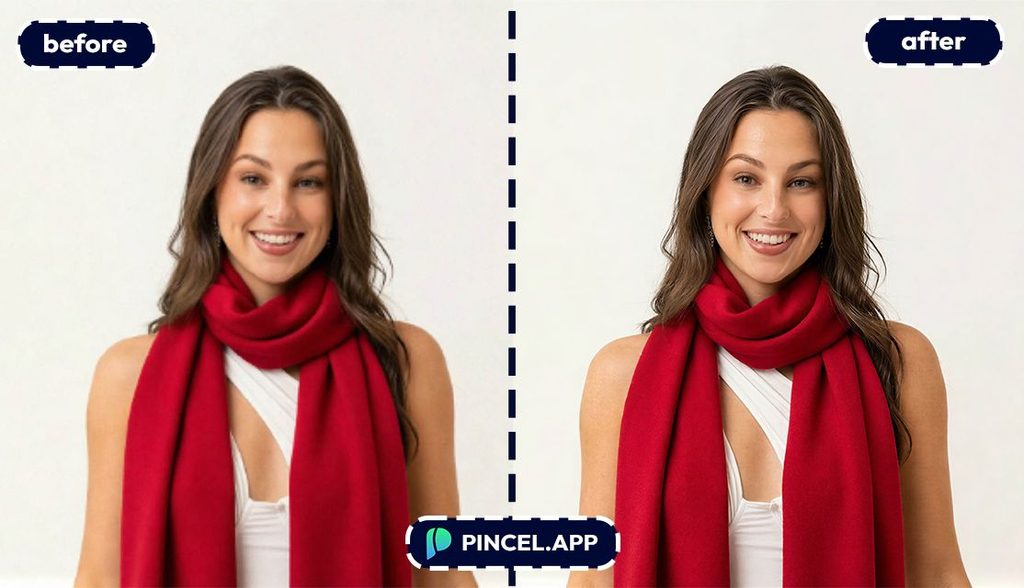
You zoom in and the details fall apart. The texture disappears into a blur.
This happens a lot.
Sometimes an old photo scanned at low resolution.
A portrait that looks fine on a phone screen but falls apart on a monitor.
In the past it tool a lot of effort to make an image sharper.
But now it does not.
Upload your image to Pincel AI Upscaler, choose your scale factor, and get a higher resolution version in seconds.
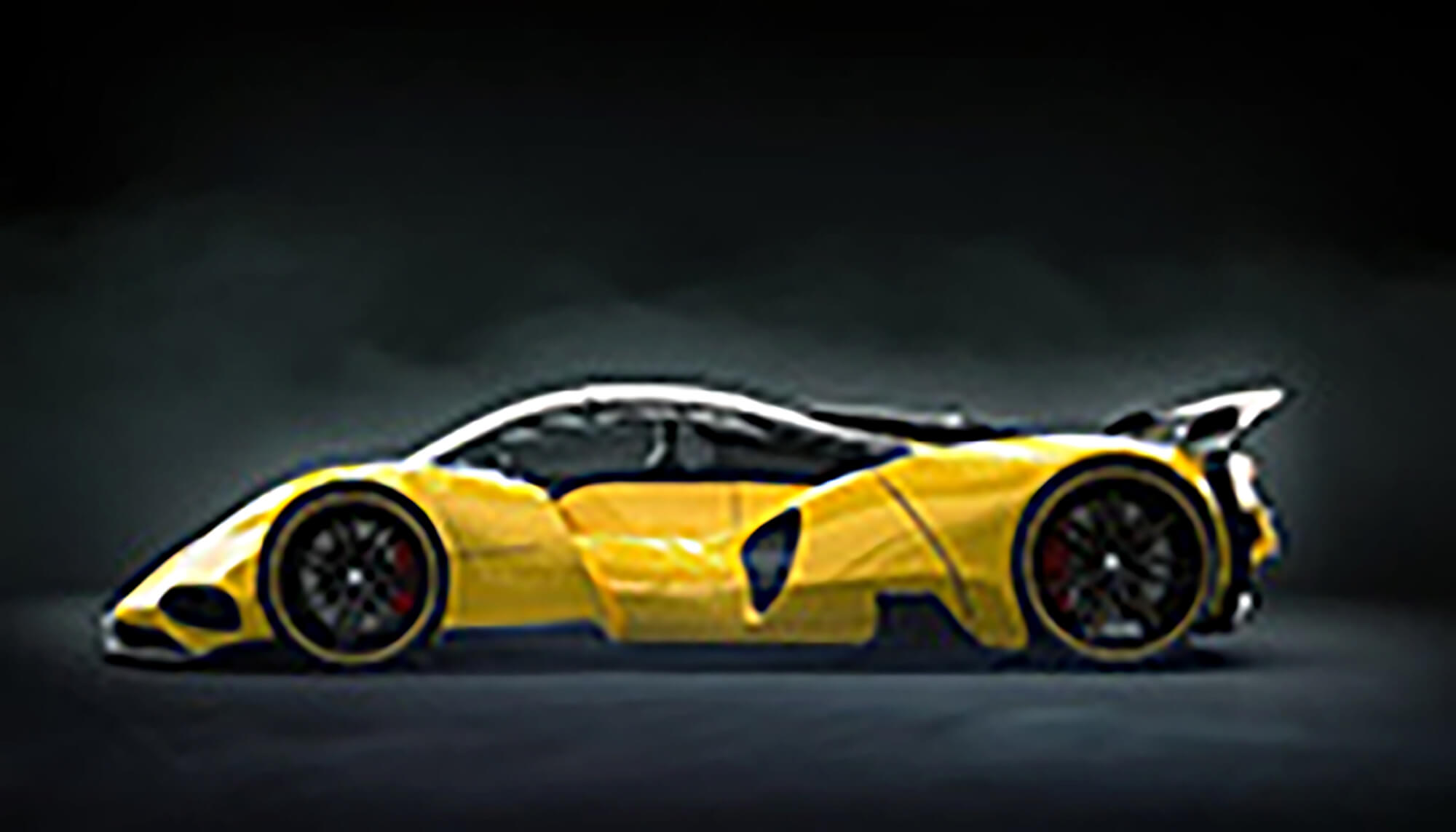
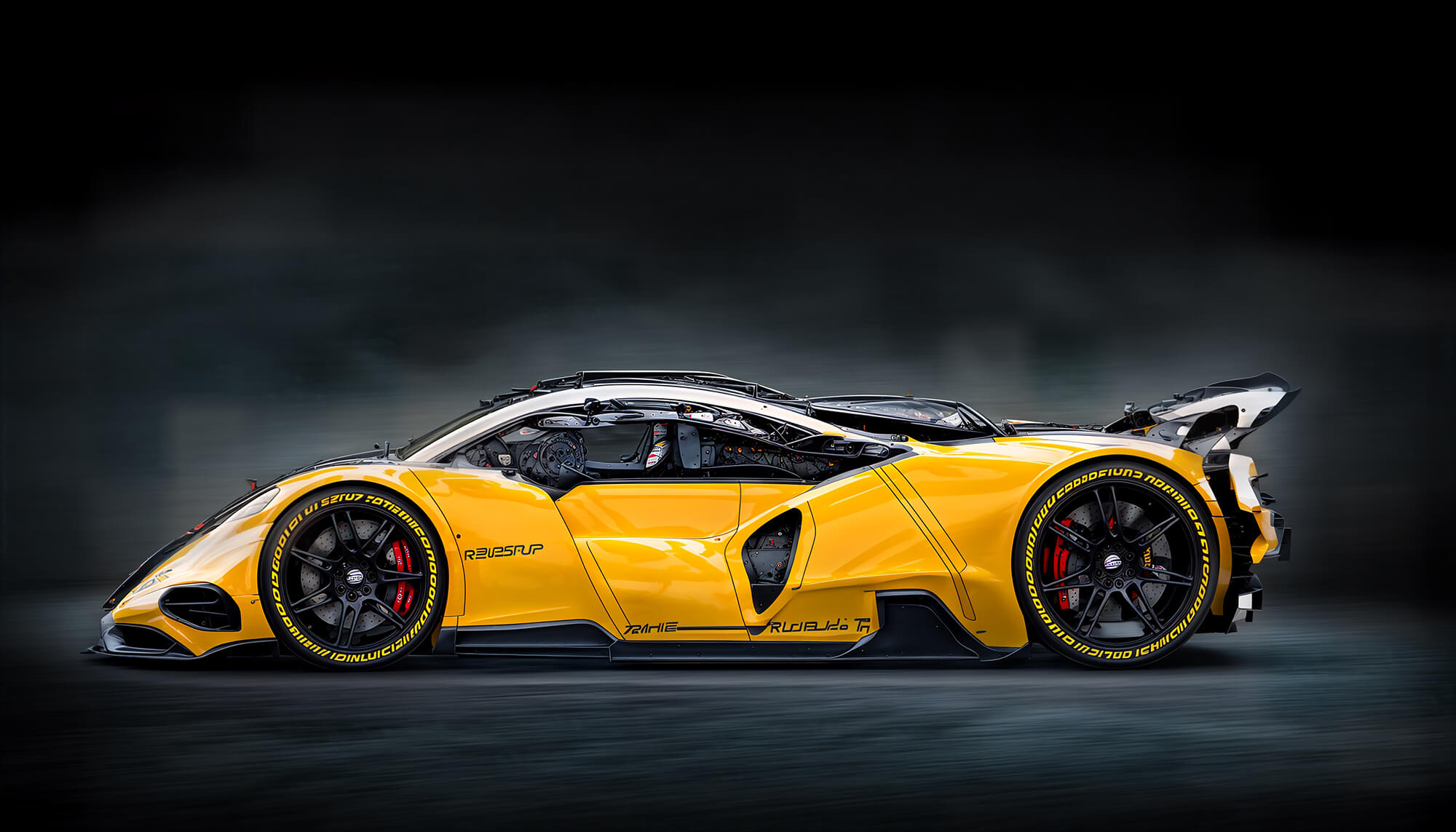
The result looks sharper, crisper, and more natural than anything a manual sharpening tool can produce.
Here’s how it works:
Why Low Resolution Images are a Problem 🔍
A low resolution image is not just a visual problem.
It is a practical one, because it looks pixelated.
Use it in a anywhere and it looks unprofessional.
Photoshop can sharpen your image but it cannot create details from nothing.
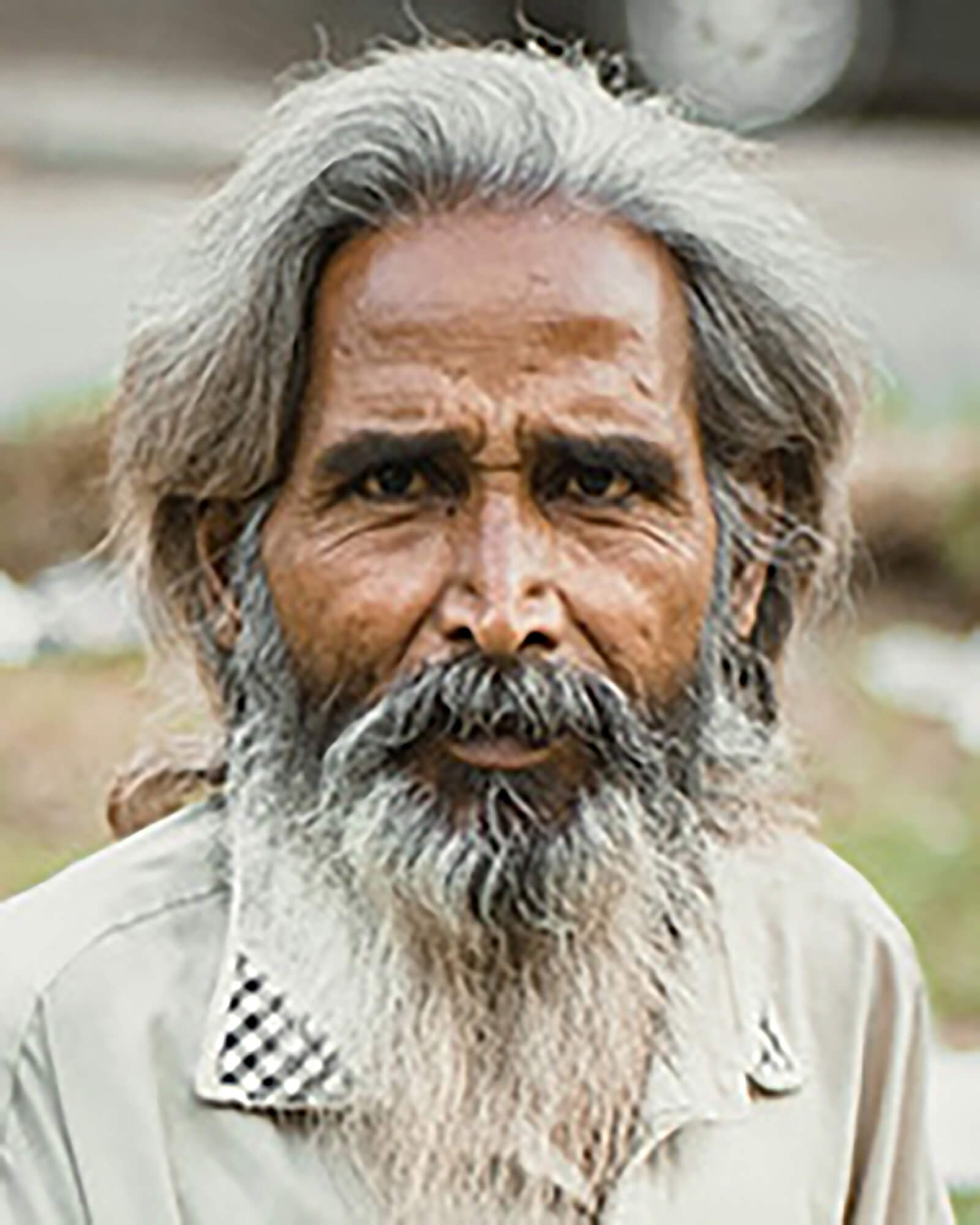
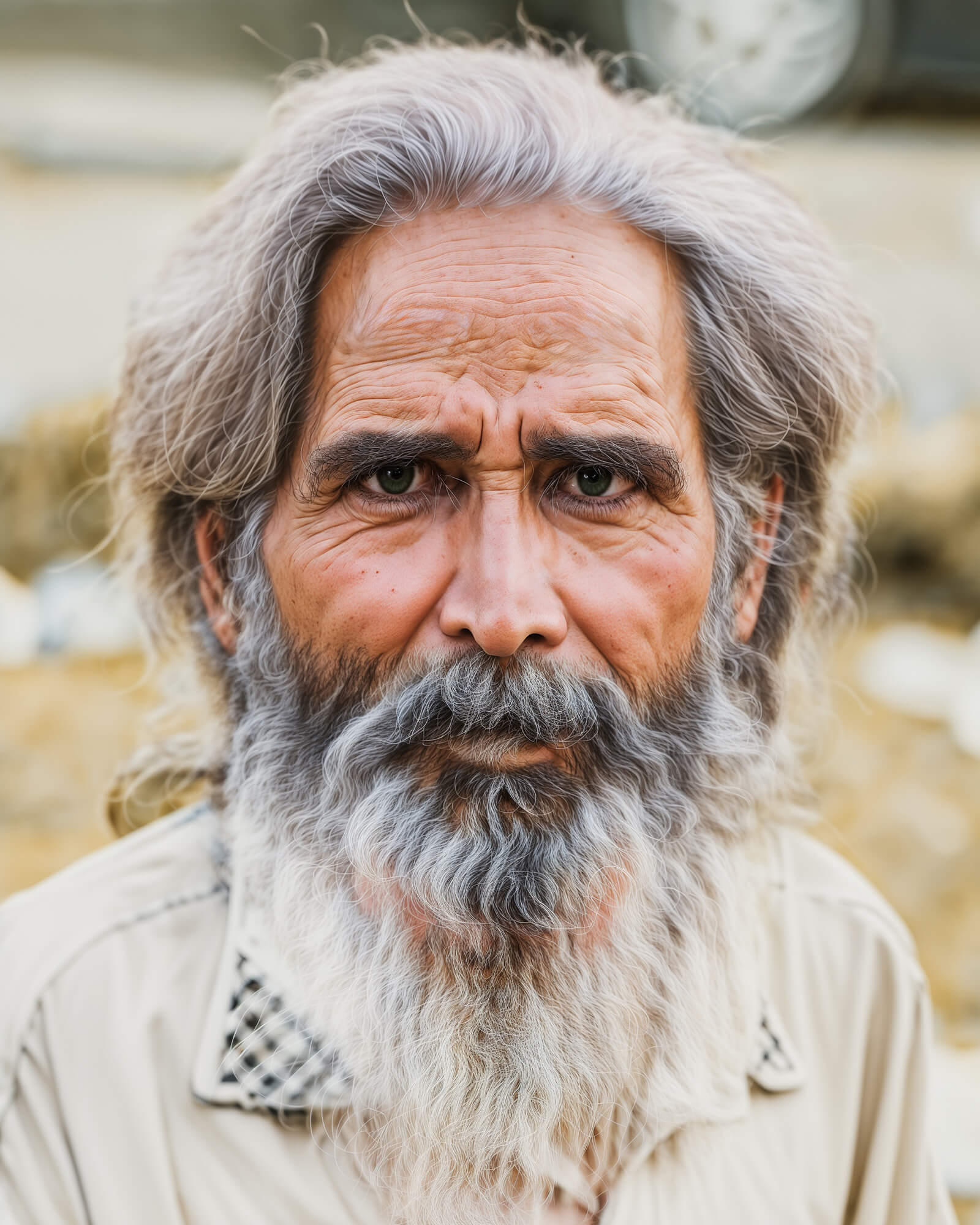
That is exactly why Pincel AI Upscaler exists.
It does not just stretch pixels, but it actually adds new detail using AI.
Here’s How It Works ✅
🖼️ Step 1: Upload Your Image
Go to Pincel AI Upscaler and drop your image into the upload area.
You can upload up to 50 images at once for bulk processing.
Supports JPG, PNG, and WebP formats.
⚙️ Step 2: Choose Your Model
Pincel offers two upscaling models depending on what you need.
Fast Model — Powered by Google. Quick and affordable. Best for general use and batch processing. Scales up to 4x.
Quality Model — Crystal clear. Best detail. Goes all the way up to 10x. Use this when the result really matters.
📐 Step 3: Set Your Scale Factor
Use the scale slider to choose how much you want to upscale.
2x for a subtle improvement.
4x for a significant jump in quality. Up to 10x for maximum detail on the Quality model.
Not sure which to pick? Start with 2x and see if it is enough before going higher.
🖨️ Step 4: Pick Your Output Format
Choose between PNG and JPG depending on how you plan to use the image.
PNG — Lossless and larger. Best for print, design work, and anything where quality cannot be compromised.
JPG — 95% quality and smaller file size. Best for web use, social media, and anywhere file size matters.
⚡ Step 5: Hit Generate and Download
Wait a few seconds and Pincel delivers a sharper higher resolution version of your image.
Download it and use it anywhere the original was not quite big enough.
Who Is This For? 👇🏼
Photographers — Rescue an older shoot that was captured at lower resolution. Print it, sell it, or use it in a portfolio without it falling apart at larger sizes.
E-commerce brands — Product photos need to look sharp at every size. Upscale once and use the same image across your website, marketplace listings, and print materials.
Designers and agencies — Client sends a low resolution logo or asset. Upscale it instead of going back and asking for the original file again.
Content creators — Thumbnail, banner, or cover image that looks great on mobile but blurs on desktop. A quick upscale fixes it in seconds.
Print and signage — Anything going on a banner, poster, or large format print needs resolution that phone photos rarely have. Upscale before you send to print.
AI image creators — AI generated images often come out at lower resolutions. Run them through the upscaler and get a print ready version with real detail.
Bulk processors — Have a whole folder of images that need upscaling. Drop up to 50 at once and process them all together.
Pincel AI Upscaler vs Photoshop 💡
Photoshop has a super resolution feature.
It works reasonably well but it is buried inside Camera Raw, requires specific file formats, and takes longer than it should for a simple upscale.
And for bulk processing, Photoshop means batch actions, scripts, and a workflow that most people do not want to set up just to upscale fifty product photos.
Pincel is just simpler.
Drop the images, pick the scale, choose the model, and download.
No buried features and no batch scripts.
Frequently Asked Questions 🤔
How much can I upscale an image with Pincel?
Up to 4x with the Fast model and up to 10x with the Quality model.
The Quality model uses the Crystal engine which produces the sharpest and most detailed results.
Will upscaling change the look of my image?
No. Pincel preserves the original look, colors, and composition while adding resolution and sharpness.
The Creativity slider under Advanced settings lets you control how much the AI adds versus how faithful it stays to the original.
What is the difference between PNG and JPG output?
PNG is lossless which means no quality compression. It produces a larger file but every detail is preserved. Best for print and design.
JPG outputs at 95% quality and produces a smaller file. Best for web and social media use.
Can I upscale multiple images at once?
Yes. Pincel supports bulk processing of up to 50 images in a single session.
Drop them all in at once and download when they are ready.
What image formats does Pincel accept?
JPG, PNG, and WebP are all supported.
Is Pincel AI Upscaler free to try?
Yes. New accounts get 20 free credits with no credit card needed.
That is enough to test the upscaler on several images before deciding what works best for your use case.
Bigger, Sharper and Better. ✨
Every image has a better version of itself waiting inside it.
Sometimes it just needs more resolution to get there.
Drop your image into Pincel AI Upscaler, pick your scale, and get a sharper result in seconds.
2x for a quick improvement or 10x for when it really has to be perfect.
PNG for print or JPG for web.
The image you needed was always there.