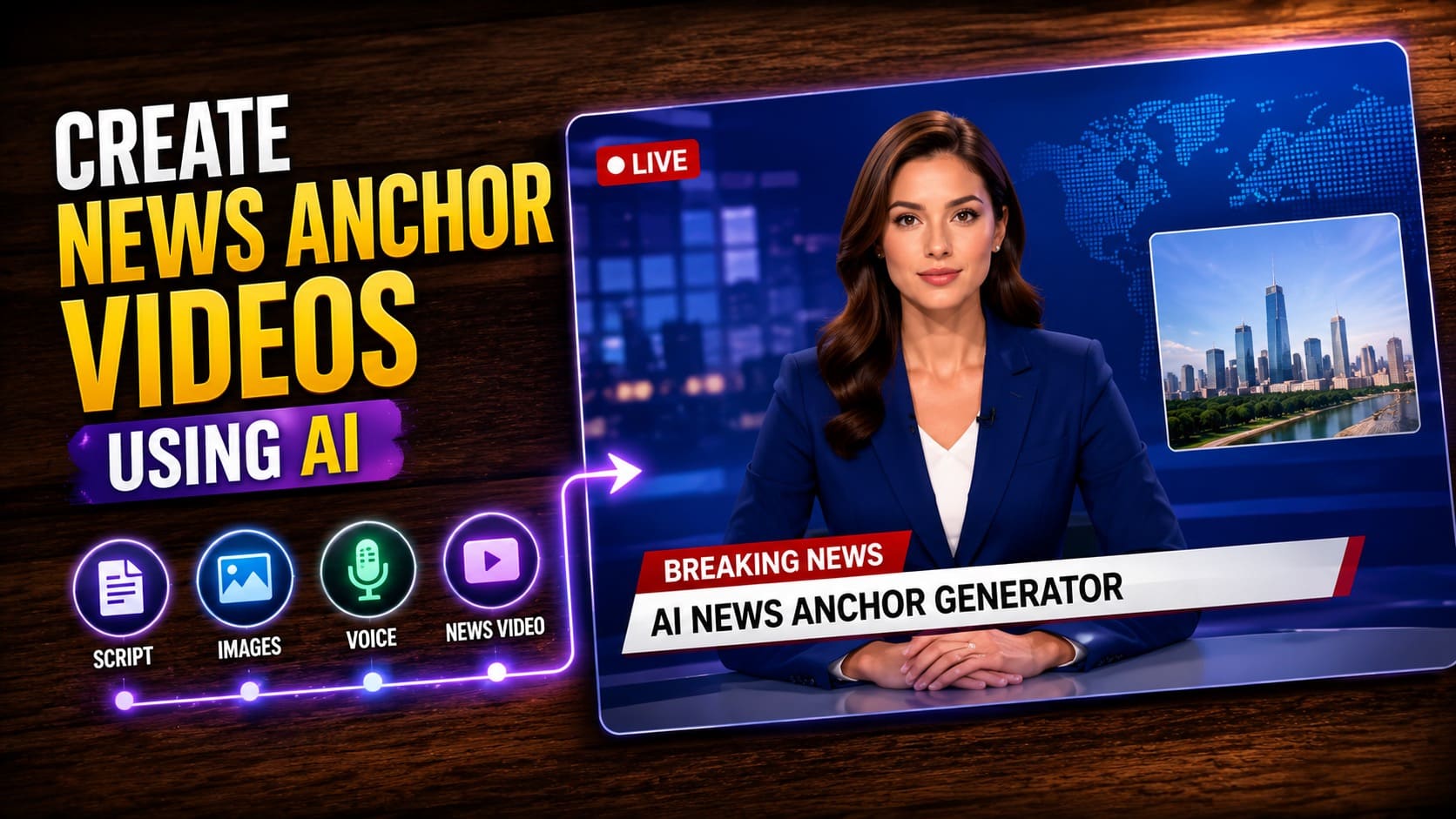
You have a news story, but now you need someone to deliver it.
In the past that meant hiring a presenter, ordering from Fiverr or spending half a day on a two minute clip.
Most people skipped it entirely because the effort was just not worth it.
But now Pincel AI Talking Photo takes a photo and turns it into a realistic talking video clip in minutes.
Pick a character and paste your text script.
That is the whole process.
The character reads your script out loud, lip -ynced and natural.
No camera. No mic. No recording yourself twelve times.
Here’s how it works:
Making News Videos the Old Way Is a Hassle
A simple news clip usually needs a camera, a confident delivery, and decent audio.
And then you still have to edit it, add captions, and re-record when you change one line.
If you want multiple versions (different hooks, different languages, different CTAs), the workload multiplies fast.
That’s exactly why Pincel AI Talking Photo exists.
It’s a guided 3-step wizard that goes from photo → voice + script → talking video, without a full “on-camera day”.
How to Create AI News Clips from Images ✅
🖼️ Step 1: Upload a face photo (or pick a saved character)
Go to Pincel AI Talking Photo.
Upload a clear, front-facing photo with a single person.
If you make this kind of content often, save the character so you can reuse it later with the same assigned voice.
Tip: Keep the face well-lit and not too tiny in the frame for the cleanest lip-sync.
📝 Step 2: Paste your news script + choose a voice (then preview audio before the video)
Write the exact lines you want the “anchor” to say.
Then choose a voice: a preset voice, a voice you cloned, or a pre-attached character voice.
And here’s the underrated part: you can preview the generated audio in seconds before paying for the video render.
Try scripts like these (copy/paste ready):
Because it’s two-step billing (audio first, video second), you can iterate on the script and voice without burning credits on re-rendering video every time.
🎞️ Step 3: Render at 480p or 720p, then download the MP4
Pick your resolution: 480p for quick drafts, 720p for cleaner final posts.
Render the video and download as MP4.
Render time depends on your audio length and resolution, but the workflow stays simple: preview audio fast, then commit to the final video.
Ready to make your first “anchor clip”? make the photo talk
Who Is This For?👇🏼
Faceless creators — You can run a daily “news desk” format for TikTok/Reels/Shorts without ever being on camera.
Pair it with a strong thumbnail strategy from posts like Change Camera Angle to keep your feed from looking repetitive.
News/parody formats — Make a “serious anchor” deliver funny updates, sports recaps, or meme commentary.
If you want a consistent character look, generate a style and keep it recognizable like you would with AI Memoji.
Localizers — Turn one script into multiple languages by swapping the text and voice.
And if you’re building a whole localized campaign, you’ll also like fast visual tweaks such as Edit Text on Image for language-specific graphics.
Marketers — Create a talking spokesperson from a single brand-approved headshot for ads, landing pages, and promos.
Then build supporting creatives with AI Product Photography so your “news clip” matches the product visuals.
Educators & explainer makers — Turn lessons into “daily briefings” where a character recaps key points.
If your educational content includes before/after visuals, Combine Photos helps you build quick comparison graphics to match the narration.
Storytellers — Make a character “report from the scene” as part of a story world.
And if your character is literally a pet journalist, you already know what to do with Royal Pet Portrait.
Streamers — Use a talking-photo anchor for intros, segment transitions, or “channel news” updates.
For extra polish, you can also experiment with vibe changes like Relight Photos with AI to match your stream aesthetic.
FAQ 🤔
How do I create AI news clips from images using AI?
You create AI news clips from images by using a talking-photo tool that lip-syncs a face photo to a script and voice.
With Pincel Talking Photo, you upload a face photo, generate and preview the audio in seconds, then render the final MP4 video.
How long can the talking video be?
Each render supports up to 60 seconds of audio.
If you need longer content, split your script into multiple segments and stitch them together in your editor.
Can I preview the voice before generating the video?
Yes, you can preview the generated audio before paying for the video render.
That two-step flow is the whole point: iterate on script + voice first, then render video only when it sounds right.
Can I clone my own voice for news-style clips?
Yes, you can clone your voice by uploading samples and saving it as a reusable cloned voice.
You can create up to 5 cloned voices, which is perfect if you run multiple “channels” or characters.
Does this work in other languages?
Yes, text-to-speech includes auto language detection.
So you can paste a translated script, pick an appropriate voice, and generate the audio quickly, often in seconds before rendering the localized video.
Let the Video Speak for Itself 🎤
A “news clip” doesn’t need a studio.
It just needs a face, a script, and a voice that fits your format.
And with Pincel AI Talking Photo, the audio preview shows up in seconds, so you can test hooks fast before you commit to a render.
So go ahead and build your own tiny newsroom.