

Imagine yourself as a fashion photographer.
You just took an almost perfect photoshoot.
But something is missing.
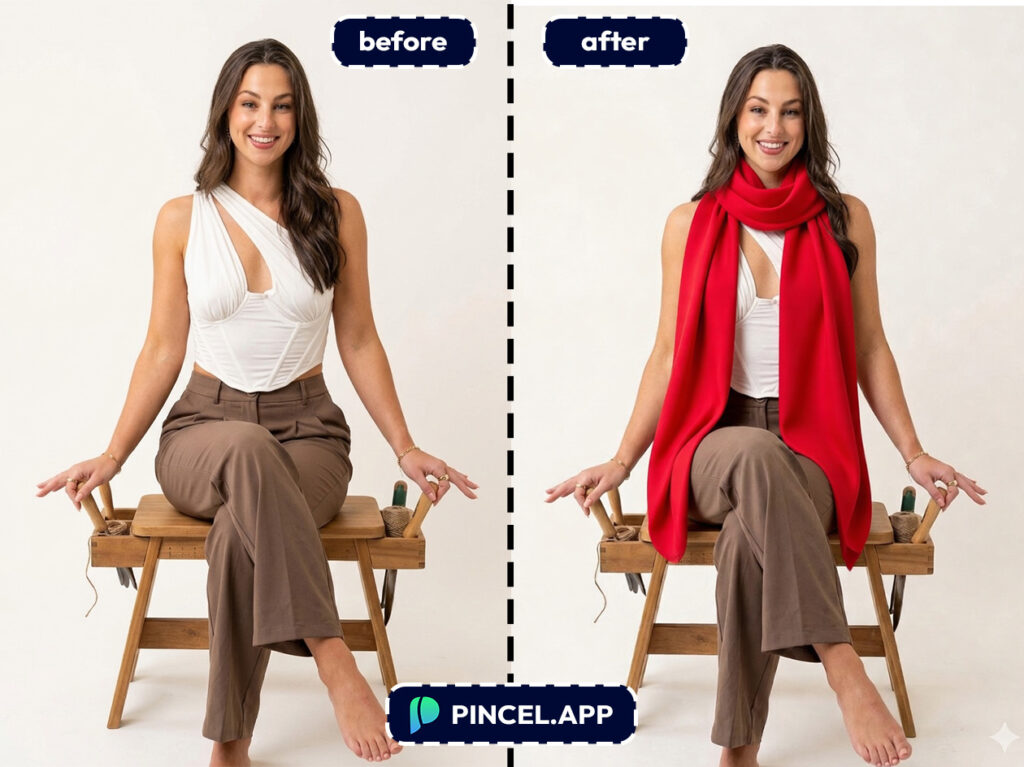
You want to create a cozy vibe, maybe add a scarf with the dress.
And sure, you could buy a scarf and do a re-shoot…
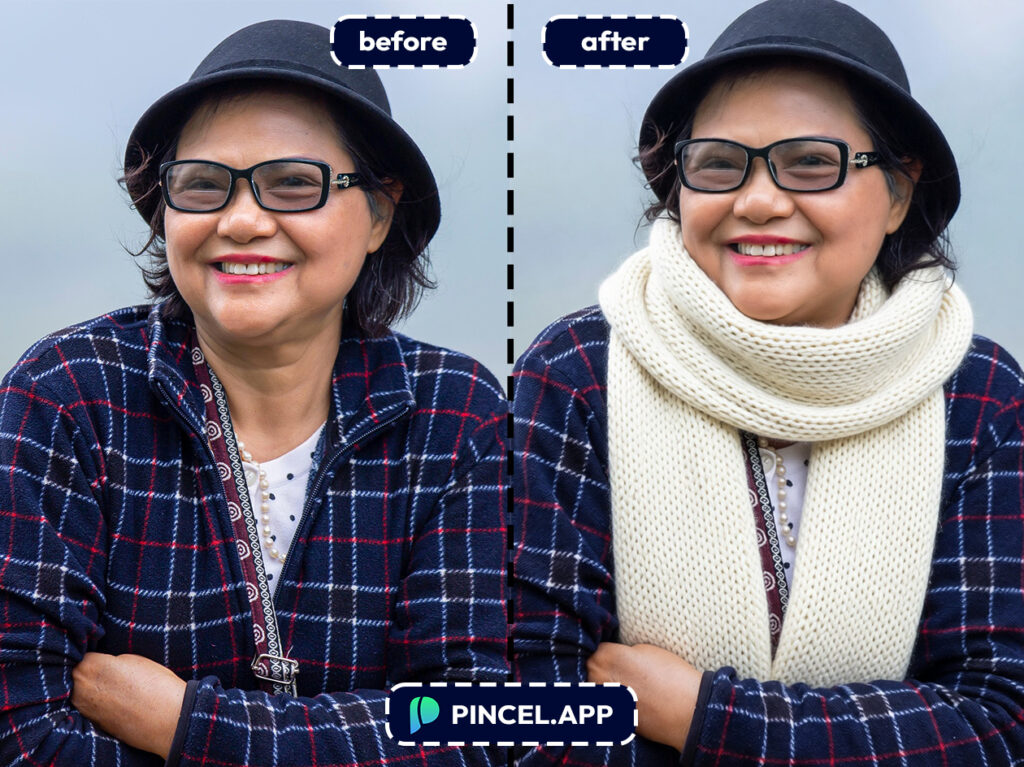
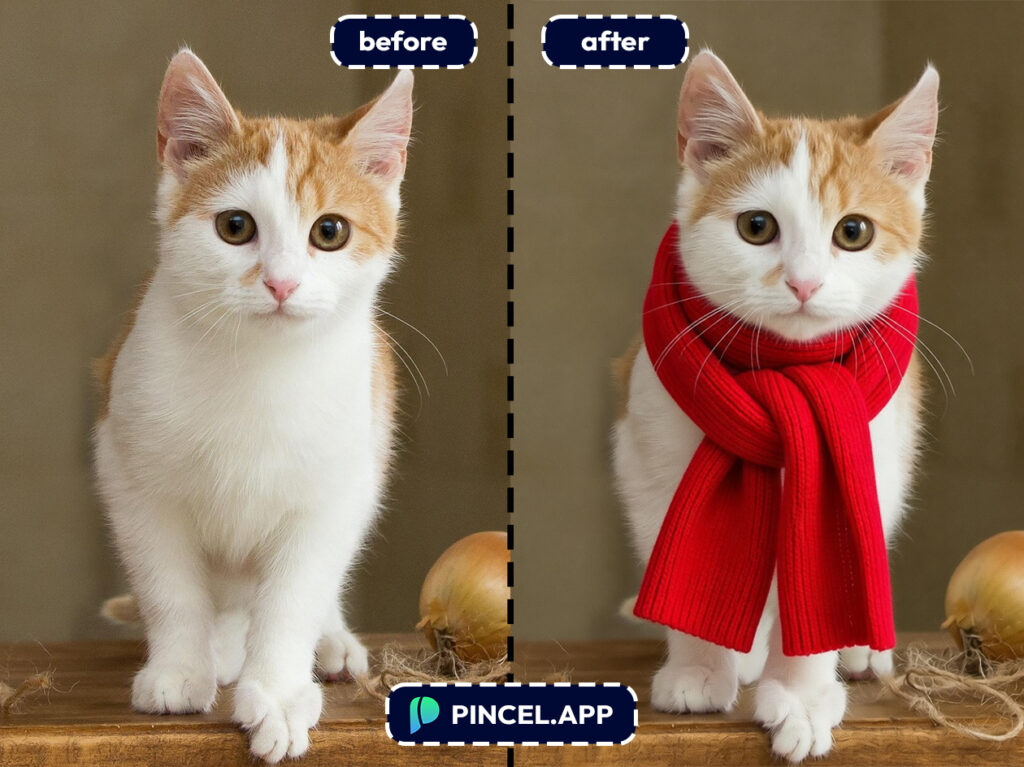
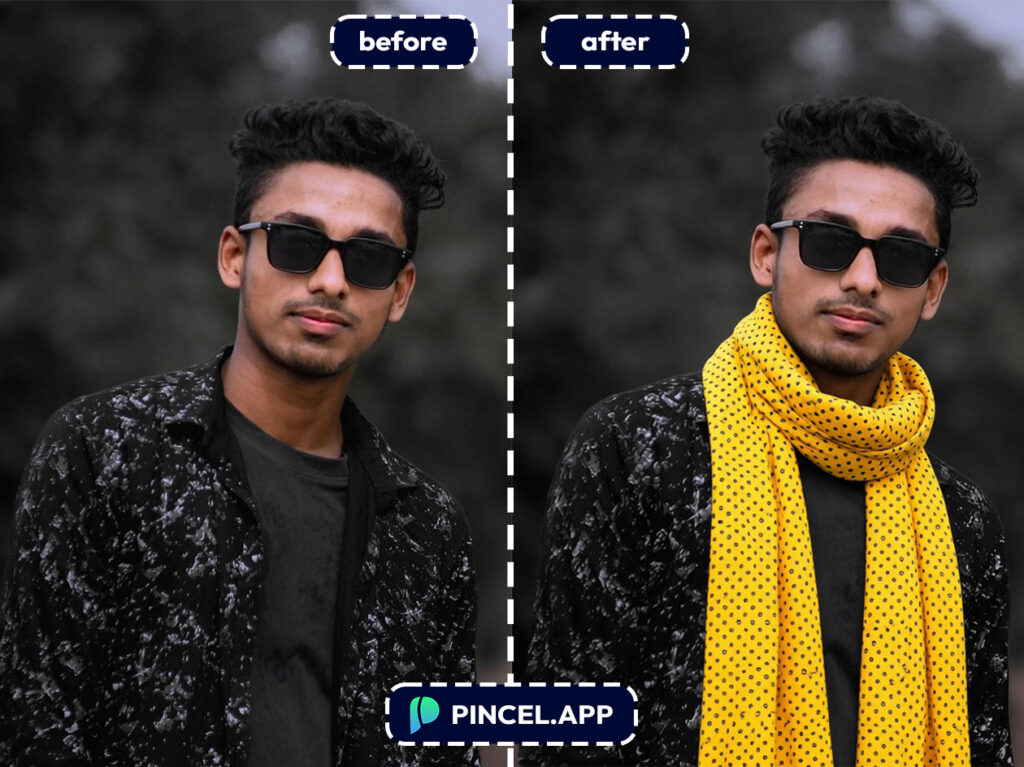
But with Pincel AI Photo Editor, you can add a scarf to a photo using AI in under 5 seconds.
All you need to do is simply upload your photo, type a simple prompt and let AI do the magic.
Let’s take a look how it works
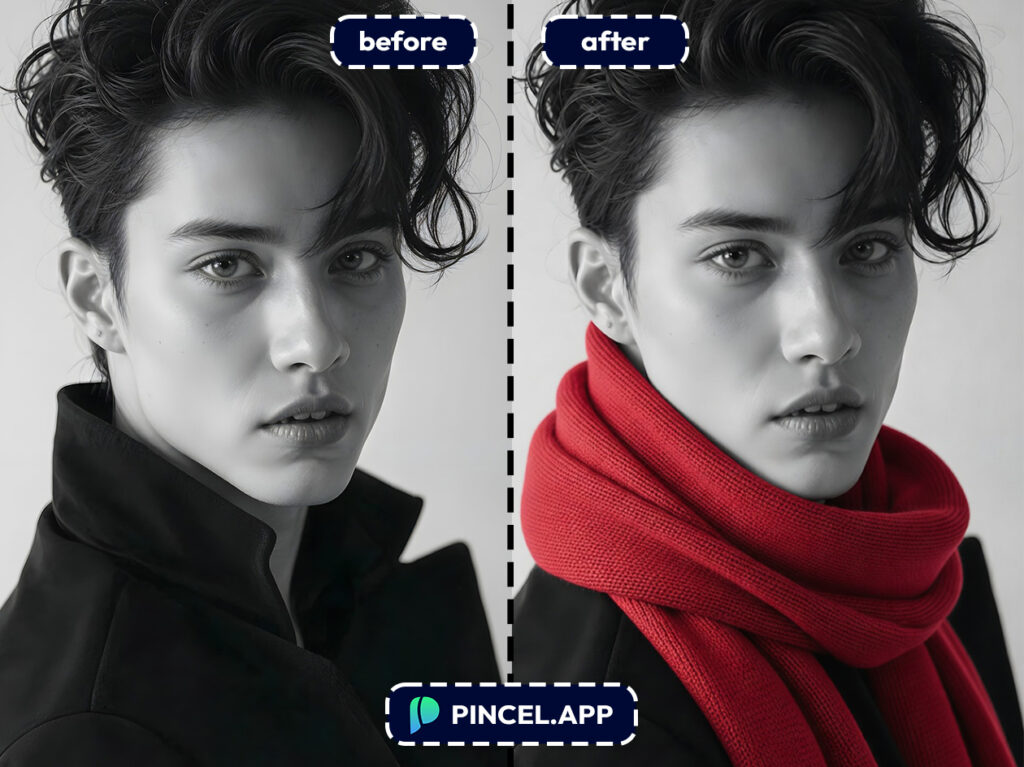
How to Add a Scarf to a Photo Using AI ✅
🖼️ Step 1: Upload Your Photo
Open the Pincel AI Photo Editor.
Click “Upload Image” and choose the photo you want to edit.
Front-facing portraits work best, but casual selfies and street photos are totally fine too.
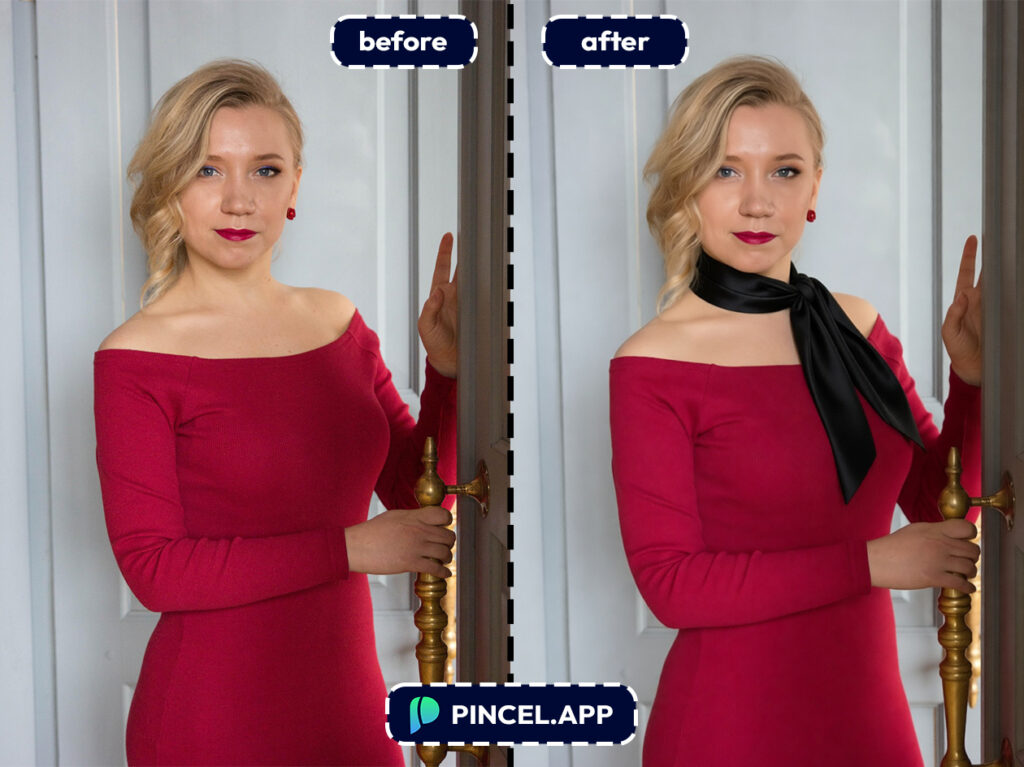
📝 Step 2: Type a Scarf Prompt (steal these)
In the prompt box, describe the scarf you want and how it should sit.
Try one of these:
- “Add a chunky knitted beige scarf wrapped loosely around my neck, realistic fabric texture“
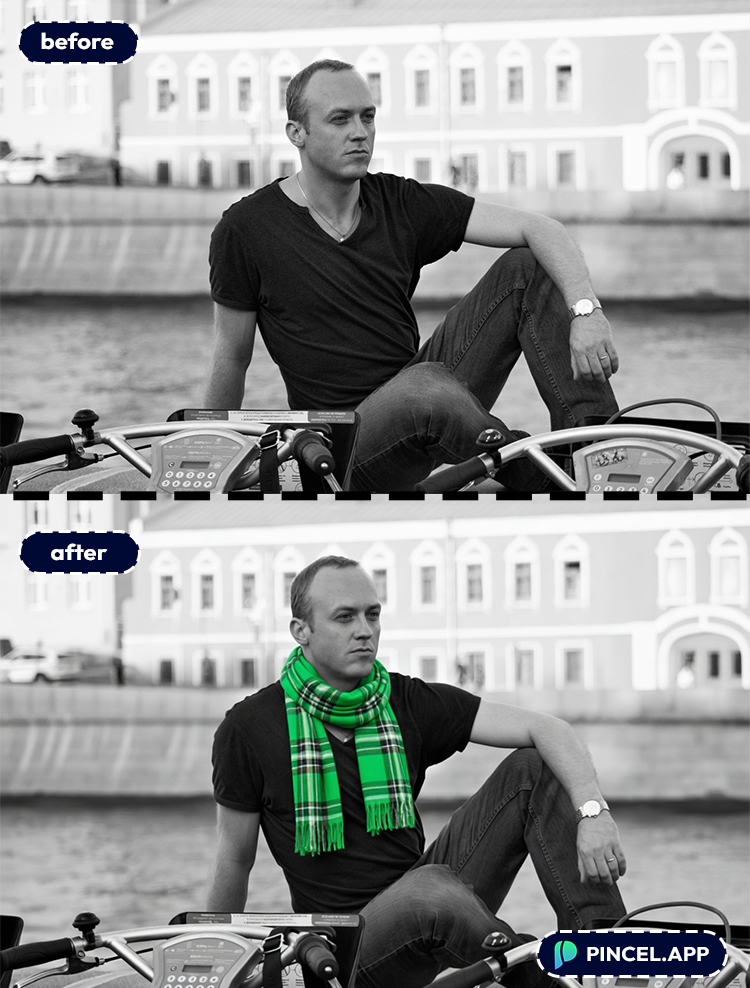
- “Add a red tartan scarf, neatly draped, matching the lighting and shadows“
- “Add a black silk scarf tied in a small knot on the side, elegant and minimal”
- “Add a cozy winter scarf and make it look naturally part of the original photo“
Want it to match your outfit?
Add one extra detail like “match my coat color” or “soft neutral tones”.
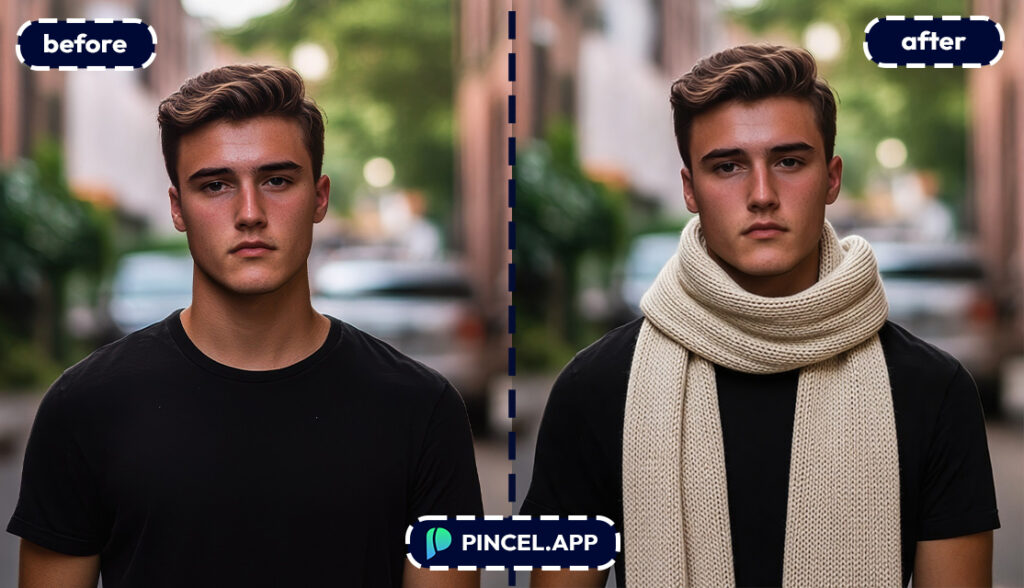
⚡ Step 3: Click Generate
Hit Generate and wait a few seconds.
Pincel will blend the scarf into your photo with natural folds, shadows, and placement around the jawline and collar.
If it’s too big, too tight, or the style isn’t right, tweak the prompt and regenerate.
This is the fun part, and it still takes under 10 seconds per try.
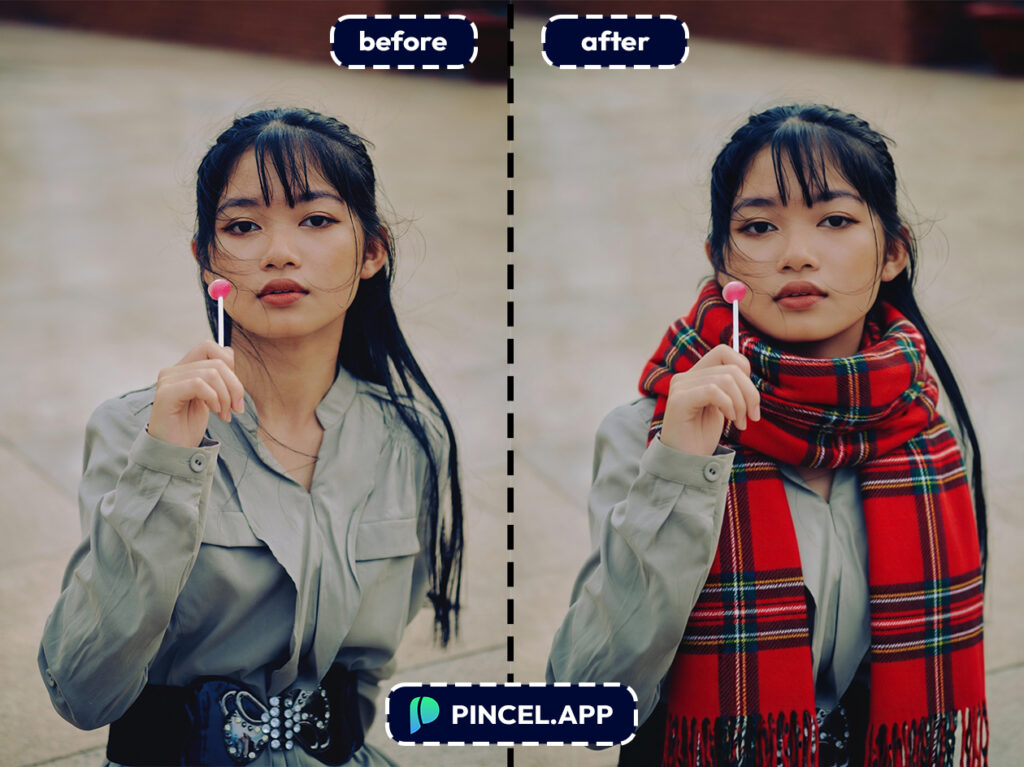
📥 Step 4: Download (or keep iterating)
When it looks right, download your edited image.
And if you’re building a whole “winter set” of photos, repeat with a couple scarf styles for variety.
Who Is This For? Real-World Use Cases 👇🏼
Social media creators — Turn a basic selfie into “autumn walk content” without waiting for actual autumn. Pair it with a vibe shift like change weather in a photo or a quick replace sky edit.
Professional headshots — Add a polished accessory that feels intentional, not over-edited. If you’re rebuilding your profile visuals, AI resume photos can help you keep everything consistent.
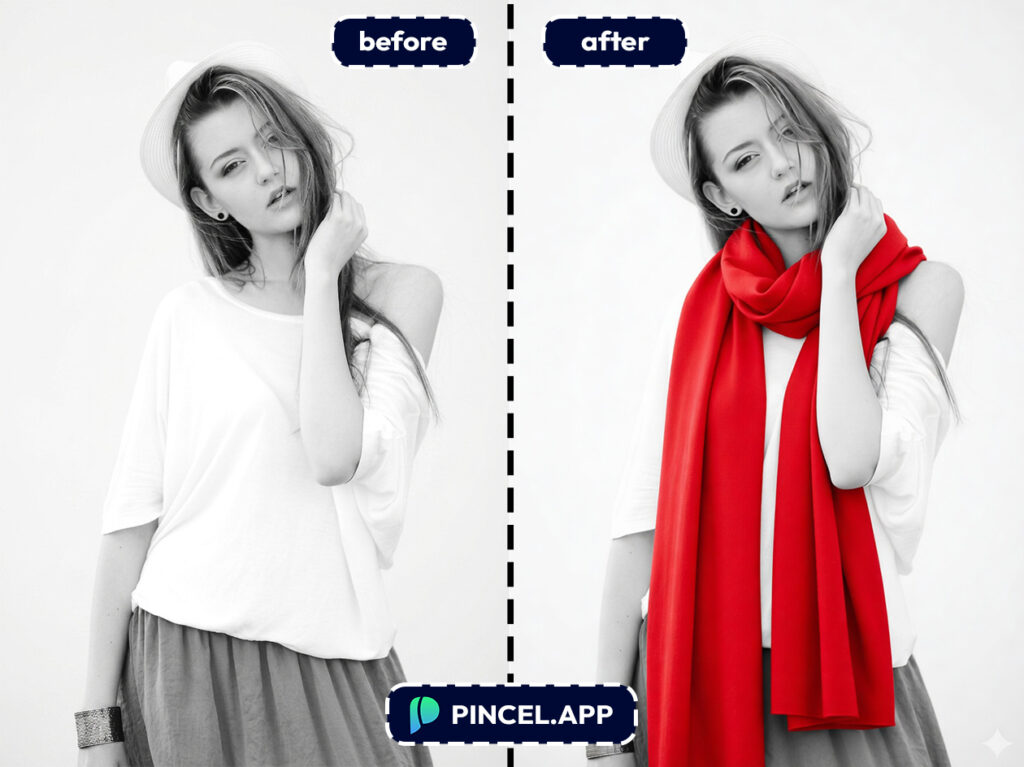
E-commerce & product photography — Mock up scarf looks on models without re-shooting every colorway. For more listing-friendly workflows, see AI product photography.
Fashion moodboards — Test styling ideas before you buy anything, sew anything, or schedule a shoot. If you’re building a look library, browse AI fashion styles for more promptable aesthetics.
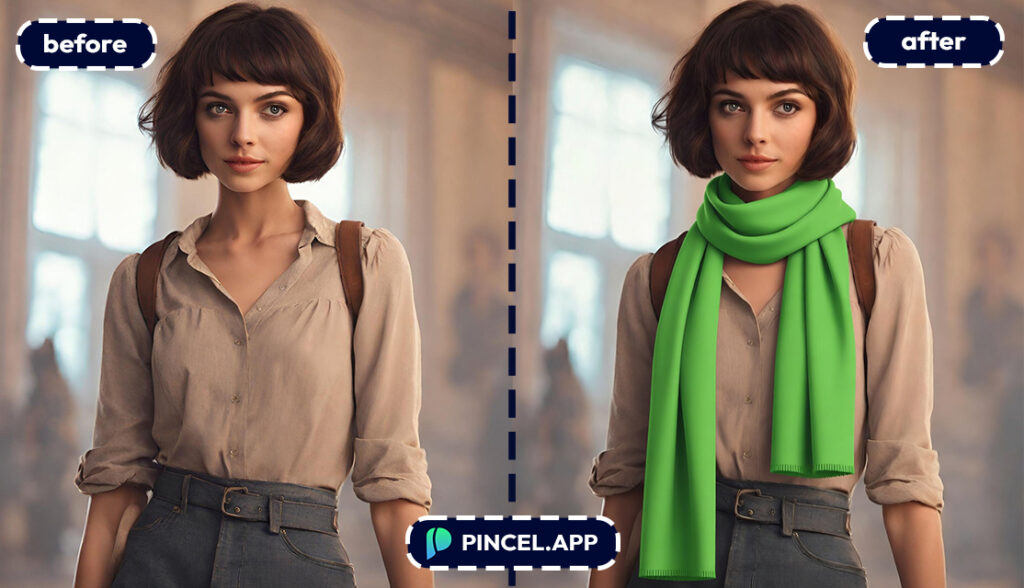
Cold-weather “continuity fixes” — You shot photos on different days, and one set looks way warmer than the other. A scarf plus a lighting tweak from relight photos with AI can pull everything together.
Dating profile refresh — A scarf can add structure around the face and make your photo feel more “put together” without looking like you tried too hard. Combine it with a subtle change like change eye color if you want a different vibe.
Creative portraits — Go full character mode: detective noir scarf, runway silk scarf, or cozy bookshop knit. If you want more dramatic reframes, try change camera angle after you nail the styling.
Frequently Asked Questions 🤔
How do I add a scarf to a photo using AI without Photoshop?
You can add a scarf to a photo using AI by uploading your image to Pincel AI Photo Editor and typing a prompt describing the scarf.
The editor generates a realistic scarf with matching lighting and shadows in seconds.
Can AI add a scarf realistically around hair and collars?
Yes, AI can add a scarf realistically if your neck and collar area are visible in the photo.
For best results, specify “wrapped around the neck” and “natural folds and shadows,” and regenerate if hair edges look off.
What prompt should I use to add a scarf to a photo using AI?
A good prompt describes the scarf material, color, and how it sits.
Try something like: “Add a chunky knitted grey scarf wrapped loosely around my neck, realistic texture, match lighting”.
Does this work on selfies and group photos?
Yes, it works on selfies, portraits, and most group photos as long as the subject’s neck area is visible.
If faces are small in the frame, you’ll usually get better results by starting with a higher-resolution image or a tighter crop.
Is Pincel free to try?
Yes. Pincel AI Photo Editor includes 20 free credits for new users with no credit card required.
That’s enough to test several scarf variations and find a style you like.
Scarf and the City 🧣
You don’t need a winter wardrobe or a full reshoot.
And definitely not hours in Photoshop.
Just upload your photo, describe the scarf.
Let the Pincel AI handle the rest.
In seconds, you get a clean and natural result.
And it looks like you planned the outfit all along.
With few simple line with Pincel AI Photo Editor add your dream scarf.

