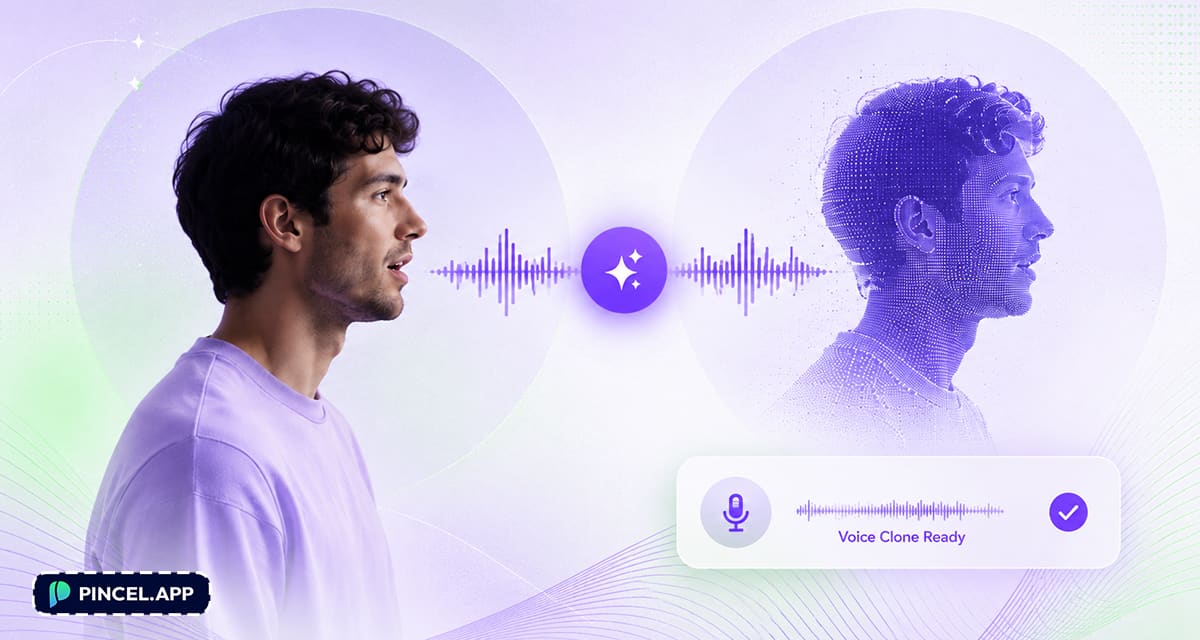
Imagine having a spokesperson who is always available.
Never tired and never off brand.
Brands use it for product explainers.
And even YouTube made it into an AI Avatar feature, so you can clone yourself.
And the best part is you do not need a studio, a microphone, or a single recording session.
With Pincel Talking Photo, you can clone a voice with AI and turn any face photo into a talking video in minutes.
And the audio preview is ready in seconds, so you can iterate fast before you render.
You upload a face photo, type a script, pick a voice (including your cloned one), and export an MP4.
No camera setup and no studio.
Here’s how it works:
How to Clone a Voice with AI — Step by Step ✅
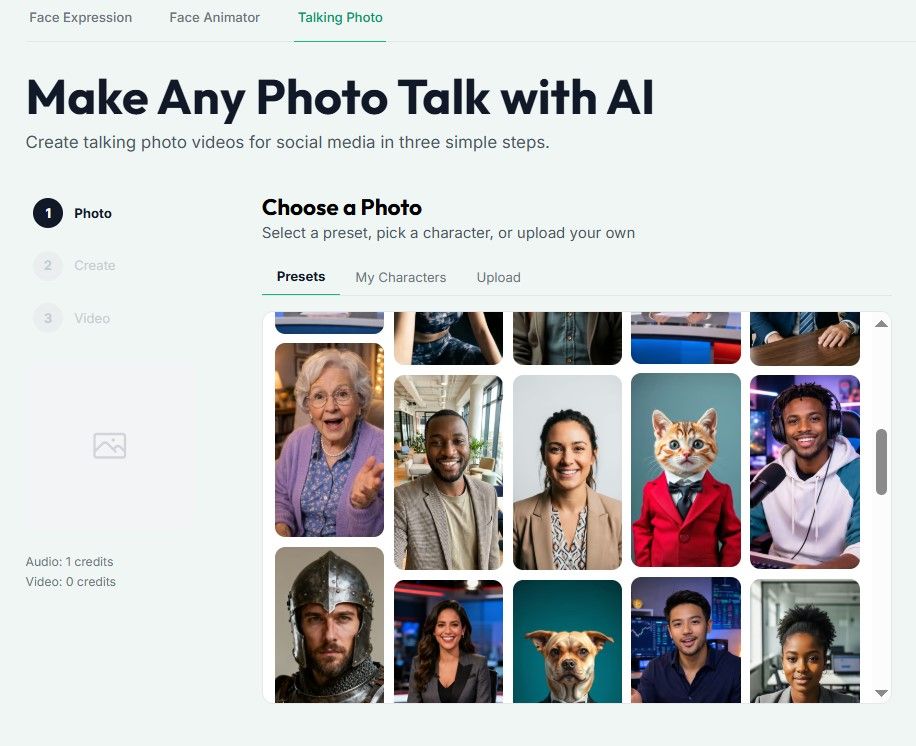
🖼️ Step 1: Upload a Face Photo (or pick a saved character)
Go to Pincel Talking Photo.
Upload a clear, front-facing face photo with one person in frame.
And if you plan to reuse this “speaker,” save it as a character.
That way, you can keep the same photo + voice paired for future videos.
Want a better source image first?
You can generate or polish a clean portrait using AI Camera or prep a professional look with AI Resume Photo.
📝 Step 2: Clone your voice, write a script, and preview the audio
Choose a voice option.
You can pick a preset voice, a character voice, or create a cloned voice by uploading voice samples (you can save up to 5 cloned voices).
Then type the exact script you want the photo to say.
Pincel auto-detects the language, and the audio preview is ready in seconds.
Try scripts like these (copy/paste friendly):
- “Hey, I’m Alex. In this video I’ll show you the 3 mistakes most beginners make — and how to fix them.”
- “Quick update: we just restocked. Shipping goes out today, and there’s a limited batch.”
- “Welcome back. Today’s lesson is 60 seconds: the difference between ‘affect’ and ‘effect’.”
- “Breaking news: my cat has demanded more treats. We’re negotiating.”
Because Pincel uses two-step billing, you can rerun the audio preview as much as you want before you pay to render the video.
That’s the whole point: get the voice and pacing right first, fast.
If you’re building a whole faceless workflow, you’ll also like the ideas in Faceless Video Maker and the format tricks in Merge Photo and Video.
🎙️ Step 3: Render a lip-synced video (480p or 720p) and download MP4
Once the preview audio sounds right, pick your resolution: 480p or 720p.
Then render the final talking video with lip sync and download it as an MP4.
Render time depends on your audio length and resolution.
But the big win is still speed: you can perfect the audio in seconds, then only render video when you’re happy.
A quick note on credits (so there are no surprises).
**TTS credits scale with text length, and video costs per audio second (480p uses fewer credits than 720p), with a max audio duration of 60 seconds per render.**
Ready to test it?
Real-World Use Cases 👇🏼
Faceless creators — Make Reels/Shorts/TikToks without filming yourself every time.
Pair it with punchy visuals you generate using Valentine AI Photos style concepts (even when it’s not Valentine’s Day).
Voice-cloners — Record a few samples once, then reuse your cloned voice for a consistent “brand sound.”
Great if your content cadence is daily and your throat is not a machine.
Localizers — Create the same spokesperson video in multiple languages without booking new talent.
And because the audio preview is generated in seconds, you can quickly check pronunciation and pacing before rendering.
Educators & explainer makers — Turn a single portrait into a recurring “teacher character.”
If you’re making worksheets or kid-friendly visuals too, AI Coloring is a fun companion.
Storytellers — Make portraits, illustrations, or even pet photos talk (with your own cloned narration).
For the pet angle, this pairs hilariously well with Royal Pet Portrait.
Marketers — Produce talking-head ad variations from one brand-approved photo.
And if you’re also iterating product visuals, AI Product Photography can keep your whole pipeline fast.
News / parody creators — Create “anchor” style bits using characters you control or public-domain portraits.
Streamers — Use a talking mascot for intros, outros, alerts, or channel updates.
Need an avatar-like look first? Start with AI Memoji and then voice it.
FAQ 🤔
How do I clone a voice with AI in Pincel Talking Photo?
You clone a voice by uploading voice samples, saving the cloned voice, then selecting it when generating audio for your script.
After that, you preview the audio in seconds and only render the video when it sounds right.
Can I preview the audio before paying for the talking video?
Yes, you can preview the generated audio before spending credits on the video render.
Pincel uses a two-step model: audio generation first, video rendering second.
How long can the talking photo video be?
Each render supports up to 60 seconds of audio.
If you need longer content, you can generate multiple clips and stitch them together in your editor.
What resolutions are available?
You can render your talking photo video in 480p or 720p.
720p is sharper, while 480p is lighter and often perfect for fast social posts.
Is “clone a voice with ai” safe and allowed?
Cloning your own voice (or a voice you have rights and consent to use) is the right way to do it.
Avoid impersonating real people without permission, and use clear disclosure when it matters.
Is it free to try Pincel Talking Photo?
Yes, you get 20 free credits to test it—no credit card needed.
That’s enough to experiment with scripts, audio previews, and see the workflow before you commit.
Me, Myself & AI🎙️
Head over to Pincel Talking Photo, pick or upload a photo and voice, then paste the script.
Get a natural lip synced talking video with a cloned voice in seconds.
Use it for product explainers, social content, customer service videos, or anywhere you need a face and a voice.
The script is ready and the spokesperson is waiting.