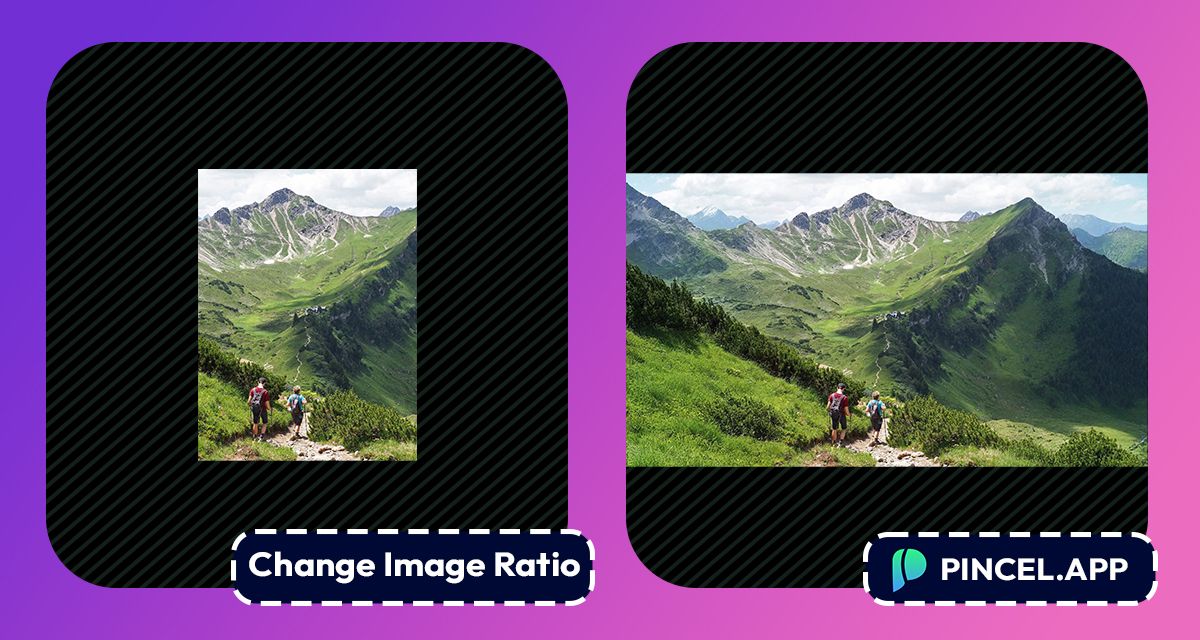
Portrait photos are great for phones…
but not so great for wide banners, covers or anything that needs to breathe horizontally.
The problem is you cannot just crop your way to landscape without losing something important details.
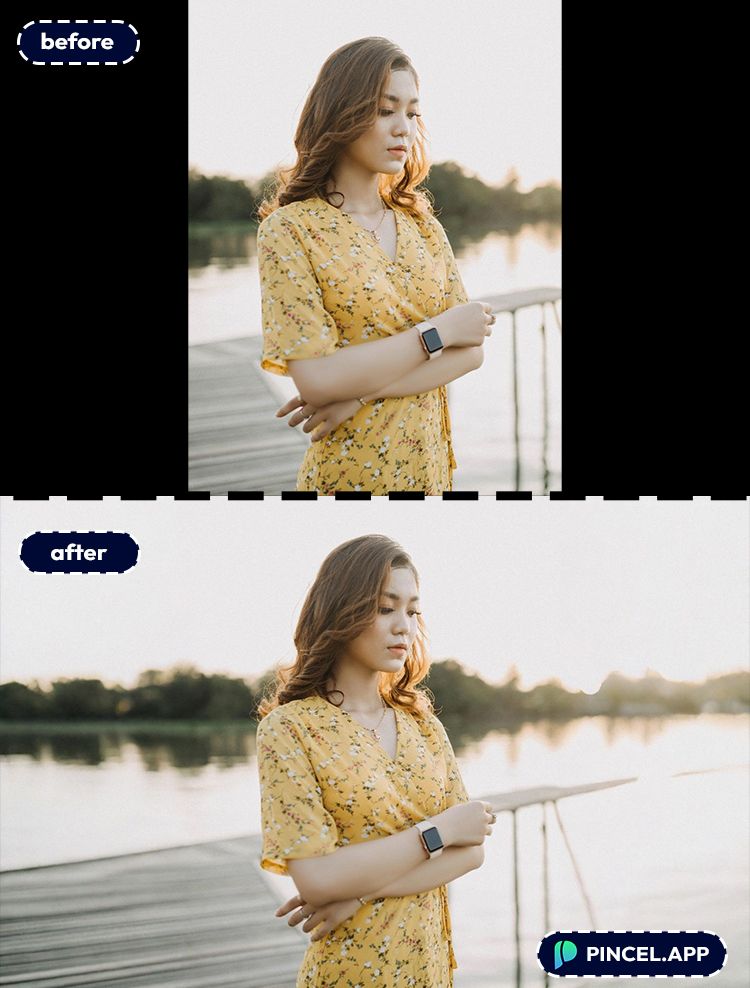
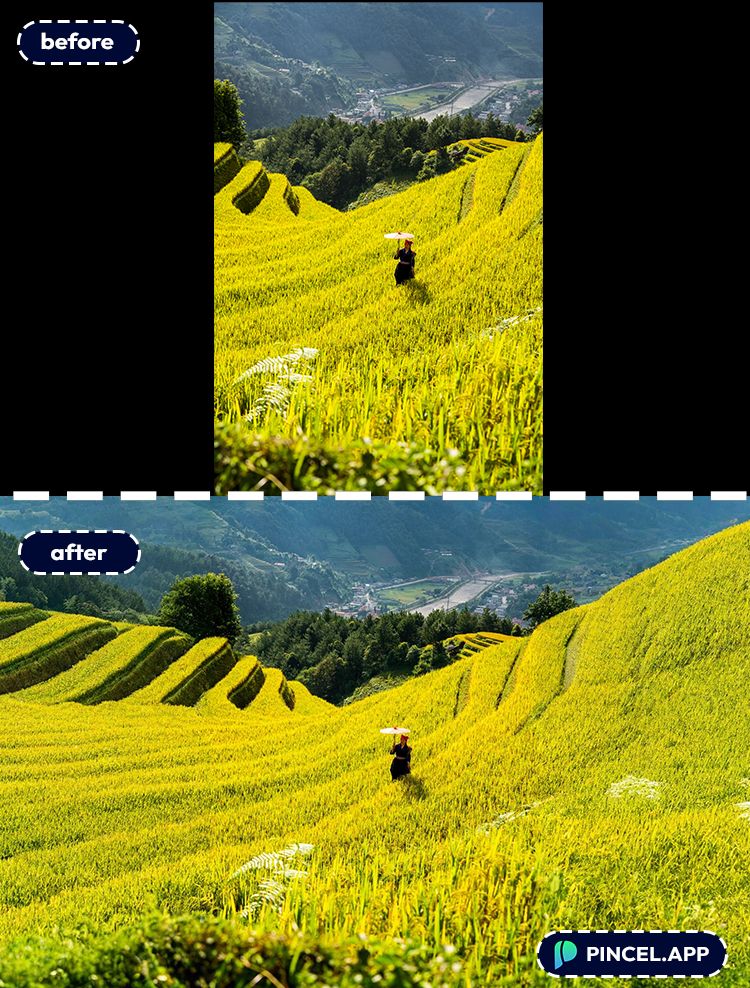
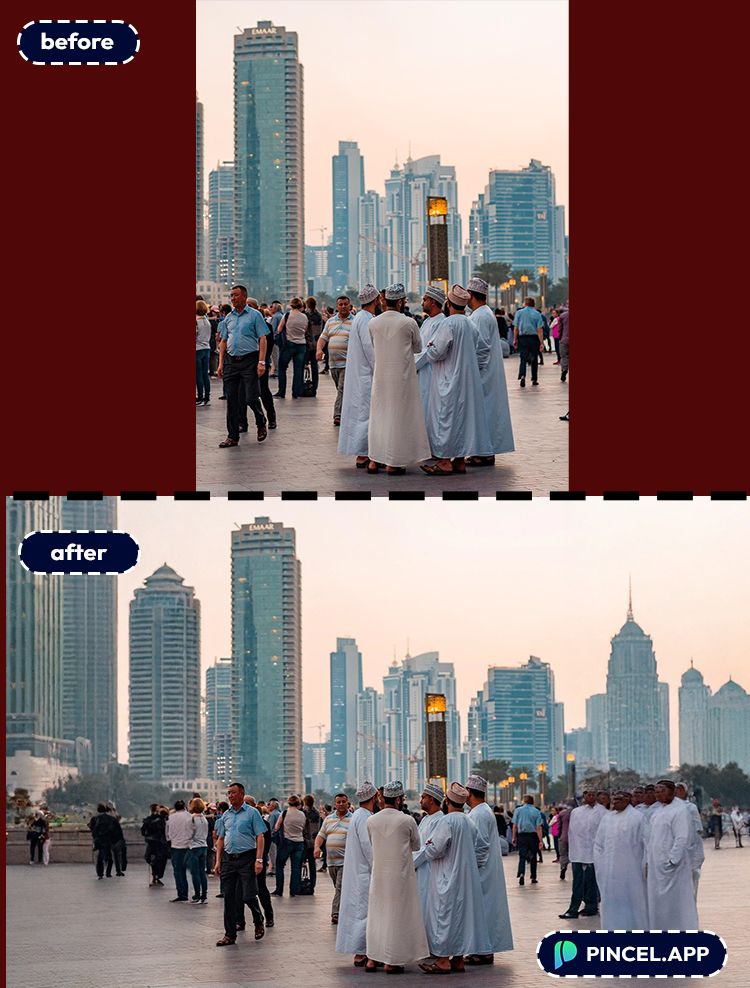
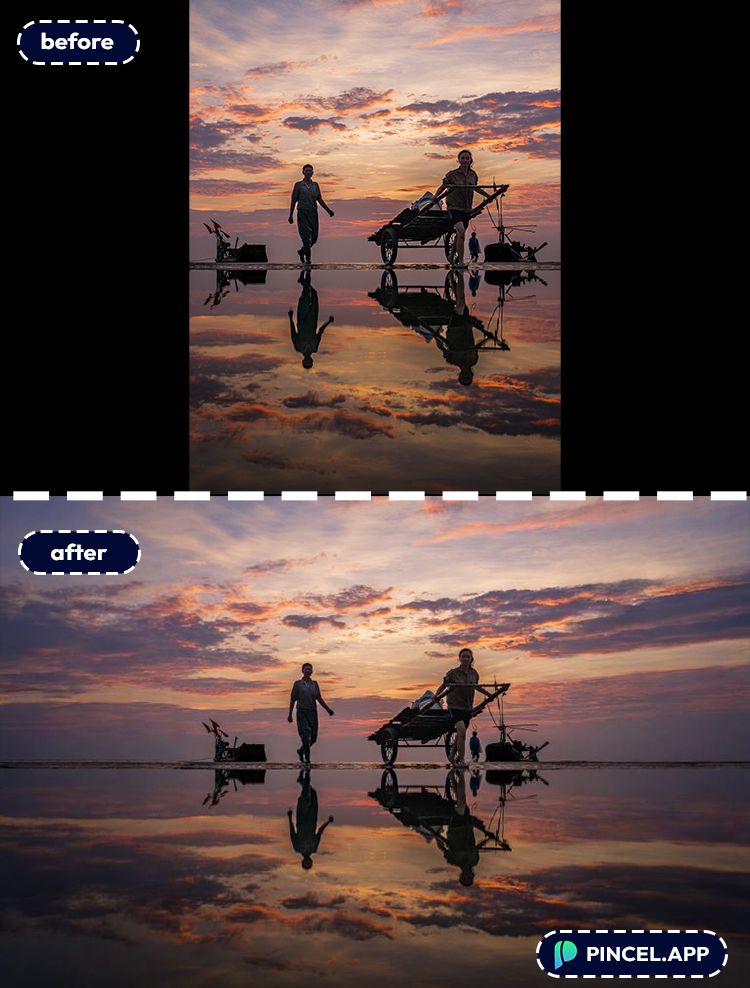
But now, with Pincel AI Photo Extender, you can make a portrait image into landscape in seconds.
It expands the photo outward to match a new aspect ratio and all while keeping your original pixels untouched.
Simply upload your photo and get a natural landscape version in seconds.
Here’s how it works:
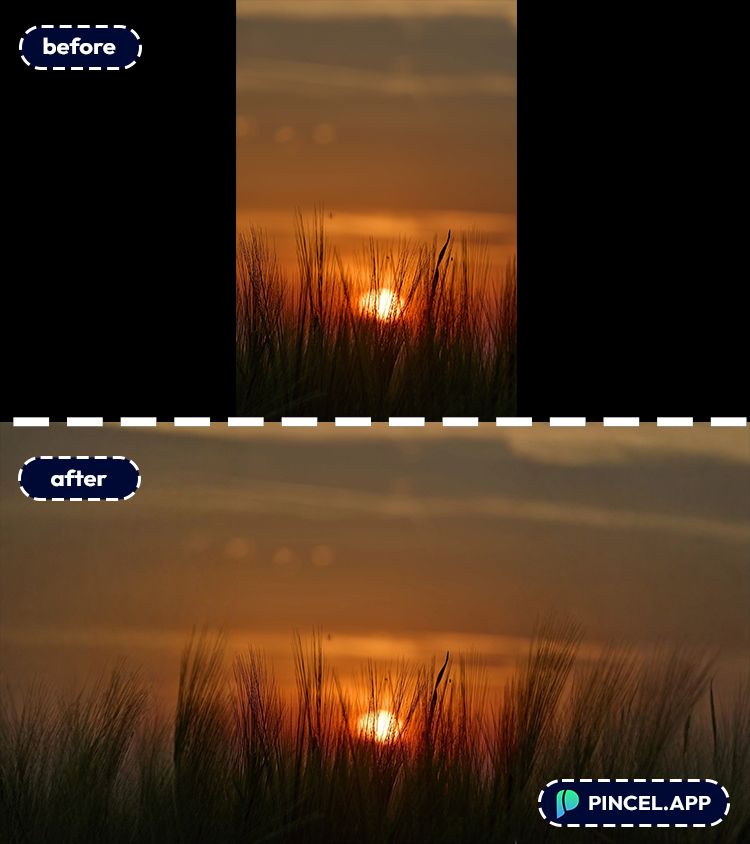
Cropping is Not the Answer 🖼️
Turning Portrait into Landscape sounds like a simple fix, but it never is.
Cropping to landscape means losing the top, the bottom or both.
And usually the part you lose is the part that made the photo worth keeping.
So you try to extend the canvas instead.
But most of the ime it just does not work.
That is exactly why Pincel AI Photo Extender exists.
Upload your portrait photo, describe what you need, and get a clean natural landscape version in seconds.
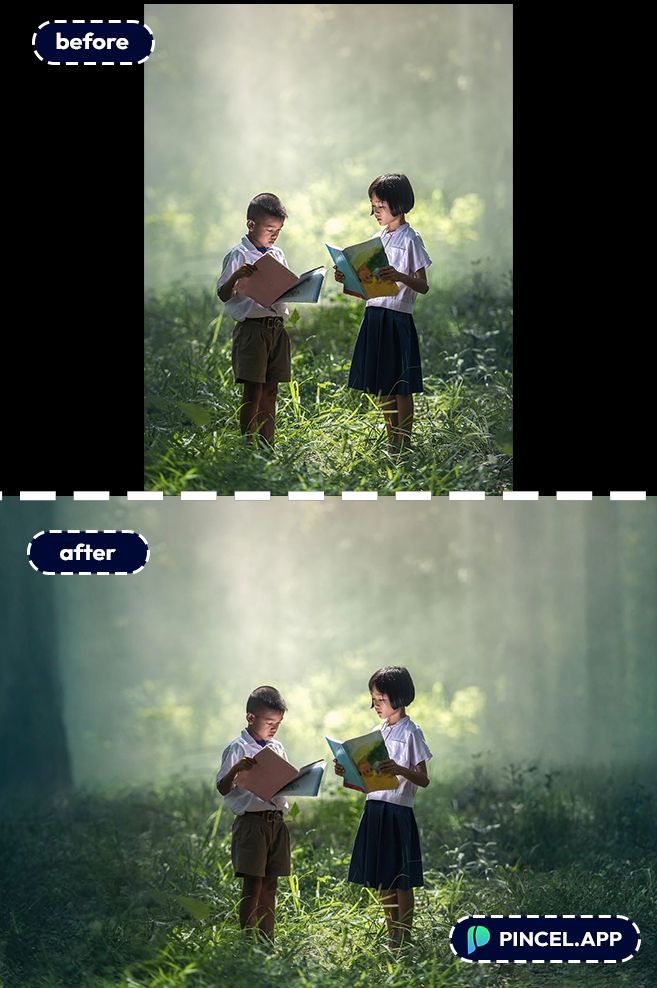
How to Make a Portrait Image Into Landscape ✅
🖼️ Step 1: Upload Your Photo
Go to Pincel AI Photo Extender.
Upload a JPG, PNG, or WebP.
And yes, the original image stays exactly the same.
Only the new space around it gets generated.
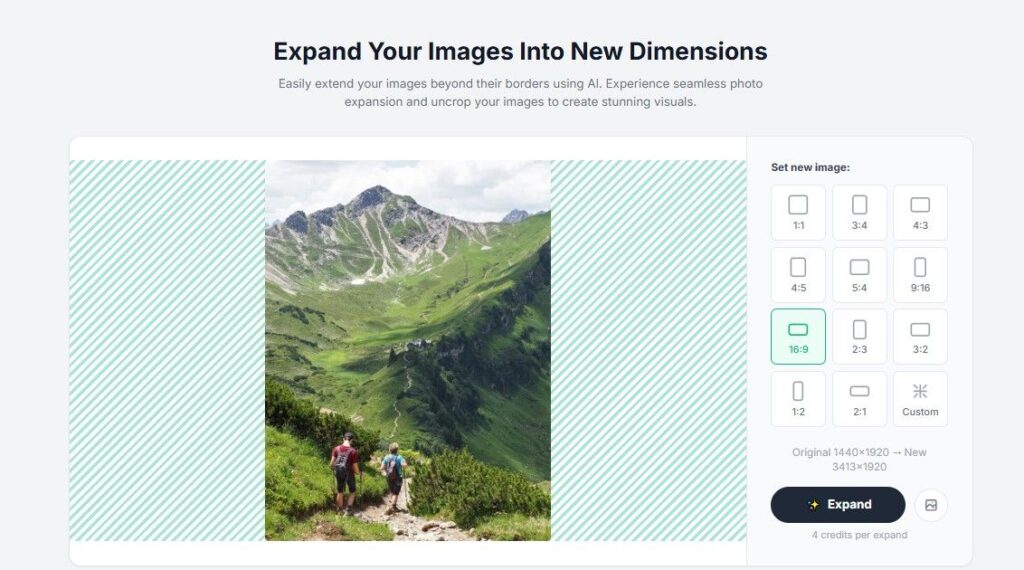
📐 Step 2: Pick a Landscape Aspect Ratio
Choose the ratio you need.
For most landscape layouts, you’ll usually want 16:9, 4:3, 3:2, or 2:1.
And the best part: you can preview different aspect ratios for free.
Credits are only used when you actually click Expand.
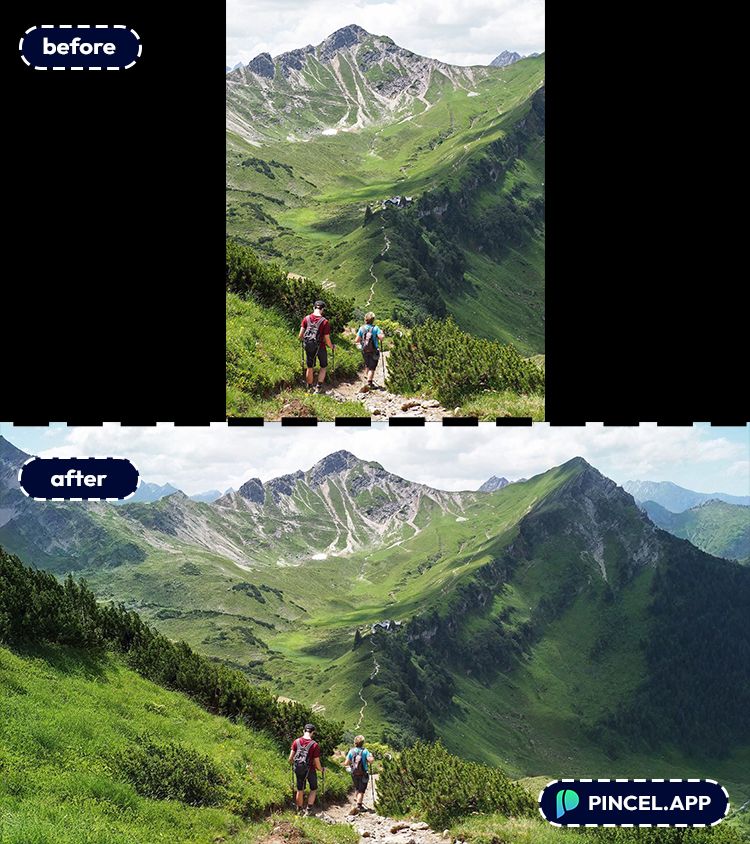
⚡ Step 3: Click Expand
Hit Expand and wait a few seconds.
Pincel generates new background around your portrait while matching lighting, perspective, and style.
If you don’t like the first expansion, you can try again until it clicks.
📥 Step 4: Download (Or Upscale)
Download your new landscape image.
If you’re using it for a hero banner, print, or large layout, upscale after with Pincel’s AI upscaler for extra crisp detail.
Ready to do it on your own photo?
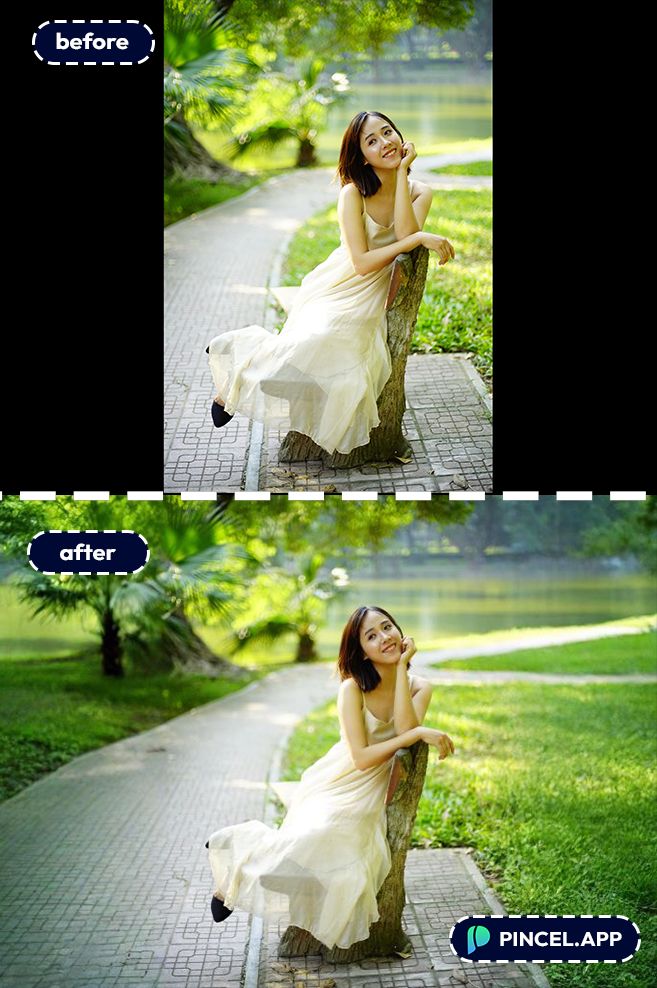
Example “Inputs” You Can Try (No Prompts Needed)
Because the extender uses aspect ratios (not text prompts), your “input” is basically: photo type + target ratio.
Here are a few real scenarios to copy:
- Portrait headshot → 16:9 for a website hero banner
- Phone portrait photo → 4:3 for a slideshow cover
- Tight portrait crop → 3:2 to add breathing room on the sides
- Portrait product shot → 2:1 to leave space for headline text
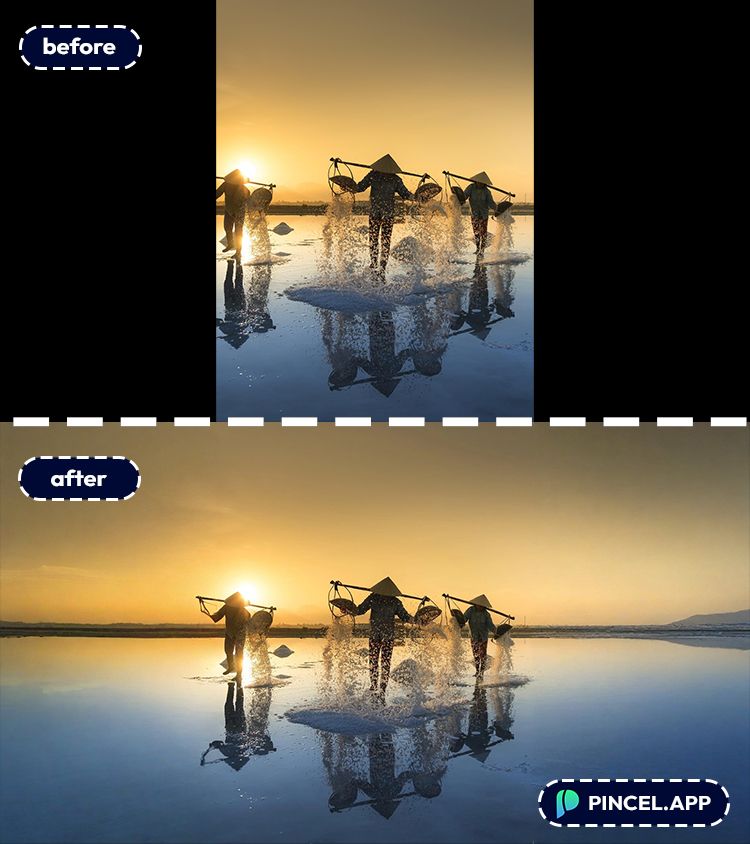
Who Is This For? 👇🏼
Multi-platform creators — Turn one portrait into multiple formats (TikTok 9:16, Instagram 4:5, YouTube 16:9) without reshooting.
If you’re already doing edits like changing the camera angle or changing pose, this is the “composition” shortcut you’ll love.
Designers — Convert a portrait image into a wide banner for landing pages, blog headers, or ad layouts.
And if you also need room for typography, check out edit text on an image for quick copy swaps.
Photographers — Recover space around a subject when the original shot was cropped too tight.
It’s the same “save the shot” energy as relight photos with AI, just focused on framing instead of lighting.
E-commerce sellers — Expand product portraits so you can add a price tag, badge, or CTA without covering the product.
Pair it with AI product photography when you want cleaner, more consistent listings.
Social media managers — Reformat a portrait asset into landscape for YouTube thumbnails, Twitter headers, and web embeds.
And if you’re building composite graphics, combine photos can help you layer assets after you’ve expanded the canvas.
Frequently Asked Questions 🤔
How do I make a portrait image into landscape without cropping?
You make a portrait image into landscape by expanding the canvas outward, not by cropping inward.
Pincel AI Photo Extender generates new background around your original portrait so the subject stays intact.
Does Pincel AI Photo Extender change my original photo?
No. The original pixels are preserved exactly.
The AI only fills in the new area created when you switch to a wider aspect ratio.
What aspect ratios are supported?
Pincel AI Photo Extender includes 11 presets: 1:1, 3:4, 4:3, 9:16, 16:9, 2:3, 3:2, 1:2, 2:1, 4:5, and 5:4.
That covers most social, web, and print needs.
How fast does it take to expand a portrait into a landscape?
Most expansions show up in seconds.
You can audition multiple aspect ratios quickly, then commit to the one you want.
Can I crop instead of expanding?
Not with this tool. Pincel AI Photo Extender only expands and never crops or shrinks your original.
If you want a crop-style workflow, you’ll want a different editor (and for general edits, browse tools like replace sky or clone objects).
Go Beyond the Frame 🖼️
You took a great photo.
But it’s not exactly the ratio you were looking for.
No worries, upload your portrait image to Pincel AI Extender and let AI extend it naturally in seconds.
Website banner, LinkedIn cover, YouTube thumbnail.
It works anywhere that needs landscape.
No cropping and no losing the best parts.
Just the full photo, the way it was always meant to be seen.