
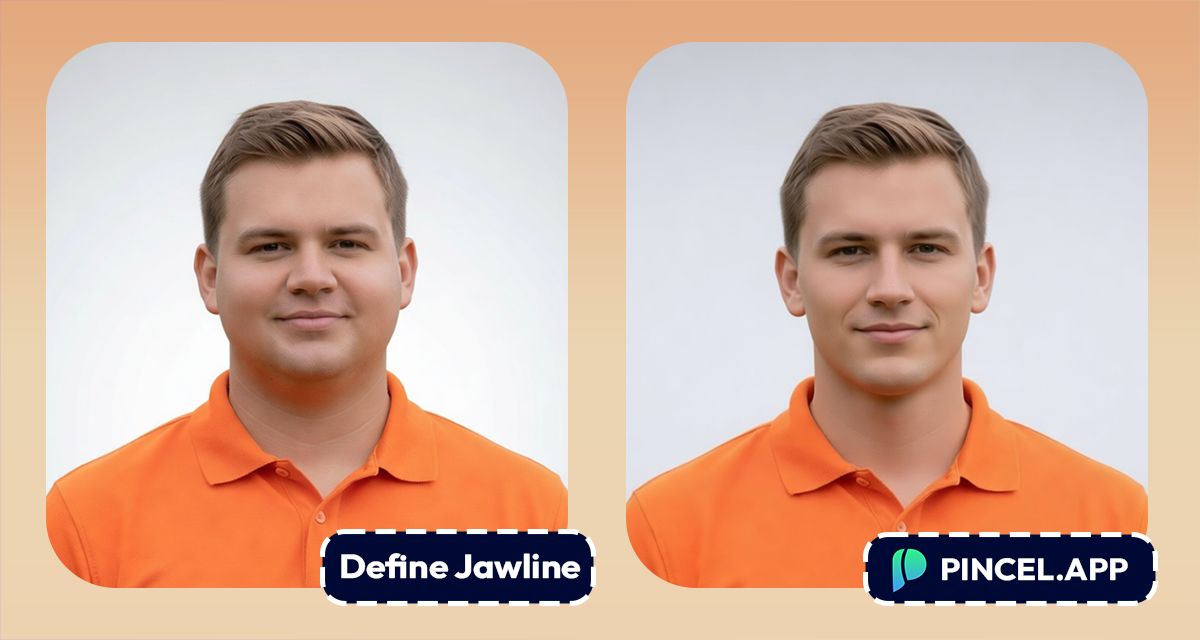
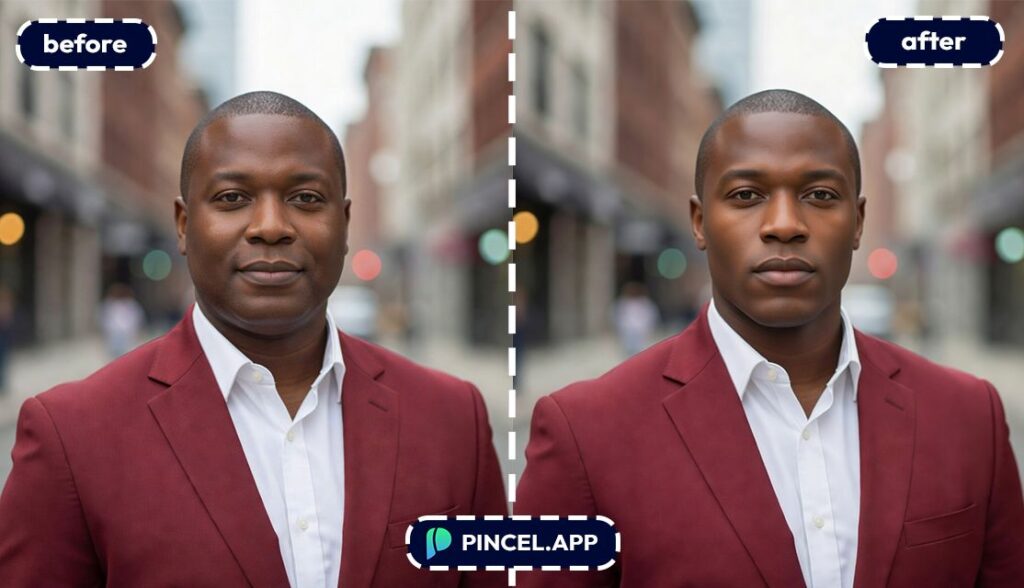
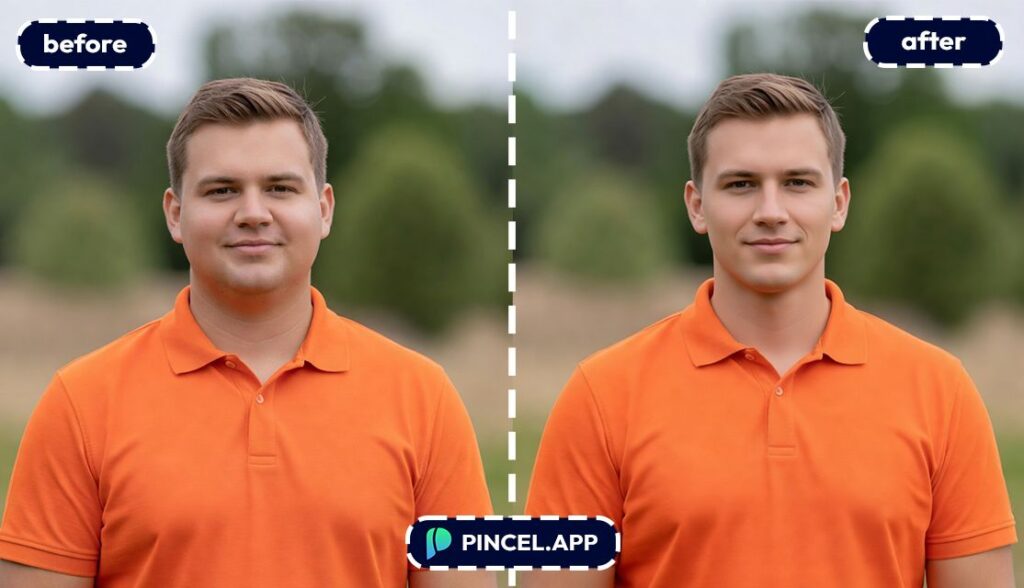
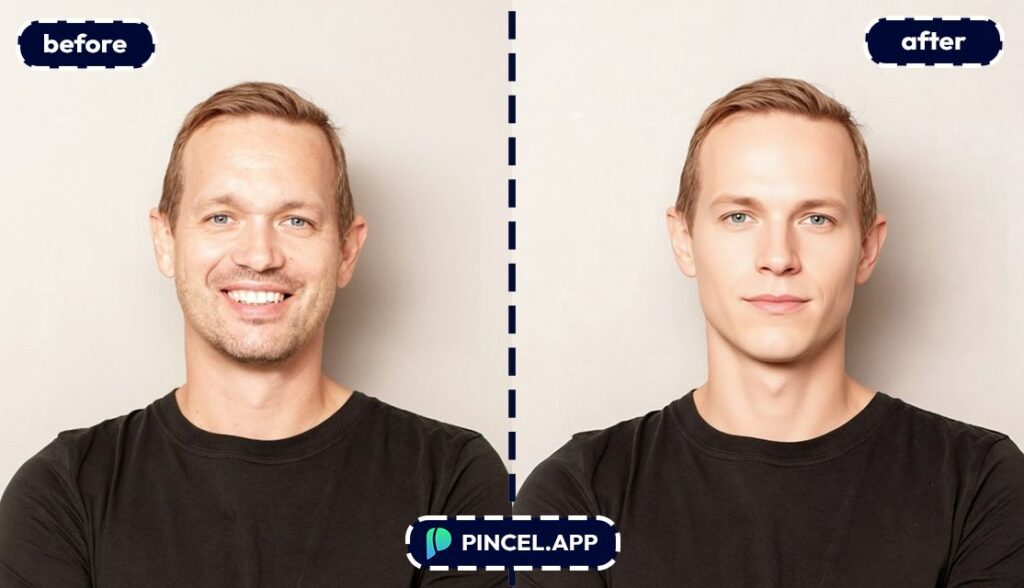
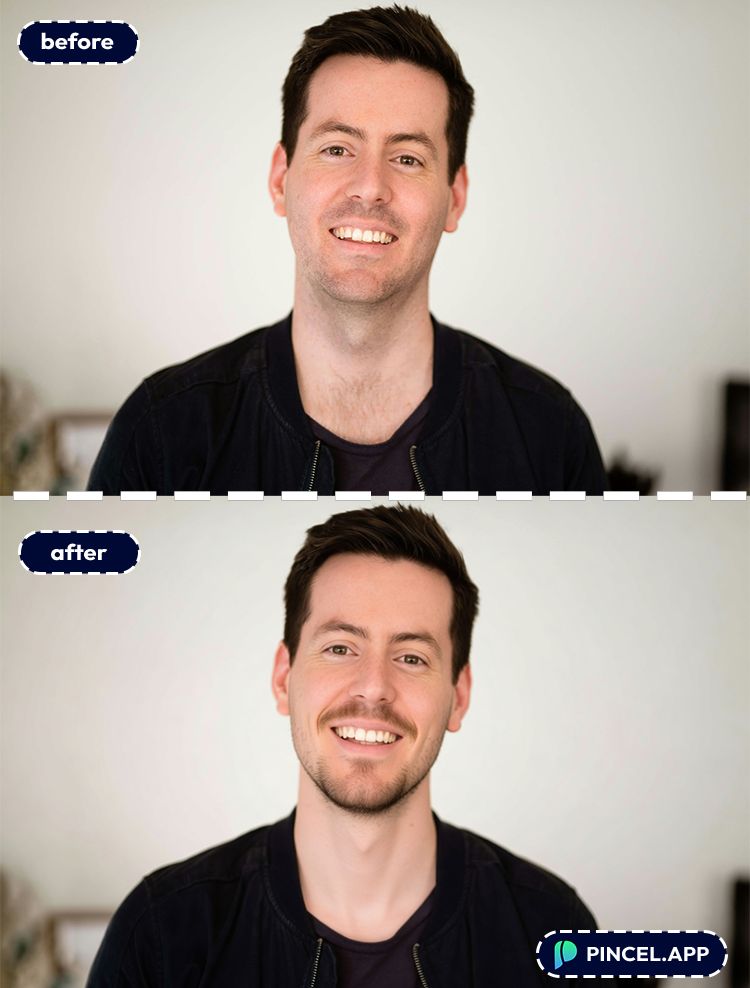
Jawbone has always served as the one of the key visuals of facial beauty.
A well-defined Jawline is often linked to health & fitness, making it a universally attractive trait.
Sharp jawline creates a sculpted look.
Sometimes we take a photo and realize our jawline almost disappeared.
In the past we used to spend endless hours in photoshop to sharpen our jawline in a photo.
But now you can define your facial features and jawline in seconds.
Use Pincel AI Face Editor, simply upload your image, pick a look or tweak facial features, and your updated jawline shows up in a few seconds.
Here’s how it works:
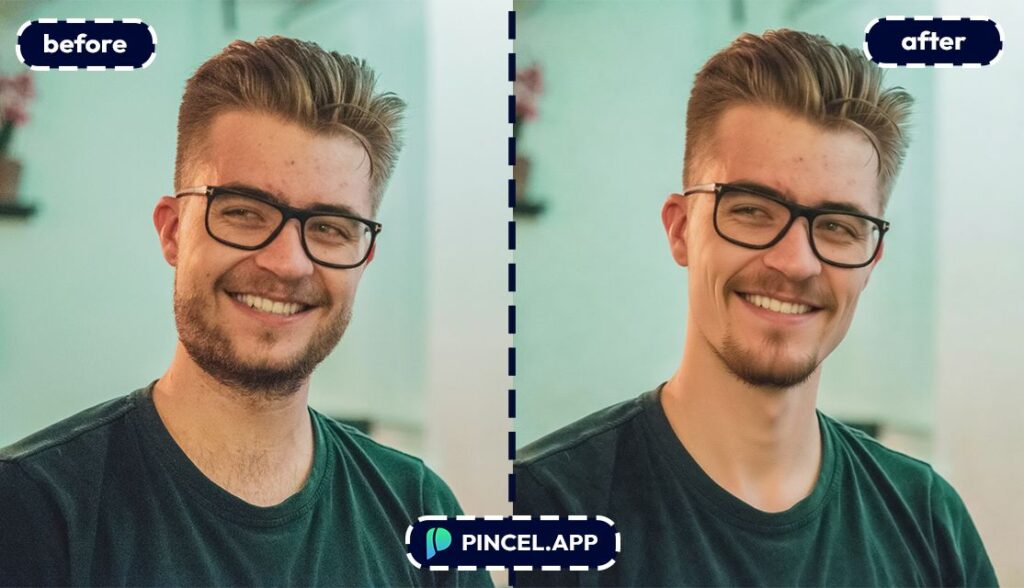
A Sharp Jawline is One Thing 🗿
Editing a jawline sounds like a quick fix, but never really is.
You open Photoshop and start working with the liquify tool one pixel at a time.
Getting the shape right takes forever and it still never looks natural.
Filter apps are not better, because they either overdo it or do nothing at all.
That is exactly why Pincel AI Face Editor exists.
Describe what you want and get a natural result in seconds.
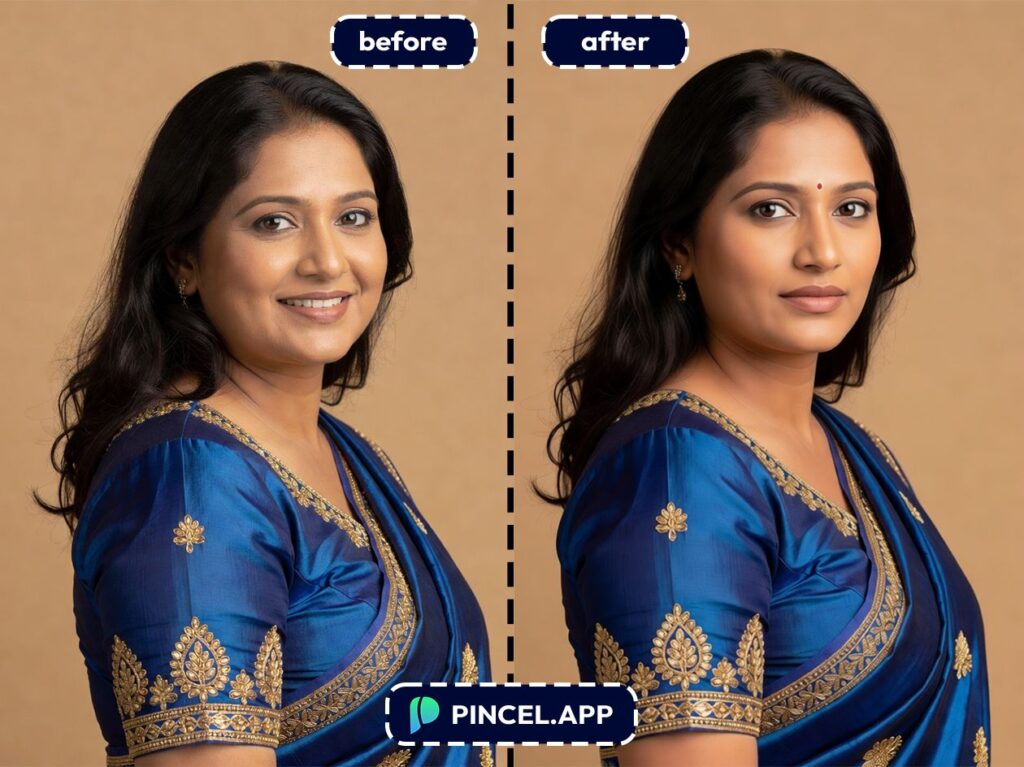
Define Your Jawline with Pincel AI Face Editor ✅
🖼️ Step 1: Upload a clear face photo
Go to the Pincel AI Face Editor.
Upload a front-facing portrait with decent lighting.
Even casual selfies work, but clearer light helps the AI shape shadows more realistically.
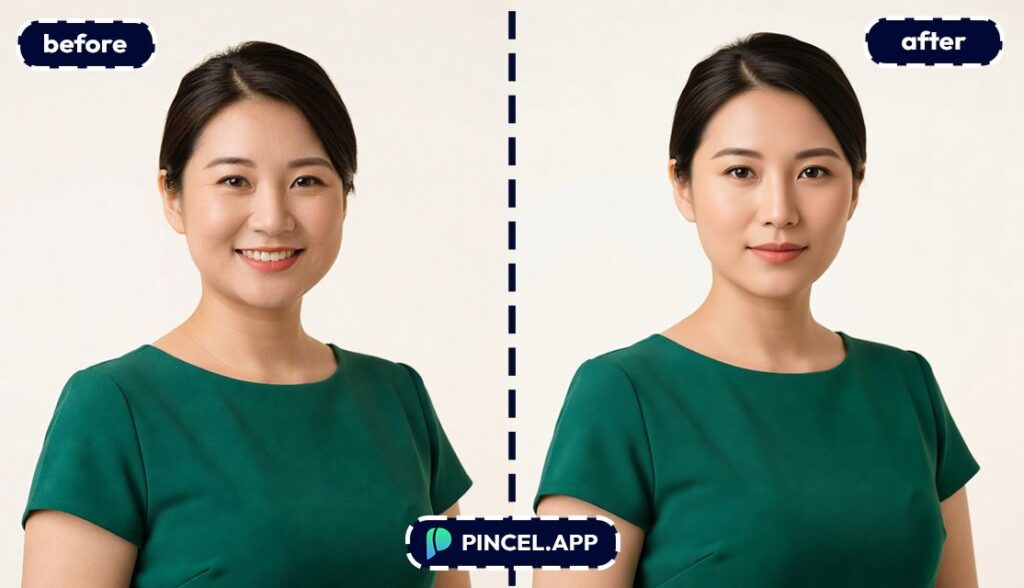
💄 Step 2: Pick a makeup preset (optional)
Open the Makeup tab and choose a preset you like.
These aren’t random filters, because they’re curated looks, and you can fine-tune skin finish, brows, lips, blush, and contour.
Jawline definition often looks best when it’s paired with subtle contour.
If you’ve ever used “contour” as a concept but not as a lifestyle, this is the safe way to try it.
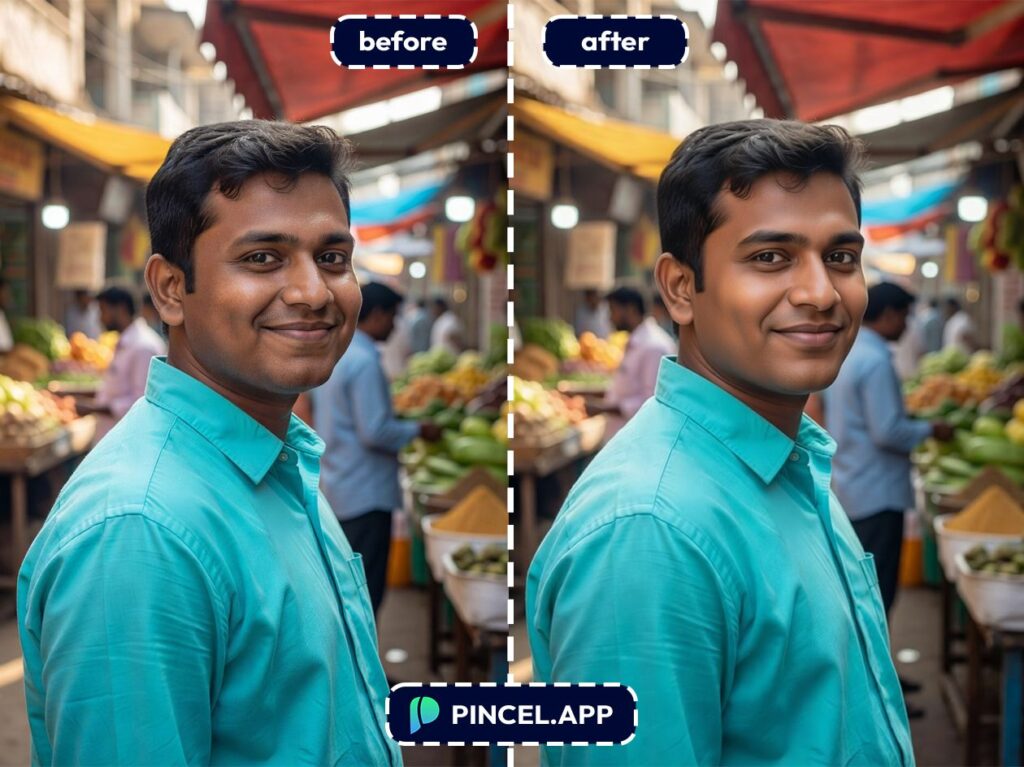
🧬 Step 3: Adjust Your Facial Features
Switch to the Facial Features tab.
Now you can nudge your jawline toward “sharper” or “softer” and keep it realistic.
Here are a few specific example inputs you can aim for (think of them as your edit checklist):
- Subtle jawline sharpening (5–15%), keep face proportions natural
- Slightly slimmer lower face, preserve expression and chin shape
- More defined jawline + gentle cheekbone lift, no “over-sculpted” look
- Softened jawline for a gentler profile, keep skin texture realistic
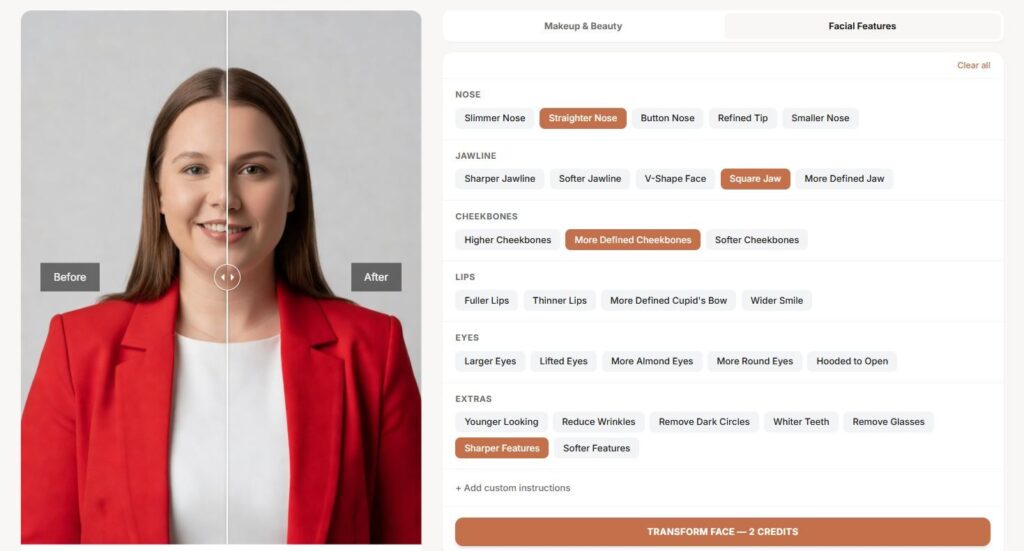
Small adjustments usually look the most believable.
And because Pincel preserves identity, you’ll still look like you—just more camera-ready.
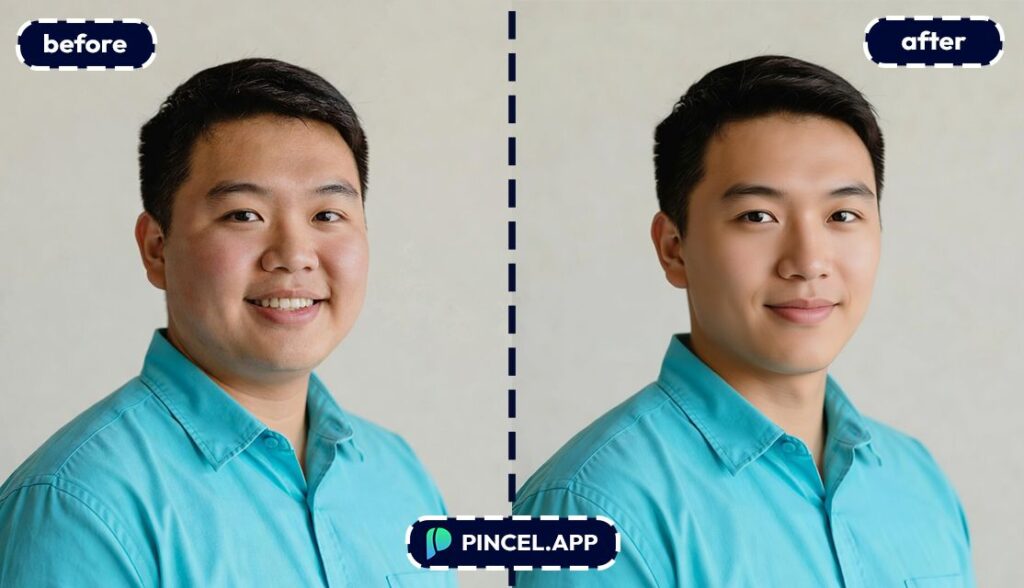
⚡ Step 4: Generate and iterate
Click Generate and your result appears in a few seconds.
Try a second variation without re-uploading.
This is the fun part: “same photo, different vibe,” in under 10 seconds.
When it’s right, download and post.
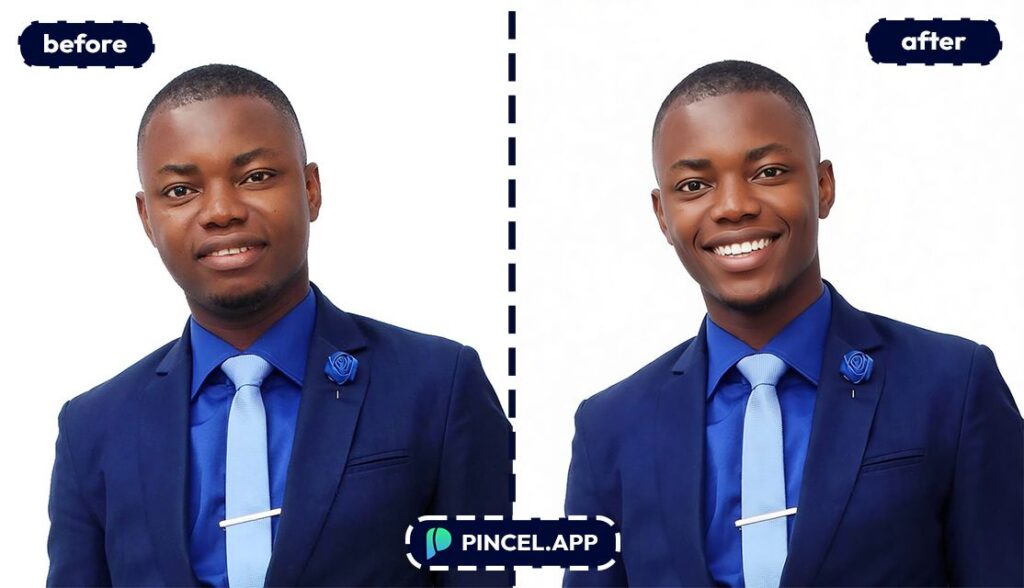
Who Is This For? 👇🏼
Pre-event planning (weddings, prom, photoshoots) — Test a slightly more sculpted jawline before you commit to heavy contour on the day. Pair it with a full look using ideas from Valentine AI Photos for glam references.
Beauty trend testers — Want that snatched lower-face look without guessing where to blend? Use the Face Editor, then compare with other “small feature, big difference” edits like Change Eye Color.
Makeup artists pitching looks to clients — Show a client two options: softer romantic vs defined editorial, without wiping off makeup 6 times. If you also build full looks, you’ll like exploring AI Fashion Styles for wardrobe vibes.
Cosmetic-procedure curious (preview, don’t decide) — If you’ve ever wondered what a sharper jawline might look like, this gives you a visual preview. And if lips are also on your mind, Make Lips Bigger is a good companion read.
Profile photos that need a tiny upgrade — LinkedIn, dating, speaker bios… they all reward “well-lit and defined.” If you’re building a professional look, check AI Resume Photo too.
Fixing camera-angle sabotage — Some angles flatten your face and erase definition. Before you blame your genetics, see Change Camera Angle for another way to rescue a shot.
Quick polish along with other small face fixes — Jawline definition often pairs well with small smile improvements. If your teeth are the real distraction, Fix and Whiten Teeth on Photo is the fastest win.
Frequently Asked Questions 🤔
Can I define my jawline in photos with AI and still look like myself?
Yes, you can define your jawline in photos with AI while still looking like you.
Pincel AI Face Editor is designed to preserve your identity and expression, so the edit looks like a better version of the same photo, not a different person.
Does it work on a no-makeup selfie?
Yes, it works great on no-makeup photos.
A clean face can actually help because the AI has a neutral “canvas” for adding contour and definition.
Is Pincel AI Face Editor free to try?
Yes. You get 20 free credits to test it, and each generation uses 2 credits, so you can experiment with multiple looks before deciding if you want a plan.
Sharp Jaw. Zero Effort. 💪
A defined jawline changes the whole photo.
And now you can see exactly how it looks on your face before making spends time in other methods.
Upload your photo to Pincel AI Face Editor, describe the definition you want, and see it in seconds.
Subtle and natural. Sharp and strong. Somewhere in between.
Try a few versions until one feels like the best version of you.
You can be the best version of yourself.

