
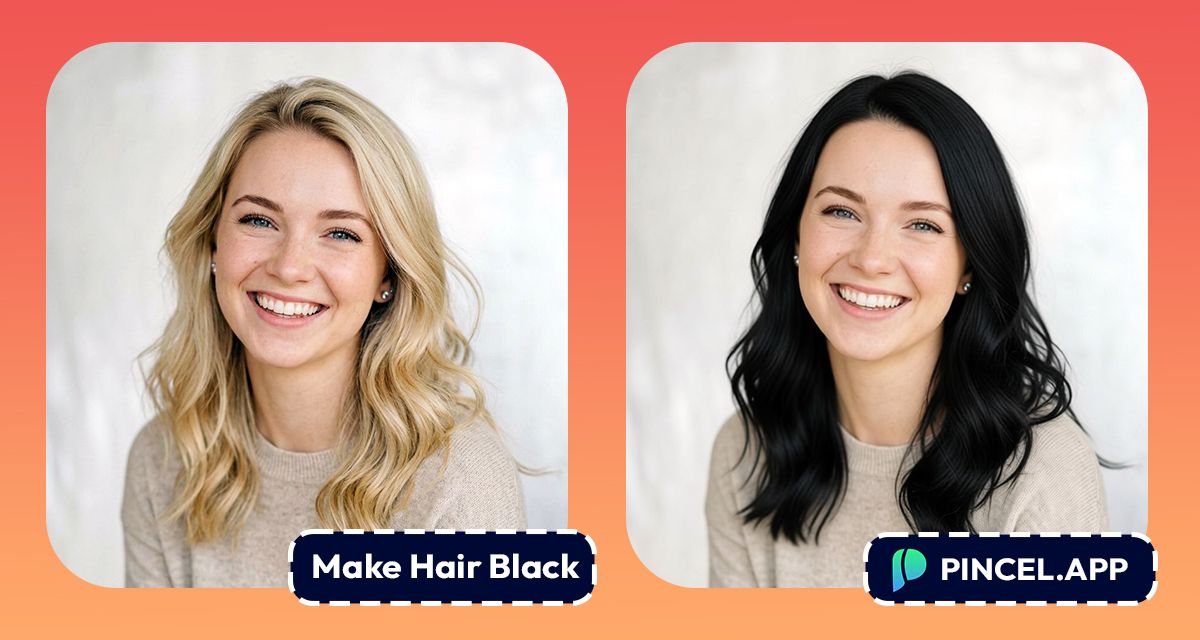
Black hair is the most common hair color globally.
It gives us sharper features and a much bolder look.
No matter our natural hair color, we have all wondered how black hair would look on us.
Specially in the photos…
In the past we had to spend hours in photoshop.
No more, because here is Pincel AI Hair Studio.
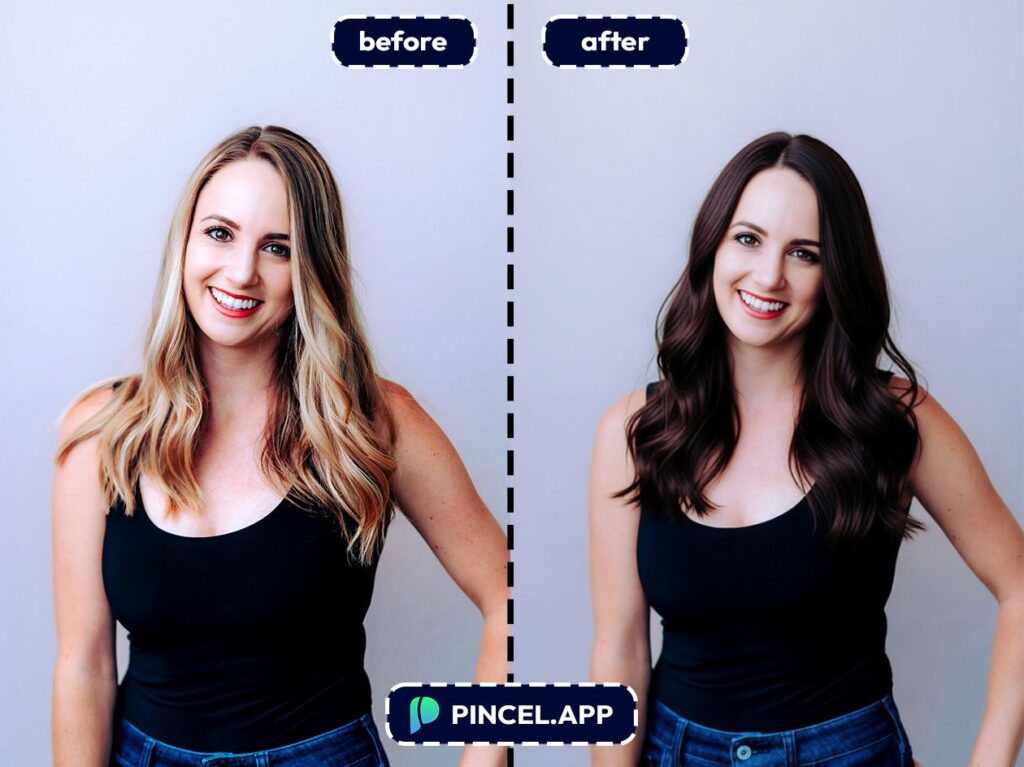
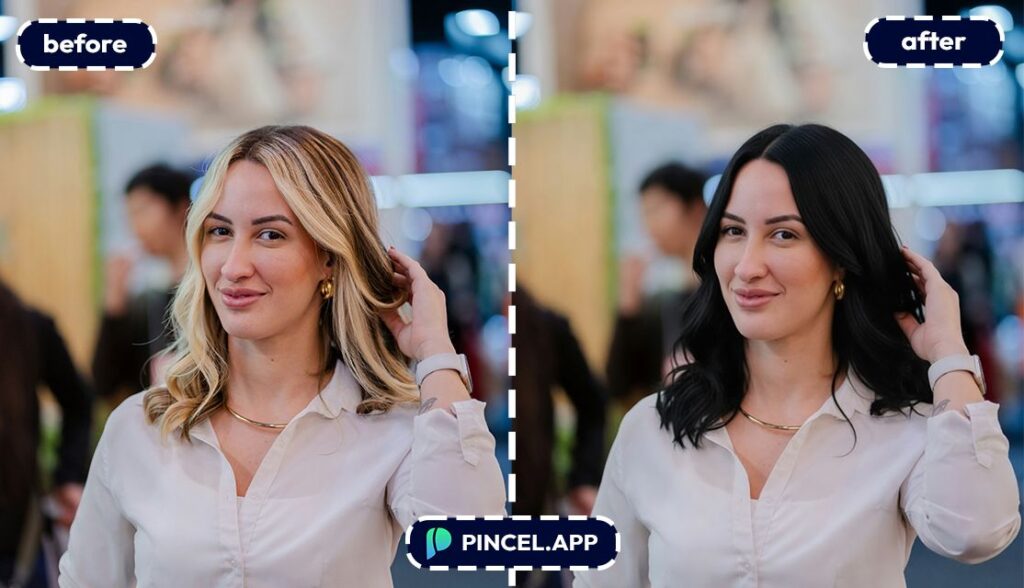
Simply upload your photo to Pincel AI Hair Studio , describe the shade of black you want, and see it on your face in seconds.
Here’s how it works:
Black Hair Sounds Simple… It Is Not 👩🦱
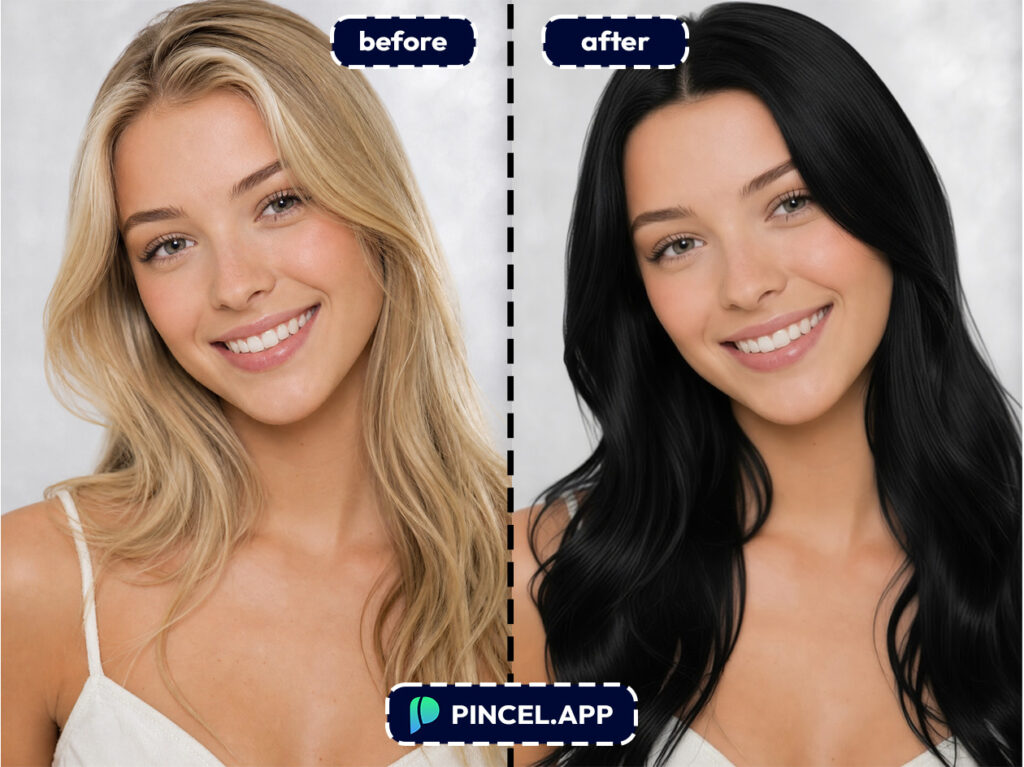
Black sounds like one simple color.
But it is not.
Jet black, soft black, blue black, brown black, each one looks completely different depending on your skin tone.
Photoshopping all these can also be very challenging.
You masking, adjusting shadows, blending all sounds very daunting.
Filter apps are even worse, because they just dump a solid color over your hair and ignore the lighting completely.
That is exactly why Pincel AI Hair Studio exists.
Upload your photo, describe the shade of black you want, and get a realistic result in seconds.
How to Make Hair Black on a Photo with Pincel AI Hair Studio ✅
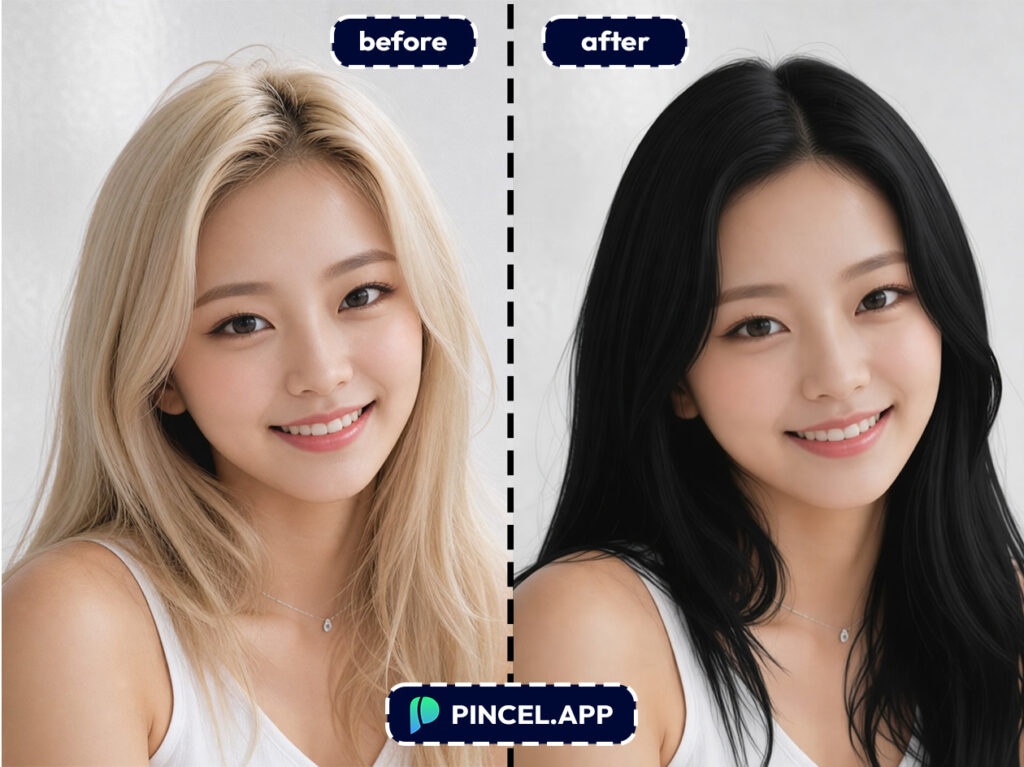
🖼️ Step 1: Upload a clear face photo
Go to Pincel AI Hair Studio.
Upload a front-facing portrait where your hairline is visible.
Selfies work great, and the tool keeps your identity, expression, skin, and outfit intact.
🎛️ Step 2: Pick a black hair look (no prompts needed)
Use the visual picker to choose what “black hair” means for you.
Try combinations like cut + color + length + texture, instead of guessing words.
Here are a few specific “inputs” you can aim for when selecting options:
- Jet black + long + wavy
- Soft black (natural) + medium length + straight
- Blue-black sheen + short bob
- Black hair + clean fade + light stubble beard
If you want a very specific haircut, you can also upload a reference hairstyle image to match.
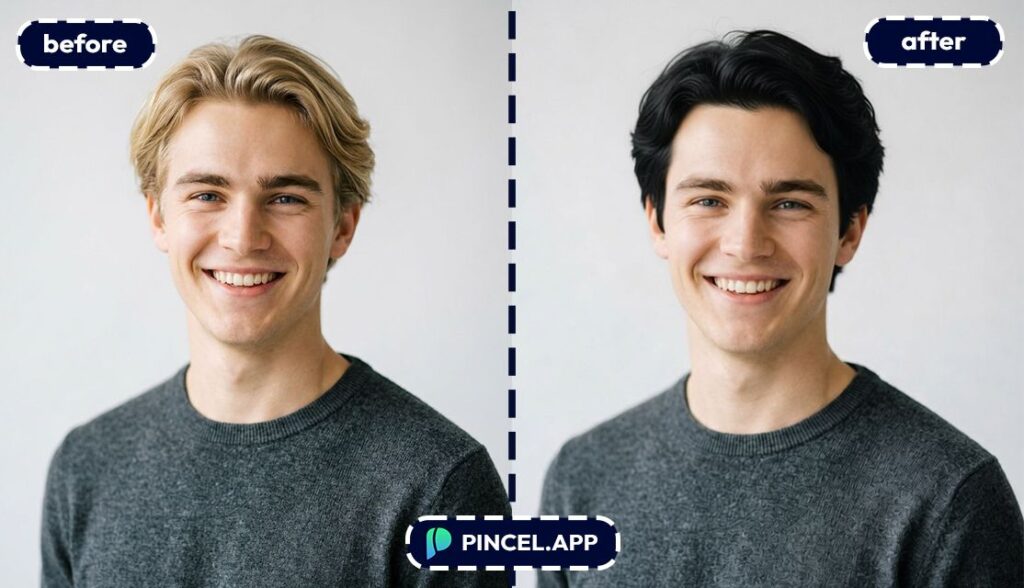
⚡ Step 3: Generate
Click Generate and wait a few seconds.
You’ll see a photorealistic result that respects the original lighting and keeps hair texture looking like… hair.
And because it’s fast, you can try multiple black shades and styles in under a minute.
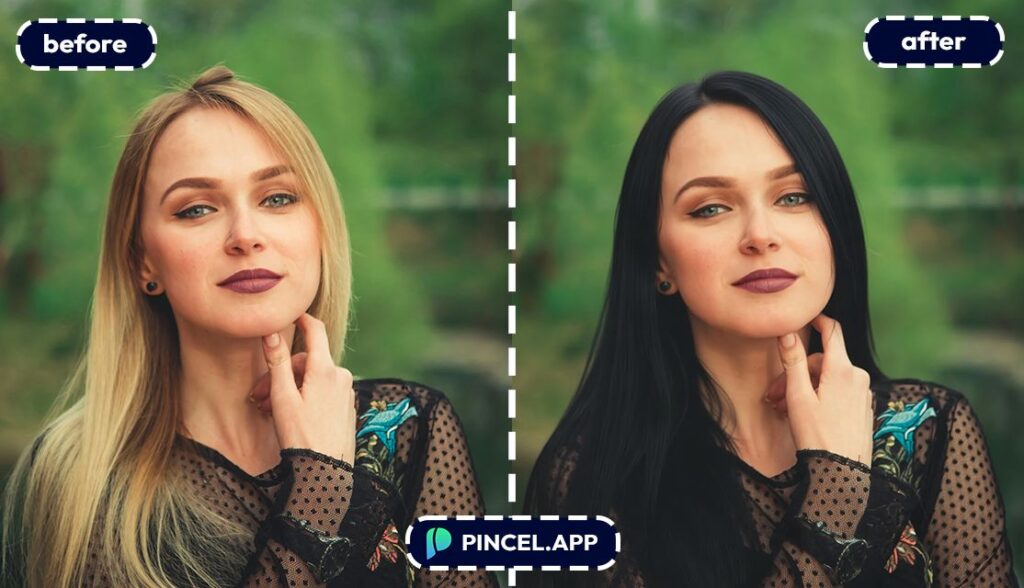
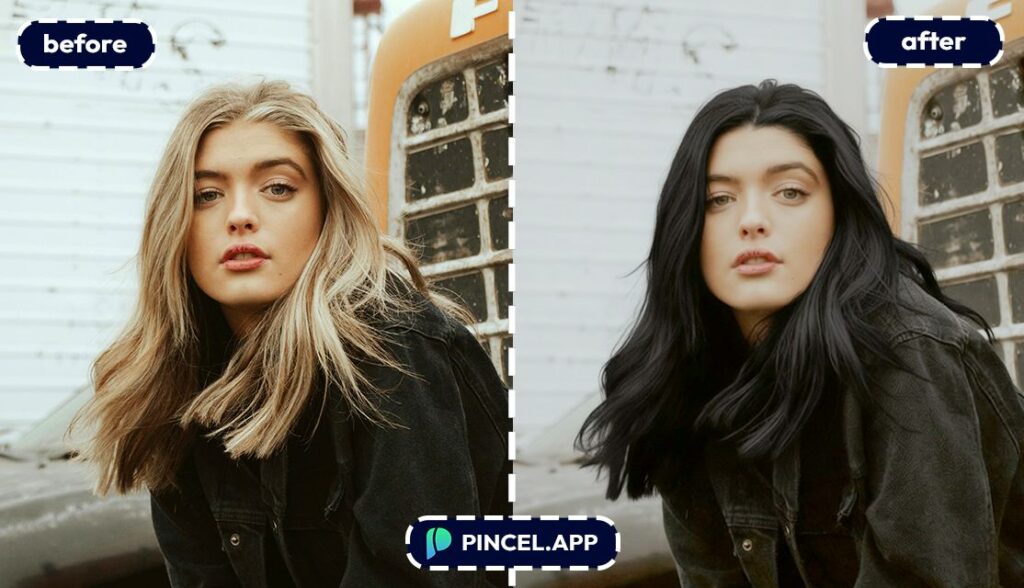
🌓 Step 4: Compare before/after
Use the before/after slider to check the change.
Look closely at the hairline, edges, and shine, since that’s where “fake” edits usually fail.
When it looks right, download it with one click.
Ready to test it on your own photo?
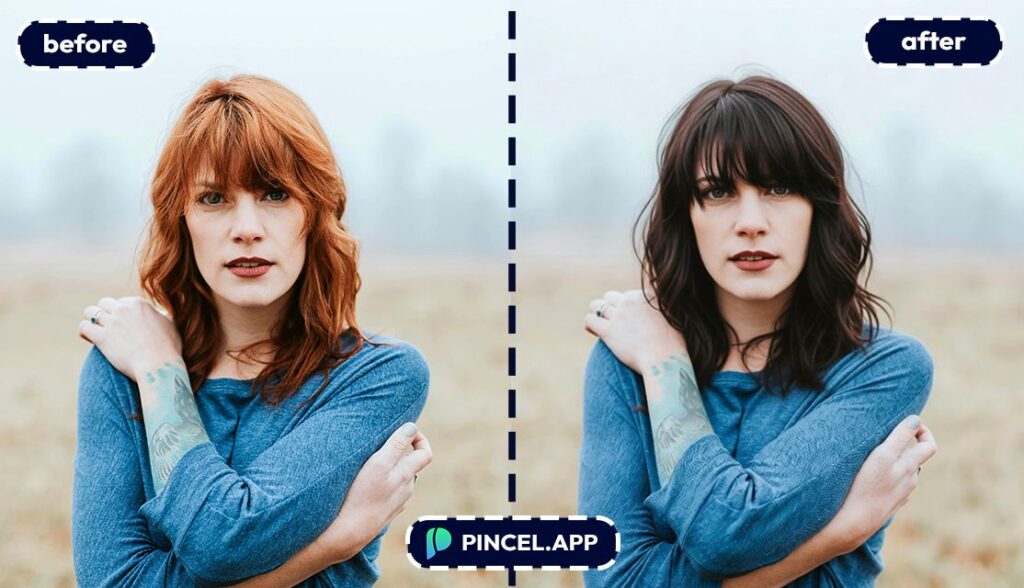
Who Is This For? Real-World Use Cases 👇🏼
Pre-salon decision makers — You can preview black hair before you commit to dye, toner, and the “what did I do” phase.
Bring your favorite versions to your appointment, the same way you’d bring inspo pics for a cut.
If you’re also planning a full glow-up, pairing this with a quick smile fix helps too.
Check out fix and whiten teeth on photo.
Color experimenters — Jet black, soft black, blue-black… they all read differently on camera.
And you can test them without bleach, damage, or waiting weeks to fade it out.
If your photo’s lighting is fighting you, a relight can make hair color previews look even more accurate.
Beard and grooming testers — Black hair changes how facial hair reads, especially stubble and beard density.
So it’s useful to preview combinations like black hair + clean shave vs black hair + full beard for a more cohesive look.
If you’re specifically exploring facial features, you’ll probably also like change eye color.
Hair-loss curious folks — Thinking about going shorter, buzzing it down, or just wondering how darker hair would frame your face?
You can test a tighter cut and a darker tone without committing.
If you’re in the “big change” mood, try a different framing shot too.
Here’s change camera angle.
Hairstylists and barbers — Consultations get easier when the client can see the black hair result instantly.
You can align on “natural black vs jet black” and agree on the vibe before anyone mixes color.
For quick mockups beyond hair, it’s handy to know you can also change clothes in photo.
Brides and event prep — Black hair can photograph dramatically, especially with certain lighting and dress colors.
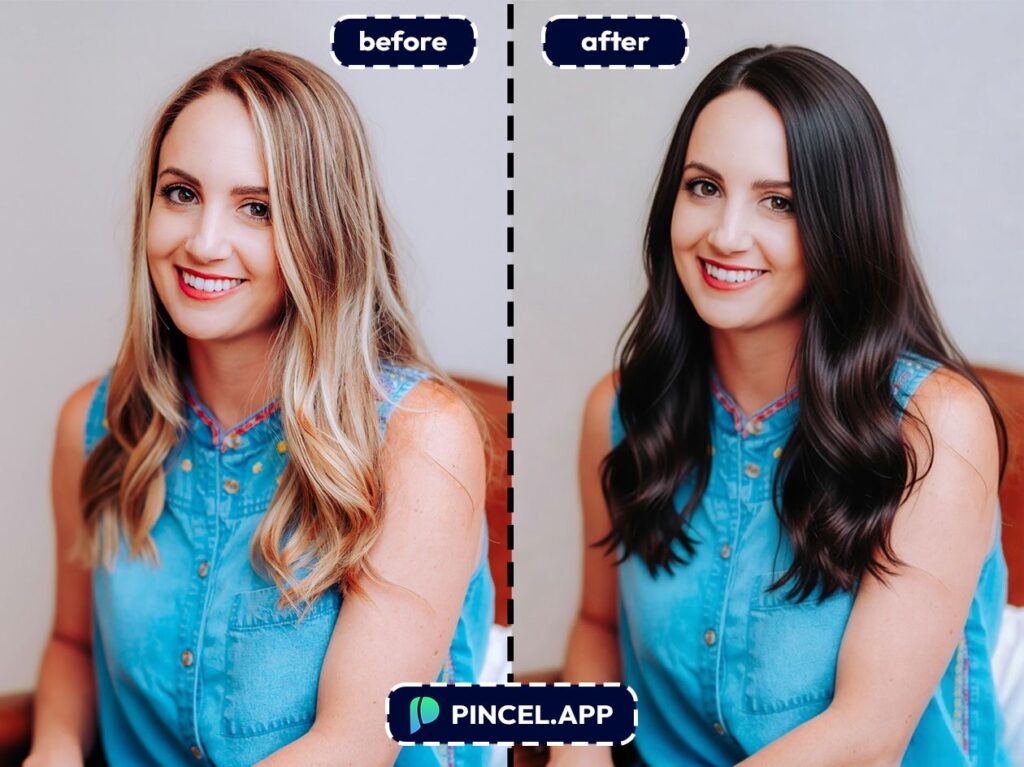
So testing it before a big event saves you from surprises on the day.
And if you’re prepping a formal headshot-style photo, this pairs well with AI resume photo.
Frequently Asked Questions 🤔
Will the black hair result still look like me?
Yes, the tool is designed to preserve your identity and facial features.
It changes the hair while keeping your face, expression, skin tone, and overall photo feel consistent.
Can I choose different shades of black (jet black vs natural black)?
Yes, and it’s worth doing because “black” isn’t one color on camera.
Try a softer natural black for realism, or a higher-contrast jet/blue-black for a bold, glossy look.
Because results appear in seconds, you can test a few options back-to-back and pick the one that feels most like you..
Does it work on selfies, old photos, or group shots?
It works best on a single, front-facing face photo where the hairline and overall hair shape are visible.
Selfies are usually perfect, and older photos can work if they’re clear.
Group shots are trickier because the tool is meant for one main face at a time.
Can I show the preview to my hairstylist or barber?
Yes, and it’s one of the smartest ways to use it.
Download a few versions (natural black, jet black, different lengths) and bring them to your consultation, so you’re both aligned.
Try Your New Hairstyle ✂️
You have thought about going black for a while now.
It could change your whole face completely.
Instead of spending hours in photoshop or mobile, try Pincel AI Hair Studio
Simply upload your photo, try a few variations, and see which one actually feels like you.
Once you find it, take it straight to your stylist.

