
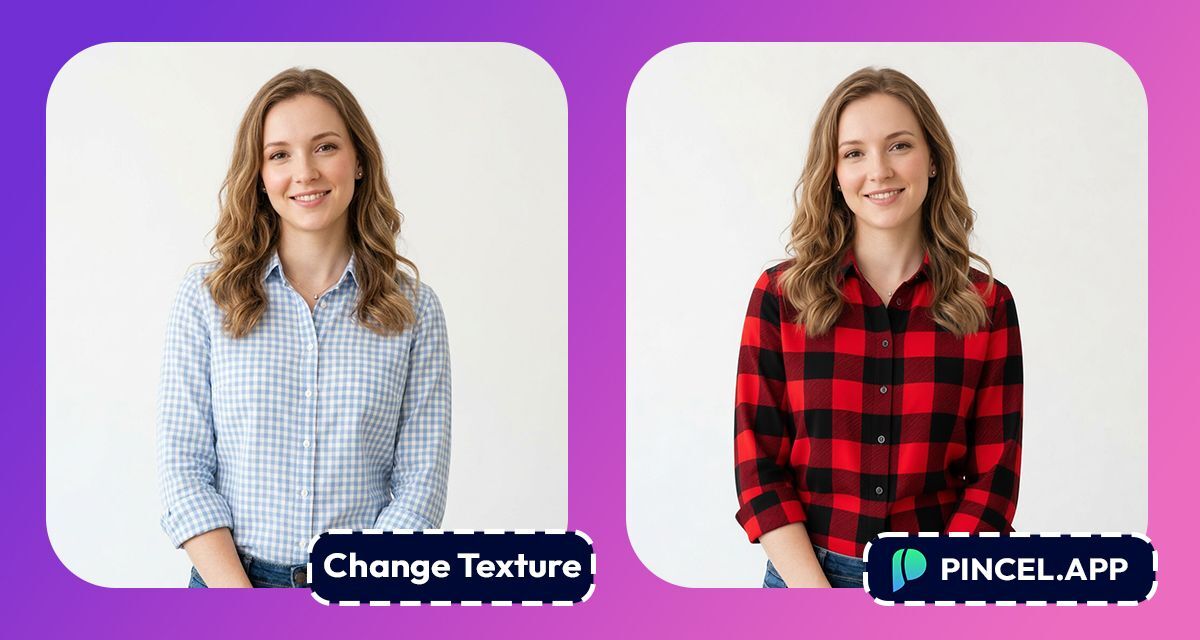
Texture is the visual or physical surface of an object.
It defines how a material’s look.
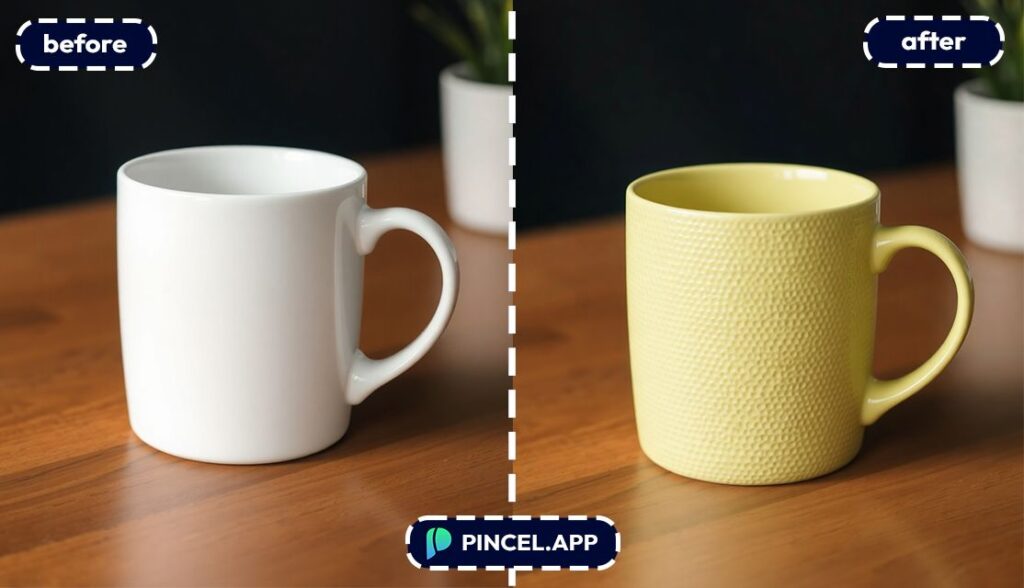
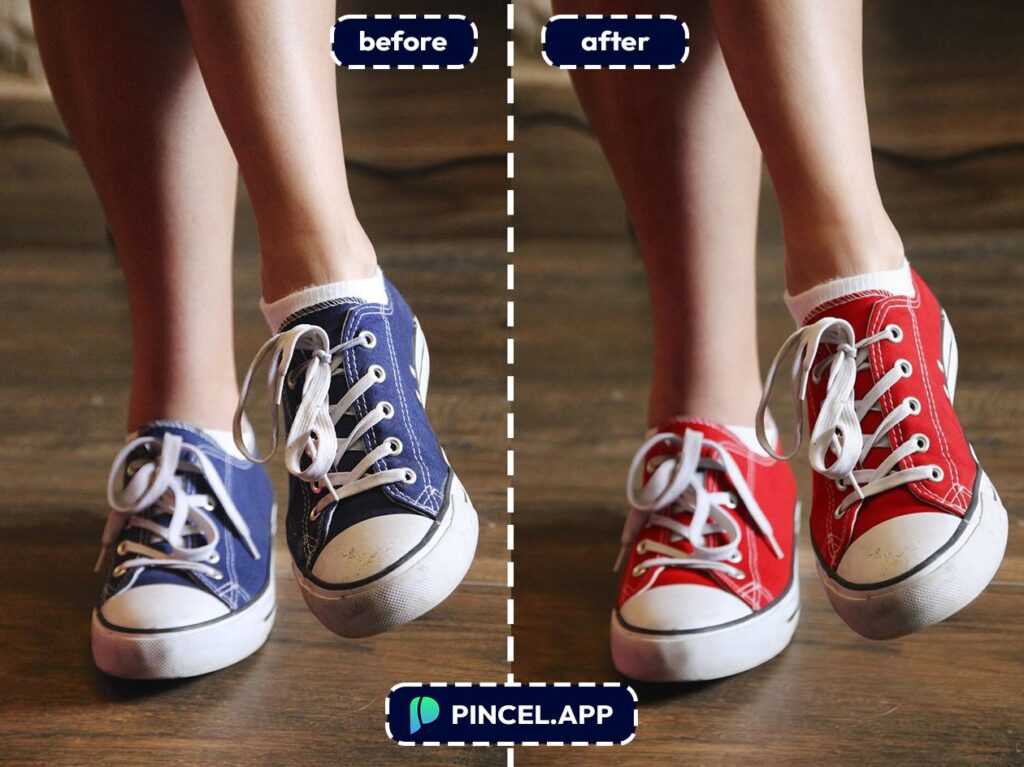
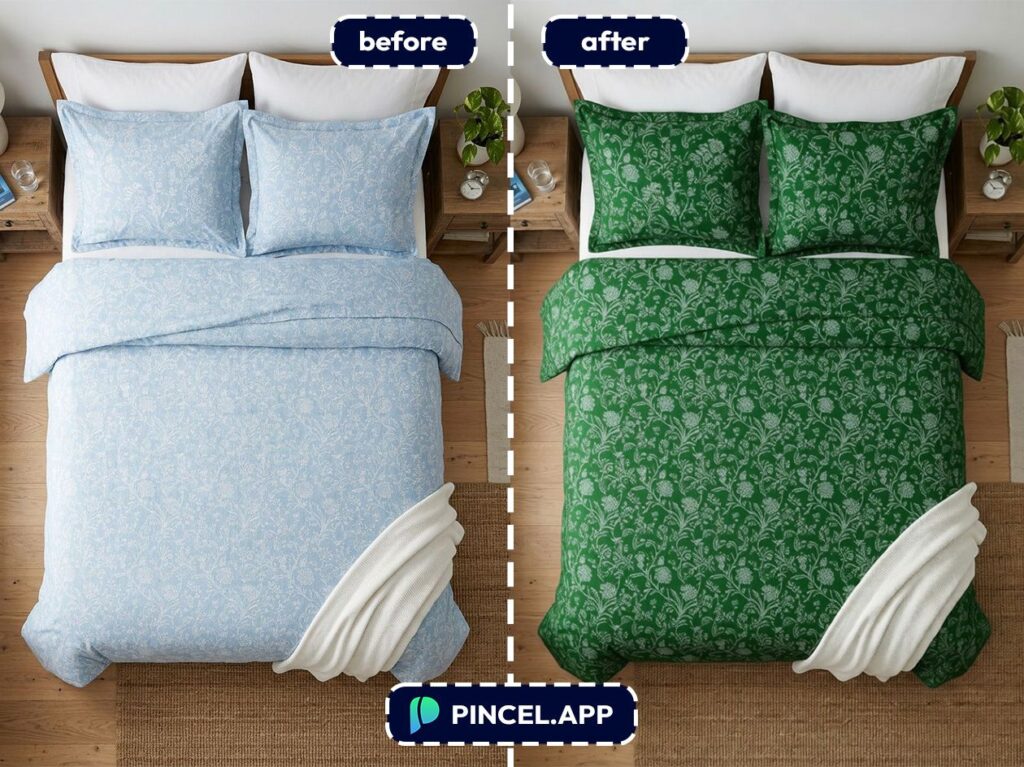
Simply changing the texture can completely transform the look of fabrics, curtains, sneakers, decor, furniture etc.
In the past changing texture meant spending endless hours in photoshop.
But now, with Pincel AI Photo Editor, you can apply a new texture to an object using AI in under 10 seconds.
All you need to do is simply upload your photo, type a simple prompt, and let the AI do the rest.
Here’s how it works
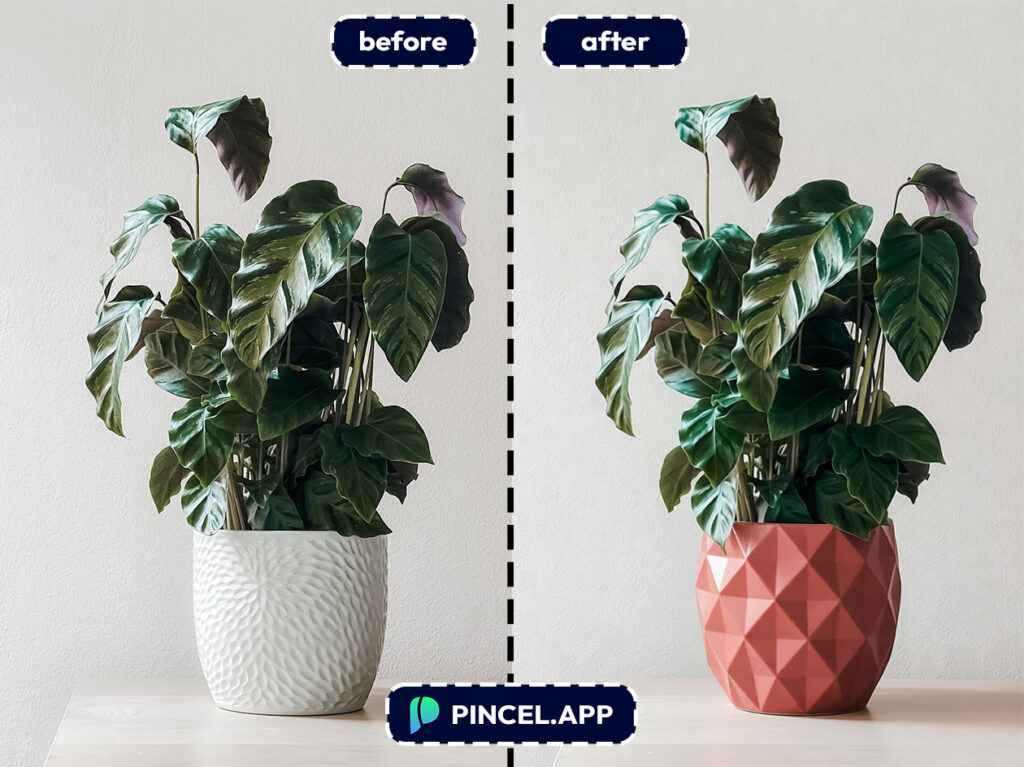
Re-Texturing Objects Manually Is a Pain
With photoshop if it possible to change the texture…
But you need to spend significant time learning and applying this correctly.
Simple correction means match lighting, shadows, perspective, curvatures.
Paying someone to do it also means extra cost and communication hassle.
That’s exactly why Pincel AI Photo Editor exists.
It handles the hard parts automatically, and you get a result in seconds.
No layers and no blend-mode wizardry.
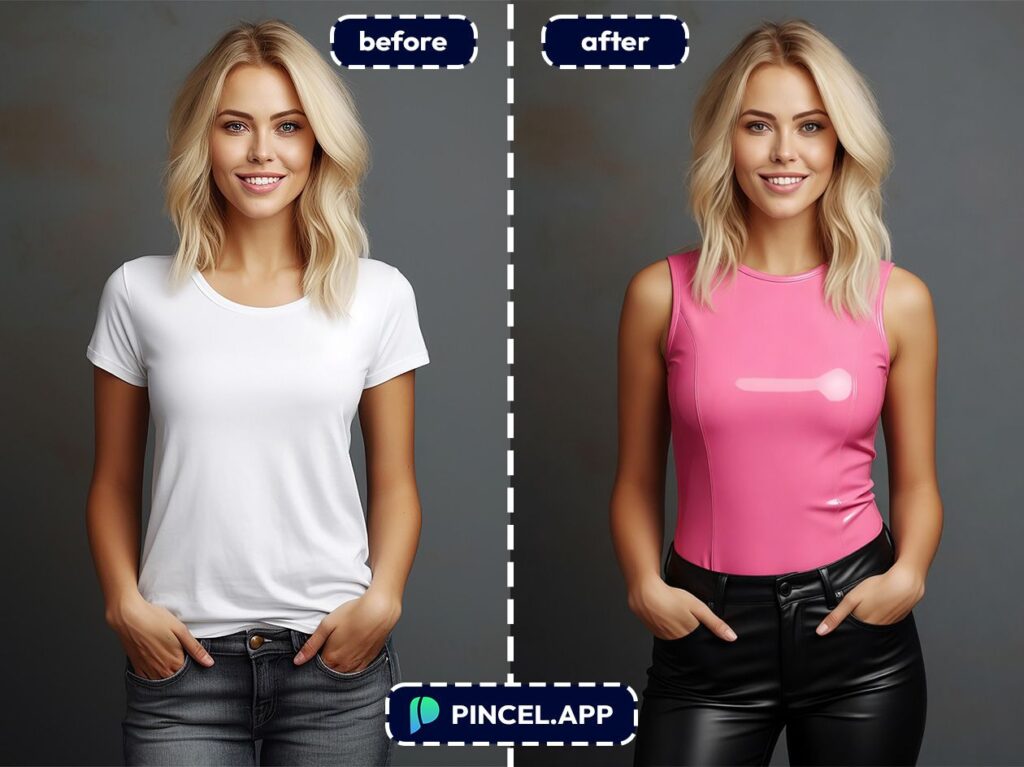
How to Apply a New Texture to an Object ✅
🖼️ Step 1: Upload Your Photo
Open the Pincel AI Photo Editor.
Click upload and choose your image.
A clear photo helps.
But even quick phone shots work surprisingly well.
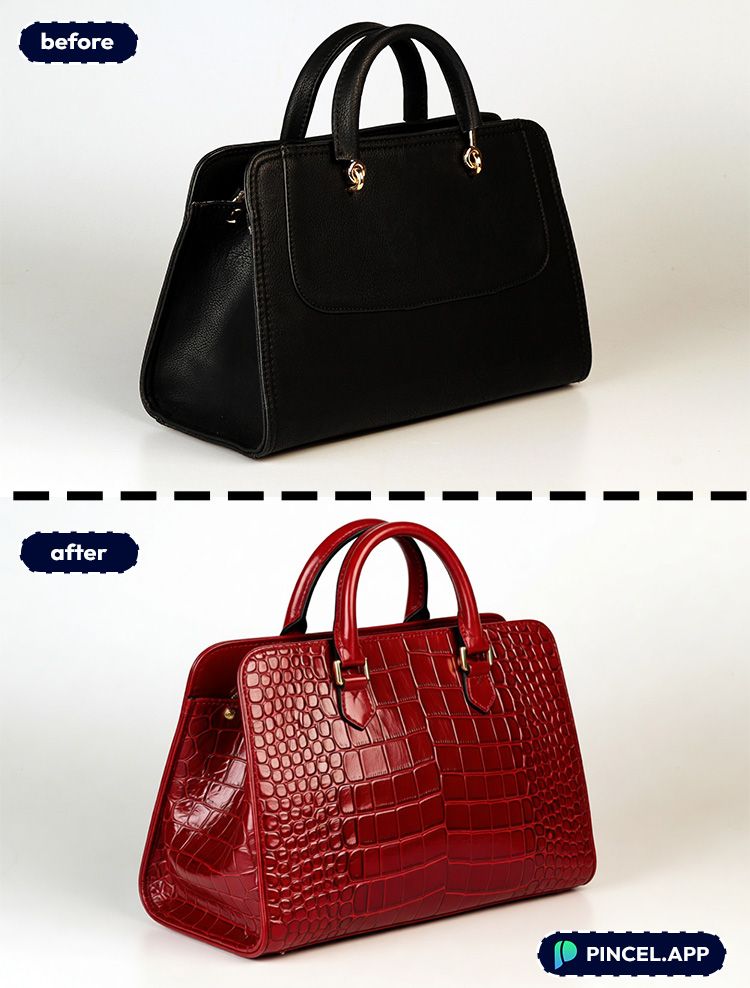
📝 Step 2: Tell the AI What to Re-Texture
In the prompt box, describe the object and the material you want.
Try prompts like these (copy these):
- “Change the sofa fabric to brown leather, keep the same shape and lighting”
- “Make the wooden tabletop look like white marble with subtle grey veins”
- “Replace the car paint with brushed metal texture, realistic reflections”
- “Turn the backpack material into black carbon fiber, keep logos unchanged”
If the object is small, call it out.
Like “the mug in the person’s right hand” or “the left shoe.”
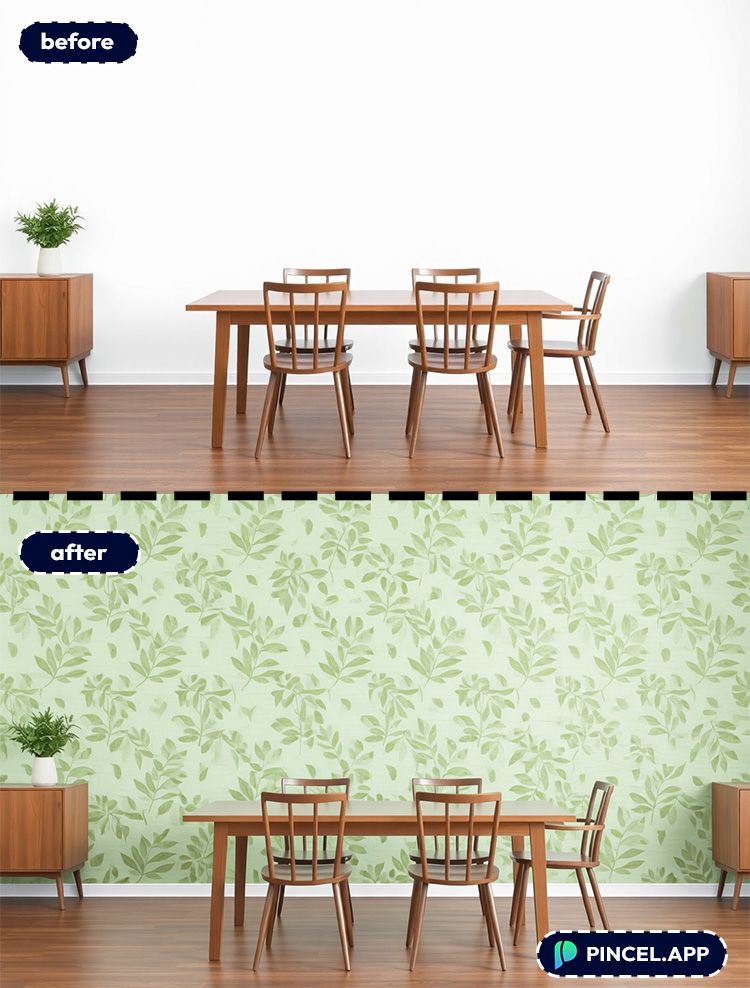
In addition to describing you can also upload the texture you want to add and type simple prompt like “place the design on the wall as wallpaper, add design texture”
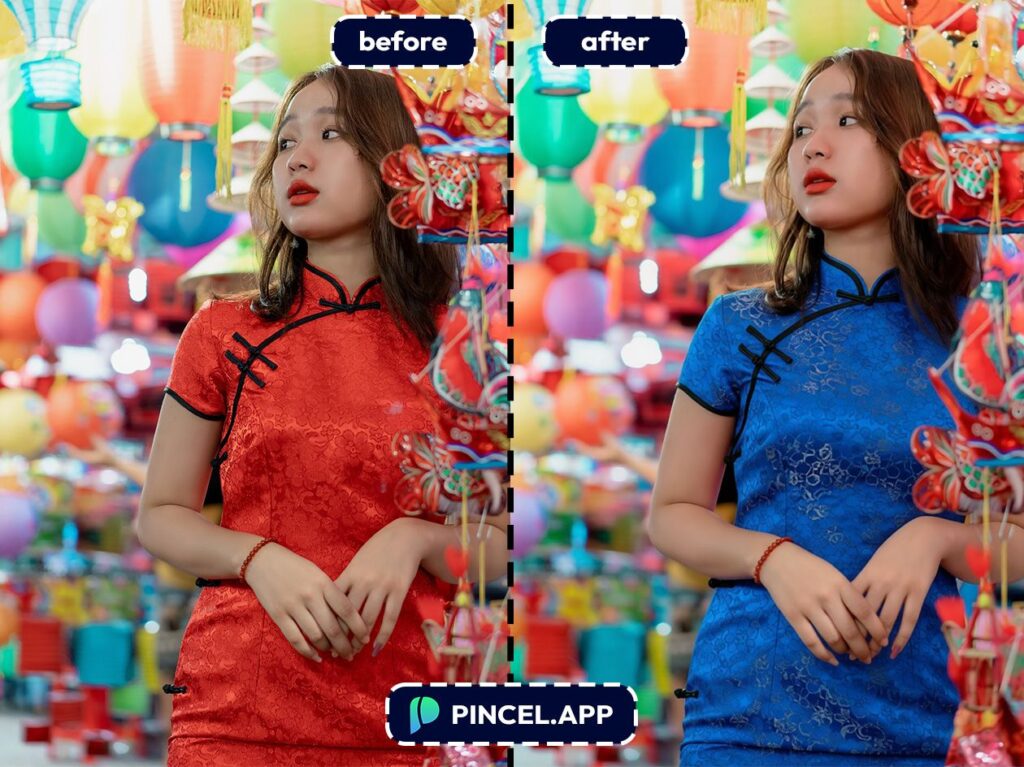
⚡ Step 3: Click Generate
Hit Generate and wait 5–10 seconds.
The AI reinterprets the material while preserving the layout and subject consistency.
So the object stays where it is, but the texture changes in a natural-looking way.
If it’s close but not perfect, tweak one detail. For example: “more matte,” “less glossy,” or “finer weave.”
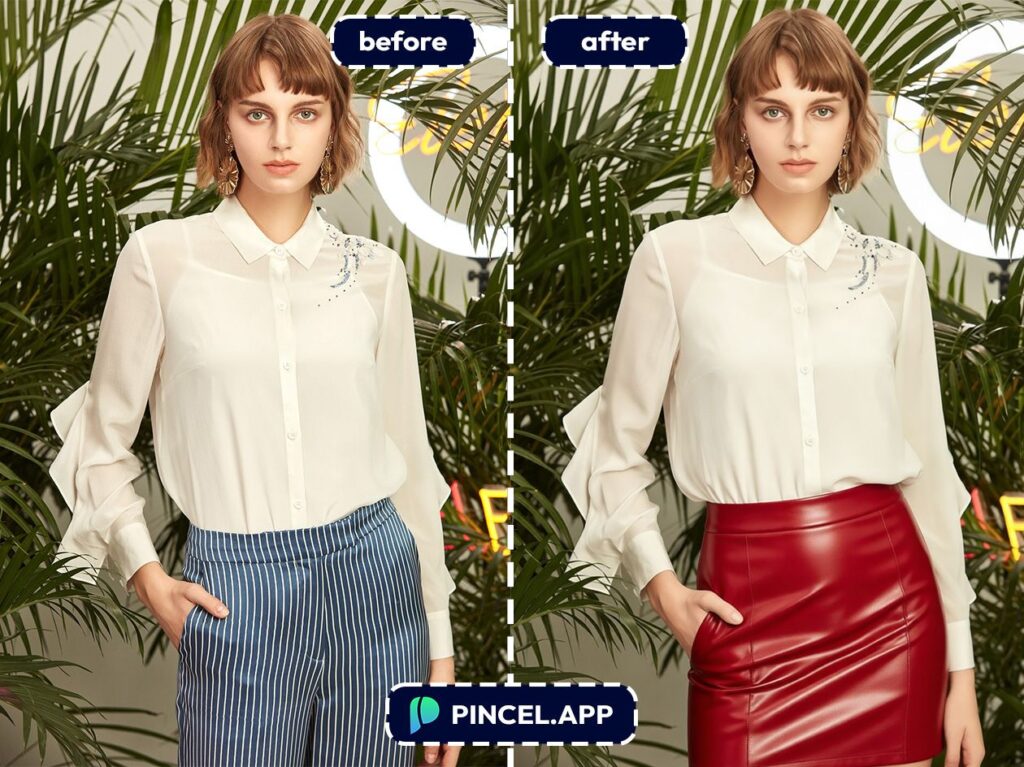
📥 Step 4: Refine and Download
Regenerate if you want variations.
It’s often faster to do two quick iterations than one super-long prompt.
Then download your final image.
Ready to test it on your own photo?
Who Is This For? 👇🏼
E-commerce sellers — Turn one product photo into multiple “materials” for A/B tests.
This pairs perfectly with AI product photography.
Marketers making ad creatives — Need the same scene but different finishes (wood vs. marble vs. steel)?
Generate options in seconds and pick the best performer.
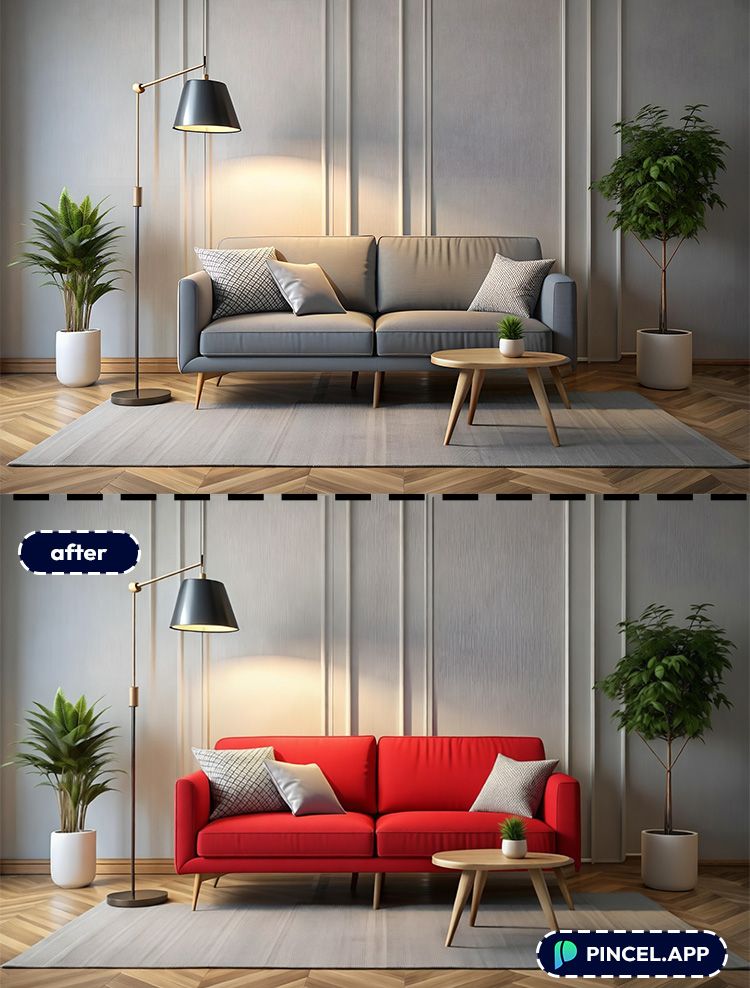
Interior design moodboards — Swap surfaces to explore ideas without re-rendering anything.
And if you want to go further, check out AI garden design for outdoor concepts too.
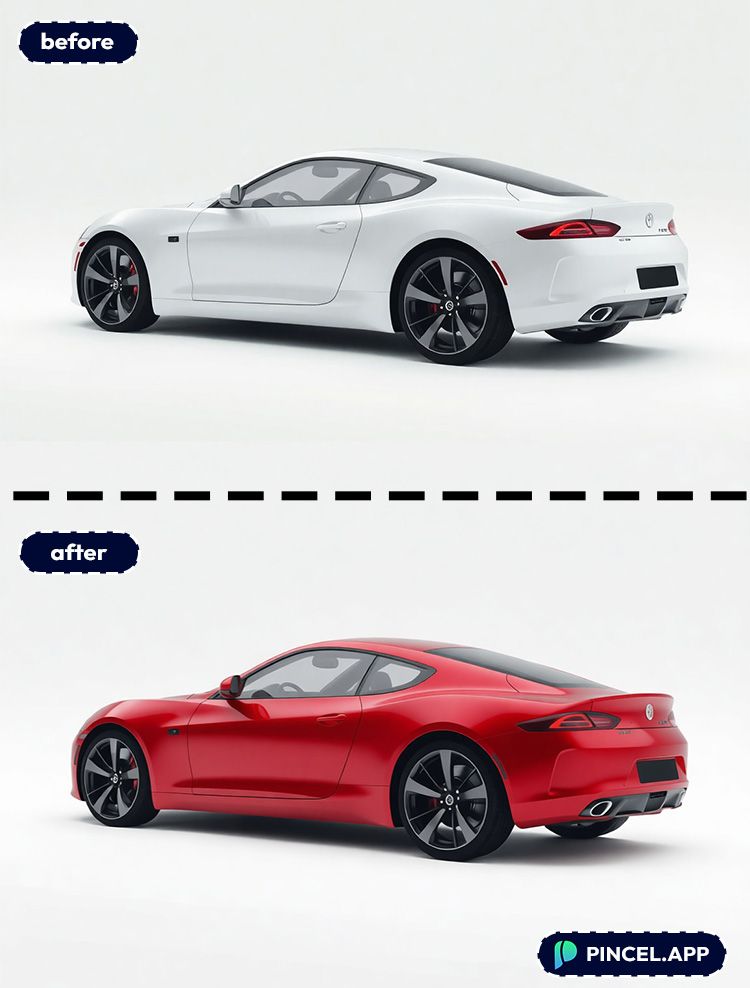
Car and bike enthusiasts — Preview wraps, paint, and finishes before you commit.
If you’re focused specifically on paint colors, see change car color.
Creators and influencers — Make your setup look “new” without buying new gear.
One desk photo becomes walnut, concrete, or glossy white.
Restoration and enhancement — Old photos and scuffed objects can look fresh again.
If you’re already doing face cleanups, remove wrinkles with AI is another quick win.
Design mockups without design software — Put a realistic texture on packaging, labels, or signs.
And if you need wording changes after, use edit text on image.
Creative experiments — Turn everyday objects into fantasy materials.
Stone iPhone? Velvet helmet? Polished obsidian sneakers? Go wild (tastefully).
Frequently Asked Questions 🤔
How do I apply a new texture to an object using AI?
You can apply a new texture to an object using AI by uploading your photo to Pincel AI Editor, typing a prompt describing the object and texture, and generating the edit.
Most results show up in 5–10 seconds.
If needed, refine the prompt and regenerate for a cleaner match.
Can AI change the texture without changing the object’s shape?
Yes, AI can change texture while keeping the object’s shape, position, and overall composition.
Pincel AI Editor is designed to preserve layout and subject consistency during edits.
Being specific in your prompt (“keep the same shape and lighting”) helps.
Can I use a reference image?
Yes, instead of simply describing a new texture, you can also use a second reference image for the new texture.
Does this work for product photos and listings?
Yes, this works well for product photos, especially when you want quick variations of materials or finishes.
It’s a great companion to combine photos when you’re building quick marketing composites.
Just make sure your product is clearly visible and not heavily blurred.
Is Pincel AI Editor free to try?
Yes, Pincel AI Editor gives you 20 free credits with no credit card required.
That’s enough to test multiple texture changes and iterations before upgrading.
Each generation uses credits, so quick prompts help you experiment efficiently.
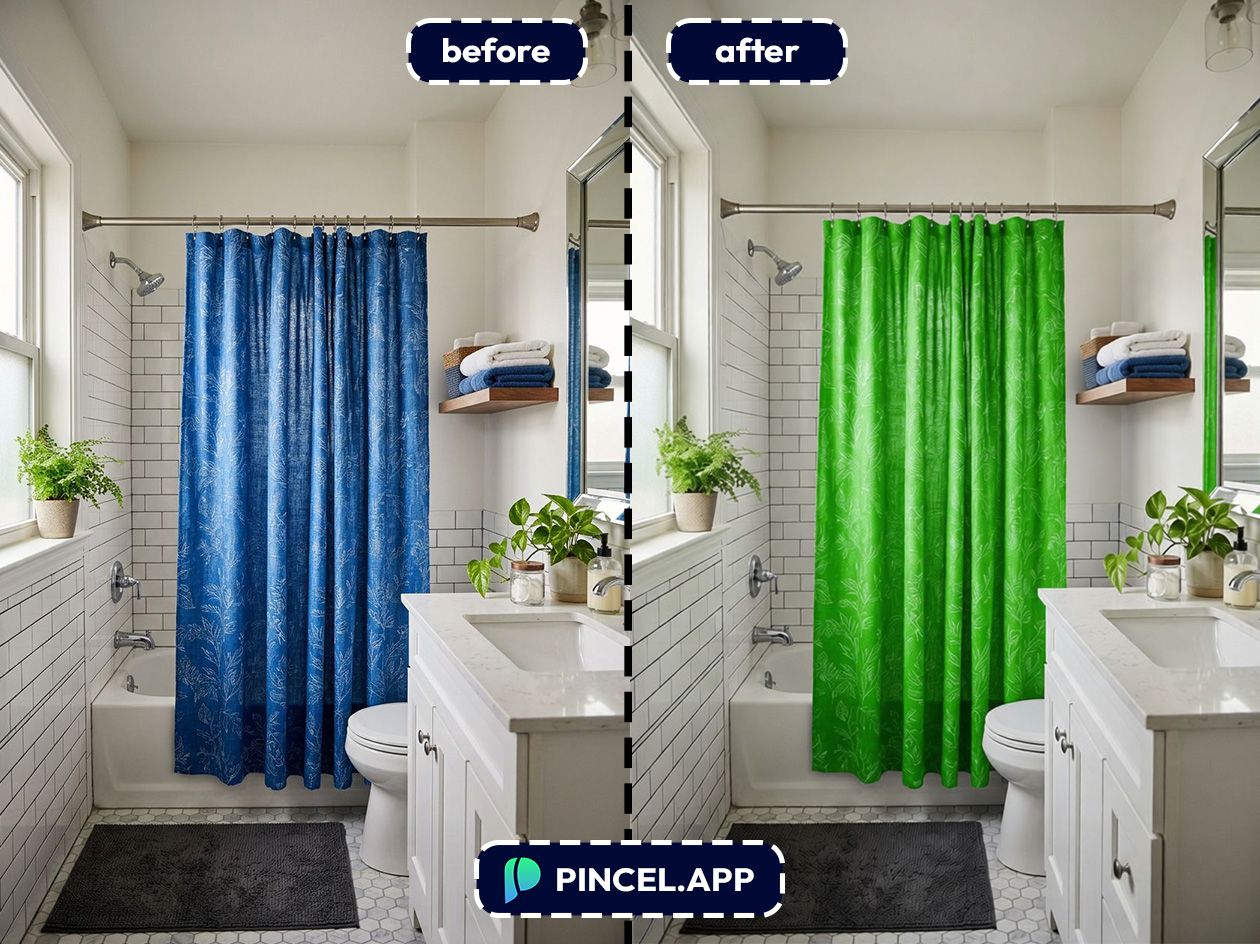
Changes Textures in Seconds 👇🏼
Trying different textures gives us an idea of how the same product looks in different designs.
In the past where we had to spend endless hours in photoshop.
Now with Pincel AI Photo Editor we can now do it in10 seconds.
So go ahead and try different textures in your images.

