
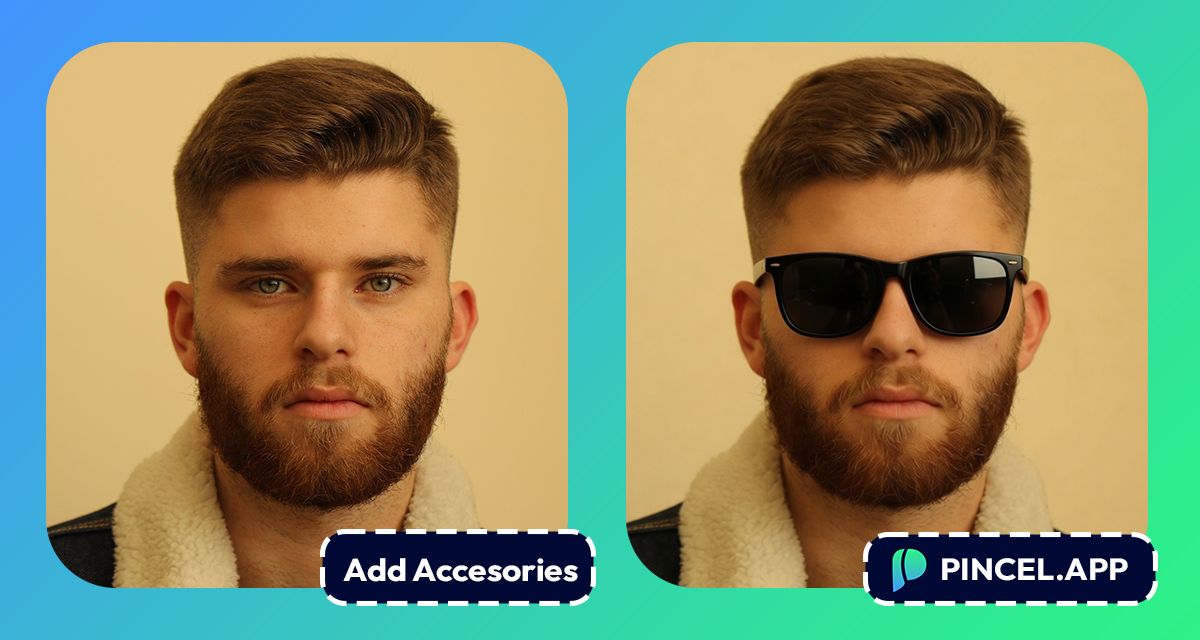
Small details make all the difference… also in photos.
Have a great photo, but you feel something is missing.
Maybe a hat would have been nice or a golden earring would be beautiful.
That one detail that makes the whole look feel finished.
Not just as a photographer, maybe you want to see how you would like with the latest sunglasses in the market.
You can use photoshop of course and spend hours fixing your photo.
Or you can use Pincel AI Photo Editor.
With Pincel AI Photo Editor, you can add accessories to photos using AI in under 10 seconds.
Here’s how it works:
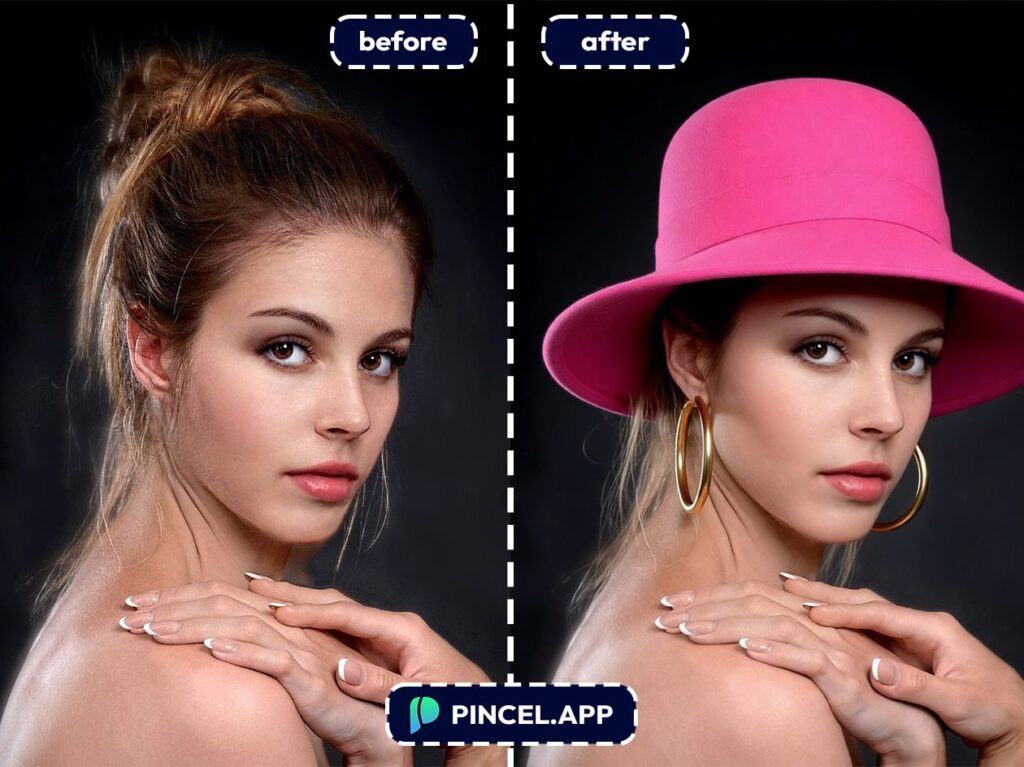
Why Adding Accessories Manually Is a Total Pain 😩
If you’ve ever added sunglasses or jewelry in Photoshop, you know it’s not quick.
You find an overlay or PNG and try to match the angle.
Then try to make it look… real.
That’s why Pincel AI exists.
You just describe what you want.
You describe the accessory you want, and it generates a realistic edit that fits your photo, in seconds.
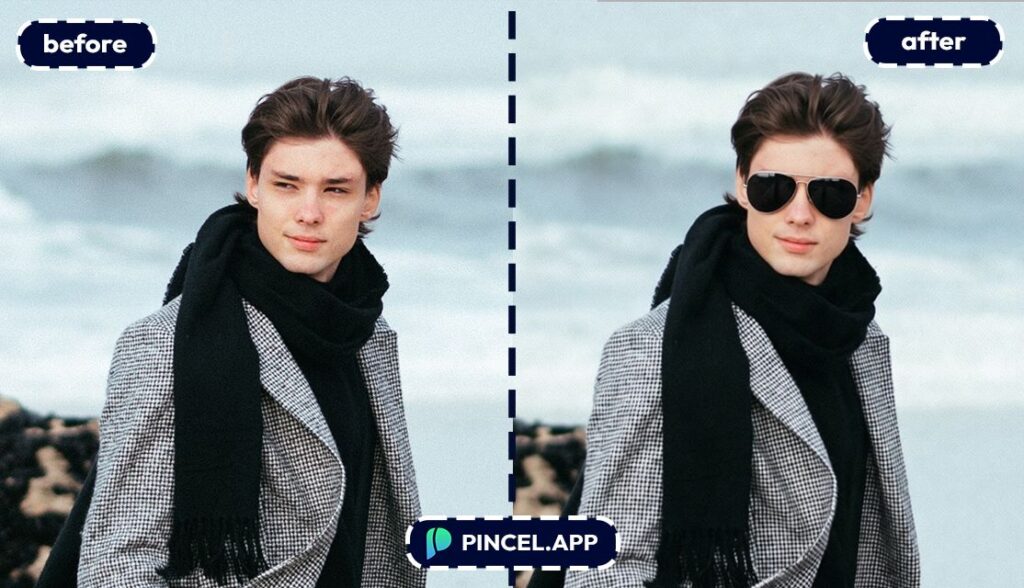
How to Add Accessories to Photos Using AI ✅
🖼️ Step 1: Upload Your Photo
Head over to Pincel AI Photo Editor.
Click “Upload Image” and pick the photo you want to upgrade.
Front-facing portraits are easiest, but angles work great too.
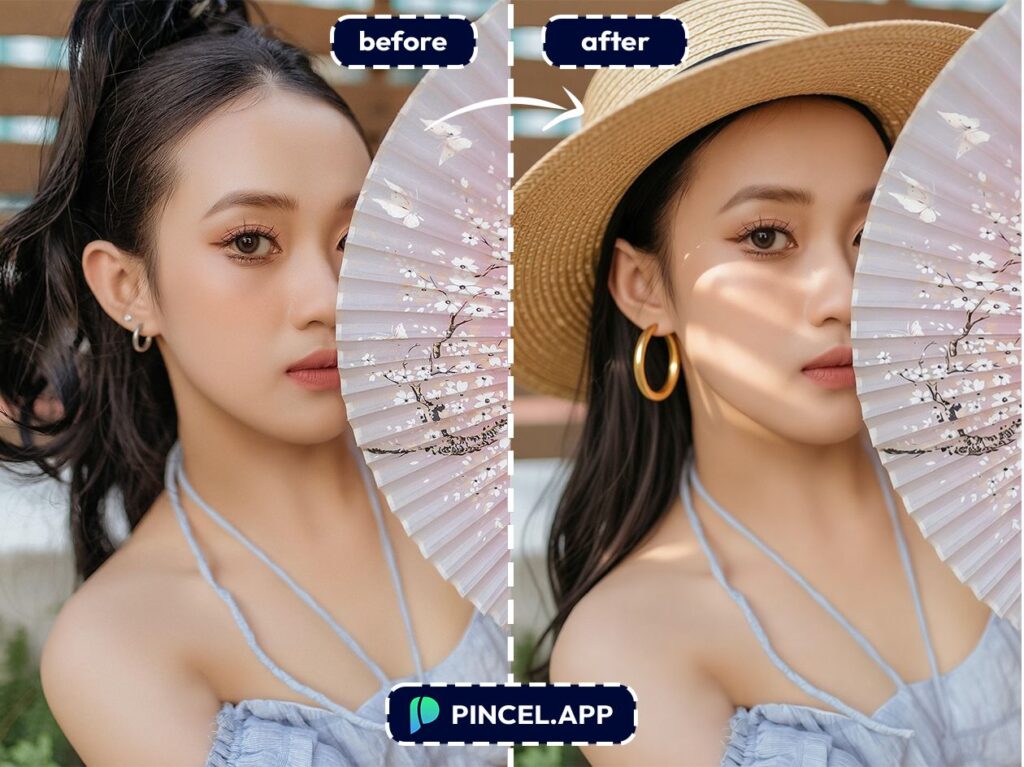
📝 Step 2: Describe the Accessory You Want
In the prompt box, type what you want to add, plus a few details.
Try prompts like:
- “Add black aviator sunglasses with realistic reflections, keep face and lighting the same”
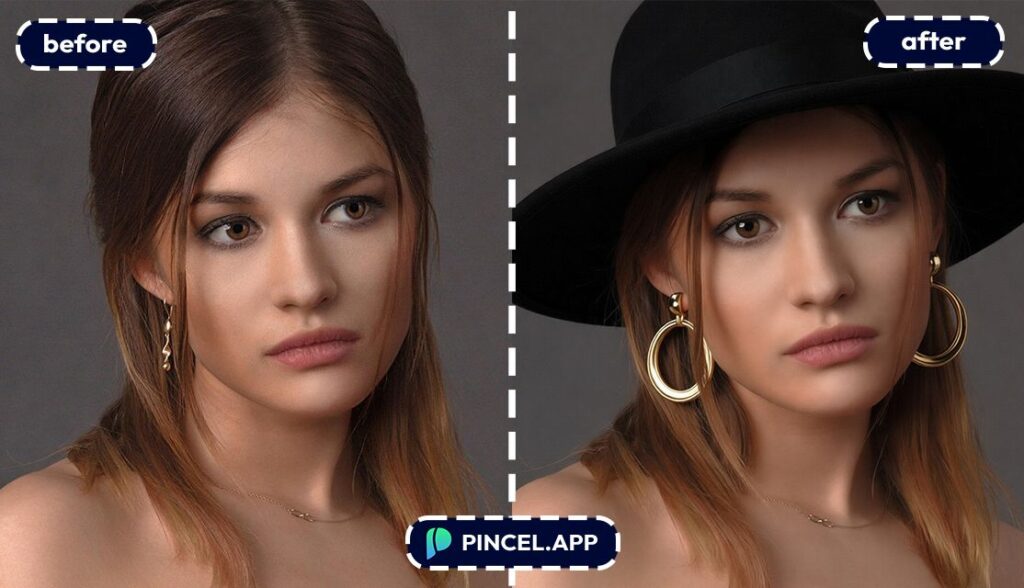
- “Add small gold hoop earrings, natural shadows, blend with hair”
- Add gold hoop earrings, natural shadows, blend with hair, hat on head
- “Add a beige baseball cap, adjust perspective to match head angle”
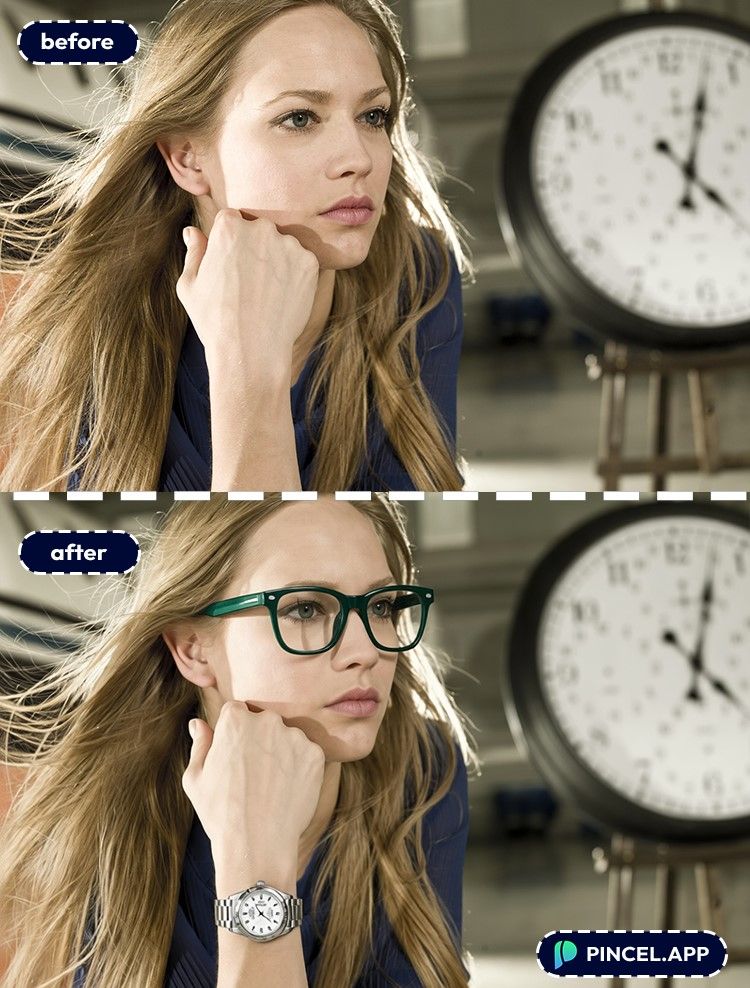
- “Add a silver wristwatch on the left wrist, realistic metal highlights”
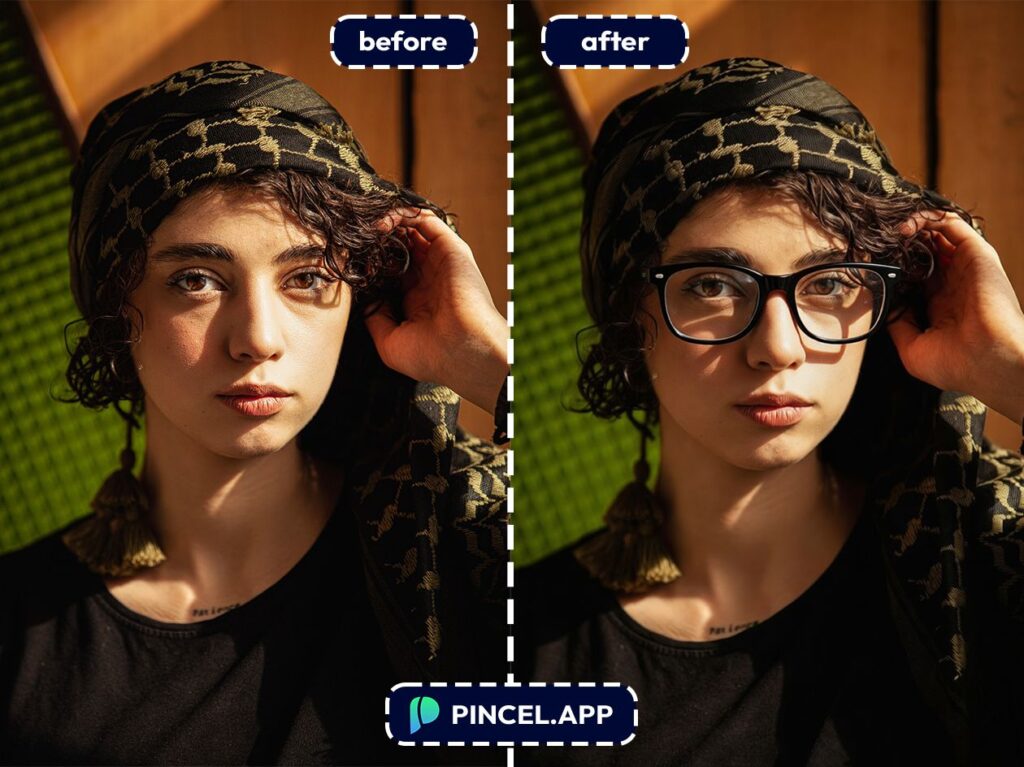
- Add dark frame reading glass frame on eyes on face, realistic highlights and details
- Add classic hat on head, realistic highlights and details
If you want it subtle, say “minimal” or “thin.”
If you want it loud, say “chunky,” “oversized,” or “statement.”
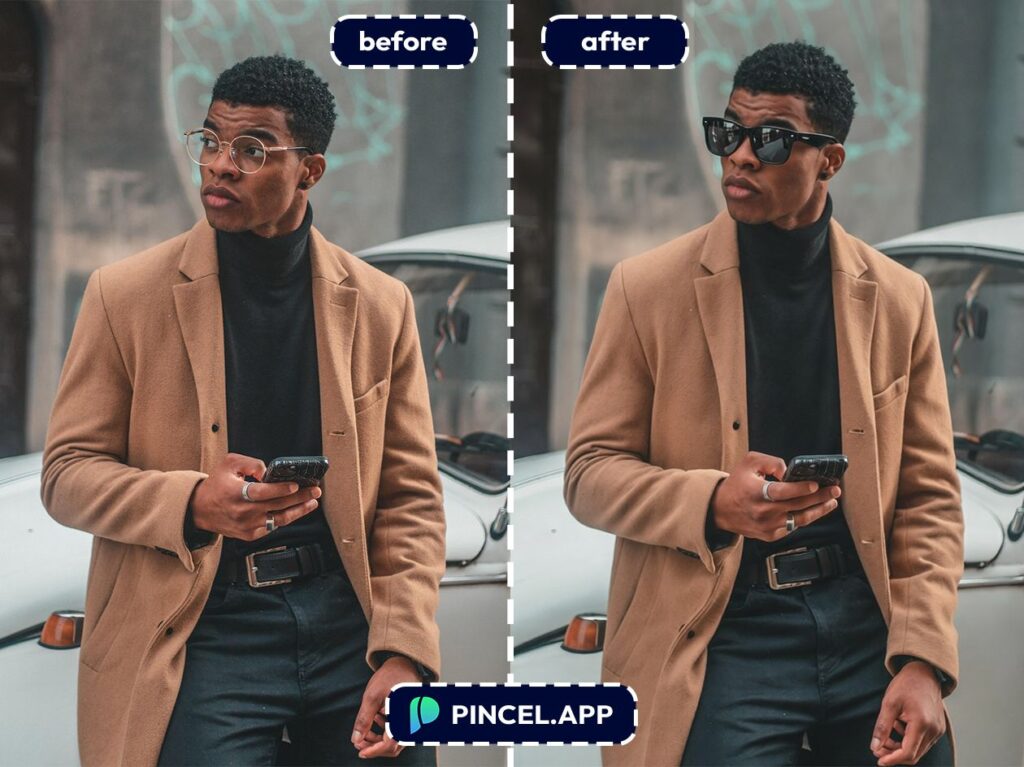
⚡ Step 3: Click Generate
Hit Generate and wait a few seconds.
Pincel will match the accessory to your face angle, lighting direction, and overall photo style.
If the first result is close but not perfect, tweak one detail and generate again.
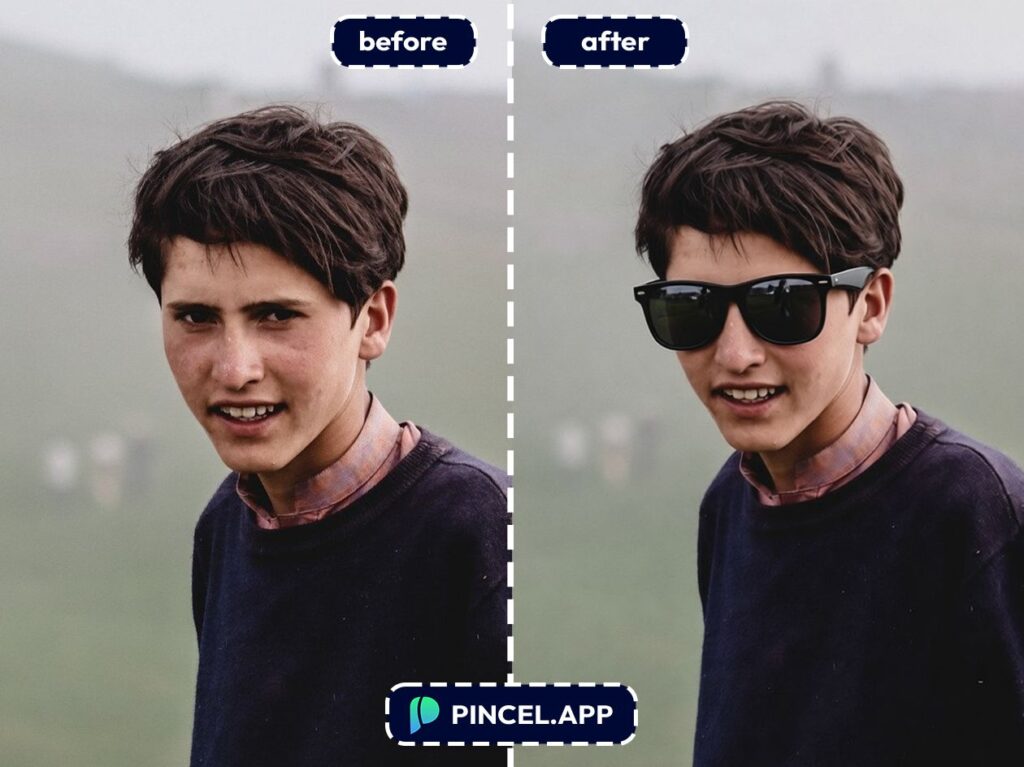
📥 Step 4: Download or Keep Refining
Once it looks right, download your edited image.
You can also stack edits, like adding glasses first and then a hat after.
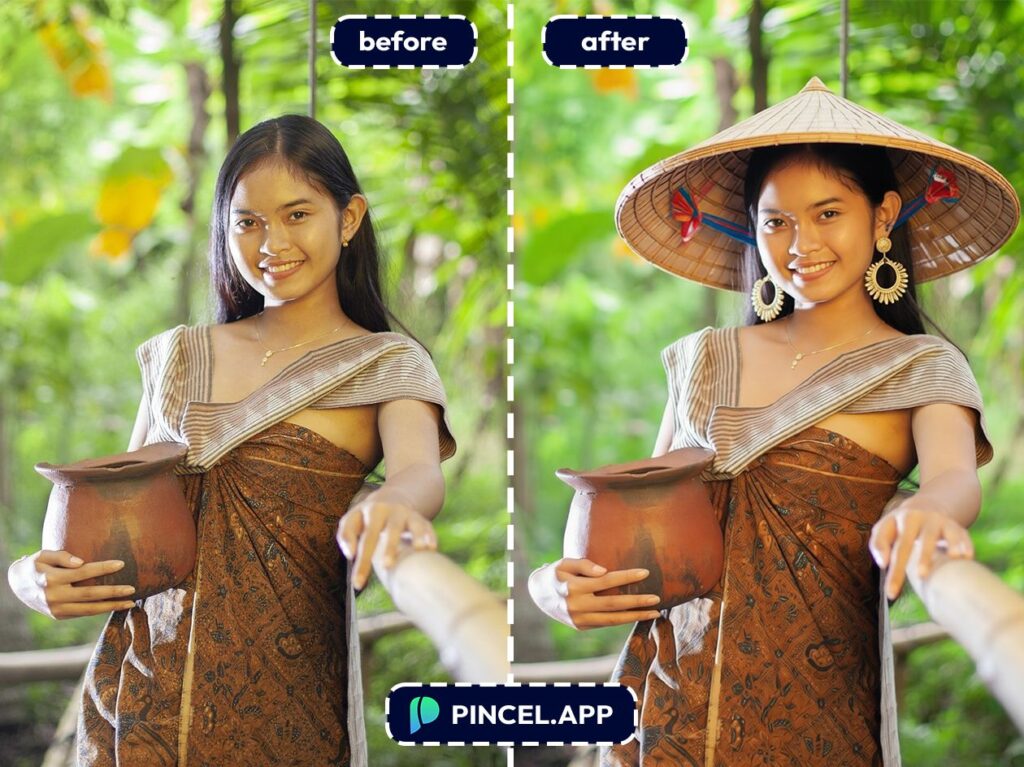
Who Is This For? 👇🏼
Content creators — Make thumbnails and profile pics pop without needing a new shoot.
If you also change your whole vibe, pair this with change pose in photo or change camera angle.
Fashion try-ons and styling mockups — Test “Does this hat work?” before buying it.
And if you want bigger wardrobe changes, use change clothes in photo or browse AI fashion styles.
E-commerce sellers — Add accessories to model photos for quick listing variations.
This is especially handy alongside AI product photography.
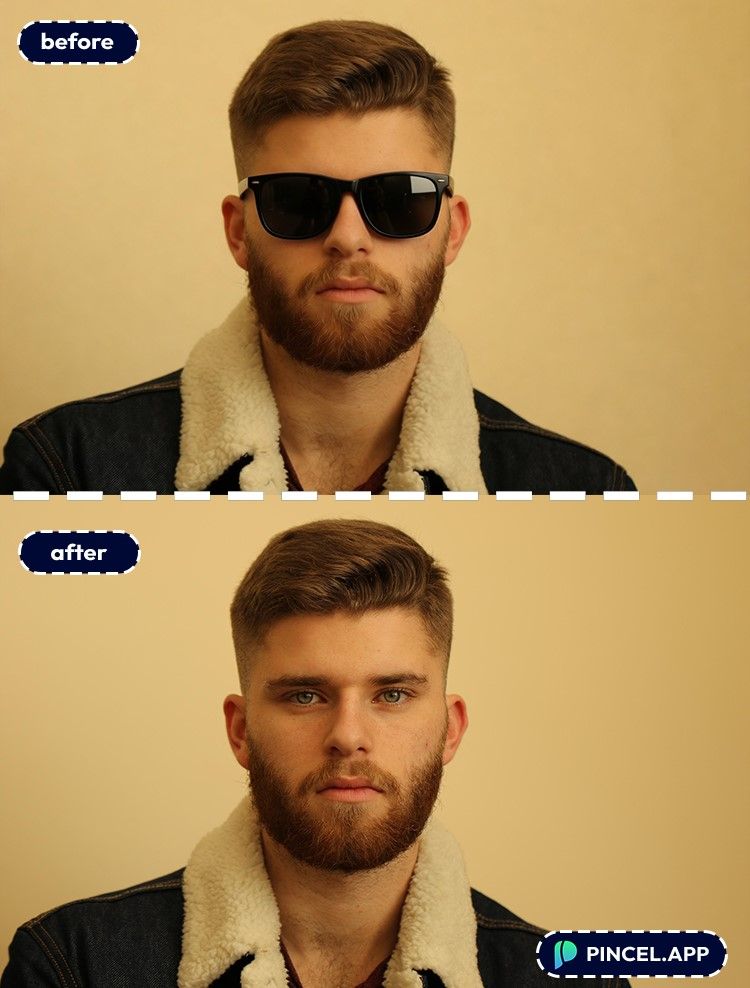
Personal branding (LinkedIn, creators, speakers) — Add a clean watch, subtle glasses, or a polished look that matches your brand.
If you’re building a professional profile image from scratch, see AI resume photo and AI passport photo.
Event photos and weddings — Fix “I forgot my sunglasses” vacation shots, or add tiny details to match a theme.
And if the lighting is the real issue, relight photos with AI is a lifesaver.
Glow-ups and beauty experiments — Add glasses, earrings, or a cap to see how it changes your face shape and vibe.
You can combine it with change eye color or even long hair AI.
Creative portraits — Turn a normal selfie into a character: monocle, crown, cyberpunk visor, you name it.If you’re going full “portrait mode,” AI Memoji is also a fun detour.
Frequently Asked Questions 🤔
How do I add accessories to photos using AI without it looking fake?
You get realistic results by describing the accessory plus the realism cues.
Add phrases like “realistic reflections,” “natural shadows,” “match lighting,” and “blend with hair” to guide the model.
Can AI add glasses, hats, and jewelry to an existing photo?
Yes, Pincel AI Photo Editor can add glasses, hats, earrings, necklaces, and more to a real photo.
Upload your image, describe the accessory, and generate in a few seconds.
What photos work best for adding accessories?
Clear, well-lit portraits work best, especially where the face, ears, or wrists are visible.
But casual selfies still work, and you can regenerate until the placement looks right.
See How it Works in less Than 30 Seconds 👇🏼
What prompts should I use to add accessories to photos using AI?
The best prompts specify the item, color/material, and realism details.
For example: “Add thin gold rim glasses, realistic reflections, match lighting” or “Add pearl stud earrings, subtle, natural shadows.”
Is Pincel free to try?
Yes. Pincel gives you 20 free credits with no credit card required.
That’s enough to test multiple accessory edits and dial in your favorite look.
Accessorize Now 🕶️ 💍 🧢
You don’t need Photoshop layers.
You don’t need random PNGs from page 7 of Google.
And you definitely don’t need to spend 45 minutes making changes.
Just upload your photo. Describe the accessory. And hit generate.
Done in seconds.
Want new glasses? Try it.
Vacation hat? Go for it.

